Add custom code to all website pages
You can install HTML, CSS, and JavaScript code from third-party resources on your website. This helps you integrate analytics tools, add widgets, include animations, and apply other features.
In this article, we will talk about how to add custom code to all website pages.
Go to your website settings
To add scripts that will work on every page of your website, go to the Websites section, select your site, and click Site settings.
Go to the Custom code tab and click Add code to site.

Select your code location
Choose where to place the code — <head> or <body> sections.
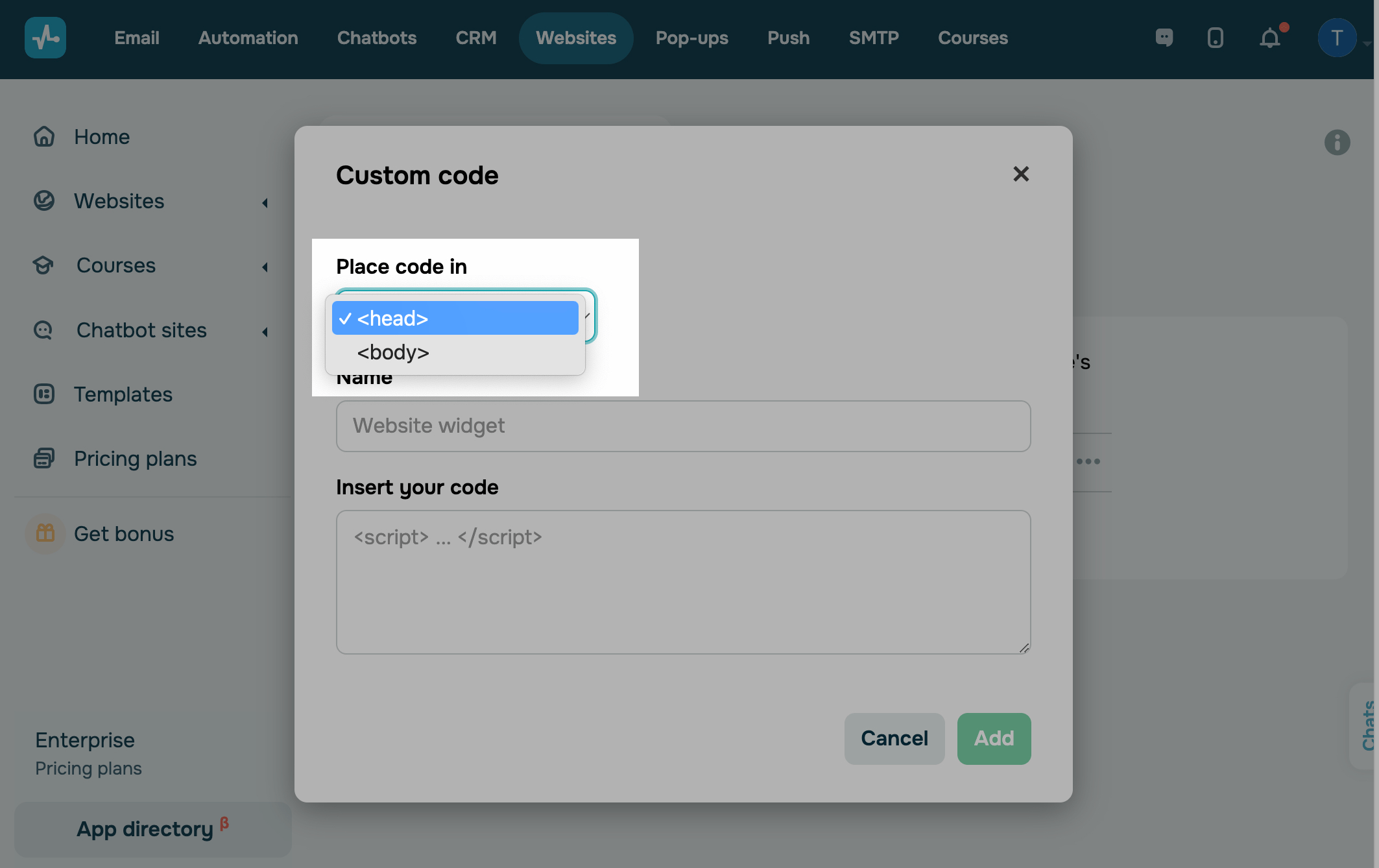
Insert your code
Enter a name for the code you add, and then add the code.
Make sure you copy all the code you need, including the opening and closing tags. Pay attention to which section you place it on your site.

Click Add.
Test your code
Please note that there are no restrictions on the inserted code, but the external code may incorrectly affect your site. Check the result of code execution on the site after you publish it.
In case of incorrect script execution, or if you have other questions about the work of the code, contact the support of the service from which you copied the code.
You can also view the added code and edit it. To do this, go to the site settings, the "Custom code" tab, click on the site to view the code, and use in the drop-down menu opposite to edit it.
Read our article How to Index a Site on Google for an example of adding code.
 Last Updated: 04.12.2025





or