The Comment element in Automation
With the Comment element, you can leave notes for yourself and your team in the flow builder. Comments don't affect how your flow runs.
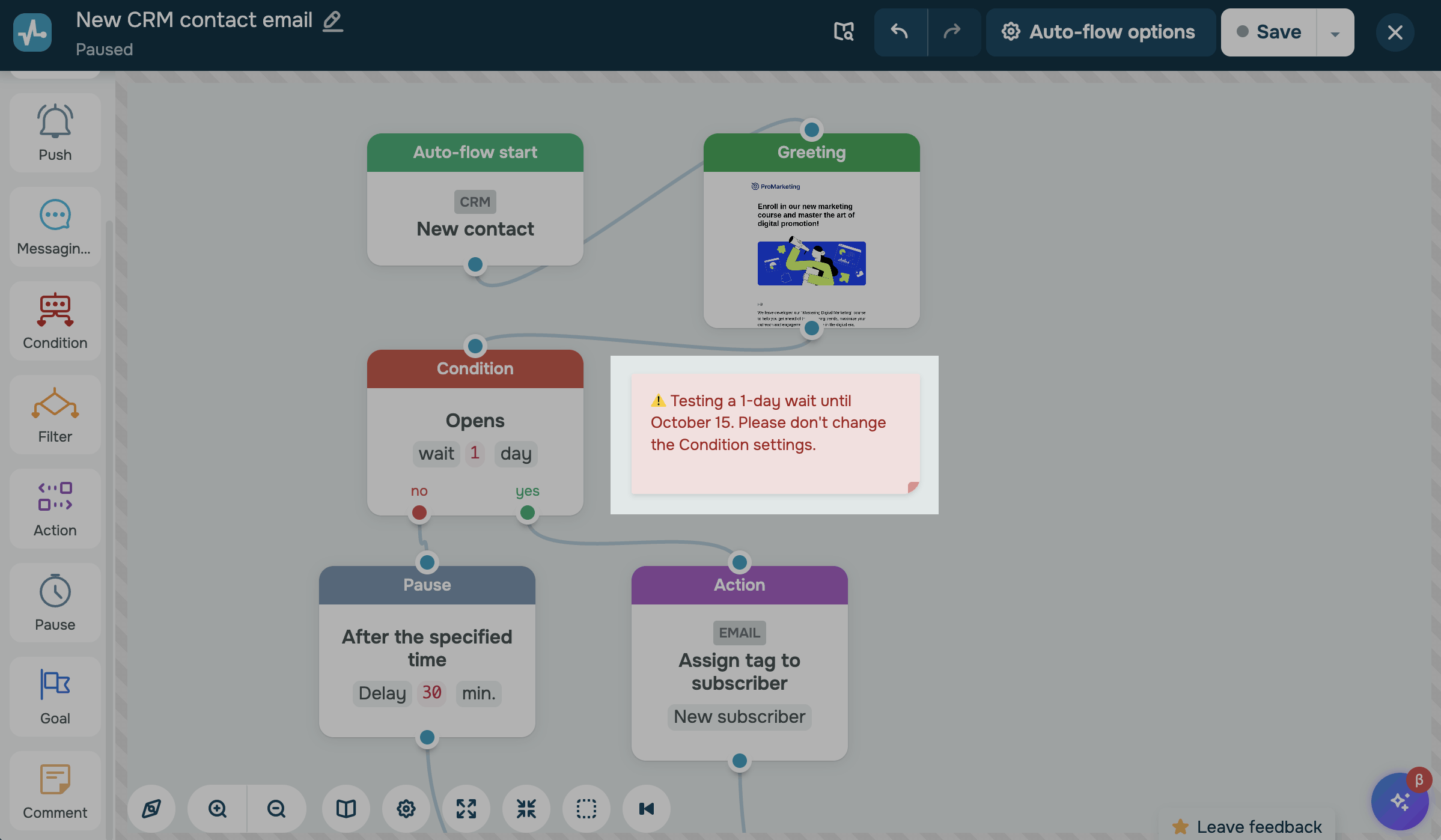
For example, you can explain how a flow branch works, leave reminders, or mark a part of the flow that needs changes.
Let's talk about how to add, customize, and manage comments.
Add a comment
Every flow supports up to 20 comments, each with up to 512 characters of text and emoji.
If your flow already has 20 comments, a notification lets you know that you can't add or copy more.
To add a comment, go to Automation > Dashboard. Click the three dots next to your flow and select Edit. In the builder, drag the Comment element from the left sidebar to the workspace.
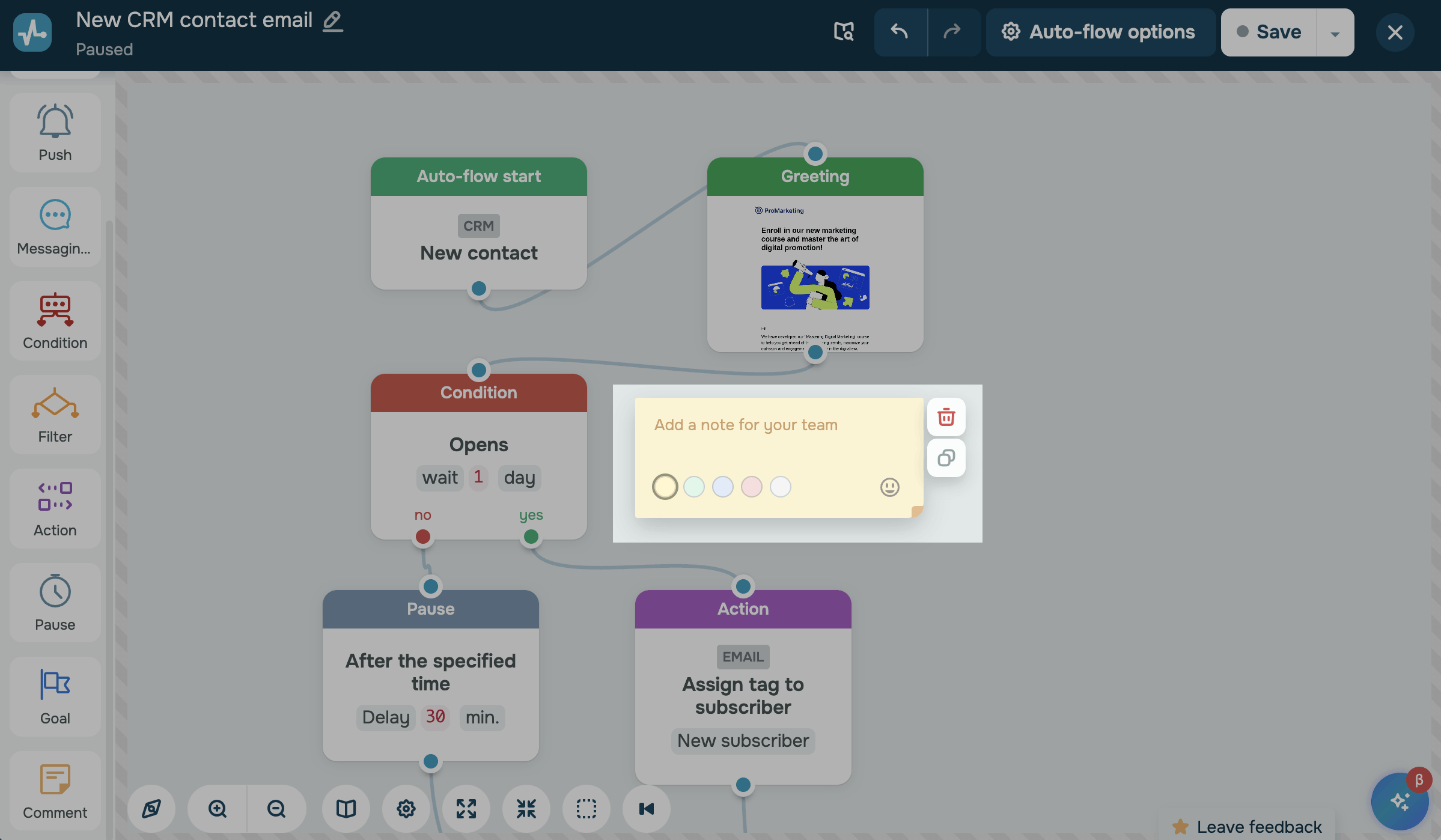
Click the comment and enter your text. To add emoji, click the emoji icon in the lower-right corner of the comment.
To close the comment, press Esc or click anywhere outside it.
SendPulse saves comments along with your flow, so click Save after you make changes. Until you save the flow, your changes stay in its draft, even if you reload the page.
Customize a comment
Color and size help you tell comments apart. To customize a comment, click it:
| Color |
Choose one of the available colors in the lower-left corner of the comment. New comments are yellow by default. |
| Size |
Drag the lower-right corner of the comment to resize it from 240 × 100 to 480 × 400 px. New comments are 240 × 100 px by default. |
Manage comments
In the builder, you can edit, move, copy, and delete comments:
| Edit | Click the comment and change its text, color, or size. |
| Move |
Drag the comment to another place on the workspace. You can move a comment when it isn't in editing mode. |
| Copy | Click the comment, then click the copy icon. The copy opens in editing mode. |
| Delete | Click the comment, then click the trash can icon. SendPulse removes the comment right away, without a confirmation window. |
To restore a deleted comment or reverse another change, click the undo arrow on the builder toolbar.
You can select comments together with flow elements to move, copy, or delete them as a group. To select multiple objects, hold Shift and click them.
Comments don't collapse or expand together with the group. Read more: Use the automated flow builder.
When you copy a flow, SendPulse copies its comments too.
View comments
Once you save your flow, exit the builder and go to the Flow tab. Your comments appear next to the elements, but you can only edit them in the builder.
Comments don't appear in flow previews, either in your flow list or in templates.
Read also: View your automation statistics, Condition element in Automation, and Pause element in Automation.
 Last Updated: 12.10.2026





or