Manage products in CRM
To effectively manage products in the CRM system, you can view your products, edit their characteristics and move them between categories. This will help keep the data up-to-date, optimize information organization, and simplify the search process.
To view subscriptions, read: Manage digital product subscribers.
View products
To find and view your products, go to CRM > eCommerce > Products.
To find a specific product, enter its full name or item number in the search field.
When searching by partial name, you need to enter at least 3 characters.
You can view the following details about each product:
| Name | Shows the product name |
| Category | Shows the product category |
| Stock |
Shows how many products are left in stock. This helps you keep track of when you need to restock. Available only for physical products. |
| Purchases | Shows how many times customers have bought this product. |
| Final price | Shows the price after taxes and discounts. |
| Discount and tax | Shows the tax and discount if there are any. |
| Original price | Shows the price before taxes and discount. |
| Visibility | Controls product visibility. To hide the product, turn off the toggle. |
| Created | Shows the date when you create the product. |
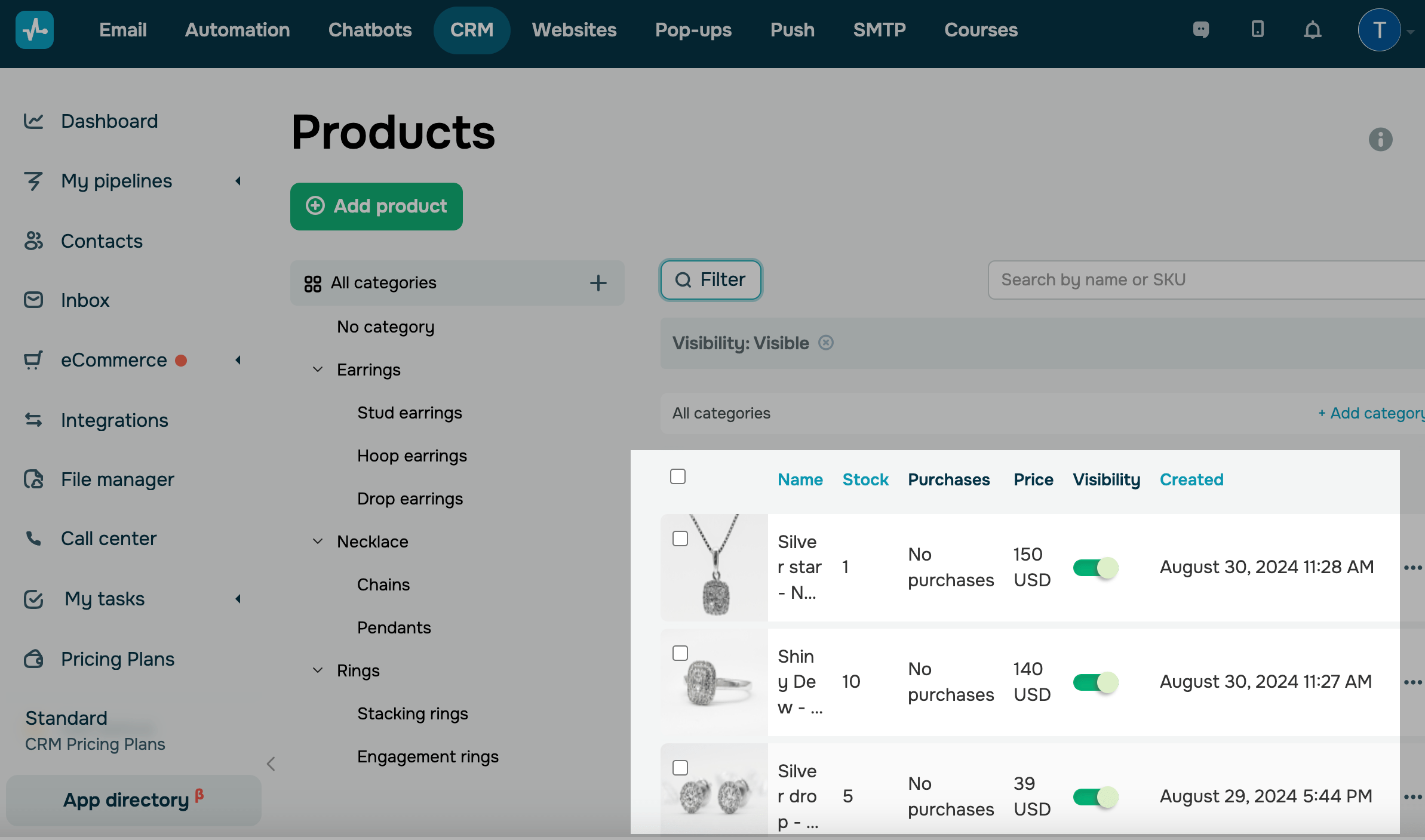
To find products by criteria, click Filter and select a criterion:
| Date created | Specify your time range, or select the Last ... days option |
| Type | Displays products by type (digital, physical, or a subscription). |
| Visibility |
Displays products with specified visibility. Choose whether to show hidden products or those displayed in your product catalog. |
| Stock | Displays your stock. Enter an operator (equals, greater than, less than) and a number, and select a unit of measurement. |
| Purchases | Displays the number of product orders. Enter an operator (equals, greater than, less than) and a number. |
| Price |
Shows the product price. Enter an operator (equals, greater than, or less than), enter a number, and select a currency. If you’ve selected the Digital product type, you can filter products by subscriptions or one-time payments. |
| Category | Displays one or more categories. Select categories from the list. |
| Attribute set | Displays a specific attribute group. |
| Attribute | Displays attributes if you’ve selected a group. |
To sort products by that column, click a blue column header.
Manage products
Go to CRM > eCommerce > Products, and click a category to view the list of products.
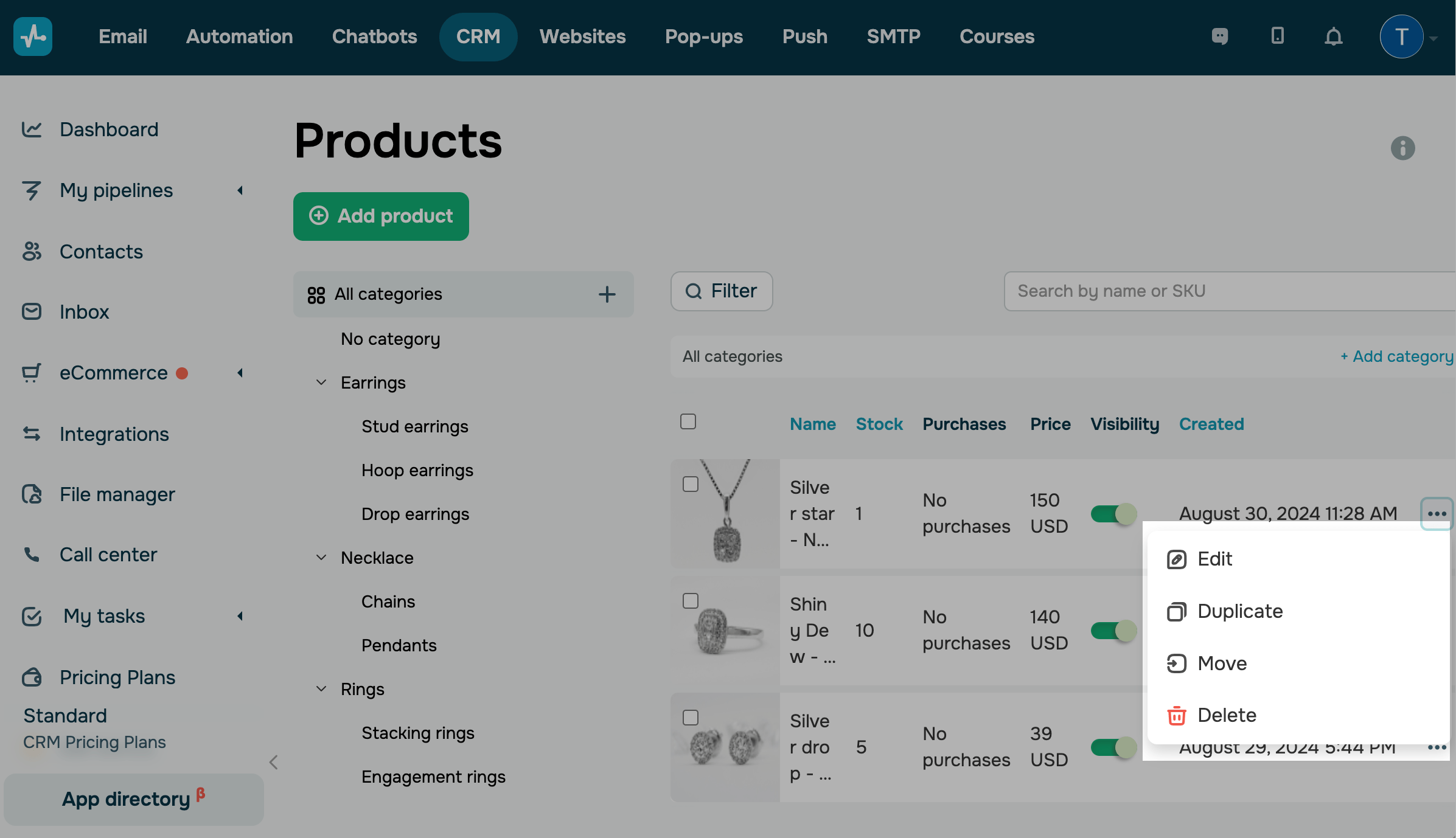
Click the three dots next to a product to see the list of available actions:
| Edit | Opens the product card, where you can edit all the fields you filled in when creating your product. |
| Duplicate | Copies the selected product card with similar settings into the same category. |
| Move | Moves the product to the selected category.
All product properties move along with the product. However, if a product moves to a different category, it will lose its properties. |
| Delete | Permanently deletes the product.
The Product widget stays on your page but no longer shows the product, so visitors can't buy it. To clear the empty space, delete the widget in the website builder. |
To hide your product, deactivate it in the Visibility column.
A hidden product stays in your catalog but goes off sale. Customers see a This item is currently unavailable label on your website, the generated product page returns your 404 page, and you can't add the product to CRM Product in your chatbot.
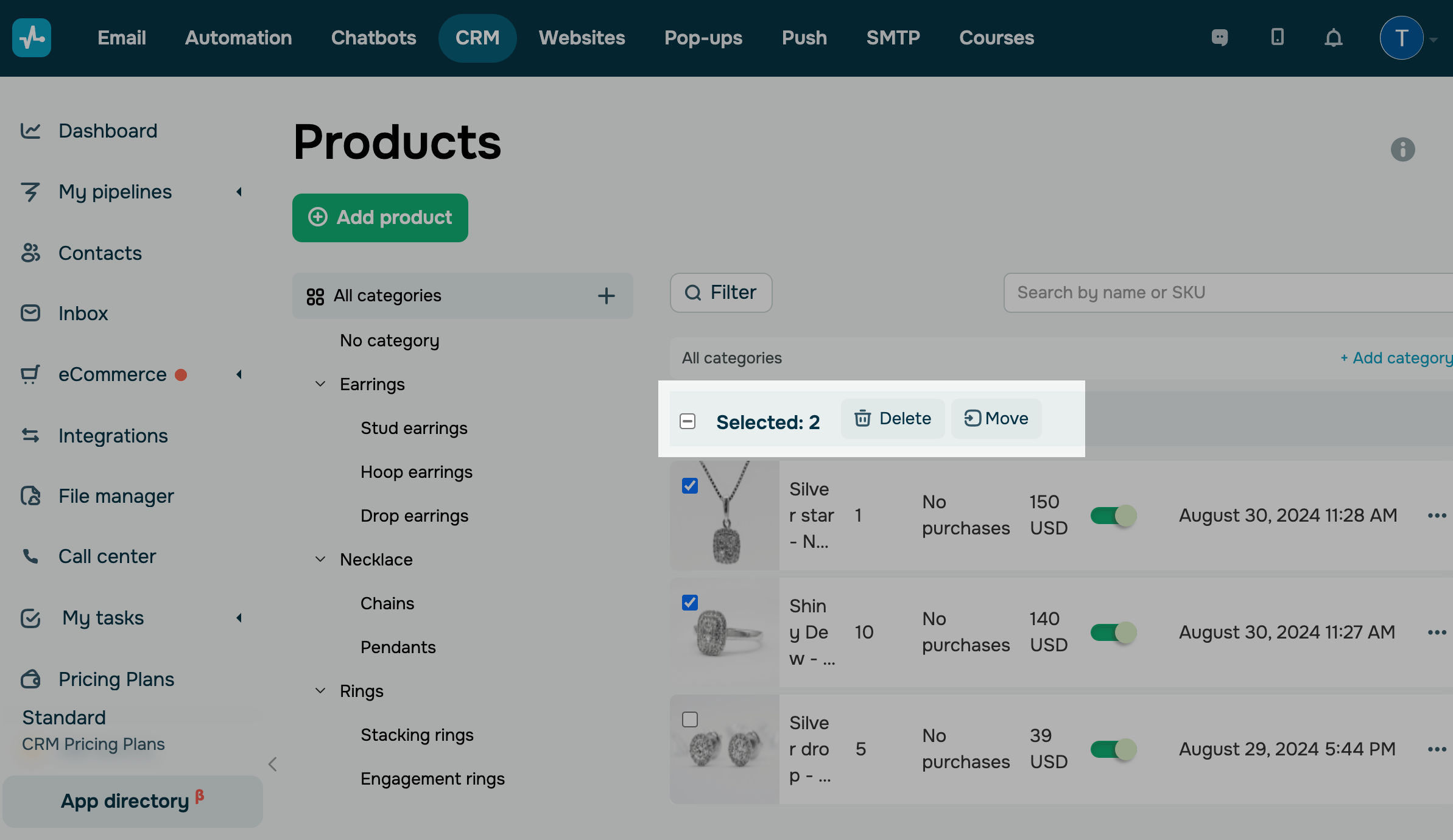
To manage multiple products at once, select them in the list. You can set the number of products you want to show at the bottom of the list or use filters to sort them by a specific criterion. In the upper panel, select an action:
| Delete | Deletes selected products permanently.
This has the same effect on your website, chatbot, and deals as deleting a single product. |
| Move | Moves selected products to the specified category.
All product properties move along with the products. However, if products move to a different category, they will lose their properties. |
 Last Updated: 31.08.2024



or