Create a WhatsApp chatbot through Coexistence
With Coexistence, you can use the same business phone number in the WhatsApp Business app and SendPulse at the same time. Your customers keep messaging the number they already know, your team keeps the app and chat history, and you get chatbot flows, campaigns, and statistics in SendPulse.
Suppose you run a travel agency, and your agents reply to customers from the WhatsApp Business app during working hours. With Coexistence, a chatbot can collect trip requests at night and on weekends. Both work on the same number, so customers don't notice a difference.
Let's talk about how Coexistence works, what to check before you start, what changes in the WhatsApp Business app, and how to connect your phone number.
Benefits and use cases
With Coexistence, you can:
- Add a chatbot to your phone number without changing how your team works in the WhatsApp Business app.
- Send flows, campaigns with message templates, and auto-replies from SendPulse without deleting your account in the app.
- See the messages your team sends from the app and the messages your chatbot sends using one inbox in SendPulse.
- Import up to six months of one-on-one chats from the app to SendPulse.
- Disconnect SendPulse whenever you want. The WhatsApp Business app keeps working as usual.
Here's how businesses can use it:
- A travel agency can reply to customers in the app during working hours, while a chatbot qualifies leads and books callbacks after hours and on weekends.
- A dental clinic can use message templates in SendPulse to send appointment reminders and confirmation requests. Its receptionists can keep answering questions in the app.
- An online store can manage its catalog and orders in the WhatsApp Business app, while a chatbot on the same number answers questions about order status, sends delivery updates, and asks for reviews.
Basics
WhatsApp has two options for businesses: the WhatsApp Business app and the WhatsApp Business Platform. Coexistence lets you use both on the same phone number. The WhatsApp Business app is installed on your phone, and your team uses it to chat with customers. The WhatsApp Business Platform is what providers like SendPulse use to run chatbots, campaigns, and integrations.
Without Coexistence, a phone number can work in only one place. To connect it to SendPulse, you'd need to delete your app account, and your chat history would be lost.
Coexistence lets one number work in both places at once. Your team continues chatting with customers in the app, and SendPulse handles messages through the WhatsApp Business Platform. Every message your team sends from the app also appears in SendPulse, so you always see the full conversation.
You can connect a phone number to a WhatsApp chatbot in SendPulse in three ways, and Coexistence is one of them. Here's how they compare:
| Connection type | Best for | Result |
| Coexistence | Phone numbers already used in the WhatsApp Business app, when your team replies to customers from the phone. | The number works in both the app and SendPulse. Your app and chat history stay the same. |
| New phone number | Phone numbers without a WhatsApp account, or numbers whose account you're ready to delete. | The number works only on the WhatsApp Business Platform. Any existing WhatsApp account must be deleted first, so the chat history is lost. |
| Migration from another provider | Phone numbers registered on the WhatsApp Business Platform with another provider. | The number is migrated to SendPulse. You need to turn off two-step verification before you start. |
Getting started
Here's what you need before you open the connection wizard:
| The WhatsApp Business app, version 2.24.17 or later | Update the app on the phone that holds the number. An older version stops the wizard with the message Update your WhatsApp Business App to the latest version to use this phone number. |
| An active WhatsApp Business app number | Meta sets its own eligibility criteria and doesn't share them. If the number is new to the app or rarely used, the wizard stops with Your phone number isn't eligible to connect to the WhatsApp Business Platform. Use the number in the app for a while and try again. |
| A number that's not connected to another provider | The wizard can't move your number from another provider. If the number is connected to one through the app, go to Settings > Account > Business Platform, disconnect it, and wait 15 minutes before you continue. |
| Access to your Meta Business Portfolio | In the wizard, you'll select your portfolio, and a WhatsApp Business Account will be created in it. Don't have a portfolio yet? You can create one in the wizard. |
| Your phone nearby | You'll need to confirm the connection in the WhatsApp Business app while you go through the wizard. |
| A desktop browser | The connection wizard appears in a pop-up window, so allow pop-ups for SendPulse. We don't recommend using a mobile browser, since the wizard often doesn't finish there, especially in Safari on iOS. |
Numbers connected through Coexistence have a fixed sending limit of 20 messages per second, set by Meta. Coexistence isn't available in every country yet. Meta has been adding new regions since 2025 but doesn't share a list of supported ones. If the wizard shows This feature is unavailable for phone numbers from this region, connect your number as a new phone number.
What changes in the WhatsApp Business app
When the number starts running in SendPulse, Meta turns off some app features and leaves others working in the app only. Go over the changes with your team before you connect, since they apply to your whole account, not to specific chats.
Meta turns off disappearing messages, view-once messages, and live location in all one-on-one chats. Meta also turns off broadcast lists: you can't create new ones, and existing lists become read-only. Use WhatsApp campaigns in SendPulse instead.
These features keep working in the app but do not reach SendPulse:
| Group chats | Group messages do not sync and do not appear in SendPulse. |
| Voice and video calls | Calls work in the app only. |
| Business tools — catalog, orders, status | These tools work in the app only. |
| Messaging tools — greeting message, away message, quick replies, labels | These tools apply to the messages your team sends from the app. |
| Business profile — business name, address, website | You manage the profile in the app. |
| Channels | Channels work in the app only. |
Other features in one-on-one chats work as before. Your team can edit and delete sent messages in the app, and these changes also appear in SendPulse.
When you connect the number, Meta also logs out all linked devices. You can then link up to four devices again, except WhatsApp for Windows and WhatsApp for Wear OS, which a connected number does not support.
Messages your team sends from the app stay free. You pay for the messages SendPulse sends through the WhatsApp Business Platform under SendPulse's pricing policy.
Read more: WhatsApp pricing policy.
Start the connection wizard
You'll need both your browser and your phone to connect the phone number. The process starts in Meta's connection wizard in a SendPulse pop-up window and ends in the WhatsApp Business app. Keep your phone unlocked and online the entire time.
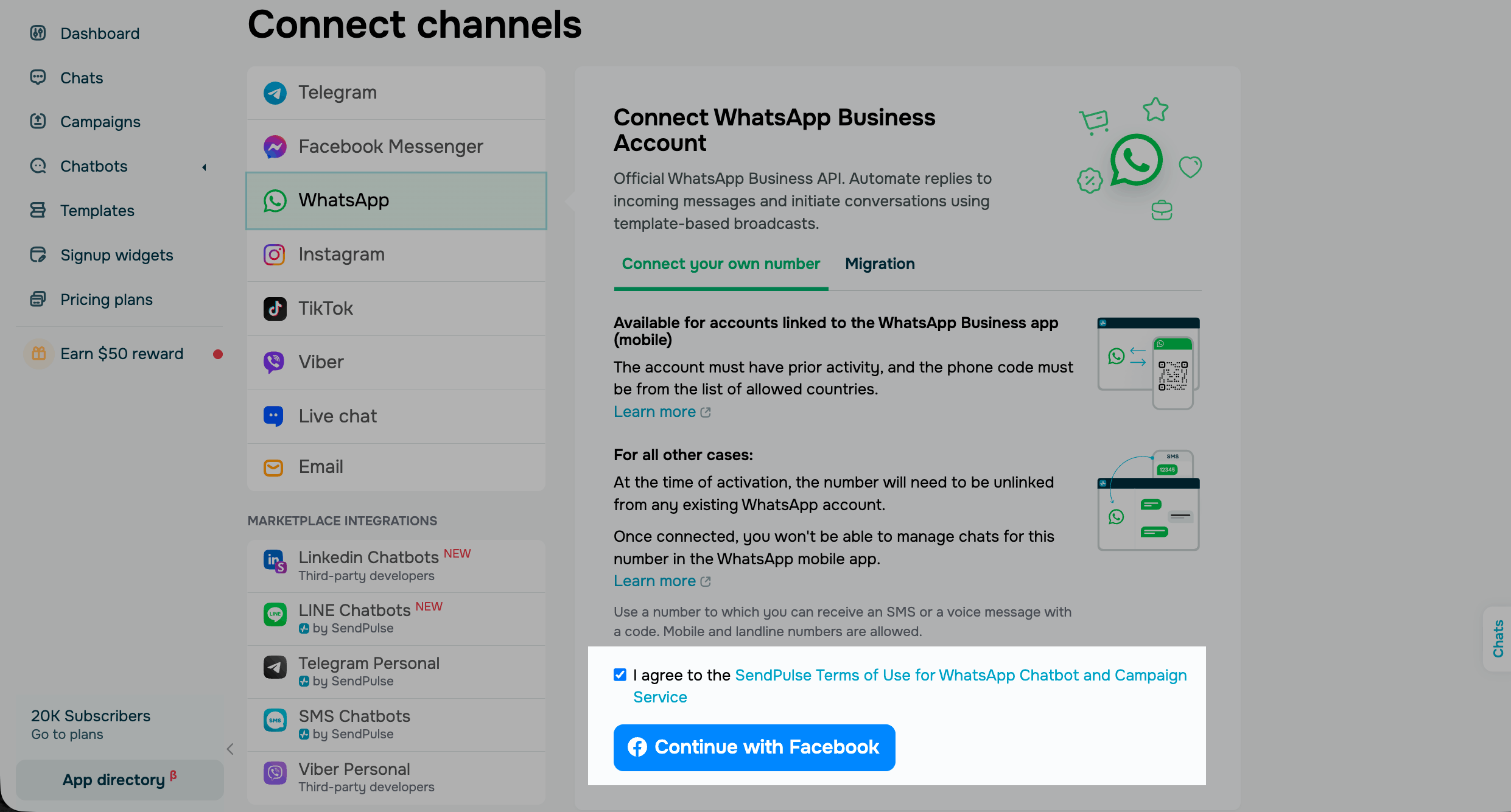
To start the setup, go to the Chatbots section in your SendPulse account. If you haven't connected any messaging channels yet, click Connect. If you already have connected chatbots, go to Manage bots and click Connect next to WhatsApp.
In the WhatsApp section, go to the Connect own number tab, accept the terms, and click Continue with Facebook.
If another WhatsApp provider has already registered your phone number, go to the Migrate tab instead. Read more: Switch to SendPulse from other WhatsApp providers.
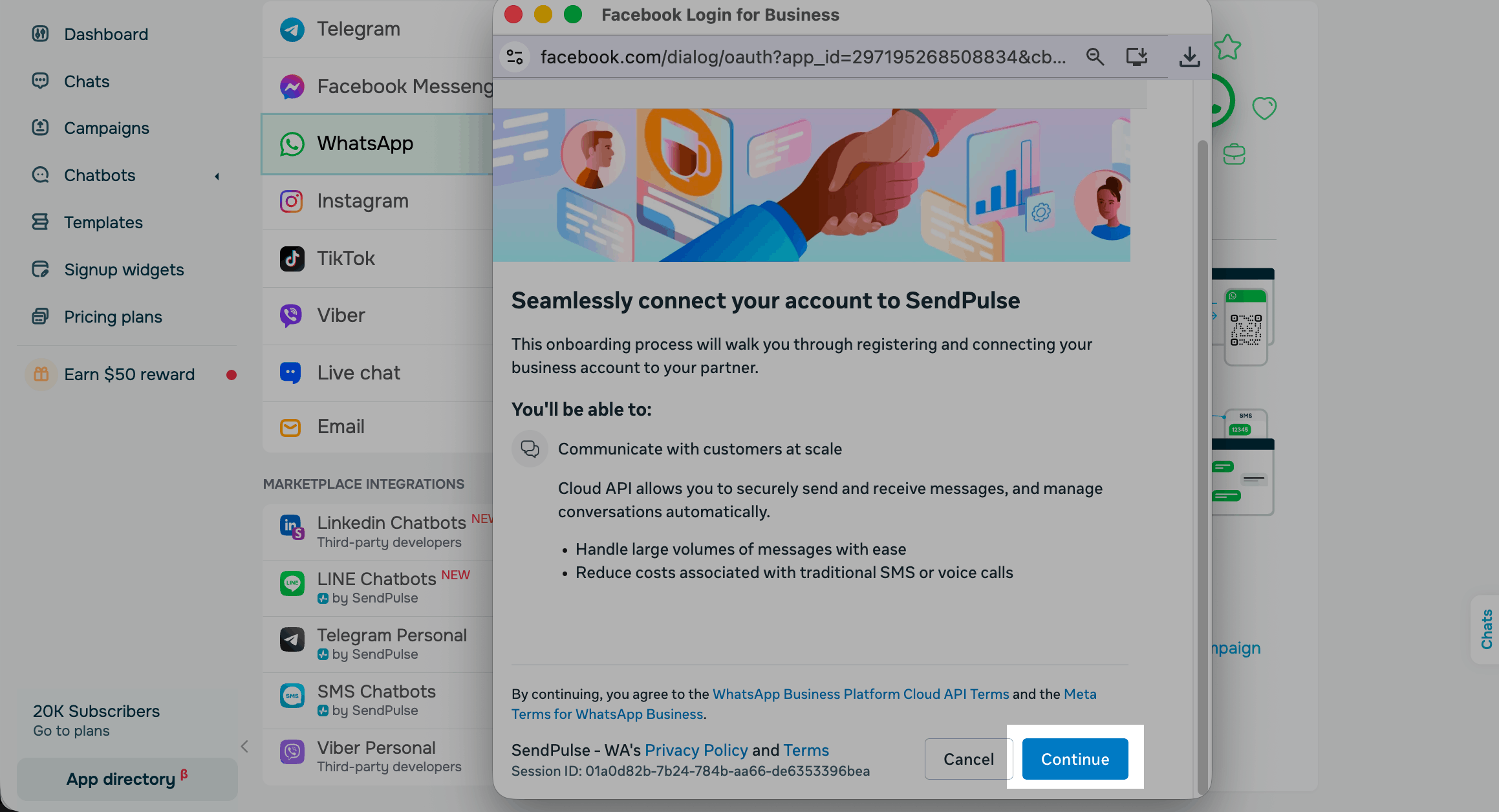
Log in to the Facebook account that manages your Meta Business Portfolio or the account you'll use to create it.
Meta's connection wizard will appear. Click Continue.
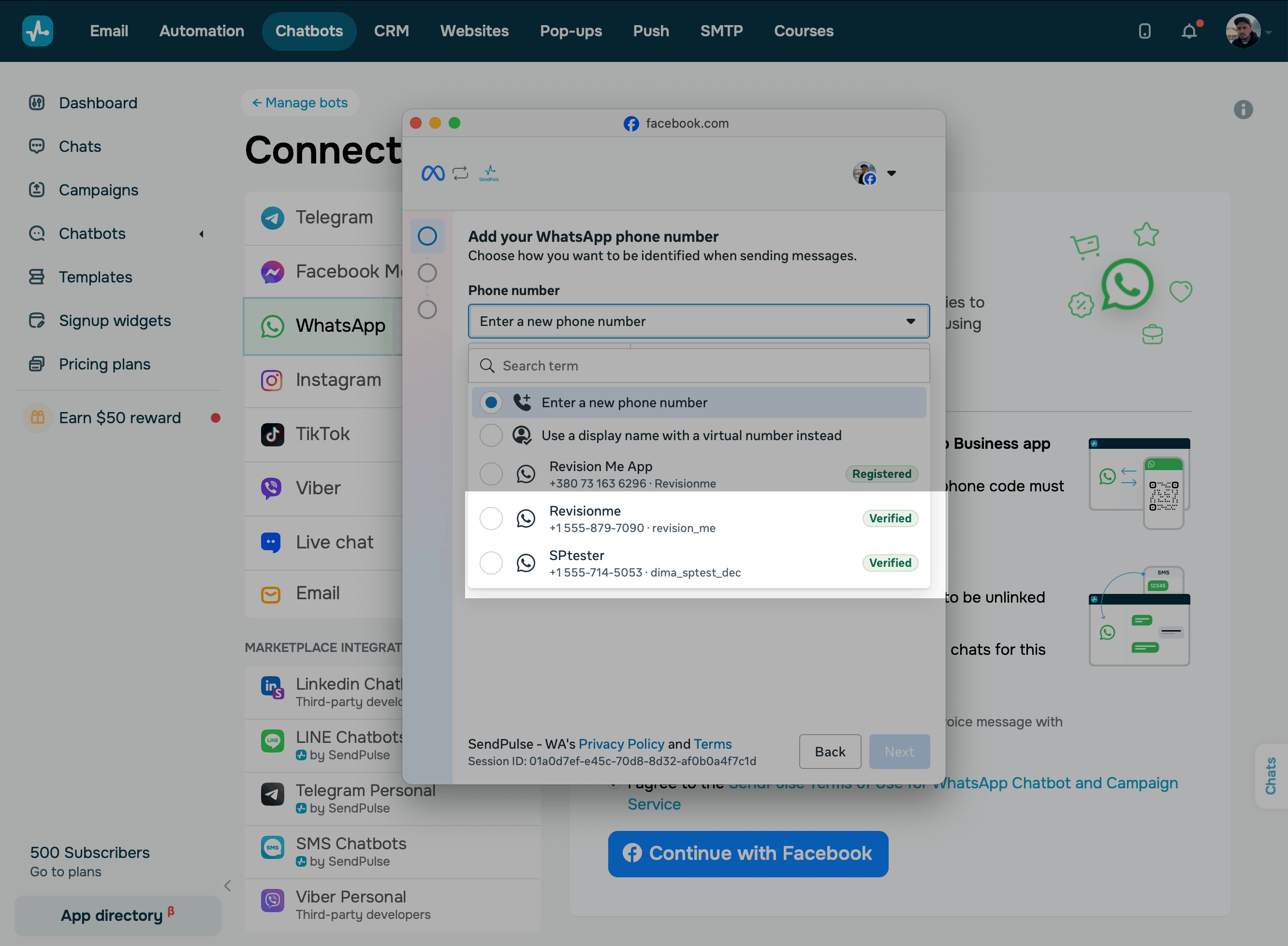
Add your phone number
In the Phone number list, select the number that your WhatsApp Business app uses.
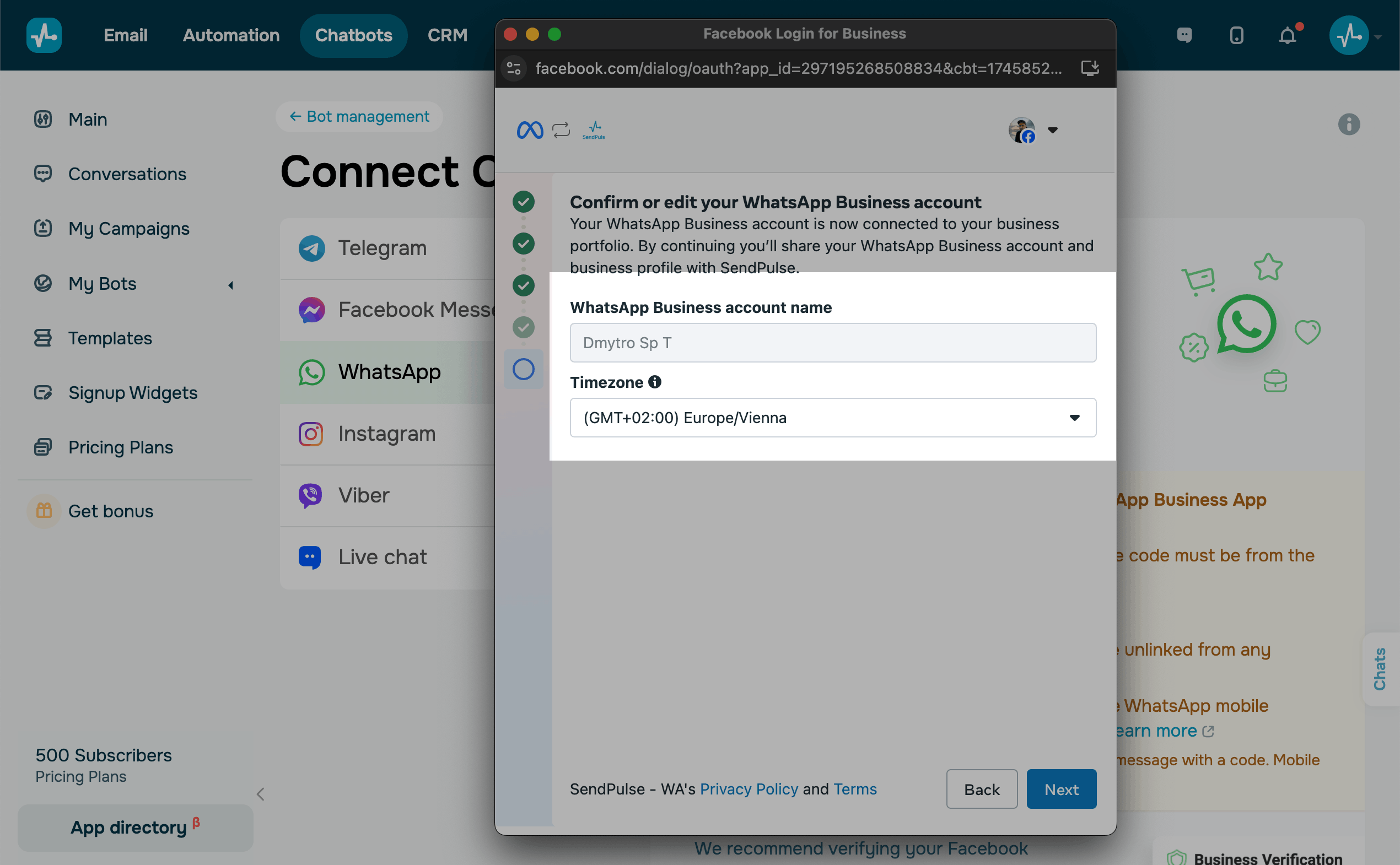
If the phone number meets Meta's requirements, the wizard asks you to choose your business time zone and go over the information you entered.
Read more: Get your phone number ready for connection and Requirements.
Once you finish, click Next.
Confirm the connection in the WhatsApp Business app
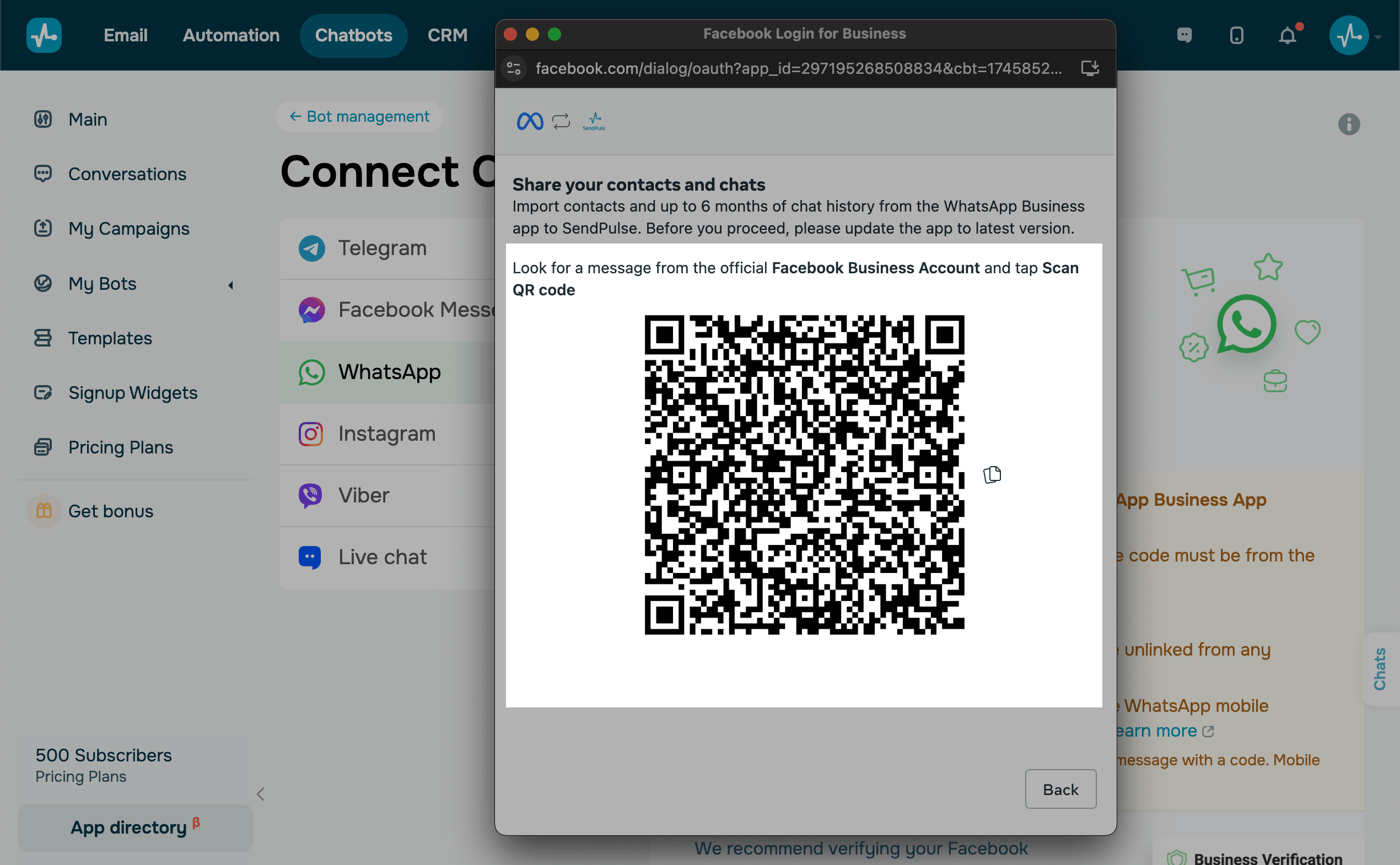
You'll receive a push notification and a message from the official Facebook Business account on your phone. Open the WhatsApp Business app, tap Connect, and then tap Connect to the Business Platform.
To confirm the connection, use the app to scan the QR code shown in your browser.
Finish the connection in SendPulse
When the connection succeeds, you get a confirmation message in the WhatsApp Business app and a pop-up in the browser. The wizard closes, and SendPulse sets up the chatbot environment, which takes a few minutes. After that, your chatbot appears in Manage bots.
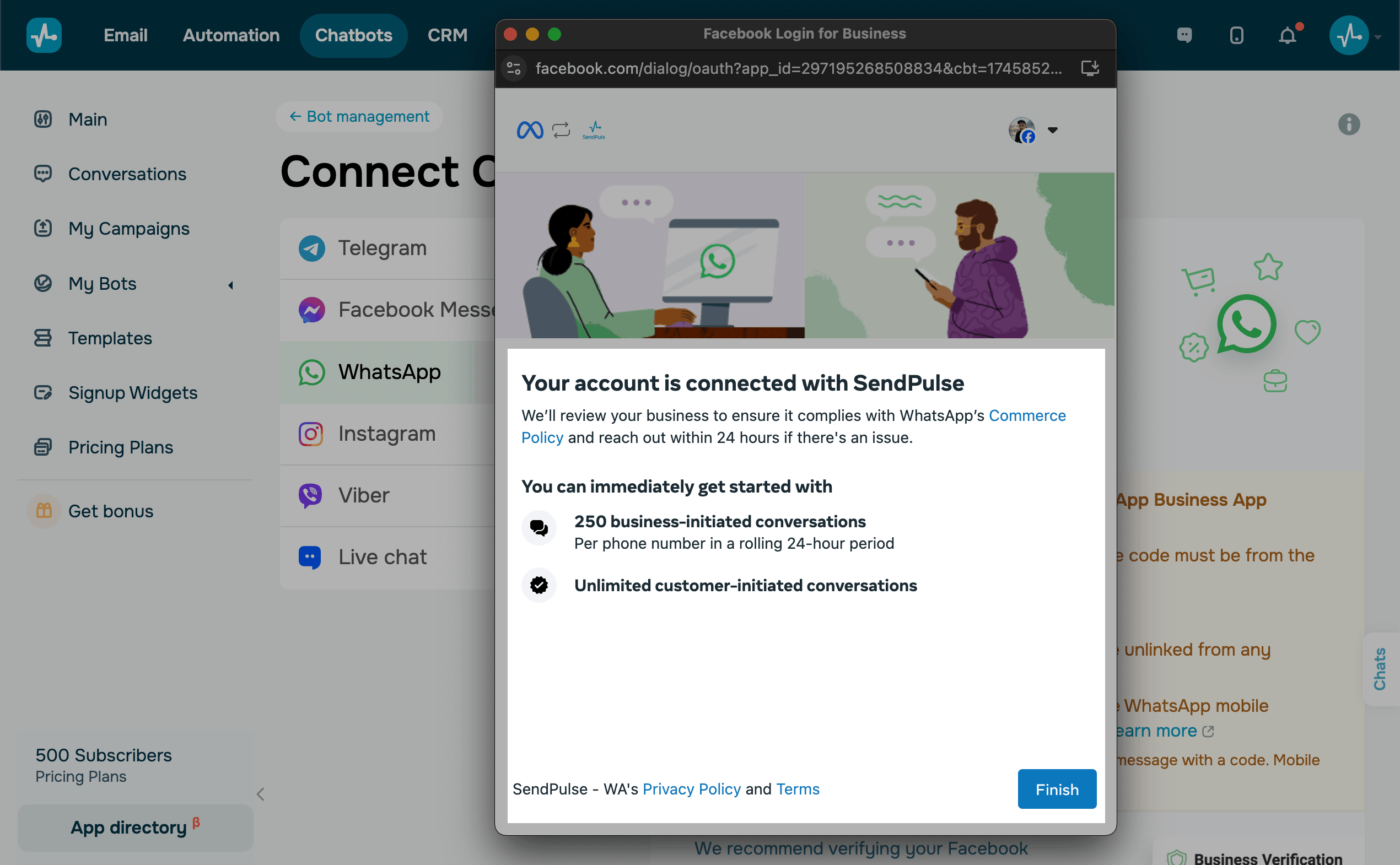
Once you connect the phone number, all linked devices are logged out. Ask your team members who use WhatsApp Web or a desktop app to link their devices to the WhatsApp Business app again.
Subscribe to your WhatsApp chatbot
To test your WhatsApp chatbot, add your own WhatsApp account as the chatbot owner. To do this, click Set owner.
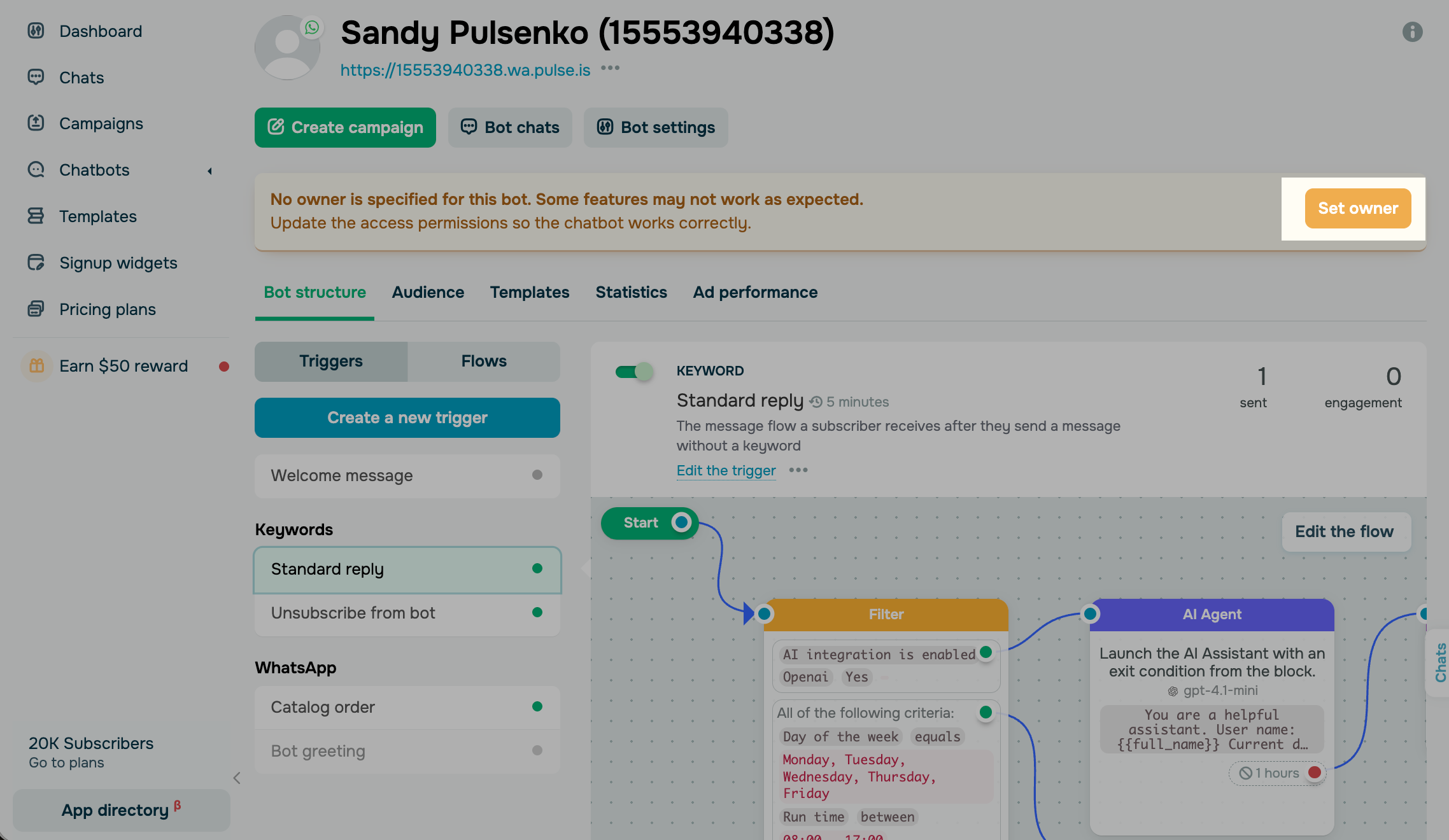
Then, follow the steps on the screen:
- Log in to your personal WhatsApp account on your mobile app.
- Point your phone camera at the QR code and open the link. WhatsApp starts a chat with the code pasted into the message field.
- Send the message with this code.
The code changes every time you reload the page, so make sure you send the latest one. This confirms that you're the owner of the chatbot.
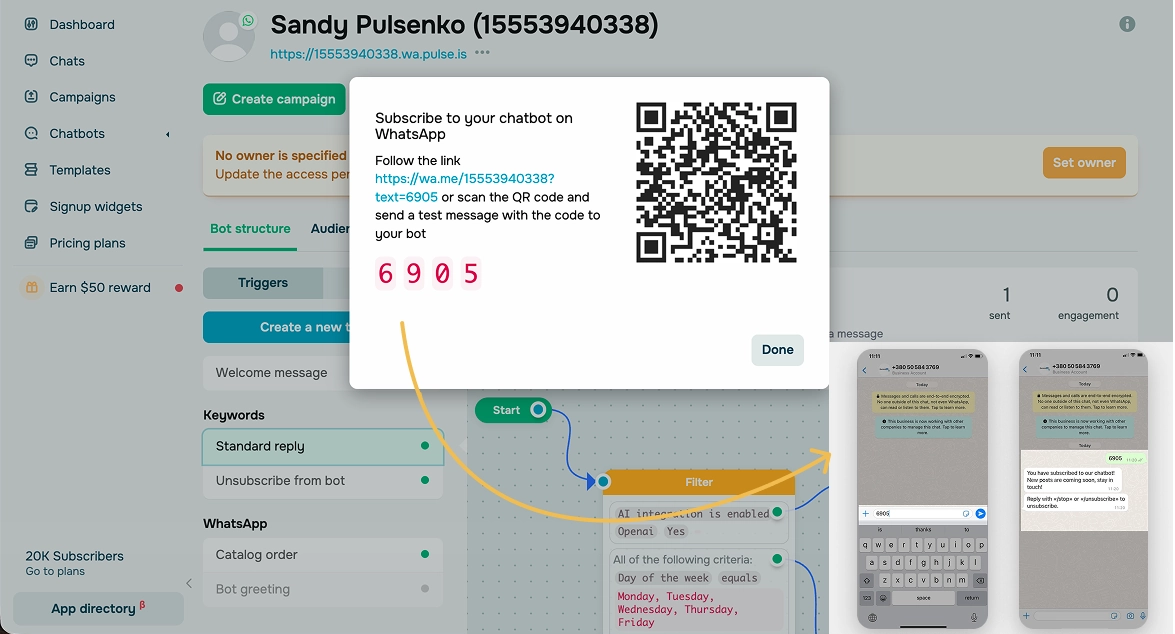
If everything is set up correctly, the chatbot sends you the Welcome message flow, and the Owner label appears next to your contact in the chatbot audience in SendPulse.
Build your chatbot flows
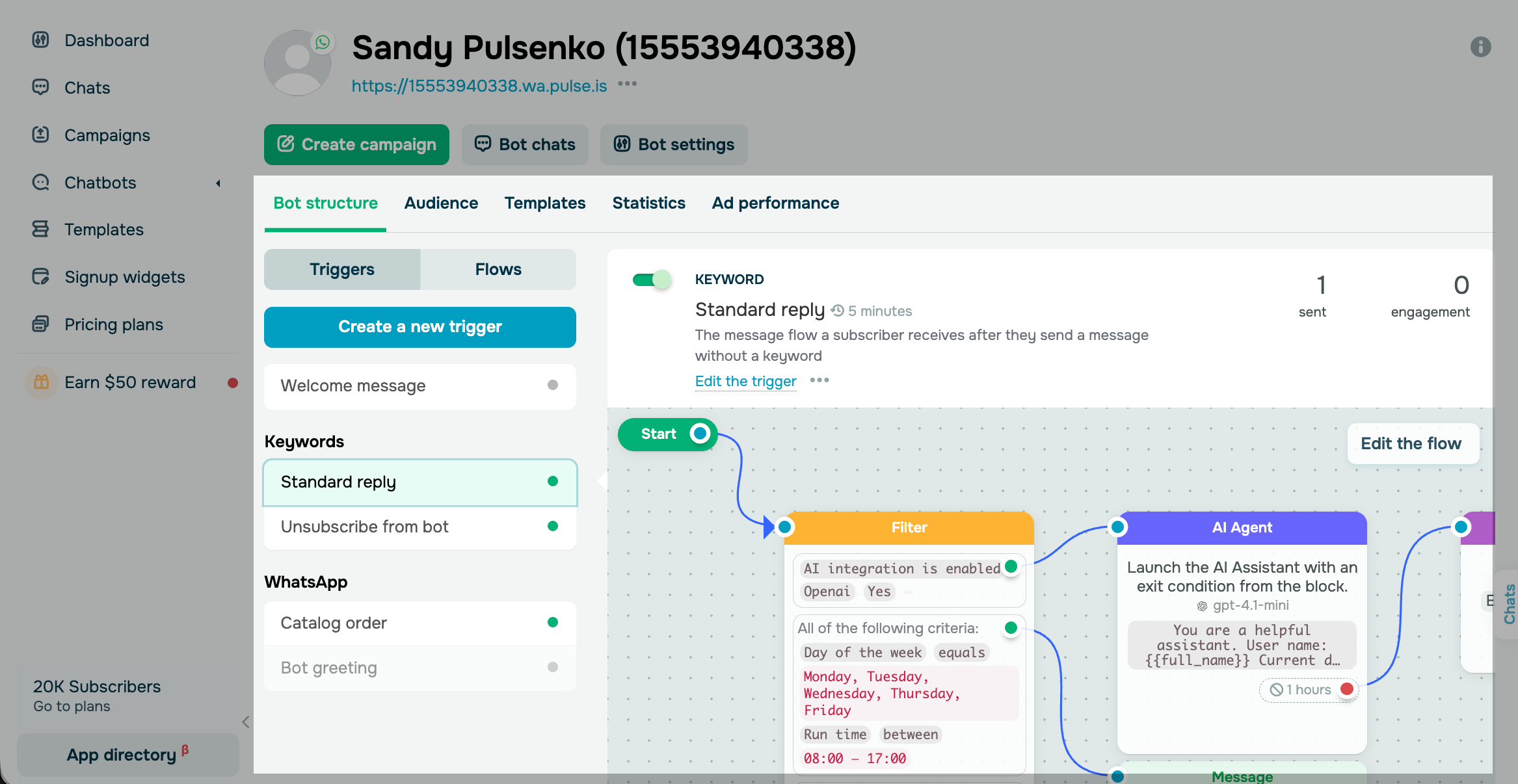
The Welcome message, Standard reply, and Unsubscribe from flows are available by default. You can also create your own triggers and flows.
Plan the key conversations your chatbot should support, then build dedicated flows with the flow builder elements. Branch flows based on user behavior with the Button, Filter, and AI Agent elements. You can also generate flows with AI or apply ready-made flow templates that match your goals.
Once you set up your chatbot and its flows, add chatbot links to your website or pop-ups.
Track your chatbot's performance in your account statistics and in chats with subscribers to analyze the user journey and improve it.
Read more: Create a chatbot flow, Create a WhatsApp campaign, Grow your audience.
 Last Updated: 08.10.2026



or