Create a pop-up variable
Pop-up variables help save and store key user data that you can use to personalize your messages. For example, you could generate a promo code, save it as a user's variable, and later apply it to offer a discount on their next purchase.
In this article, we’ll talk about variable types and their uses in various elements.
View the list of variables
Variables store user data as specific value types, including String, Number, Date, and Link.
You can collect user data using the following elements:
| Gamification elements | Use variables to store information about the user’s rewards. |
| Input elements | Use variables to store data entered or selected by the user. |
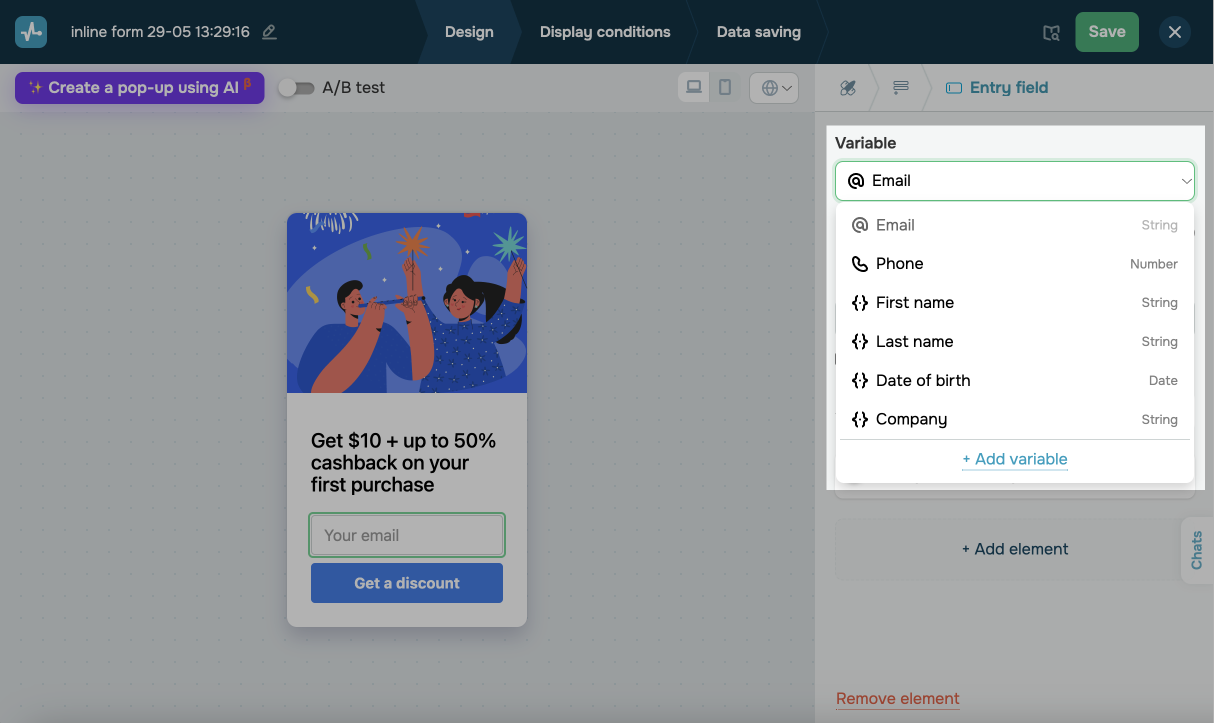
To view the list of available variables, go to the pop-up element settings, and in Variables, click the drop-down list. By default, you can use the following variables in a pop-up:
Email |
String |
The user's email address. |
Phone |
Number |
The user's phone number. |
First name |
String |
The subscriber’s first name. |
Last name |
String |
The subscriber’s last name. |
Date of birth |
Date |
The user's date of birth. |
Company |
String |
The user's company name. |
If you’ve created custom variables for a CRM contact, they will also appear on the list. You can edit or delete fields in CRM contact settings.
Create a new variable
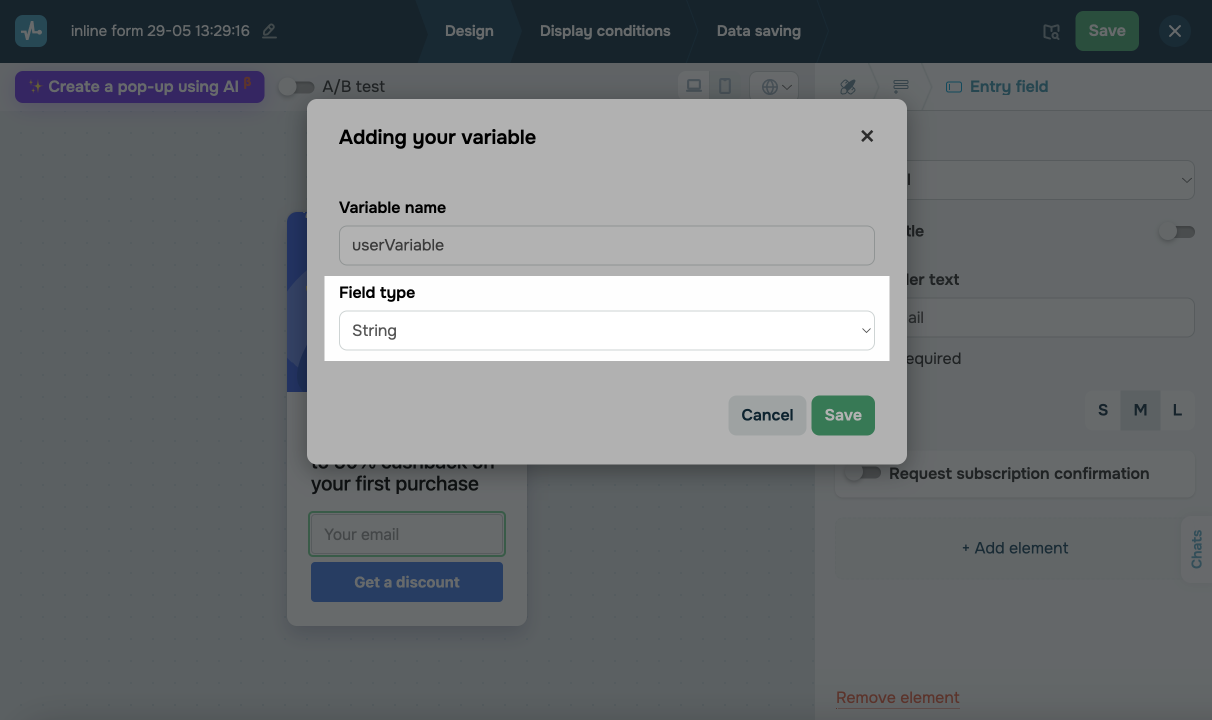
To create a new pop-up variable, go to Variable and click + Add variable.
In the modal window, set a variable name and field type:
String |
Used to store text, numbers, or special characters. For example, the user’s name or place of work. |
Number |
Used to store numeric data. For example, the user’s phone number. |
Date |
Used to store date values. For example, the user’s birthday. |
Link |
Used to store a clickable URL. For example, the user’s social media page. |
You can also create variables in CRM contact settings.
You can view the variables in the pop-up lead data and CRM contact cards.
 Last Updated: 20.06.2025





or