Adjust element position
Placing elements properly helps organize your page, boost readability, and guide users toward target actions. You can move elements by dragging them across the workspace or by entering their position values in the settings.
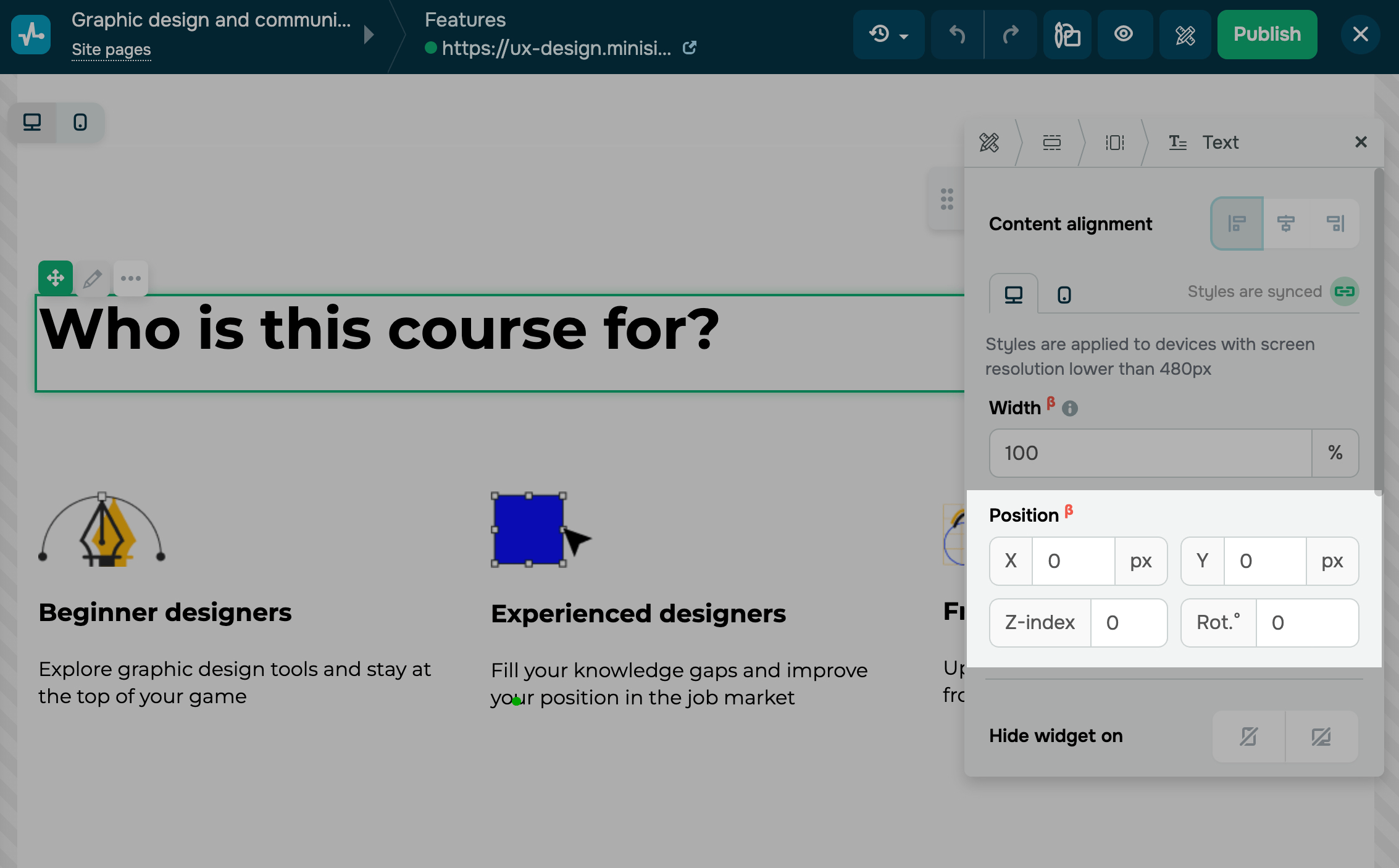
In the Position section, you can move widget to the left or to the right and rotate it. Configure the element's placement with the following parameters.
| X | Moves the element on the X-axis (horizontally). Enter a negative number to move your content to the left and a positive number to move it to the right*. |
| Y | Moves the element on the Y-axis (vertically). Enter a negative number to move your content up and a positive number to move it down*. |
| Z-index | Moves the element on the Z-axis (in front of or behind other elements). Set a number from 1 to 9.
Elements with a higher Z index will cover elements with a lower number. |
| Rot.° | Rotates the element up to 360 degrees. Enter a negative number to rotate it to the right and a positive number to rotate it to the left*. |
* When entering values, keep your block size in mind. If the value exceeds your block size, the element will move outside of the screen and will not be visible.
Manually positioned elements won't adjust to various screen sizes automatically, so it's best to set up your mobile version separately from the desktop version.
You can also adjust the anchor points of elements placed in open blocks. In Anchor point, choose an alignment relative to screen edges: left or right, top or bottom.
 Last Updated: 18.07.2025





or