CRM triggers
With SendPulse, you can send automated flows using triggers in the CRM. When selecting CRM triggers, corresponding Actions are available.
Flow start events require at least one of these two variables: email or phone.
In total, you can add up to 100,000 contacts per day to all flow starts in your account. The counter is reset every day at 00:00 by time zone from the account settings.
Click a trigger category, and select a trigger.
Create deal
The Create deal trigger launches an automation flow when a deal is created in CRM. You can create a deal manually in the CRM system or using automated deal sources.
Select a pipeline, and add additional conditions you want to track: deal stage and deal source.
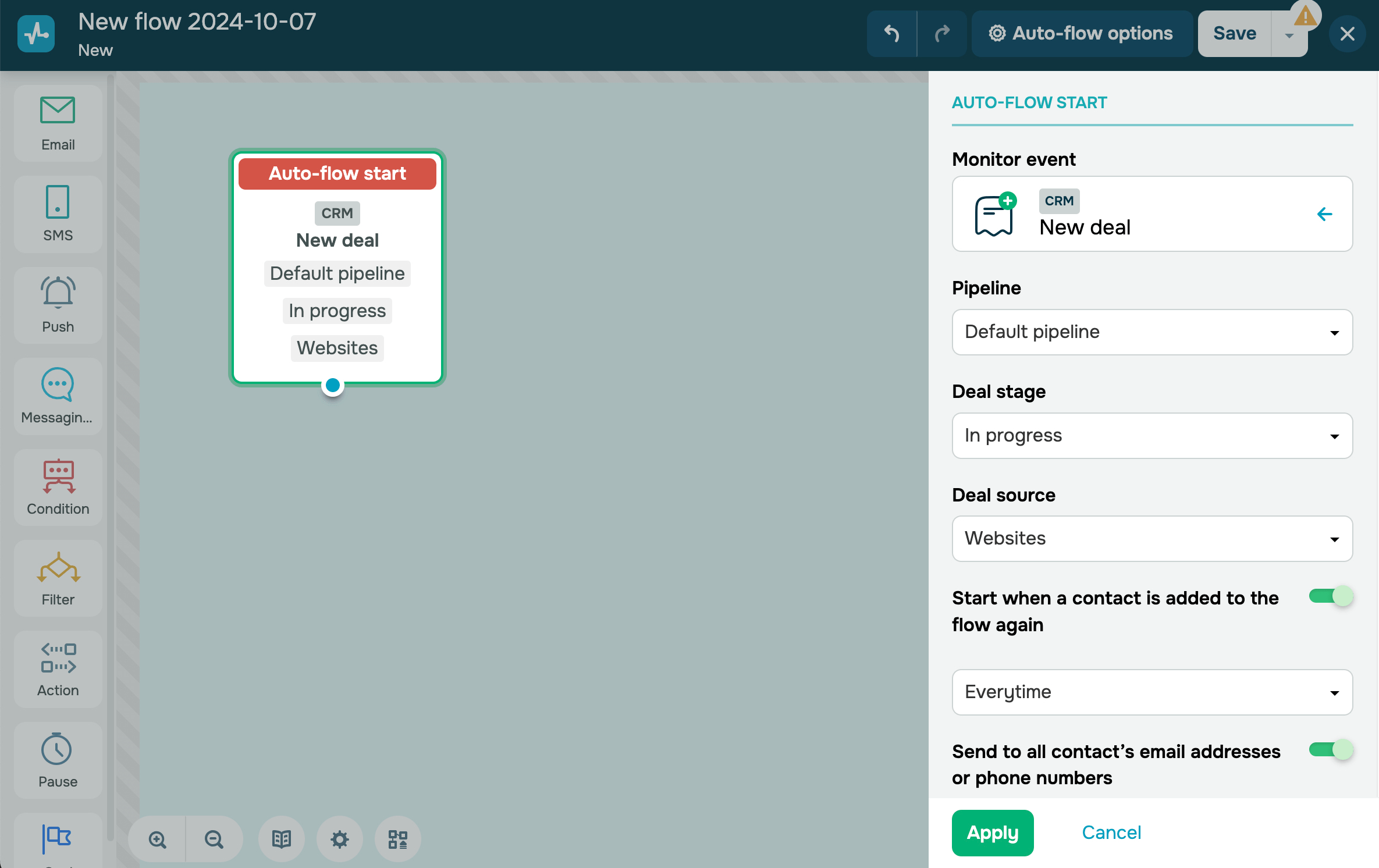
You can set a limit for your flow launches. For example, send messages asking for feedback no more than once every 30 days, even if a customer makes orders more often.
Turn on the Start when contact is added to the flow again toggle, and choose the frequency: Everytime, Once a week, Once a month, or Custom, where you can set your own number of days.
You can also send a campaign using all contact info specified in a CRM contact card, for example, send it to several phone numbers or email addresses. To send messages using only primary contact info from CRM cards, turn off the Send to all contact's email addresses or phone numbers toggle.
Change deal stage
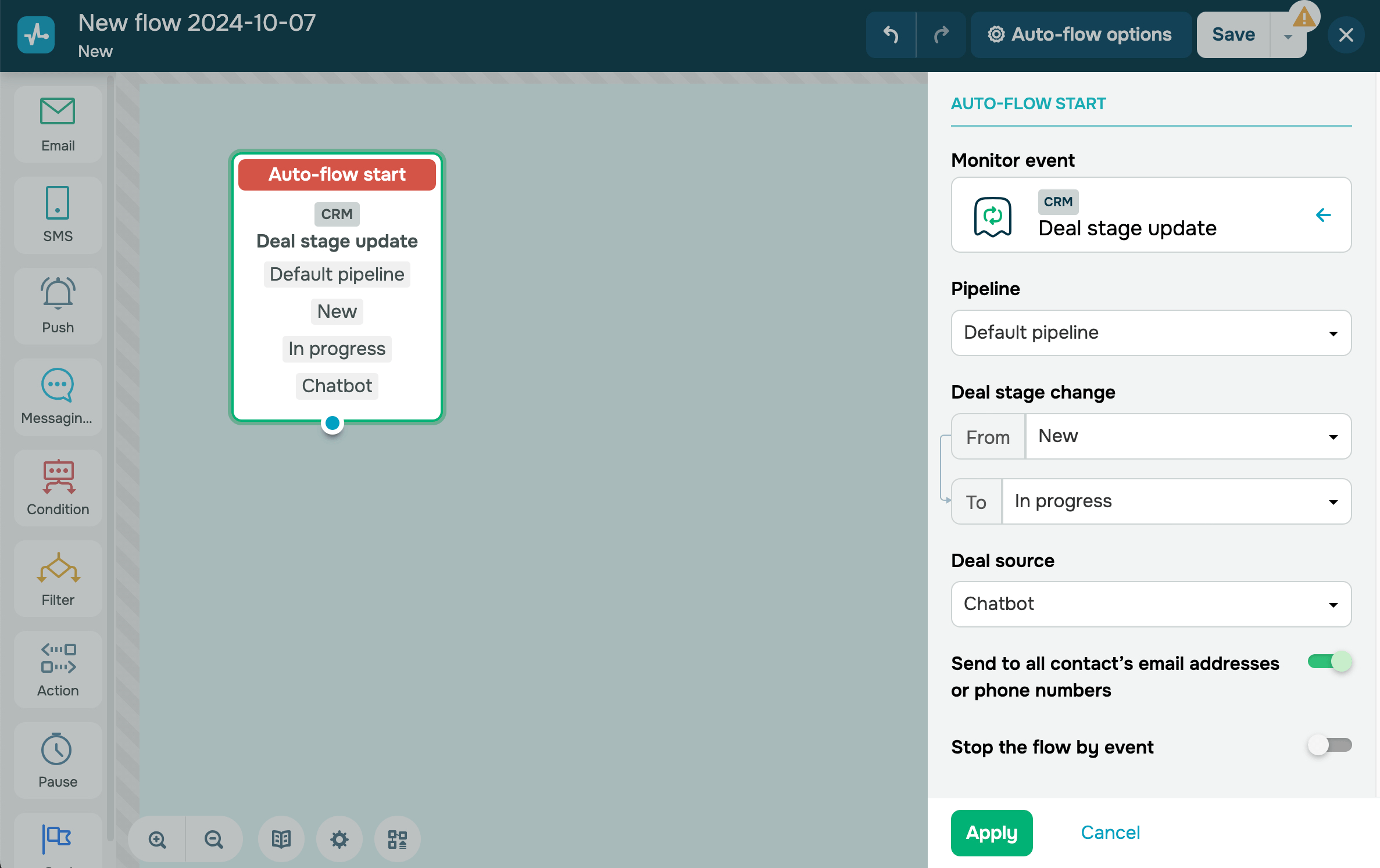
With the Change deal stage event, a flow starts when a deal stage changes, for example, from In progress to Successfully closed. You can also start your flow by changing the deal type and source.
When the trigger is set to track moves from All to All stages, your flow runs every time a deal moves between pipeline stages. Your contact enters the flow again and goes through its elements, including Email, as many times as the deal stage changes. This is how duplicate emails appear.
To run your flow only once, select the specific stages the deal moves from and to.
Change deal field
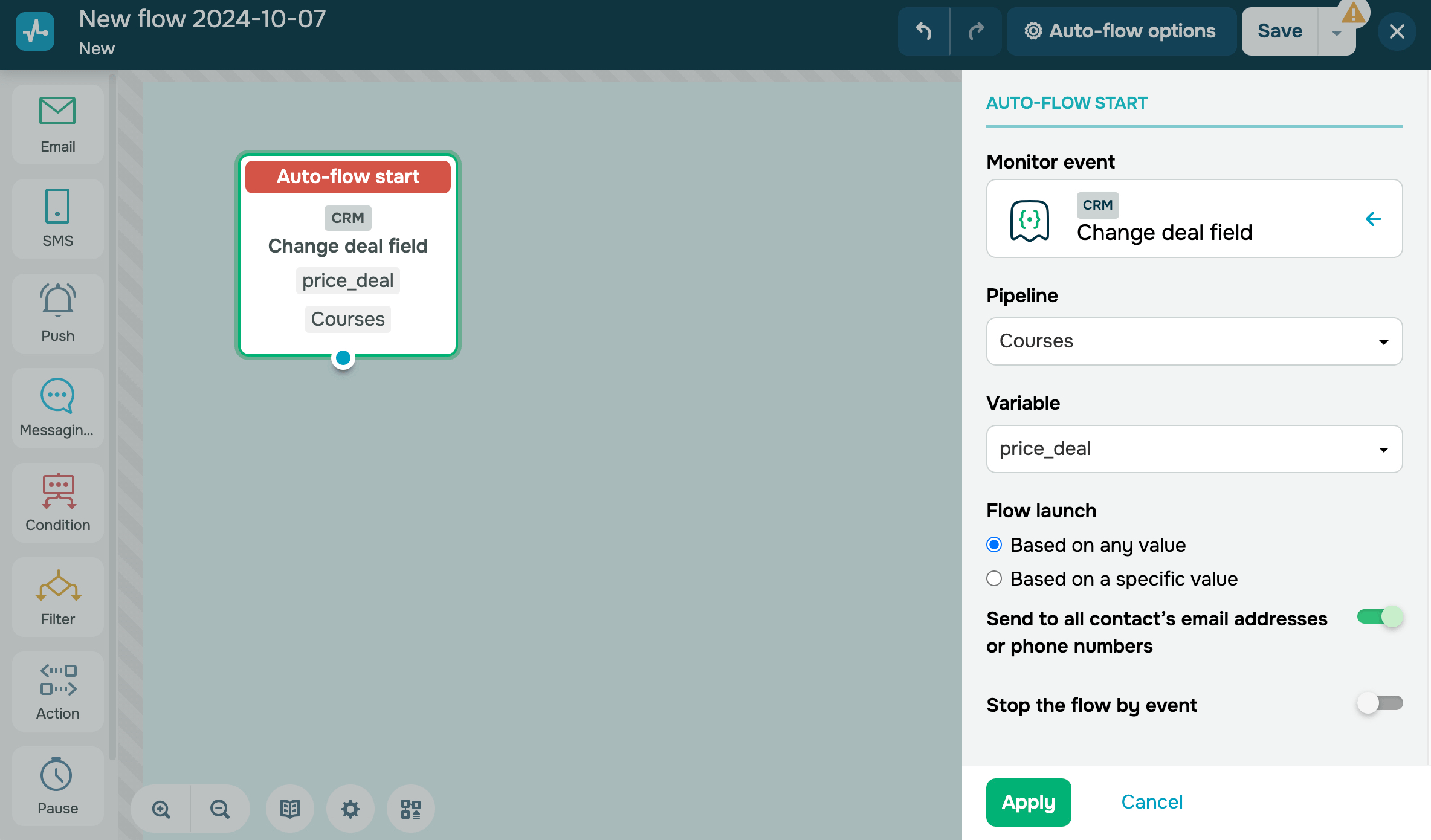
This trigger starts a flow when the value of a specific variable in a CRM deal changes. For example, you can send a heads-up to your customers when their deal price is modified.
This event also offers an option to set a specific variable value that will trigger your flow.
Overdue deal date
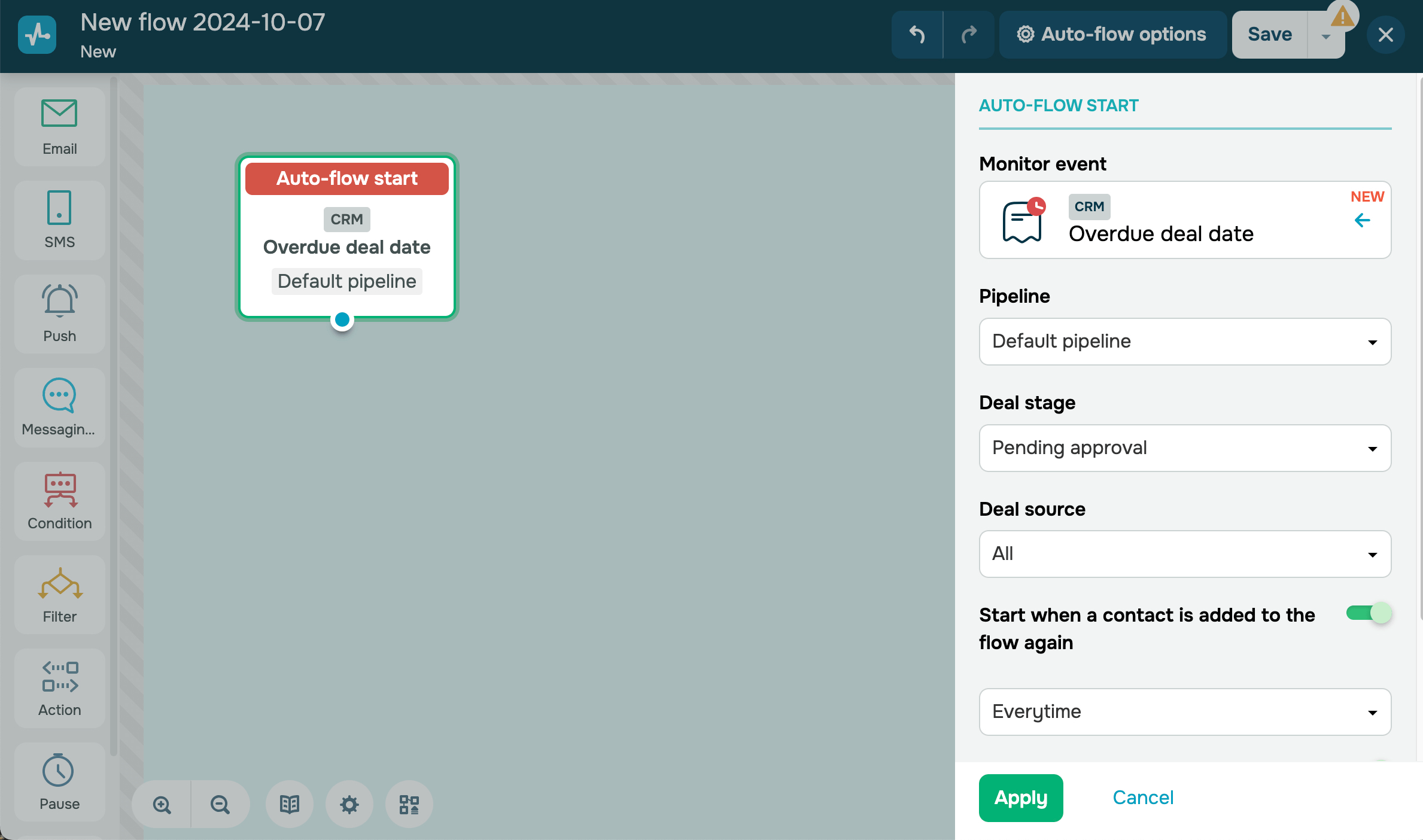
The Overdue deal date trigger starts a flow when a deal’s due date expires. You can use it to convert customers or remind them about the deal.
Select a pipeline, and add conditions you want to track (deal stage and deal source). You can set a limit for your flow launches. For example, you can send messages asking for feedback no more than once every 30 days, even if a customer makes orders more often.
The CRM system checks for overdue deals every 5 minutes, including 5 minutes before the trigger is set up. For example, if you create a flow and set the trigger at 1:30 PM, a deal that becomes overdue at 1:26 PM will trigger the flow.
Note that if your deal’s due time is changed to a past time that does not fall within the 5-minute interval, the trigger will not initiate. For example, if your trigger is set to 1:30 PM, and your deal’s due time has changed to 1:36 PM, the flow will not be started.
Upcoming deal due date
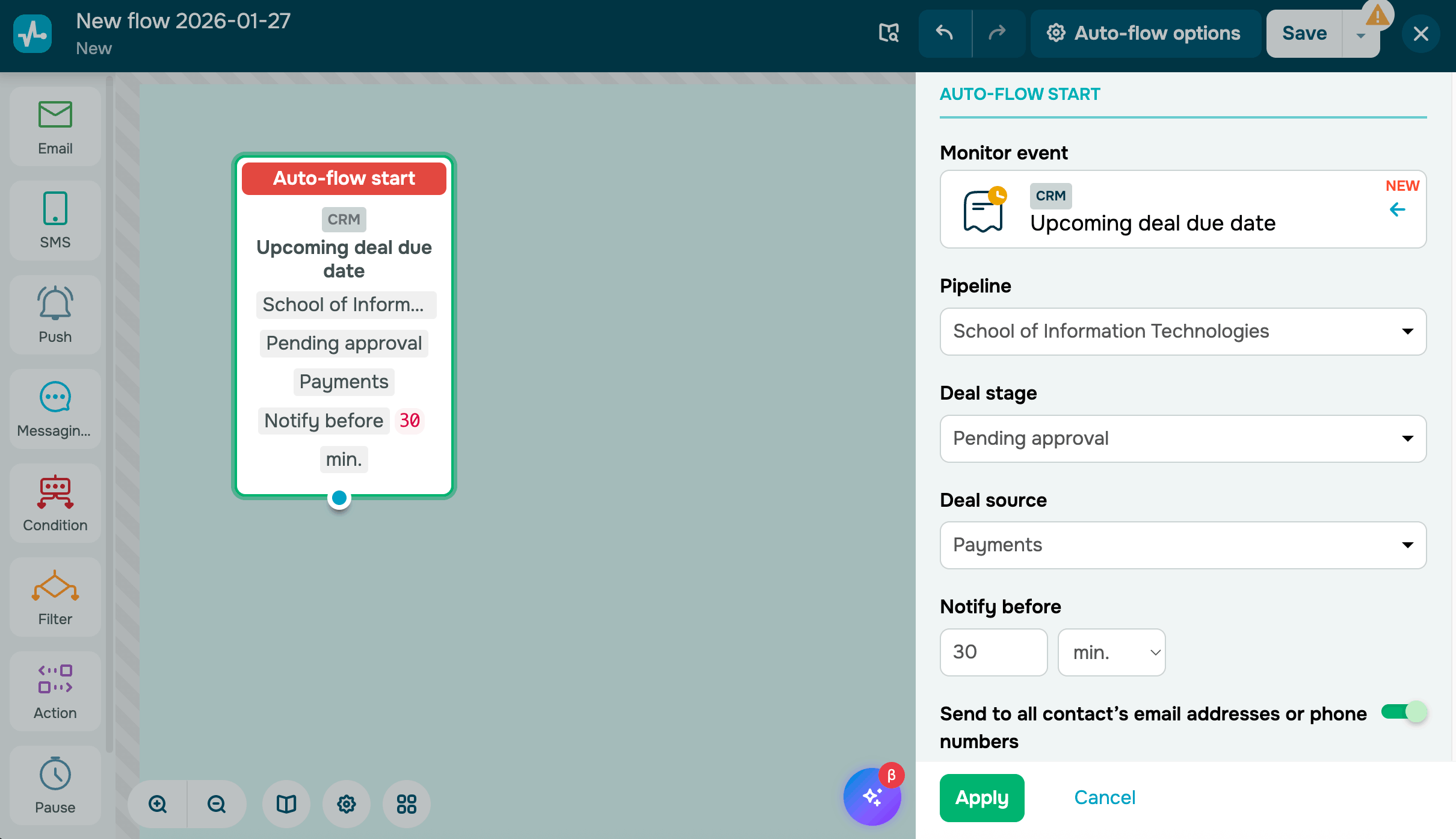
The Upcoming deal due date trigger starts a flow shortly before a deal reaches its due date. You can use it to send a message to a contact from a specific deal and remind them to sign a contract, make a payment, sign up, and more.
Your deal must have a linked contact that will receive the flow.
Select a pipeline and add conditions you want to track, such as a deal stage and deal source.
In the Notify before section, decide how long before the deal due date your flow should start. You can set the time in minutes, hours, or days.
The minimum time is 30 minutes. The system checks due dates every 5 minutes, including 5 minutes before the trigger time. This means that a flow set to start 30 minutes before the deal due date may start even when 32 minutes remain.
Product purchase
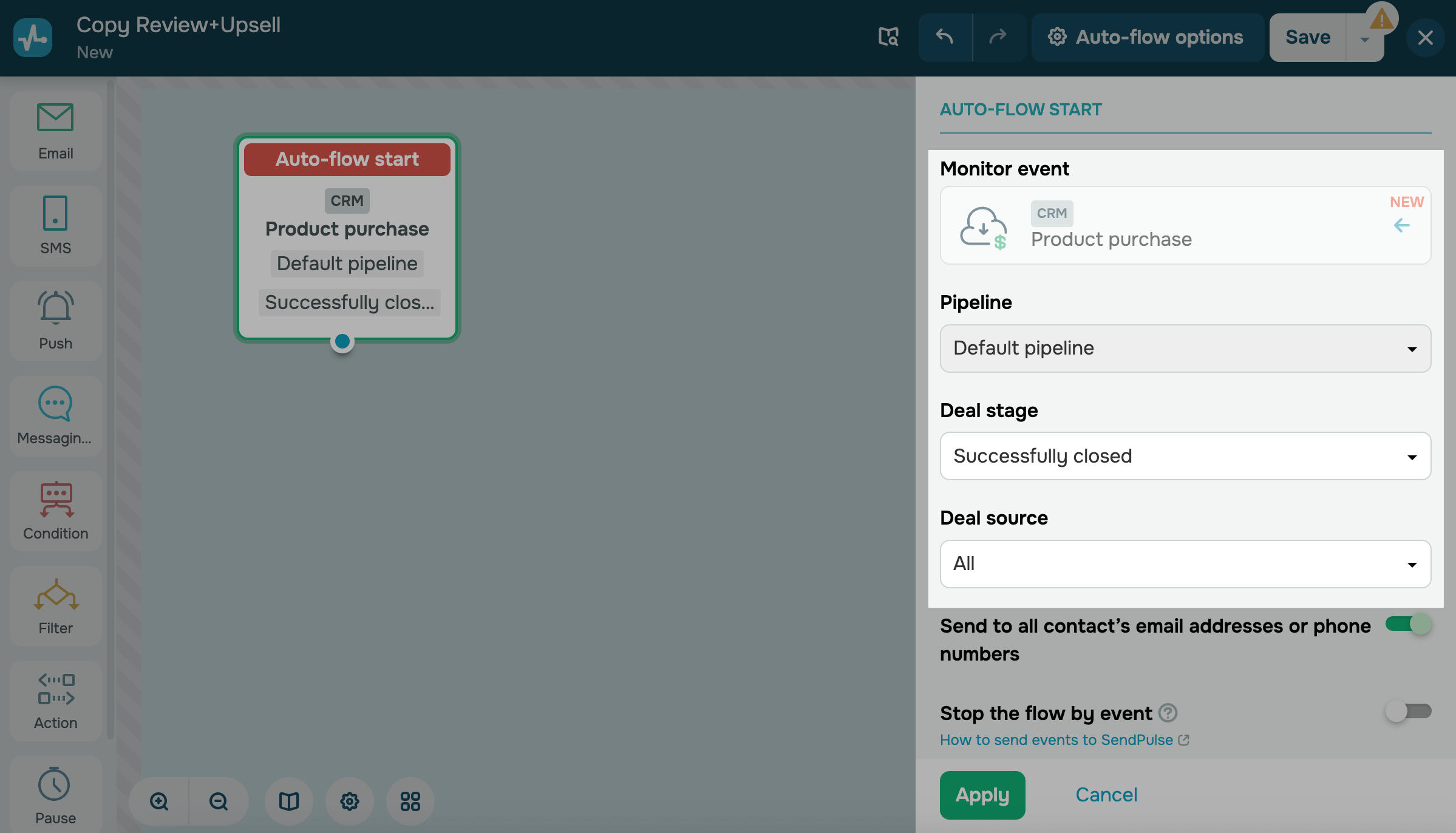
The Product purchase trigger starts a flow when a deal is closed or moved to your selected stage, such as from In progress to Paid.
Select a pipeline and add tracking conditions: Deal stage and Deal source.
When triggered, your flow can access the crm_products array. It contains detailed information about all products added to your deal. You can use these variables in filters, emails, or internal notifications to personalize your messages.
Read also: Automate product management.
Add new contact
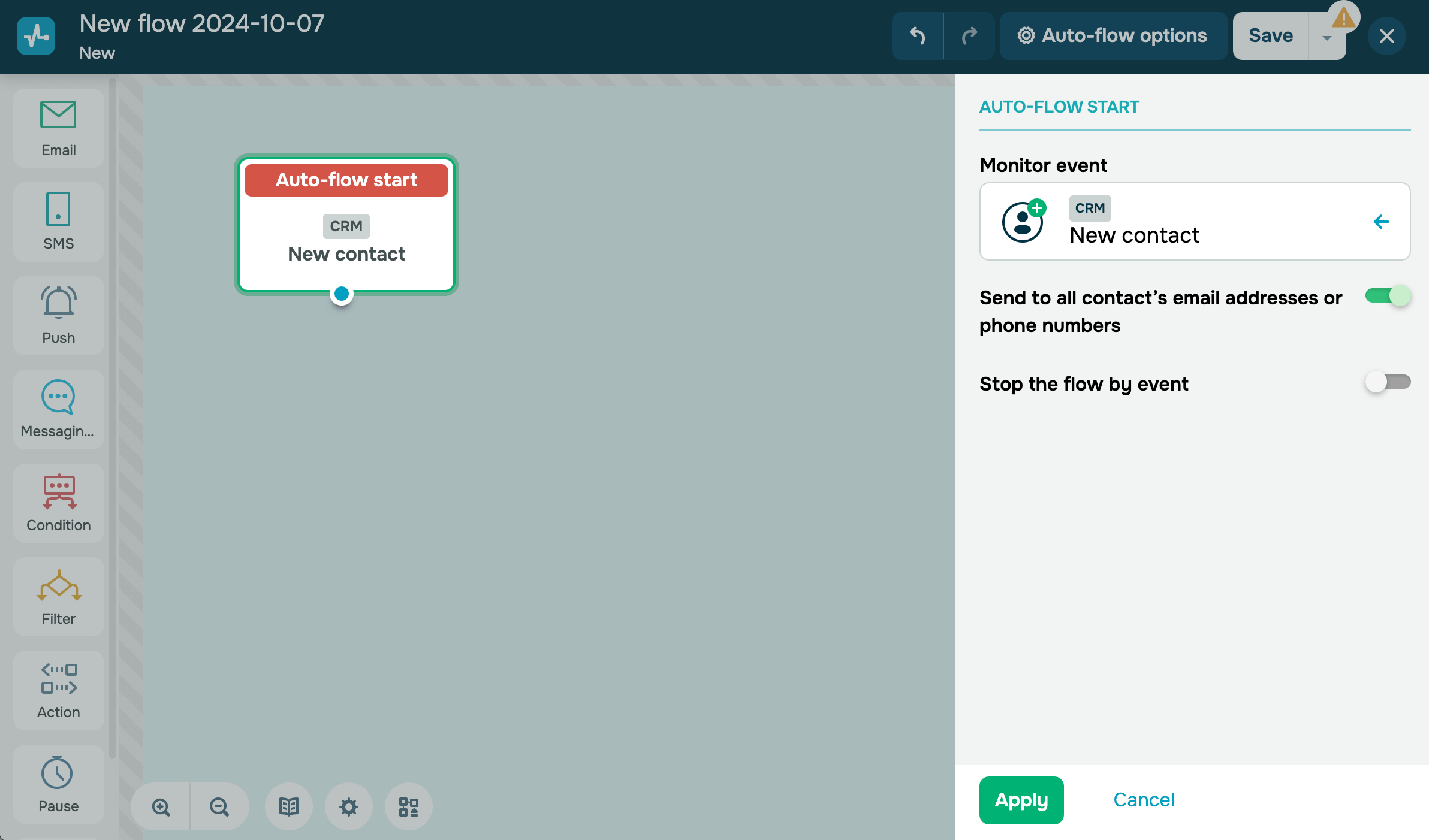
This trigger starts a flow when a new contact is added to your CRM system. For example, you can use this trigger to send a welcome email to a new customer. You can also send your automated flow to all email addresses and phone numbers.
Learn more: How to manage contacts.
Tag assignment
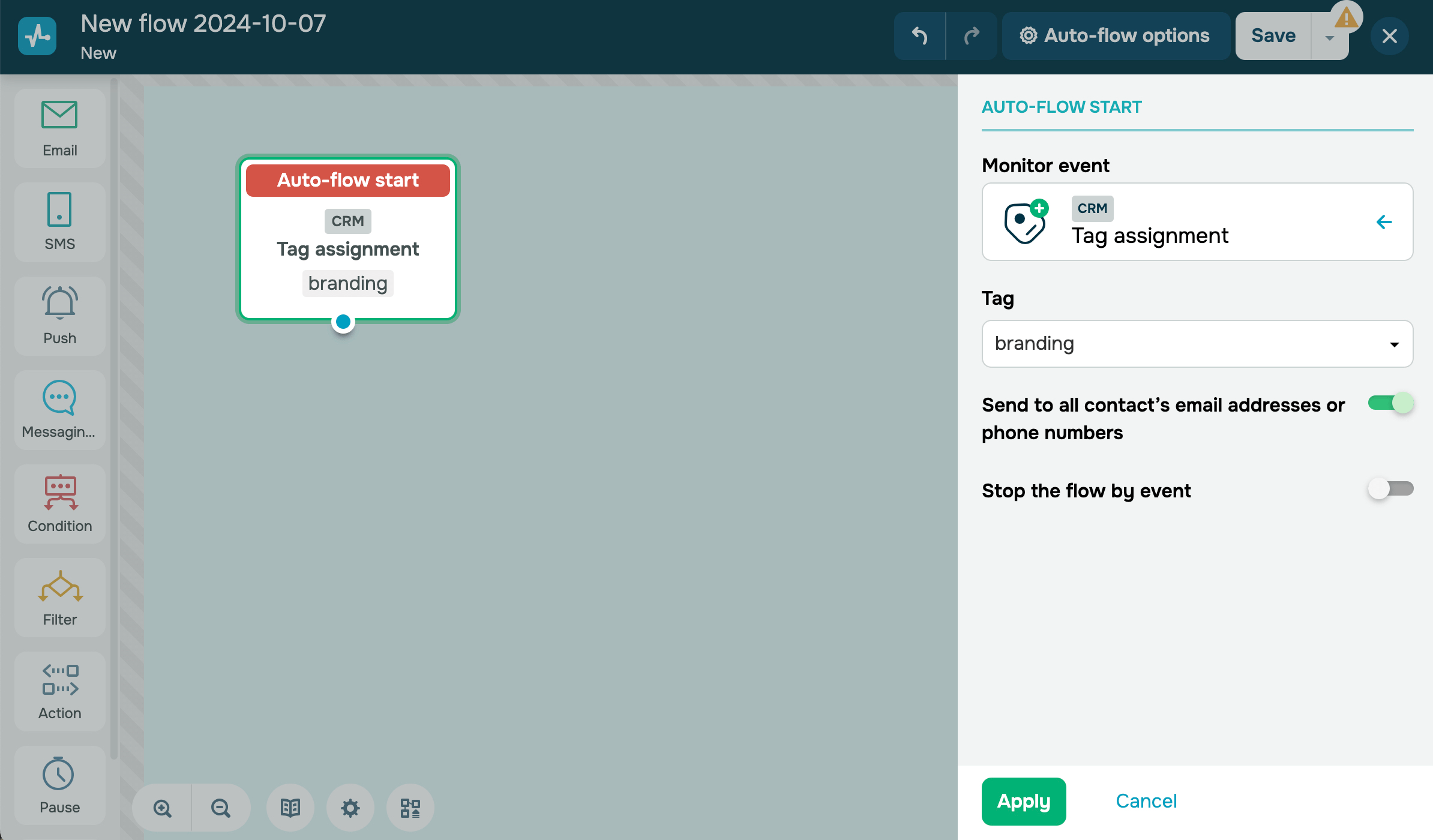
This trigger starts a flow when a tag is assigned to a contact in your CRM system. For example, you can use this trigger to segment message recipients. You can select an existing tag you created for your CRM contacts.
Learn more: How to Manage Contact Attributes: Tags
Tag unlinking from contact
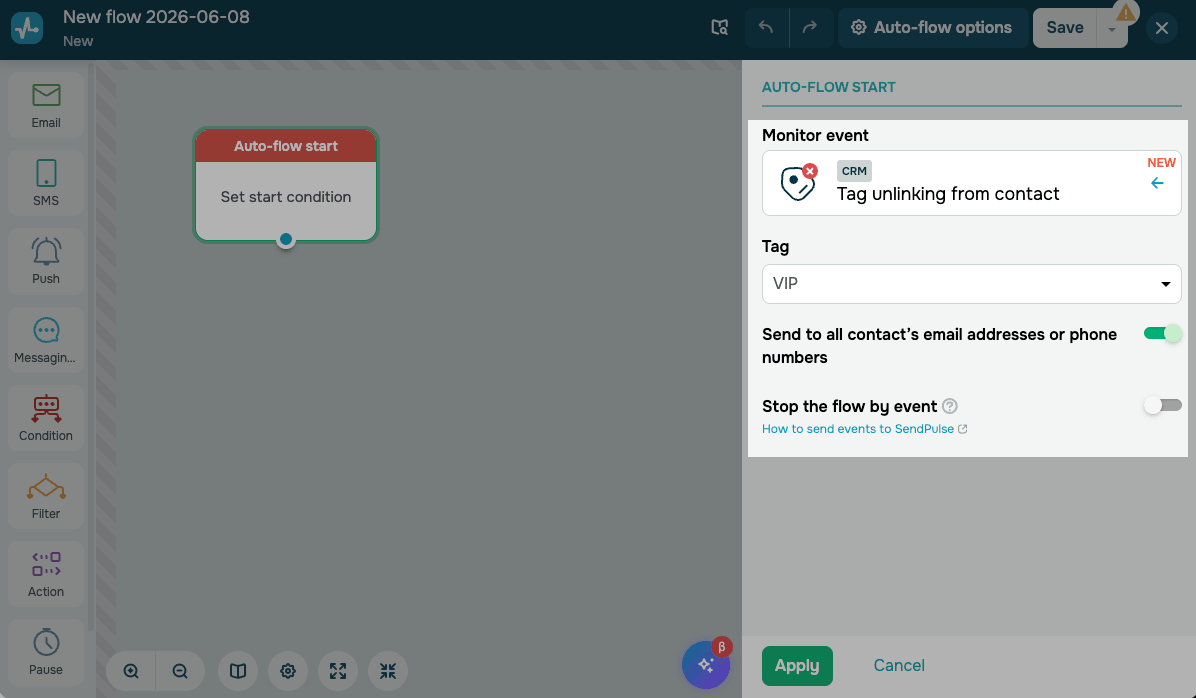
The Tag unlinking from contact trigger starts a flow when a tag is removed from a contact in the CRM system.
For example, if the Active lead tag is unlinked from a contact, this trigger can start a flow that moves them to a different communication scenario.
You can unlink tags manually in contact cards or using the Action: Unlink tag from contact element in Automation.
In the Tag field, select the tag to track. You can select only one tag per trigger. The trigger will fire every time this tag is unlinked from a contact in the CRM system.
To send messages to all email addresses and phone numbers associated with a contact, turn on the Send to all contact's email addresses or phone numbers toggle. When it is off, messages go only to the primary email address and phone number.
Deleting a tag in the CRM settings does not trigger your flow. It runs only when the tag is unlinked from a contact.
Variable update
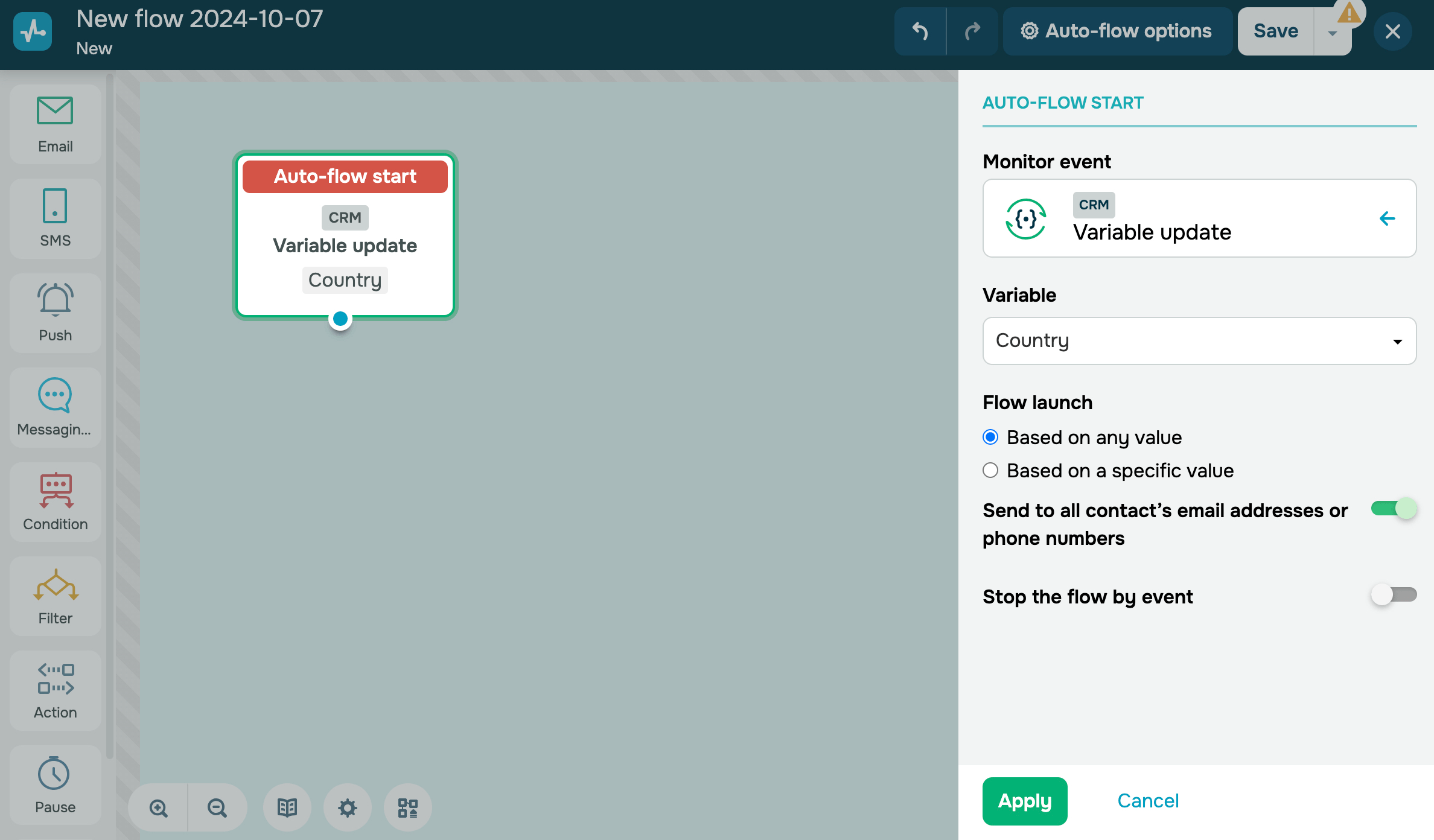
This trigger starts a flow when the value of a specific variable in a CRM contact changes. For example, when the contact’s location or deal benefits are modified.
This event also offers an option to set a specific variable value that will trigger your flow.
Add task
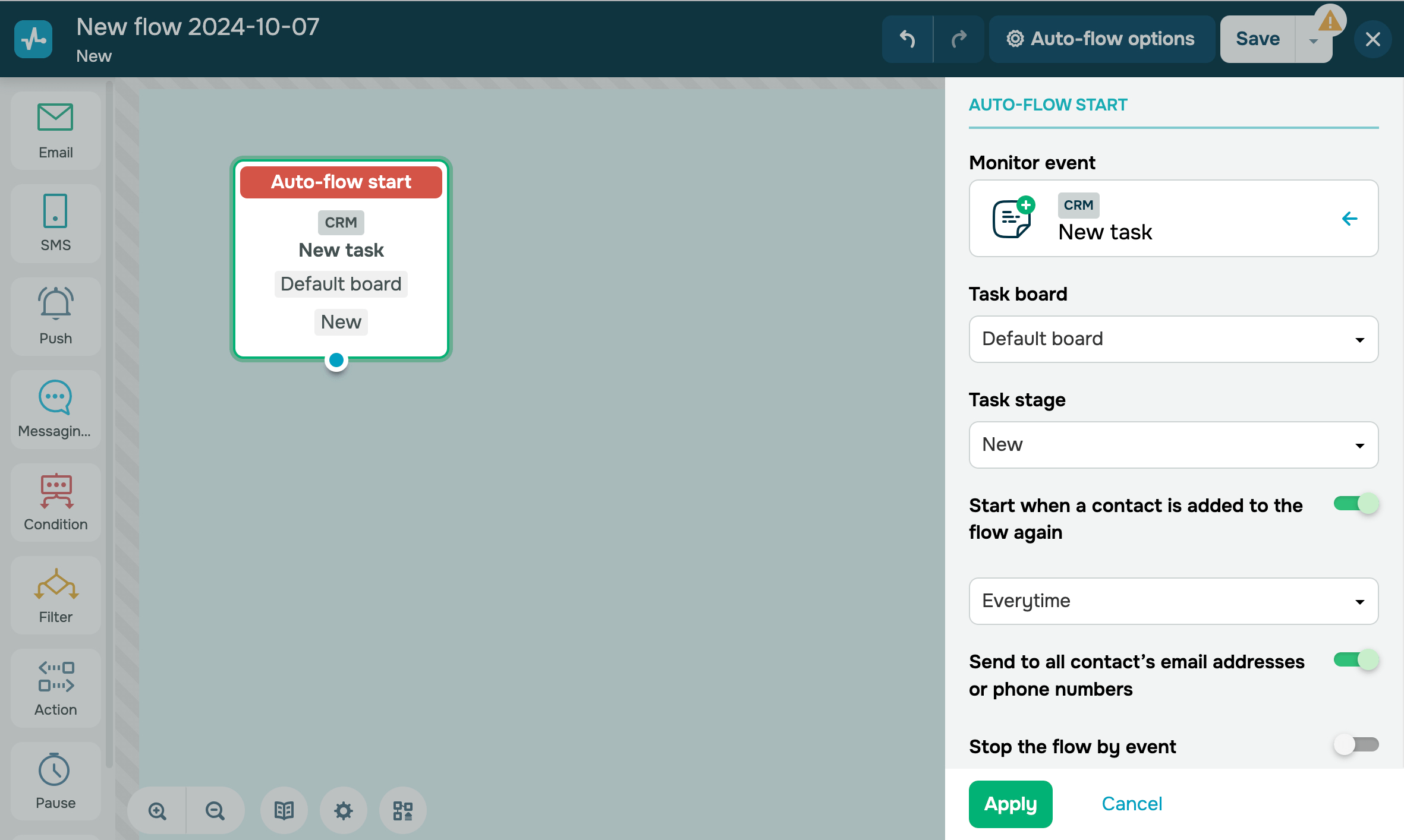
This trigger starts a flow when a new task is added to your CRM system. For example, you can use this trigger to automatically create a task to call a lead if they are at the "New Leads" stage and set a deadline for this task (24 hours).
If multiple contacts are linked to this task, your campaign will be sent to all of them
Select the board and task status to be tracked: All, New, In Progress, or Done.
Select a flow start option for when a contact is added to the flow again: Everytime, Once a week, Once a month, Once a year, or Custom.
Read more: How to create a task.
Change task stage
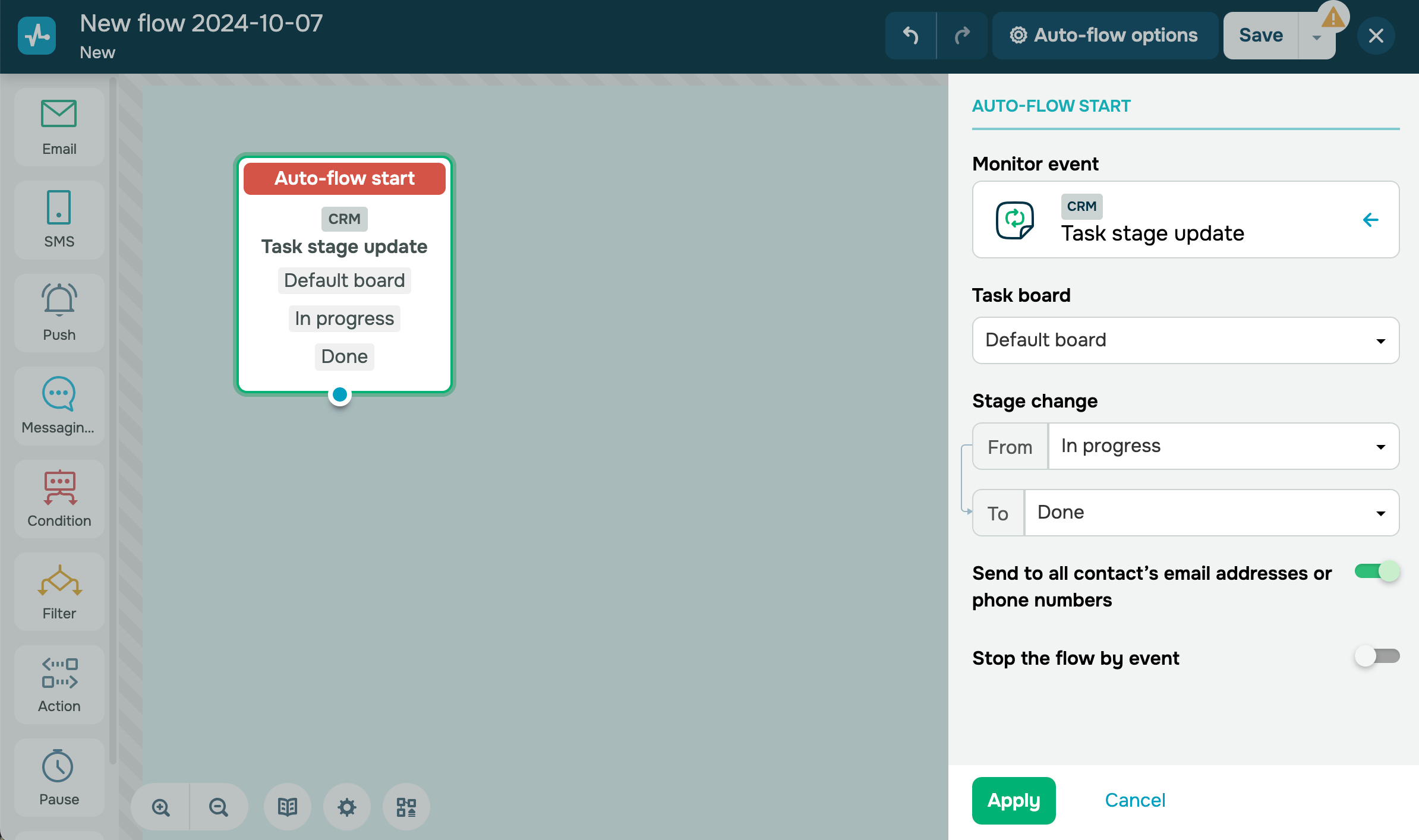
This trigger starts a flow when a task status is updated in the CRM system. For example, you can use this trigger if a deal remains within the "New Leads" stage for 3 days after its creation, and you want to check why the lead hasn’t been contacted.
Select the boards and task statuses to be tracked — the flow will be triggered when transitioning from one status to another.
Read more: How to work with tasks.
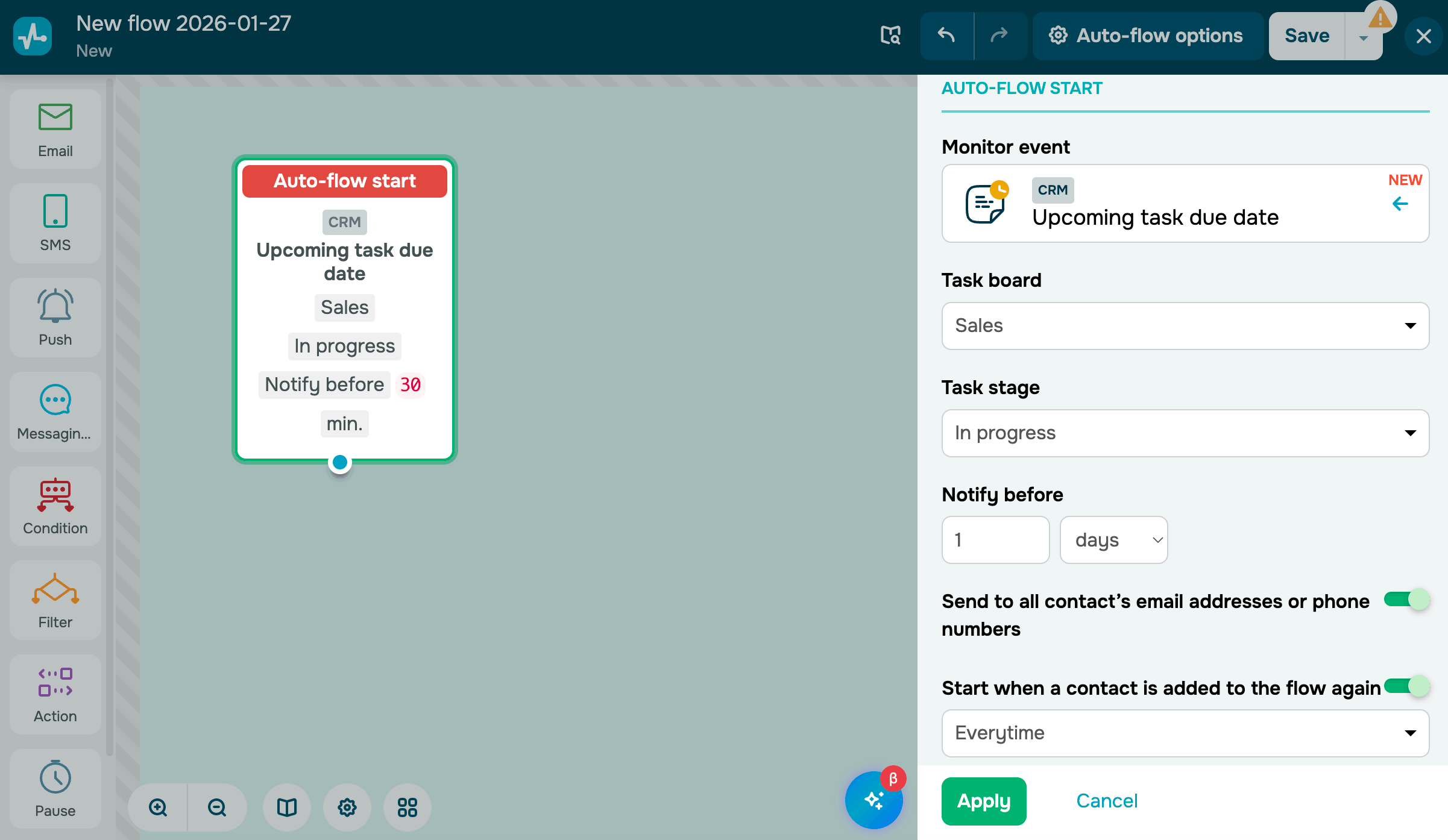
Upcoming task due date
The Upcoming task due date trigger starts a flow shortly before a task reaches its due date. You can use it to send a message to a contact from a specific task and remind them to sign a contract, make a payment, and more.
Your task must have a linked contact that will receive the flow.
Select a board and a task stage you want to track.
In the Notify before section, decide how long before the task due date your flow should start. You can set the time in minutes, hours, or days.
The minimum time is 30 minutes. The system checks task due dates every 5 minutes, including 5 minutes before the trigger time. This means that a flow set to start 30 minutes before the task due date may start even when 32 minutes remain.
 Last Updated: 27.01.2026





or