Manage closed deals
In the SendPulse CRM, you can view and filter completed deal data and reopen deals.
For example, you can view the total number of completed deals or filter them by clients and other parameters to analyze your performance.
Close your deal
To close your deal, click Close deal and select Deal won or Deal lost.

If you’ve selected Deal lost, choose a reason in the Reason for closing this deal field and, if needed, add a comment in the Comment field.
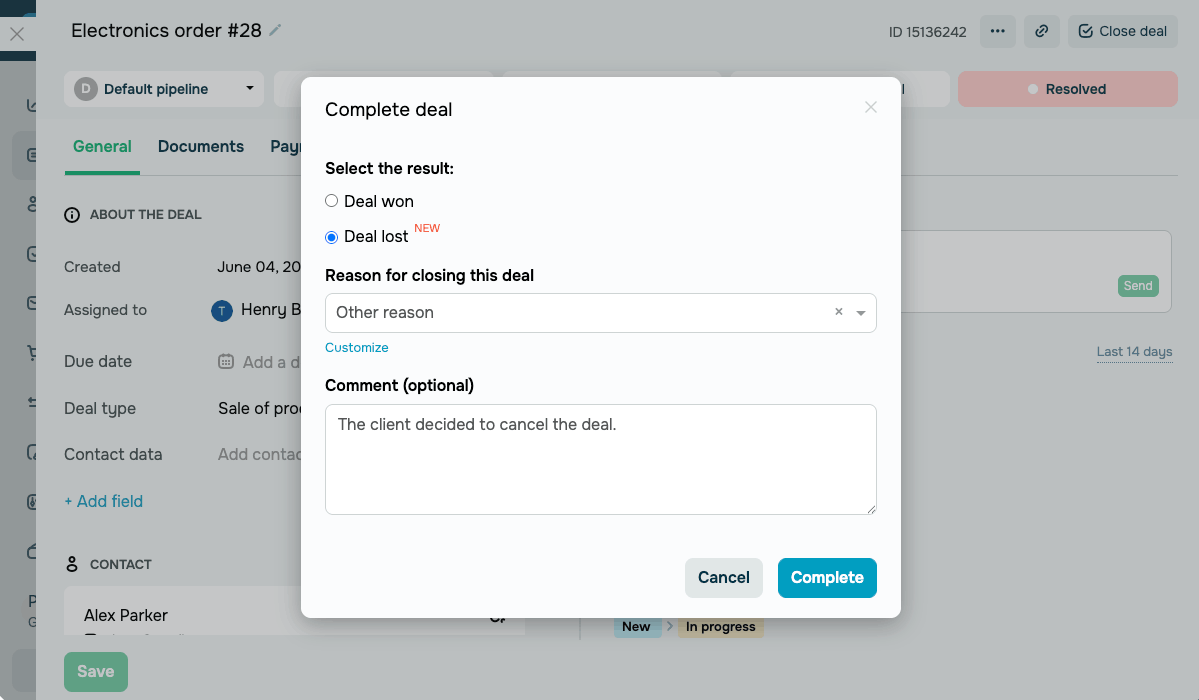
Once you select a deal outcome, click Complete.
The selected reason and comment will be saved to your deal history. To edit the list of reasons, click Customize in the deal window or open the lost reason settings in your pipeline settings.
View completed deals
Select the pipeline where you want to view completed deals, and click Closed deals.
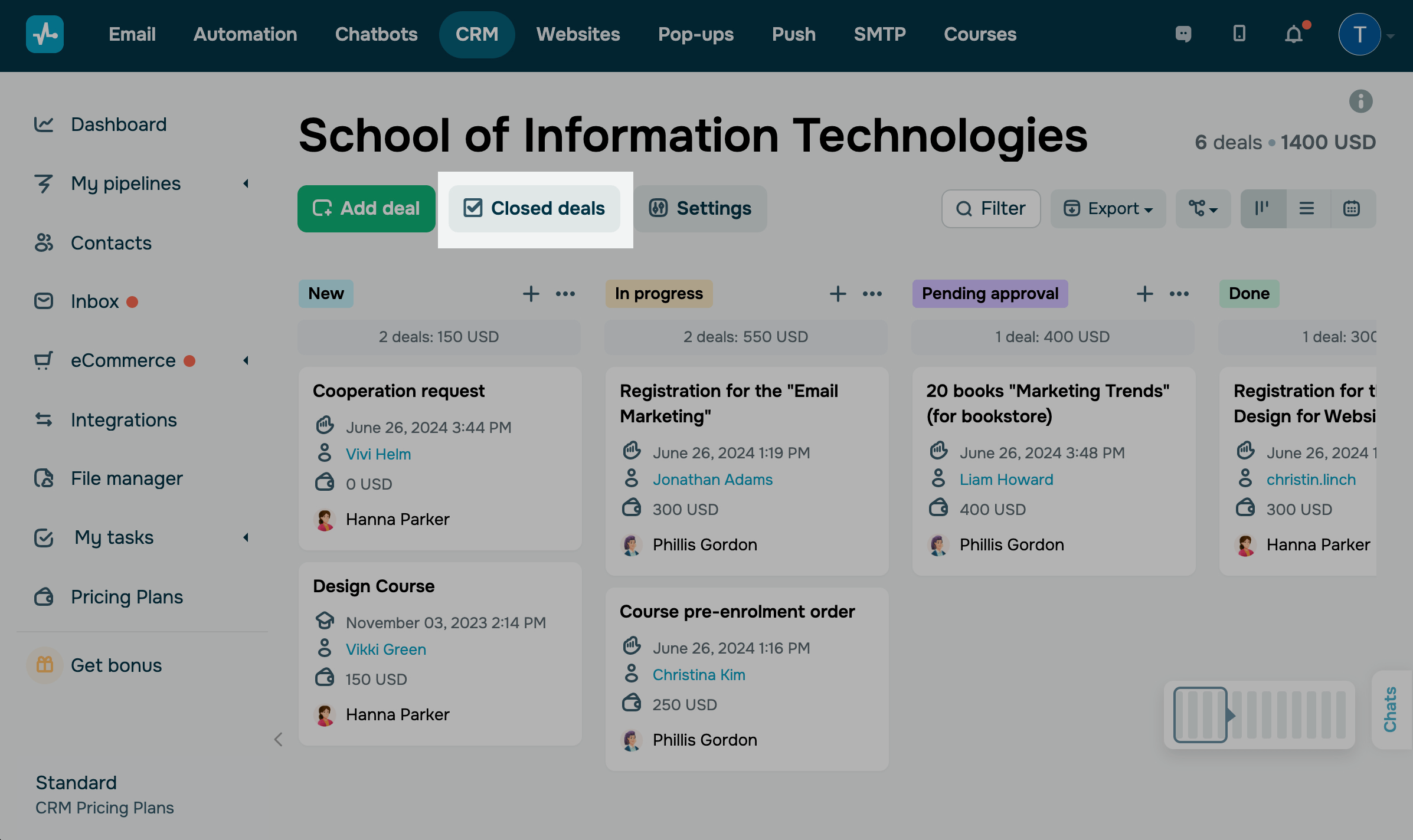
In the list, you will see completed deals with their stage, amount, assigned team member, and other attributes.
In the upper left corner, you can select the stage where you want to view deals (Successful, Unsuccessful, or All). You can also use a filter to select deals based on certain parameters.
To view unsuccessful deals by reason, select the Unsuccessful status in the filter. The reason for closing this deal appears next to it, and you can select one or more reasons.
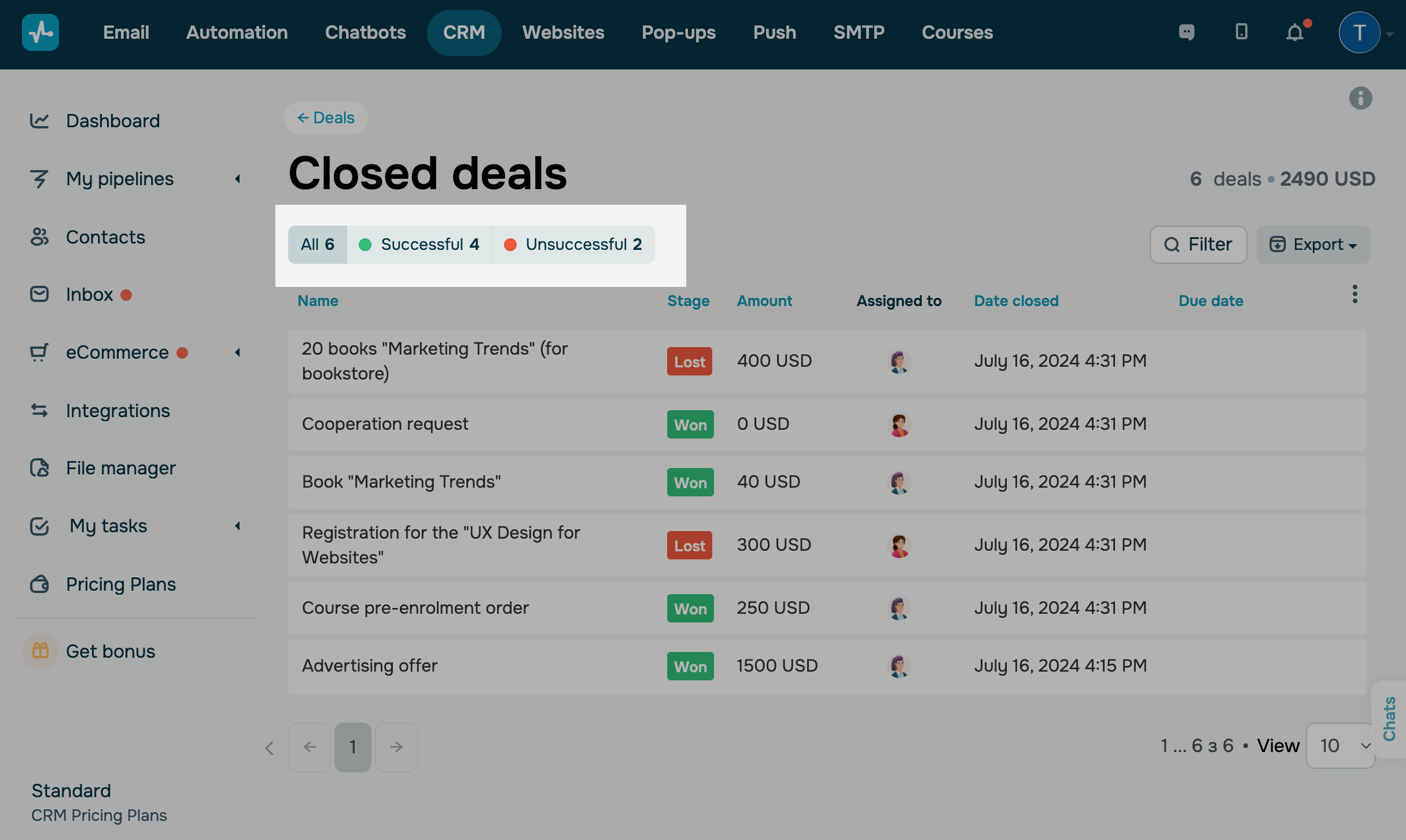
In the upper right corner, you can see the total number of completed deals and their amount.
To view more information about a deal, click it in the list.
Reopen your deal
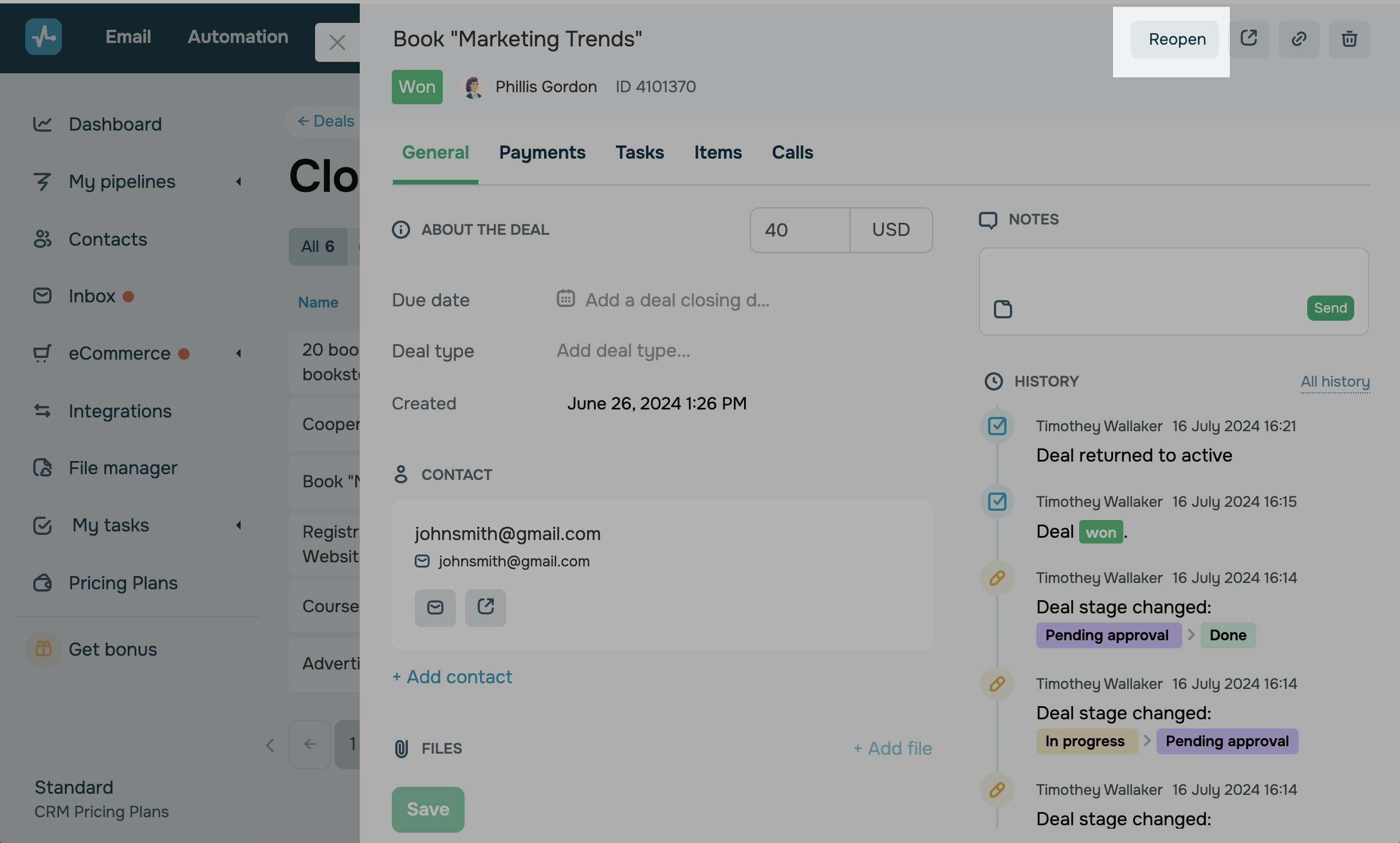
To reopen a deal, select it in the list, and click Reopen.
 Last Updated: 13.03.2025





or