Email service triggers
With SendPulse, you can send automated flows using triggers in the Email tool. When selecting Email triggers, corresponding Actions are available.
Flow start events require at least one of these two variables: email or phone.
In total, you can add up to 100,000 contacts per day to all flow starts in your account. The counter is reset every day at 00:00 by time zone from the account settings.
Click a trigger category, and select a trigger.
Add subscriber
The Add subscriber trigger launches an automated flow when a subscriber is added to the selected mailing list. Select a mailing list you want to track.
Email addresses can be added from different sources. For example, you can add them to a mailing list manually, via integrations with external resources, using the Add emails to a mailing list API method, via subscription forms made with our bulk email and pop-up services or website builder, when adding a bot subscriber, or when copying or moving a subscriber in Automation360.
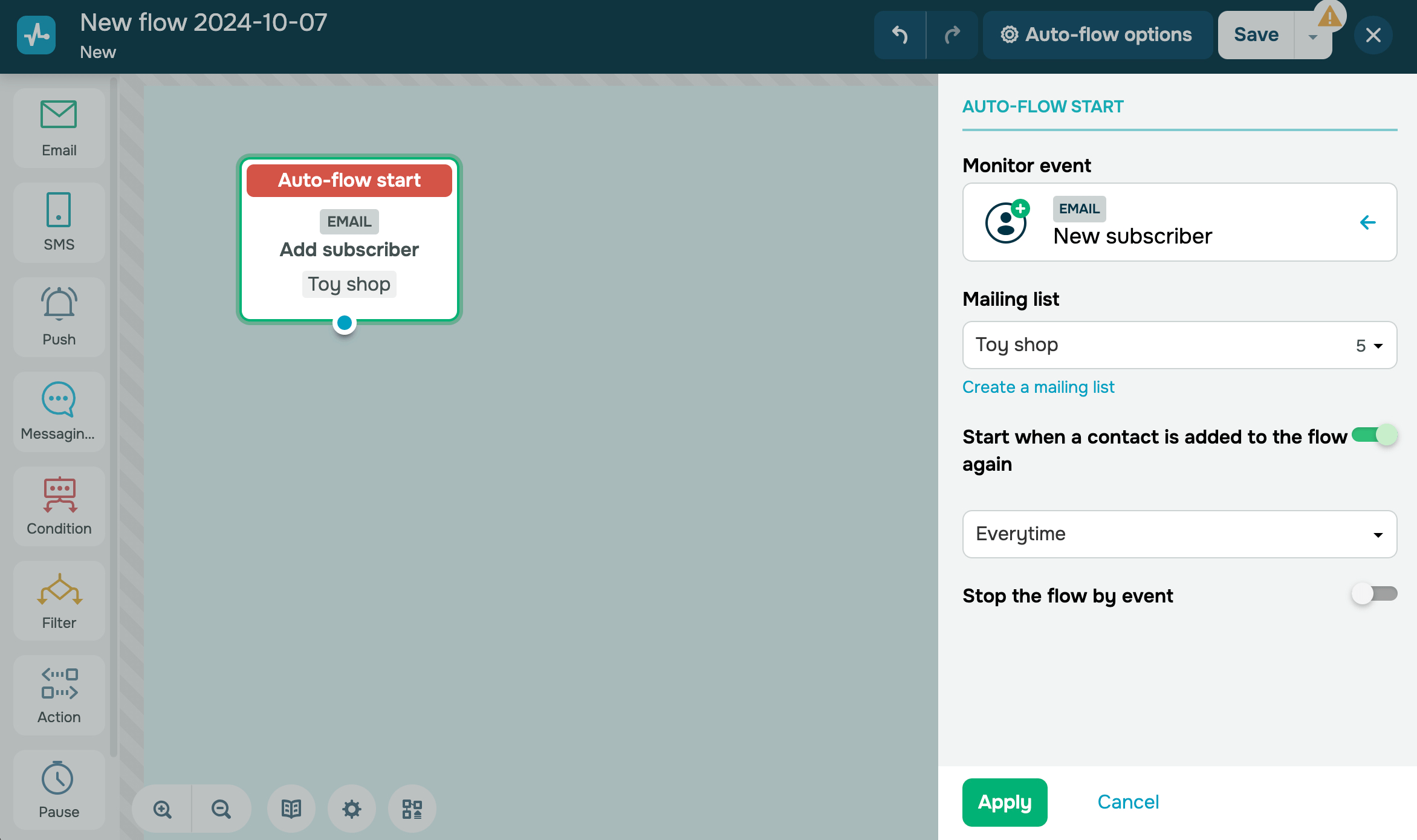
You can also run an automated flow for an entire mailing list again. Learn more: How to Run an Automated Flow for a Mailing List.
It is possible to limit the number of scenario launches and choose the frequency of flow launches for repetitive events. For example, if a customer hasn't paid for their orders from different sellers on the marketplace, you can configure your automated pipeline to not send abandoned cart notifications for each order separately.
Turn on the Start when contact is added to the flow again toggle. In the next field, choose the frequency: Everytime, Once a week, Once a month, or Custom, where you can set your own number of days.
Special date
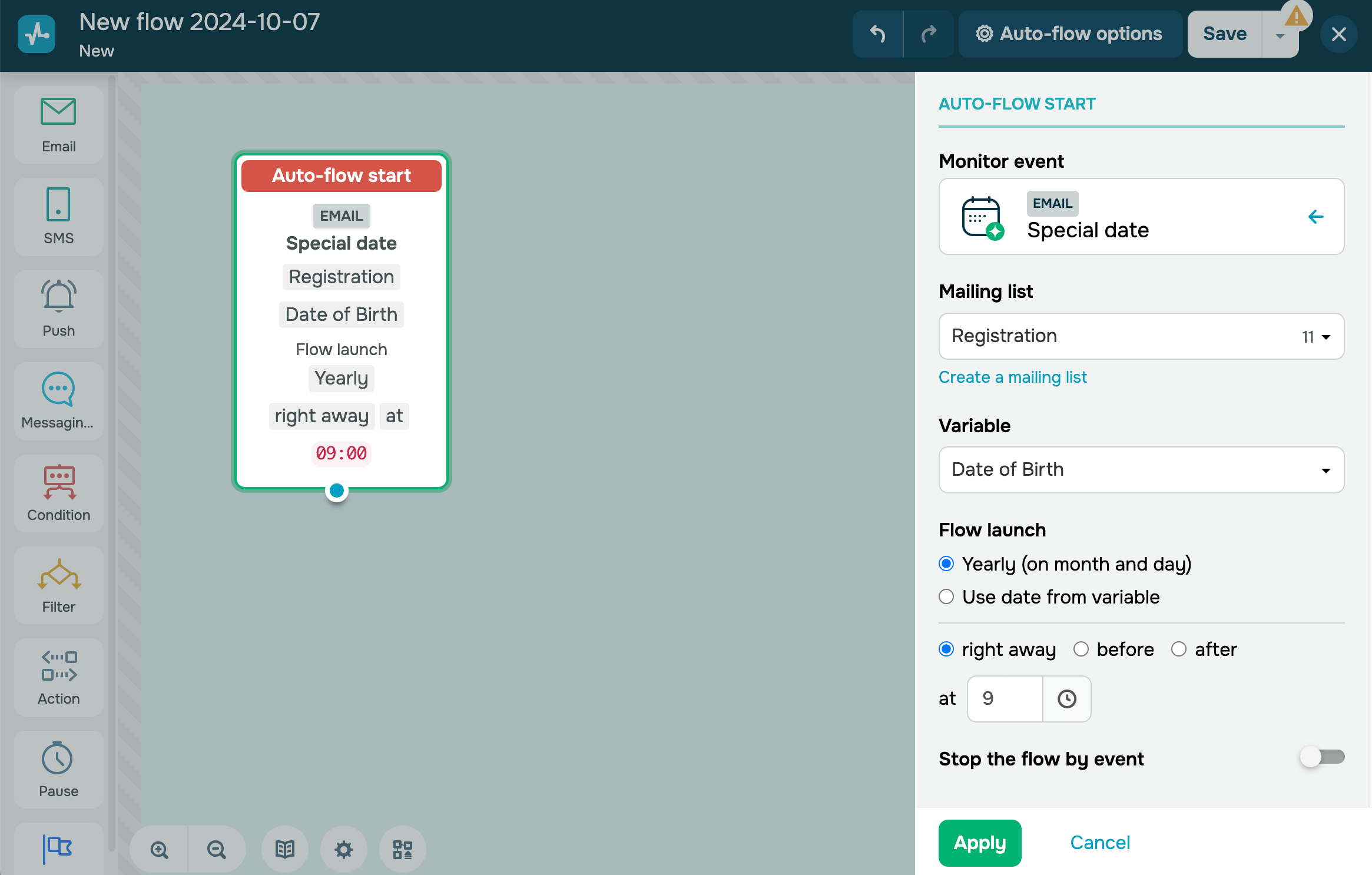
Start your flow with the Special date trigger, when you need to start the sequence after the variable with a Date data type on your mailing list gets a specific value.
Special date events are usually used to send clients messages on important dates or to inform customers about the upcoming expiration of their subscription. Naturally, the mailing list must contain that variable.
Contact webhook
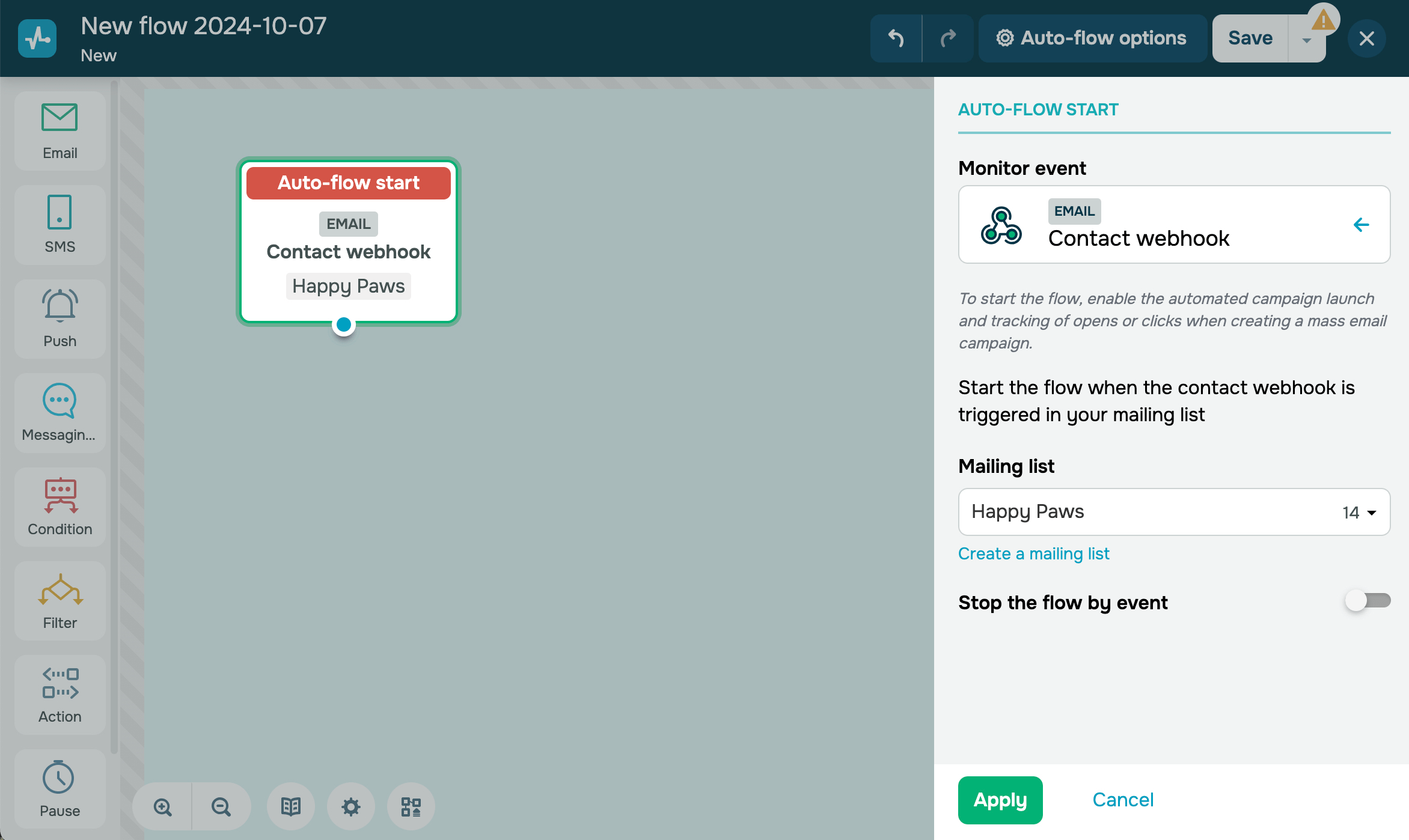
Starting your flow with the Contact webhook trigger tracks actions of subscribers, who have somehow reacted to an email: opened it or clicked a link in the message.
Change variable
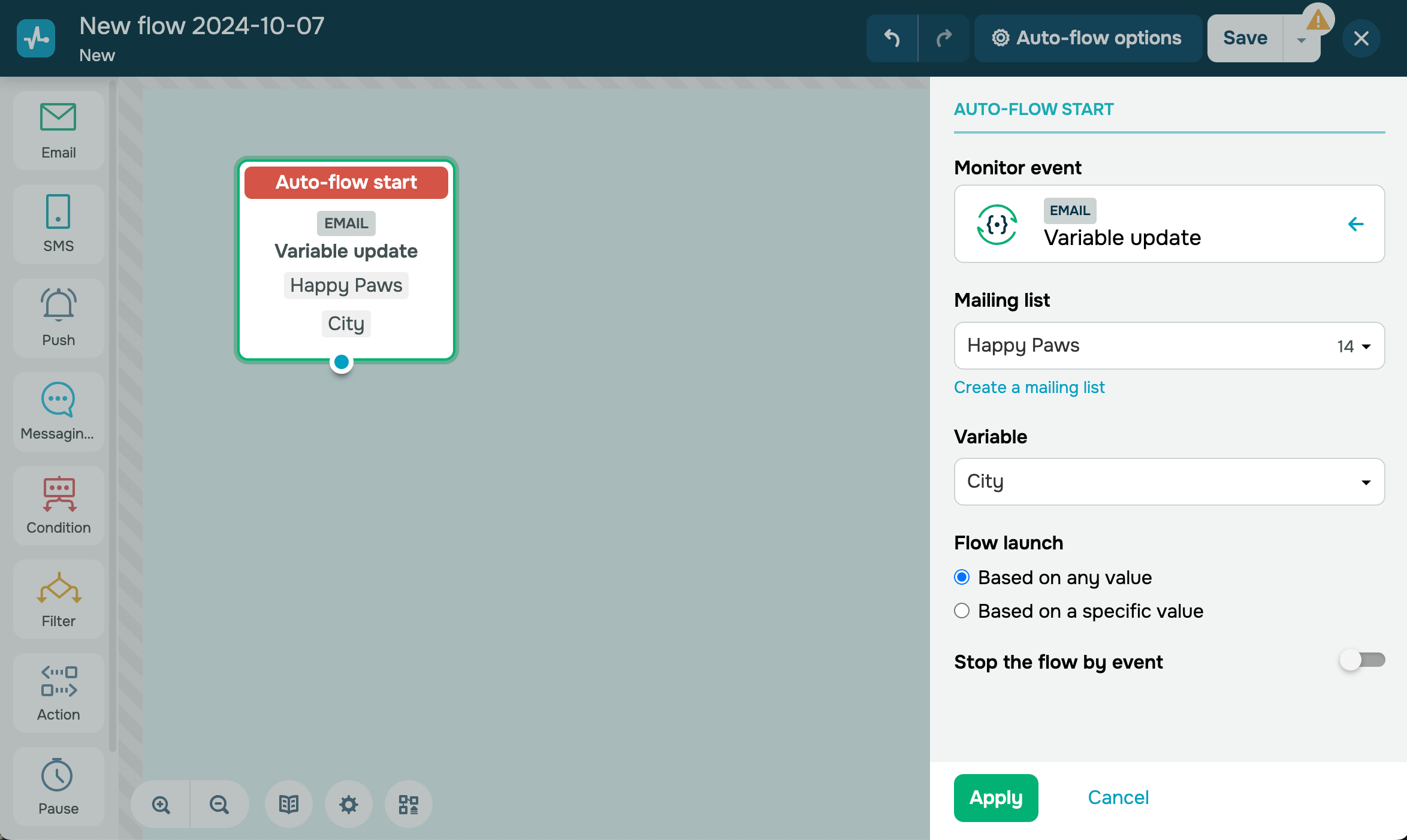
Start your flow with the Change variable trigger, when the value of a specific variable on the mailing list changes. To choose this type specify a mailing list that will be monitored for updates.
This event also offers an option to set a specific value for the variable to trigger the flow starts when the variable receives it.
Tag assignment
This trigger launches an automated flow when a tag is assigned to a contact in the Email section. The tag can be assigned to contacts in mailing lists, chatbots, and the Action: Assign tag to email element in the Automation section.
In the Mailing list field, select a mailing list to track the event.
In the Tag field, select tags to track. You can add any tags from the Email section, not just those from a specific mailing list.
You can add up to five tags at once. When one of them is assigned, your flow will launch. If multiple tags are assigned to a contact, your automated flow will run only once.
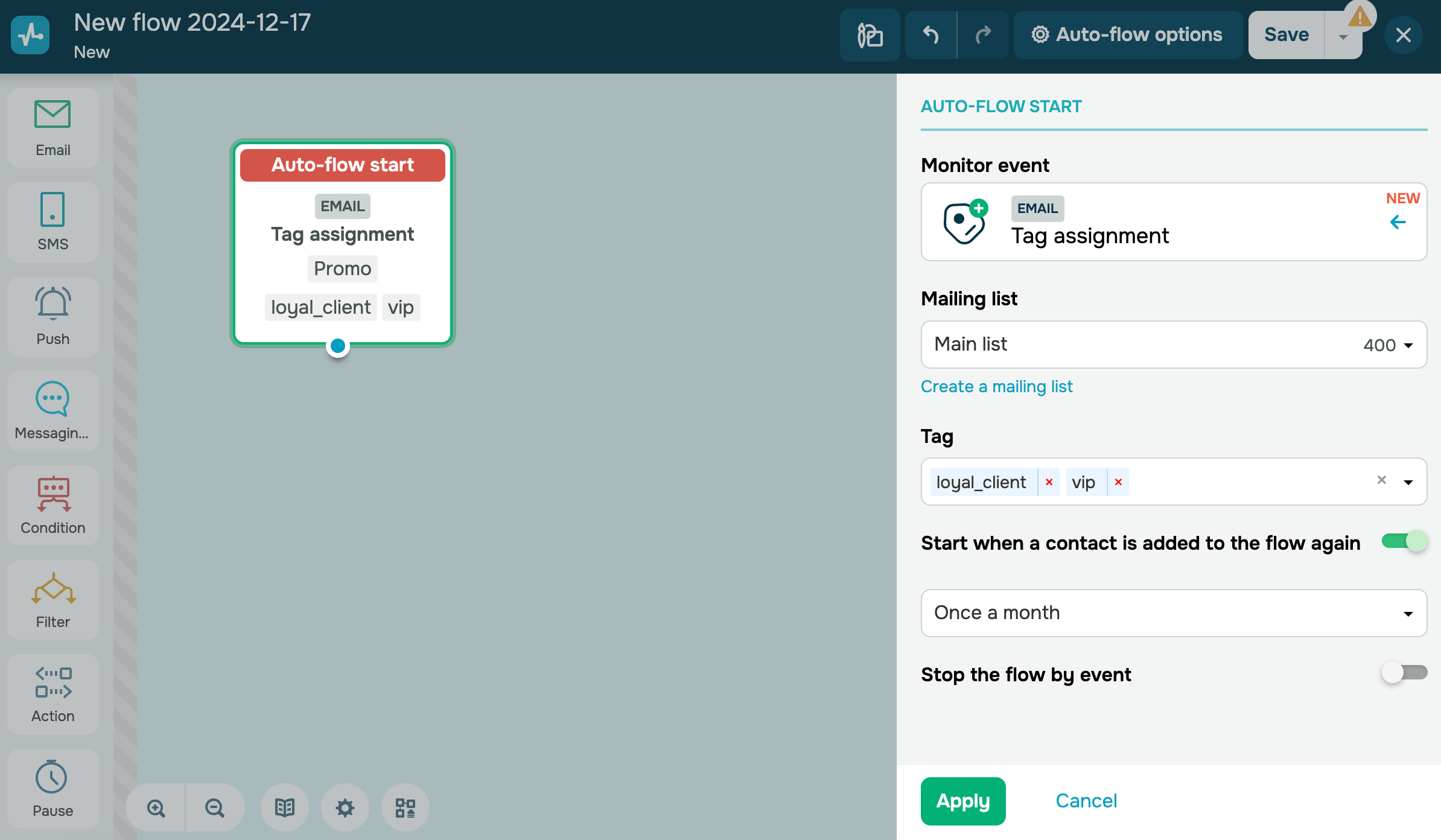
You can limit the number of flow launches. For example, if multiple tags are assigned to a customer — one initially and another an hour later — you can configure your automated flow to avoid sending emails on the same day.
Turn on the Start when a contact is added to the flow again toggle. In the next field, select an option: Everytime, Once a week, Once a month, or Custom.
Tag unlinking
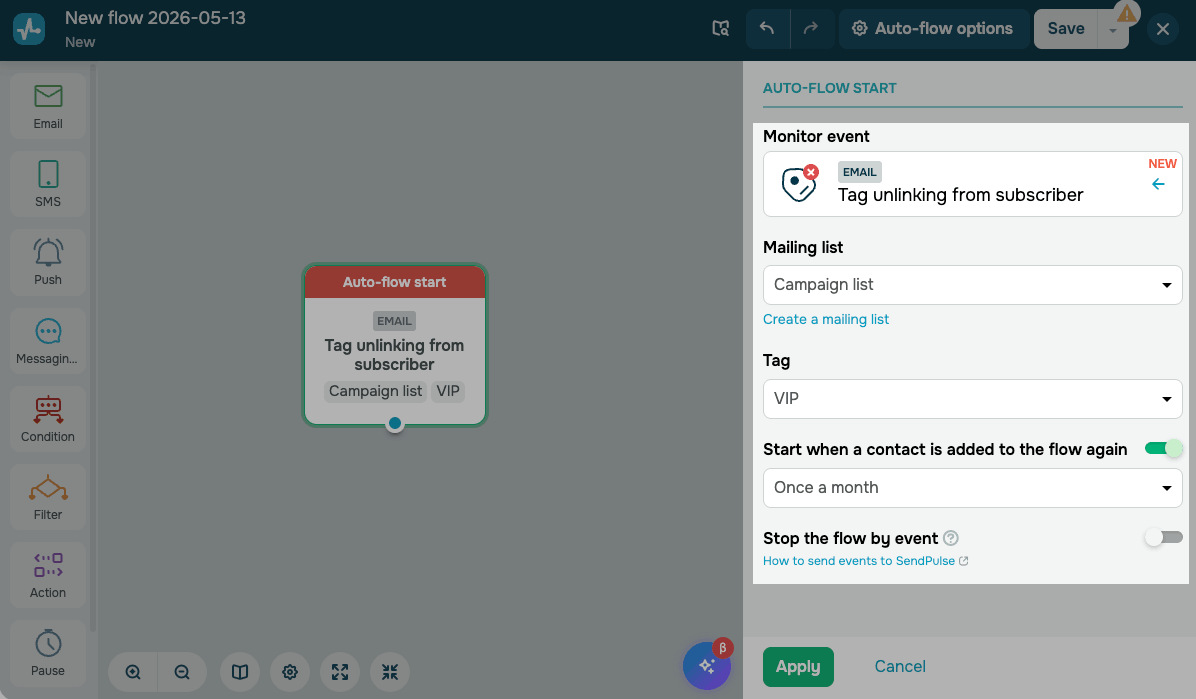
This trigger launches an automated flow when a tag is unlinked from a contact in the Email section. A tag can be unlinked manually in a mailing list or the Action: Unlink tag from subscriber element in the Automation section.
You can configure the following options:
| Mailing list | Select a mailing list to track the event. |
| Tag |
Select a tag to track. The trigger runs every time this tag is unlinked from a contact in the selected mailing list. You can select only one tag per trigger. |
| Start when a contact is added to the flow again |
Limit how often a contact can re-enter your flow. Options include: Everytime, Once a week, Once a month, Once a year, or Custom. |
Deleting a contact tag in the Email section, rather than unlinking it, will not trigger your flow.
 Last Updated: 17.07.2025





or