Set up plan renewal offers
Renewal offers help students extend their course access when their pricing plan expires. They can do this in their student account without having to go back to your course landing page.
You can create paid offers with flexible prices and access terms or offer free renewals to specific student segments.
Let's talk about how to add plan renewal offers and manage them.
Add a plan renewal offer
A plan renewal offer defines the terms under which a student can extend their access to a course.
To set up plan renewal, go to Academies and select a course. Click Course settings and open the Tariff renewal tab.
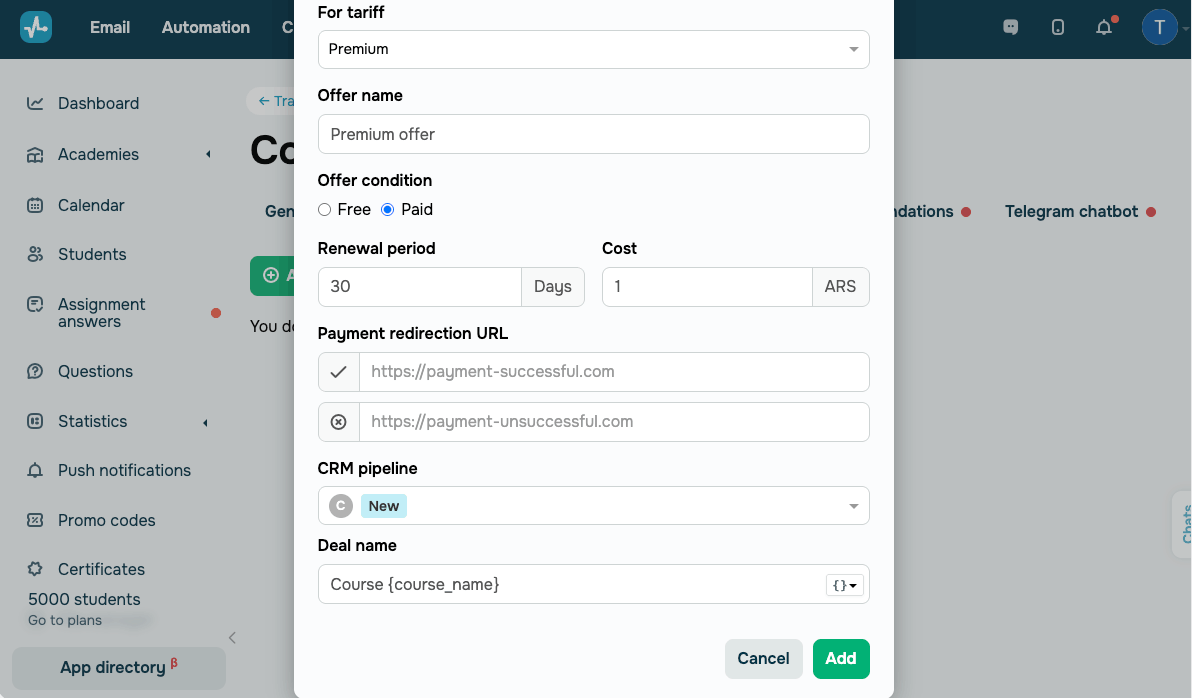
To create an offer, click Add offer and configure the following settings:
| For tariff |
Select the pricing plan to create an offer for. Free pricing plans support only free renewal offers. |
| Offer name |
Enter the offer name that students will see on the list of renewal options. This name will also appear in the course history and CRM contact history. |
| Offer condition |
Select a renewal type. Options include: Free — access is granted immediately once your student confirms the renewal. Paid — your student is redirected to the payment page. |
| Renewal period |
Set the number of days to add to your student's course access. If access is active, the days are added to the current expiration date. If access has expired, the extension starts when your student confirms the offer. |
| Cost |
Enter the renewal price. The currency is based on the student's pricing plan settings. The minimum value is 0.1. This setting is available only for paid offers. |
| Payment redirection URL |
Add the pages students will be redirected to after a successful or failed payment. This setting is available only for paid offers. |
| CRM pipeline |
Select the pipeline and stage where new deals will be created after a renewal. To skip this setting, keep No pipeline selected. This setting is available only for paid offers. |
| Deal name |
Set a name for new deals in the CRM system. You can also use variables in the deal name: This setting appears after you select a pipeline and is available only for paid offers. |
Click Add.
View and manage plan renewal offers
Once you create an offer, you can view and manage it from the list.
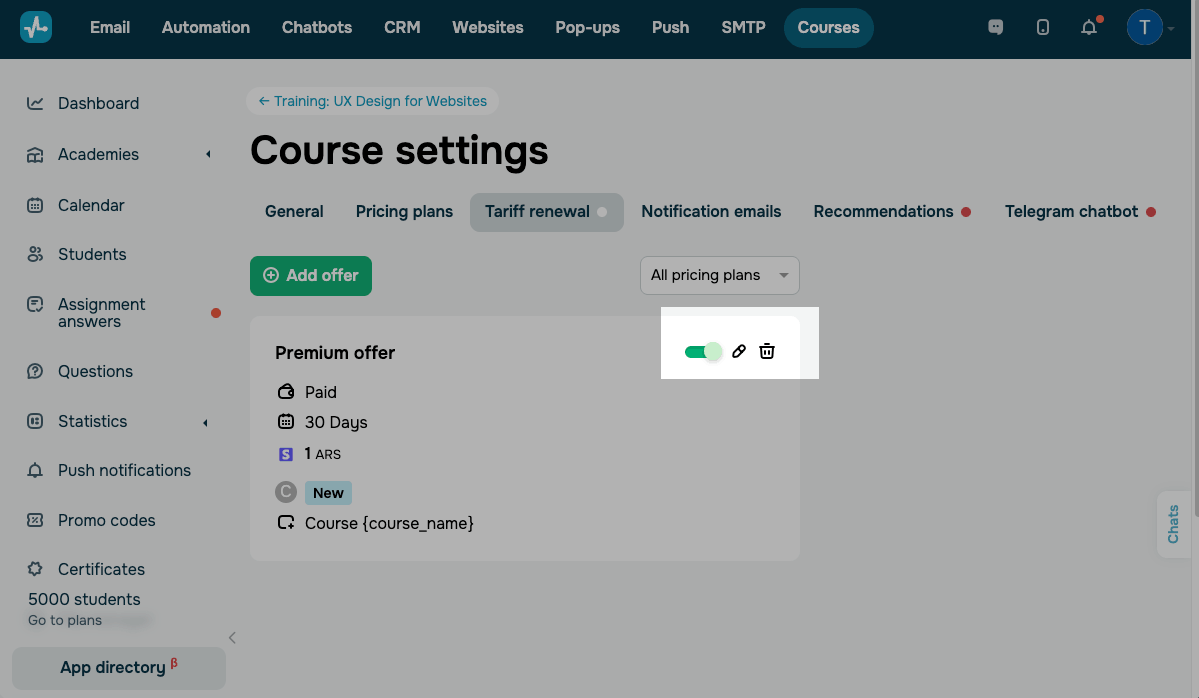
Each offer card shows the pricing plan, condition (paid or free), access period in days, price and currency, CRM pipeline, and deal name.
To filter the list of offers, use the All pricing plans drop-down in the upper-right corner and select a pricing plan.
To manage a plan renewal offer, use the controls on its card:
| Enable offer | Show or hide the offer. |
| Edit |
Update the offer settings. If you make changes to an offer, they will apply only to new renewals. |
| Delete |
Remove the offer from the list. Students will no longer be able to extend their course access through this offer. |
Track plan renewals in the course history
Every renewal is recorded in your course history and in CRM contact history. Each record includes the student's name and email address, offer name, pricing plan, number of days added, and updated access expiration date. Paid renewals also list the price and currency.
Keep in mind that the system does not send internal course payment emails about plan renewal payments. To send plan renewal notifications, set up a dedicated automated flow.
 Last Updated: 11.06.2026





or