Add a Facebook message template
With approved message templates, you can send Facebook Messenger campaigns beyond the 24-hour support window.
This helps you send updates like order confirmations, account changes, and important notifications on time.
Let's talk about how to create, submit for moderation, and use a Facebook Messenger template.
All templates must be approved by Meta before they can be used. Sending approved templates is free.
Add a template
To create a new template, go to the Chatbots section. Select your Facebook Messenger chatbot. Open the Templates tab. Click Add template.
You can configure the following options:
| Template name |
Set a unique template name. This name helps you find the template on the list. Use lowercase Latin characters, numbers, and underscores, for example, |
| Attachment |
Add a file at the top of your message. Select the checkbox, choose an image, and enter a title. Templates currently support only Image attachments. |
| Text |
Add message text. You can also add variables as |
| Button |
Add a clickable button with a link. Click Add button. Enter a button label. Select Add link and paste a link. Optionally, you can add a variable at the end of the link, for example, |
| Language | Set a template language. |
| Category |
Set a moderation category. Facebook Messenger currently supports only Utility templates. Use this category for customer service requests, such as order tracking and subscription management. |
For more information on Facebook message templates, see Template categorization.
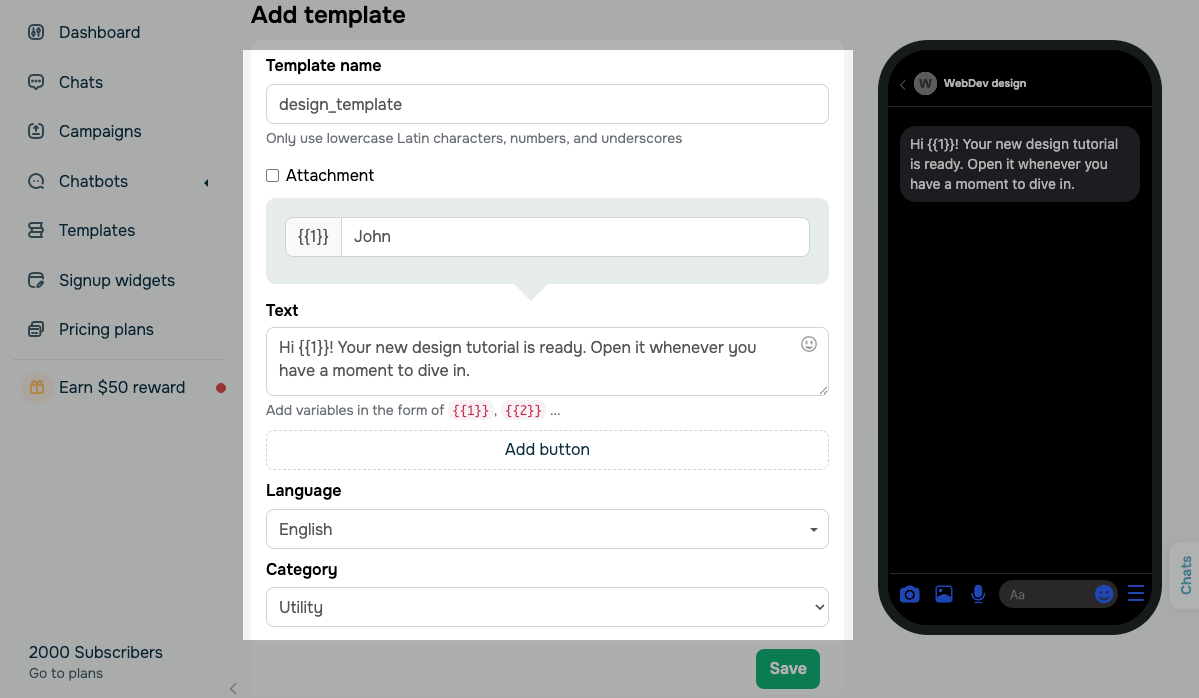
Once you're finished, click Save.
Submit a template
Once you save your template, SendPulse automatically submits it to Meta for review. Until the template is approved, you cannot send it.
View and manage templates
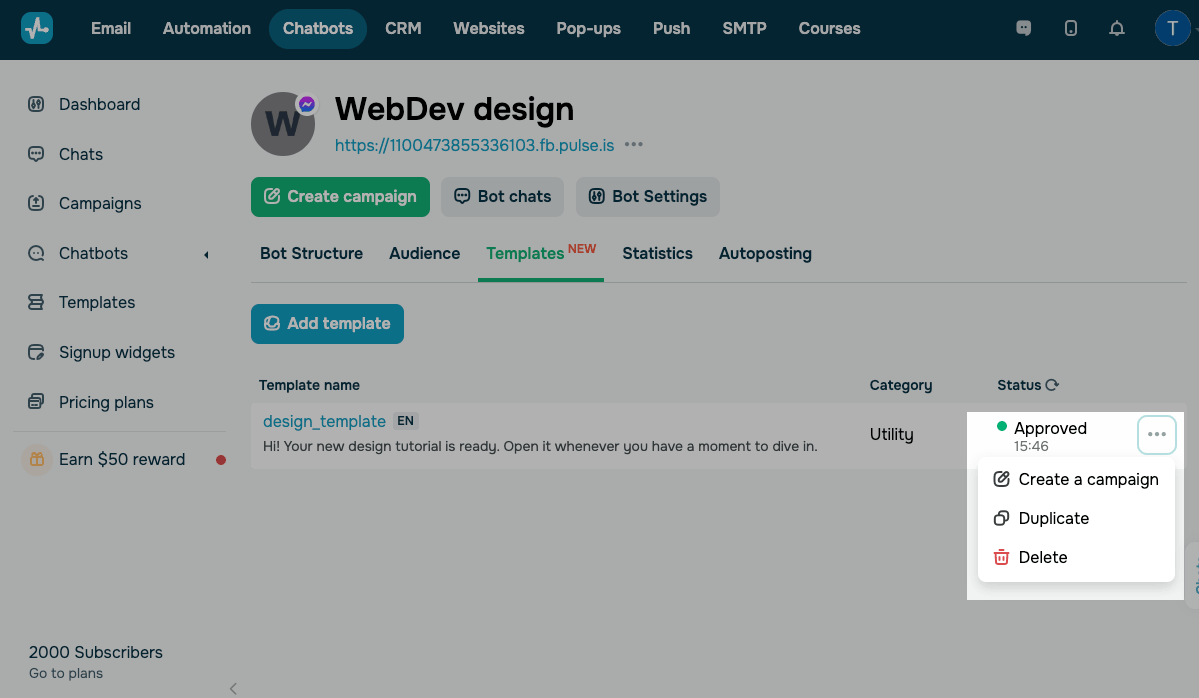
To view and manage your templates, go to the Templates tab.
You can view the current status in the Status column. Templates can have the following statuses:
Sent |
Your template is being reviewed by Meta. |
Approved |
Your template passed the review and is ready to be used. |
Rejected |
Your template did not pass the review. The reason for rejection appears next to this status. You can revise the template and submit it again. |
To manage templates, click the three dots next to your template and select an action:
| Create a campaign | Open the campaign editor with this template selected. |
| Duplicate | Create an editable copy of the template. |
| Delete | Remove the template from the list. |
Use templates
You can use approved templates when creating Facebook Messenger campaigns.
Go to your Facebook Messenger chatbot and click Create campaign.
In the campaign editor, choose your chatbot and select Entire audience (by template). In Template, select an approved template.
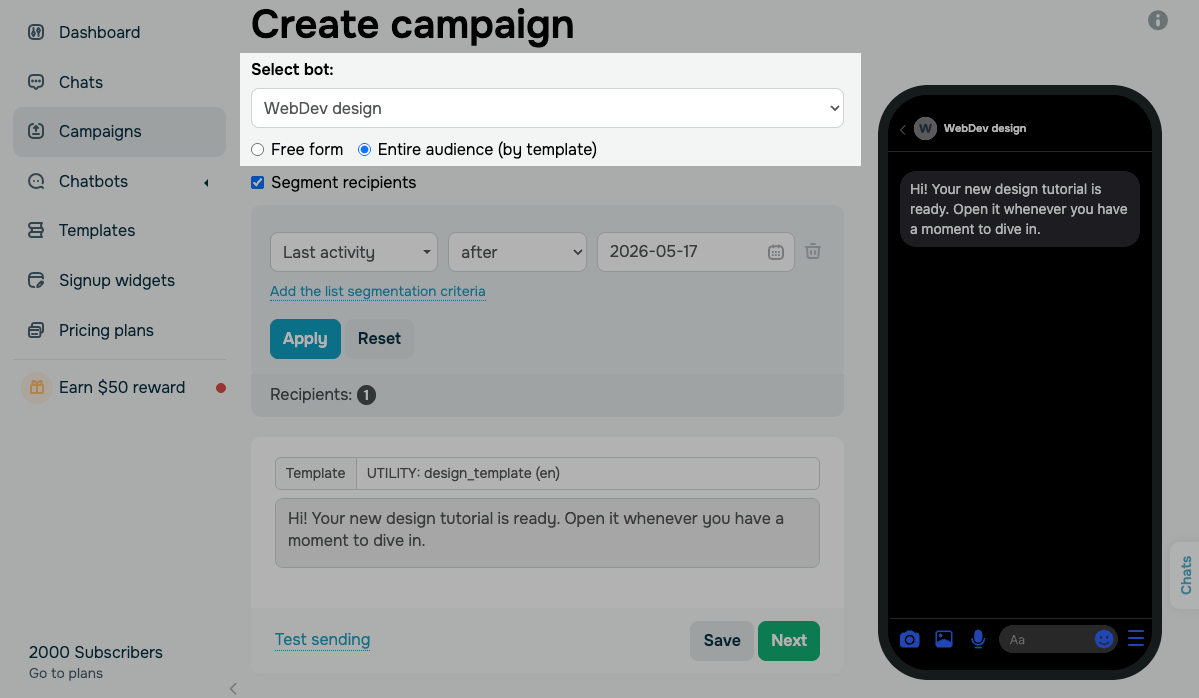
To continue, click Next. In the next window, enter your campaign name, choose a sending date and time, and select a notification type.
Read more: Send a Facebook campaign.
 Last Updated: 21.05.2026





or