Add a certificate
You can add a certificate after a specific topic, section, at the end, or anywhere else in your course. It motivates students to complete each step of your course and creates a sense of progress.
Let’s talk about how to add a certificate, configure its issuance conditions, and choose a template.
Add a certificate
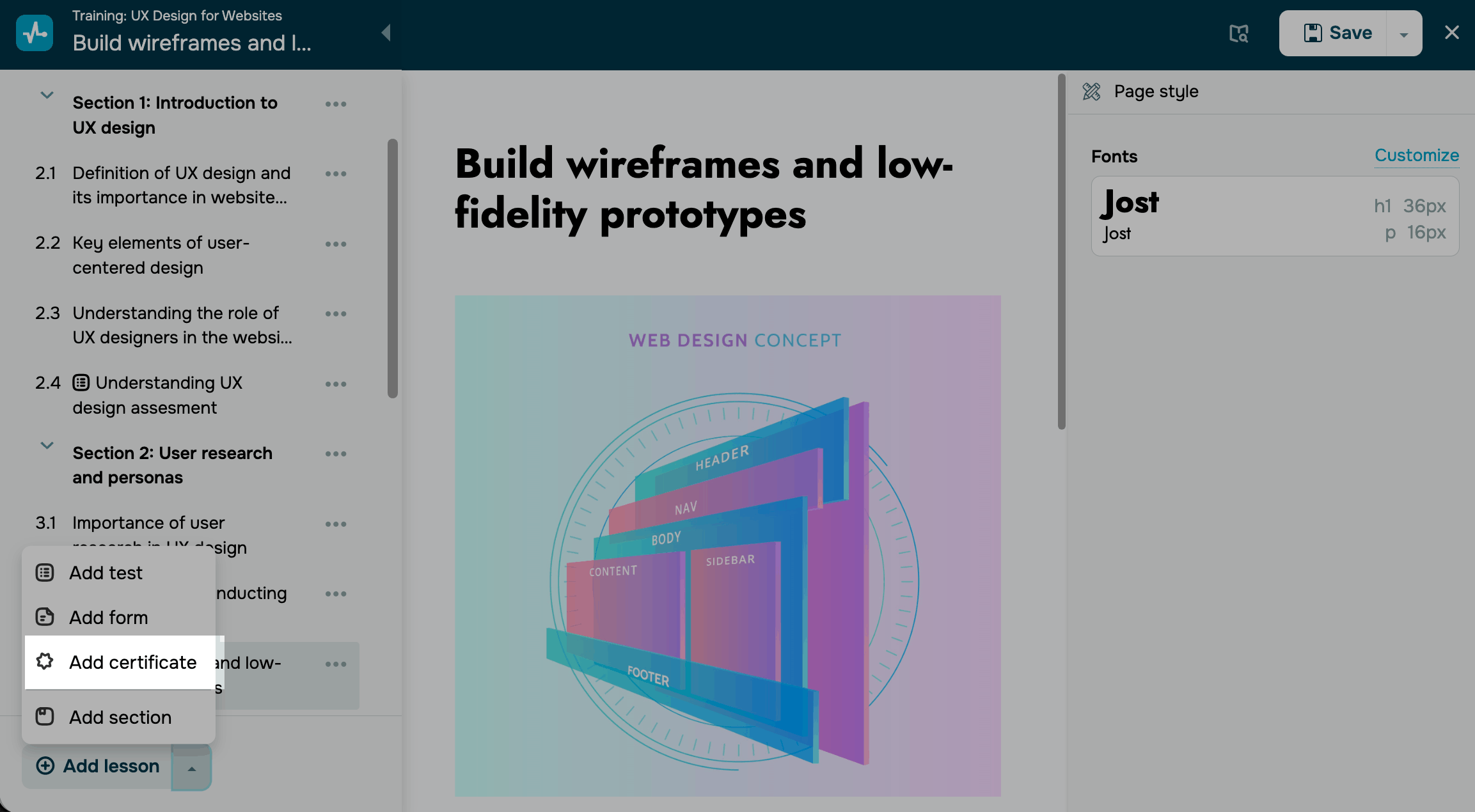
Go to the course builder to add a certificate. Click the arrow next to the Add lesson button and select Add certificate. The certificate is added to the end of the current section, and you can then drag it to wherever you need it in your course.
You can also add a certificate from the lesson list page.
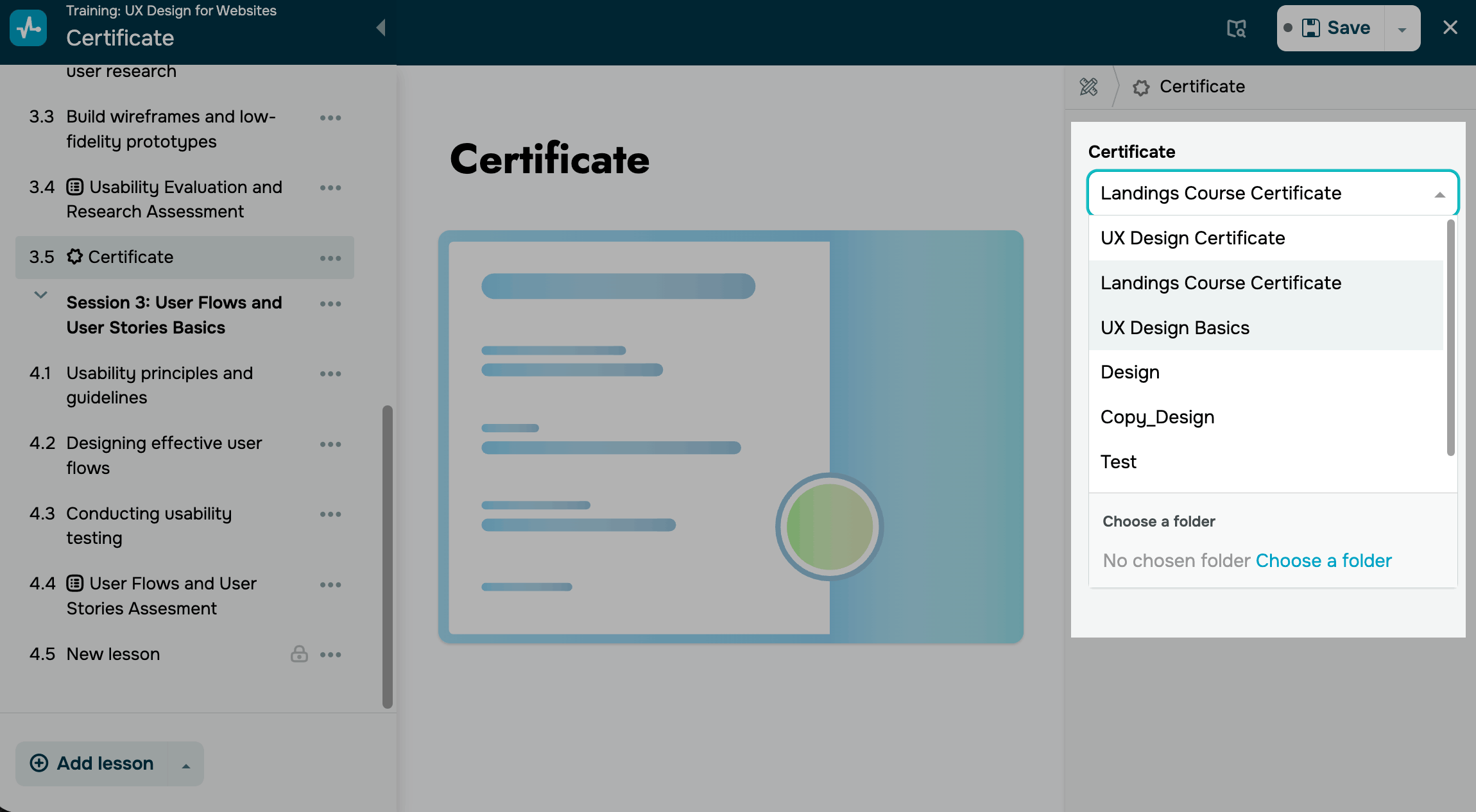
On the right, select the certificate you created from the list.
Set certificate availability
In courses with linear progression, students must complete all lessons, get all of their homework approved, and successfully pass the final test to receive a certificate.
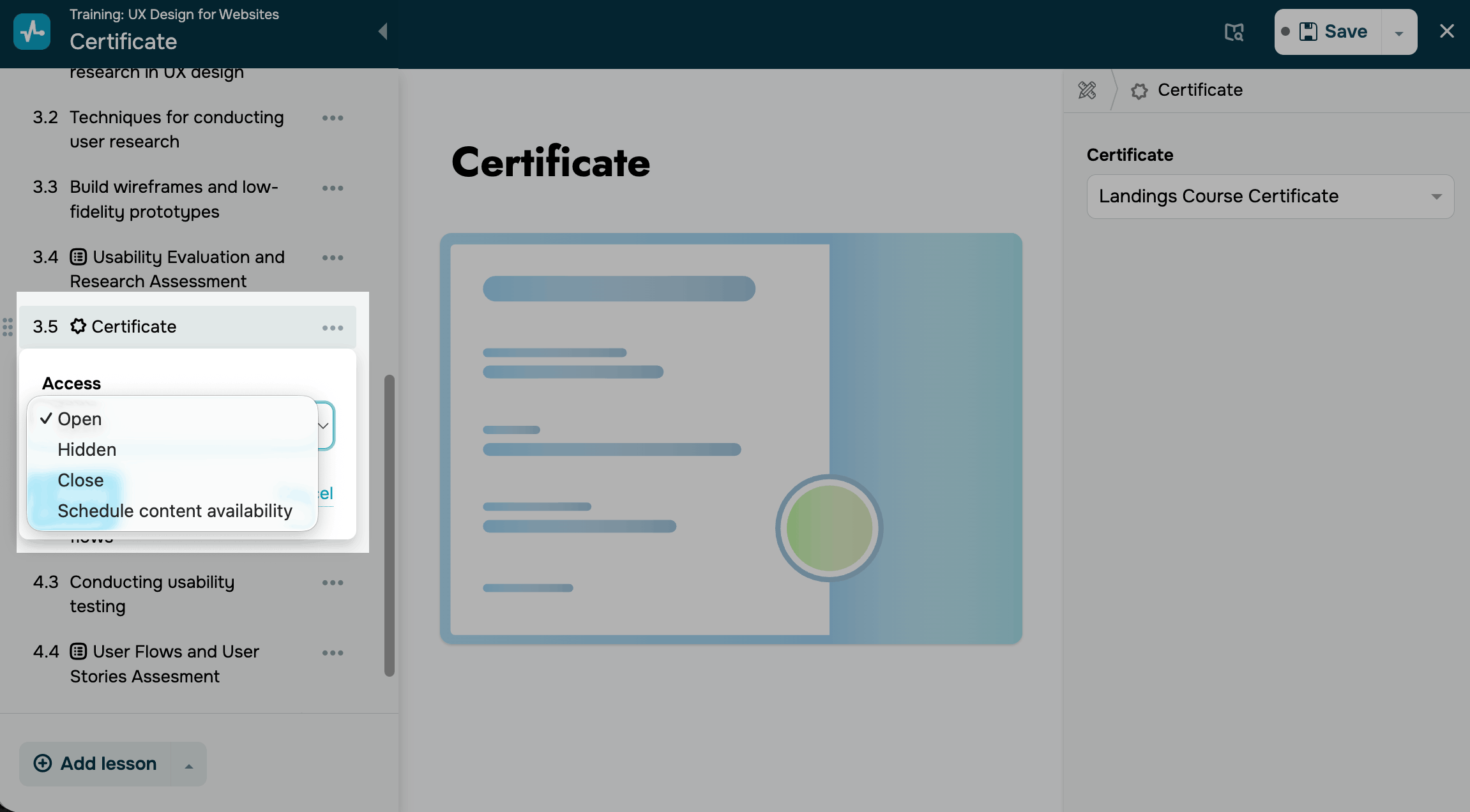
Click the three dots next to the certificate. Select Certificate settings and configure access to the certificate.
| Open | The certificate will be available to students once they complete the previous lesson or test. |
| Hidden | The certificate will not be available to students, but instructors will be able to view and edit it in the course builder. Students will be able to get the certificate when its status changes to Open. |
| Closed | The certificate will not appear in your course program. It will appear with the Close status in your course program, unlike certificates with the Hidden status. |
| Schedule content availability |
The certificate will be available on a scheduled date and time. Scheduled lesson opening will appear in the Calendar tab of instructor and student accounts with paid pricing plans. |
 Last Updated: 13.06.2025




or