Open the chat in the Action element
The Open the chat action sends a subscriber's chat to your Conversations section so your team member can reply by hand. Use it when a question needs a human answer, such as a tricky support case or a hot lead that should go to a specific sales manager.
Let's walk you through how to set up the Open the chat action.
Add the Action element
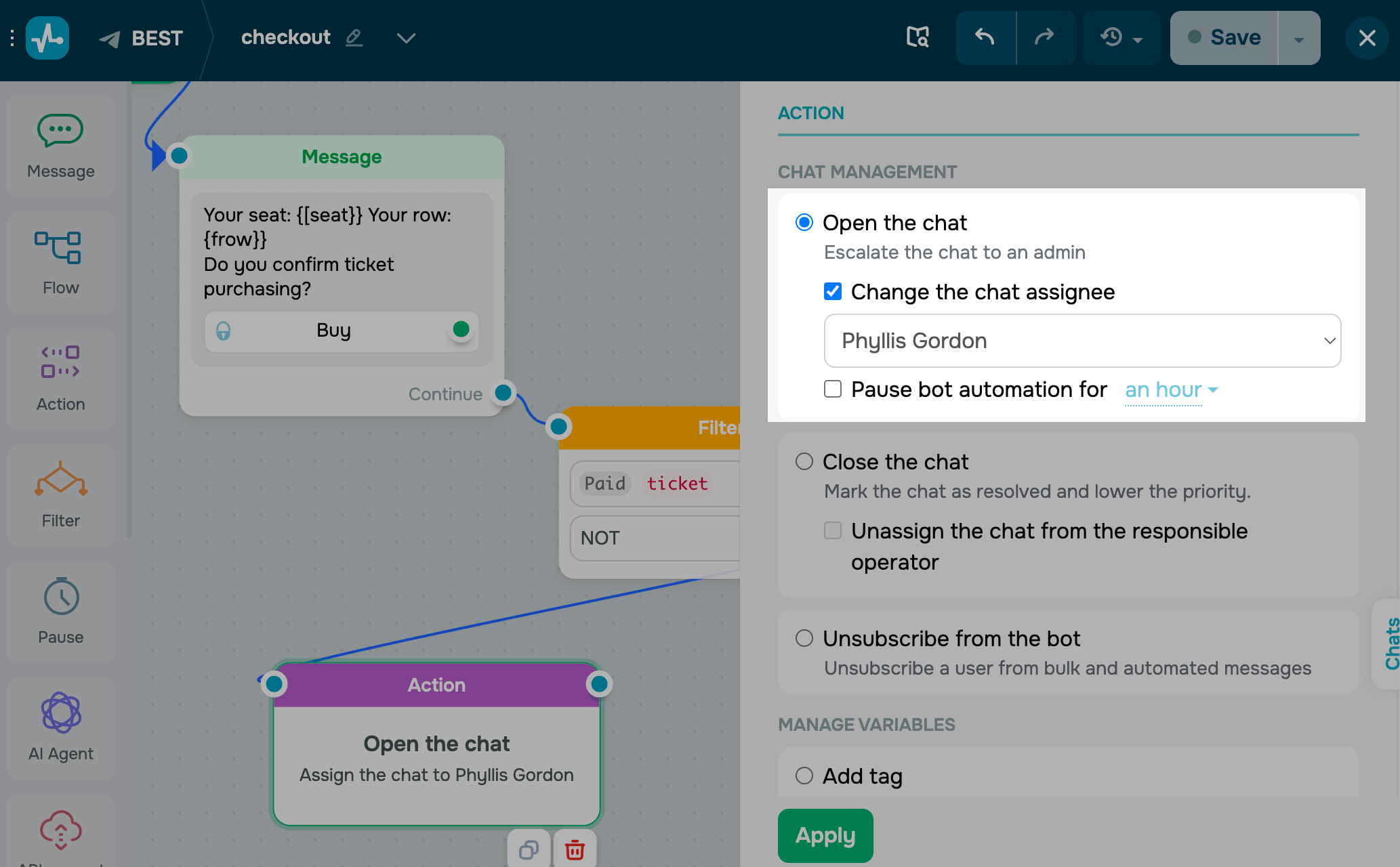
Drag the Action element to the workspace. In the settings that appear, select Open the chat.
To send the chat to a specific team member, select the Change the chat assignee checkbox and pick someone from the drop-down. Only people with access to the Chats section show up on the list.
To pause chatbot messages while the subscriber waits for a human agent, select the Pause bot automation for checkbox and choose a duration: 1, 3, 6, or 24 hours.
When a chat starts, SendPulse can notify the assigned team member by email (sent to their registered address), in the browser, or in the chatbot mobile app.
Save the element
Click Apply. From now on, every subscriber who reaches this step will have their chat opened in Conversations.
To test the setup, run the flow and make sure the chat shows up with the right assignee and pause.
 Last Updated: 24.04.2026





or