Create a Campus registration page
A registration page is a dedicated page on the campus.sendpulse.com domain where students create SendPulse accounts and are enrolled in your Campus course right away.
Suppose you are enrolling new students and want to register the whole group during the first session. Give students one link — together with allowed IP addresses, this helps you register a student group within a few minutes.
Let’s talk about how to create, configure, and publish a registration page.
Create a page
When you set up Campus, it creates your first registration page. To get started, publish it.
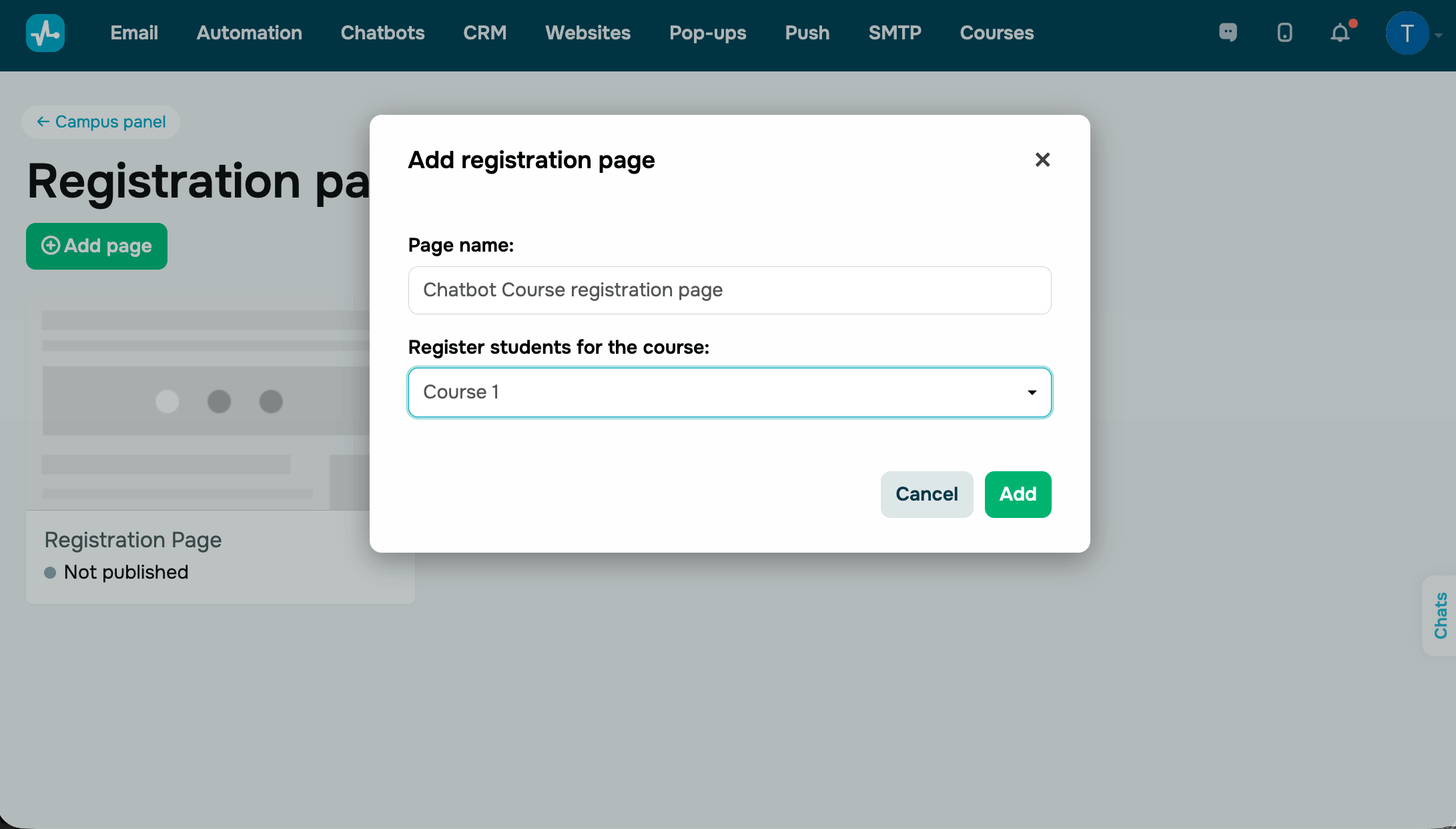
To add another page, go to the Campus panel, click Registration pages, and click Add page. In the Add registration page window, enter a name in the Page name field, choose a course in the Enroll students in course list, and click Add.
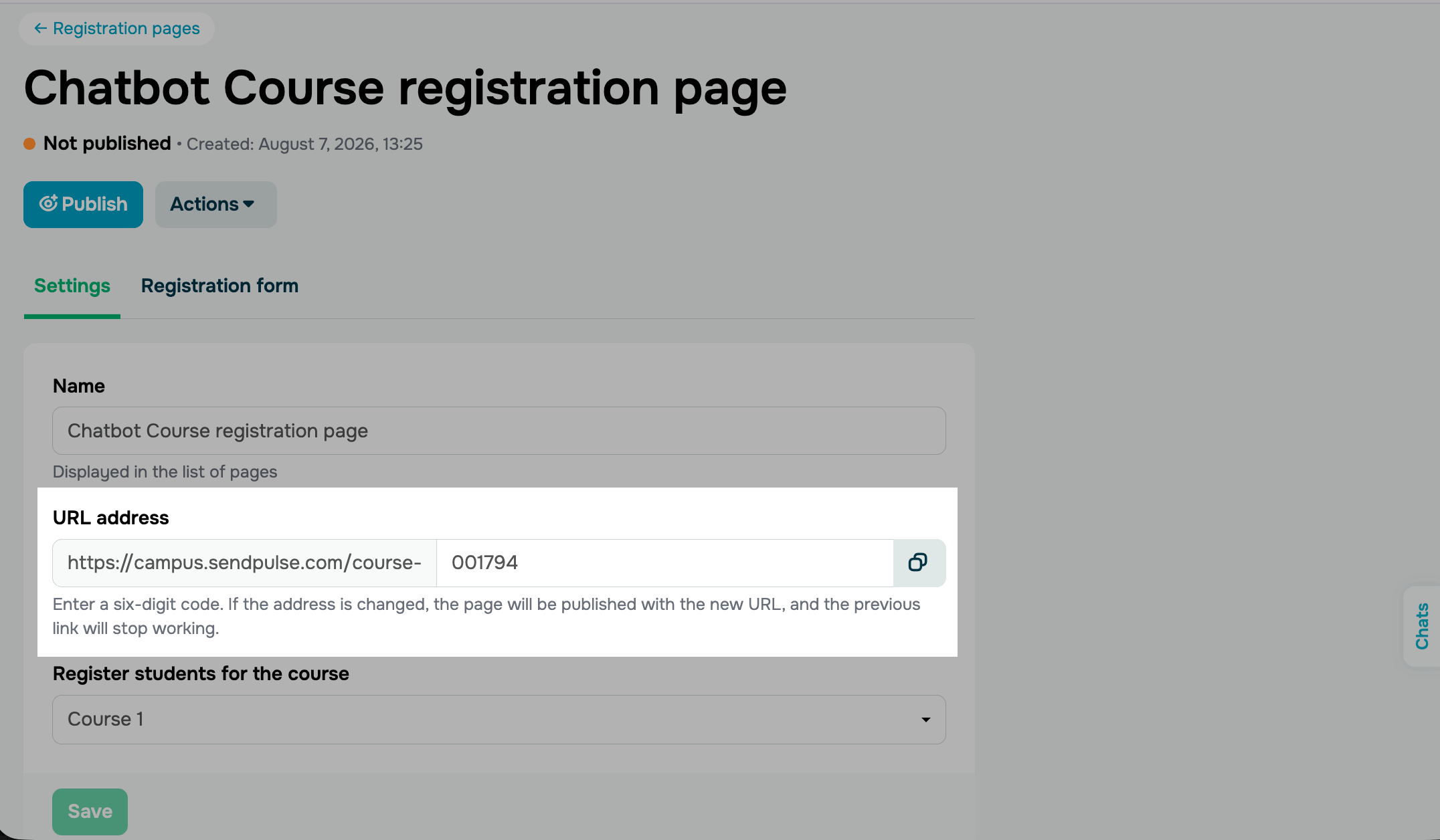
Add the page URL
On the Settings tab, change the page name, its URL, and its linked course. In the URL address field, enter the part of the link that follows campus.sendpulse.com/.
Customize the appearance
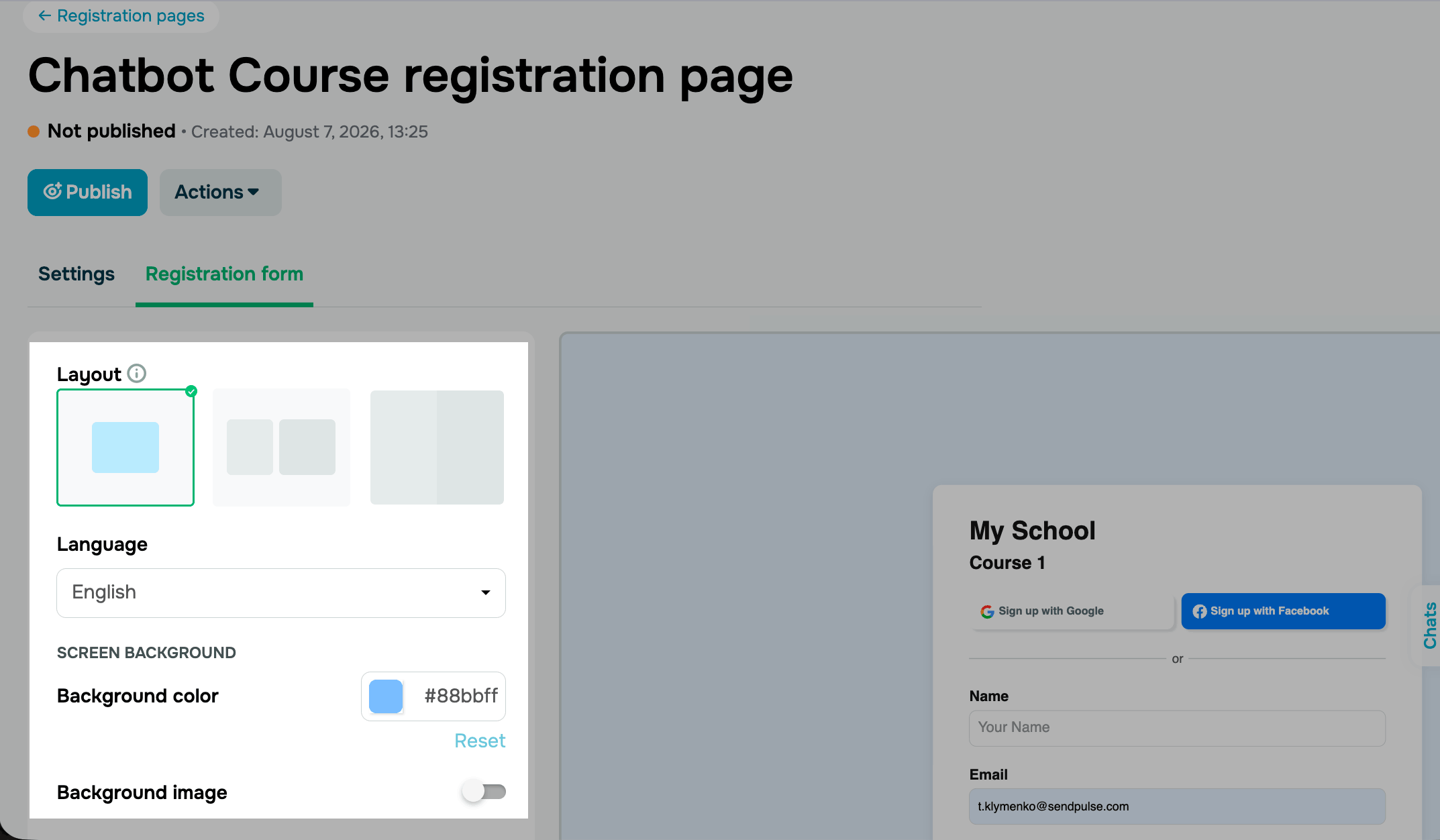
On the Registration form tab, configure how the page looks to a student. On the right, preview your changes as you make them.
In the Layout section, choose one of the display options: the registration form only, the form and an image, or the form and a full-screen image. In the Language list, choose the language used for form field labels.
In the Screen background section, choose a color, or turn on the Background image toggle and upload an image.
In the Login form section, choose the Background color, Text color, Component color, Border color, and text styles. You can also add your own title, subtitle, description, and logo.
Once you've configured all the settings, click Save.
Publish the page
Until you publish the page, its link doesn't work.
Click Publish. The page becomes Published, and a label with its link appears next to it in the page list. Copy the link and share it with your students.
To pause registration, for example, when enrollment has ended, unpublish the page in the Actions menu.
Students who registered on the page appear on the Schools and courses tab, in the linked course.
 Last Updated: 10.08.2026





or