Use form field variables
Form field variables help you store and use the data visitors enter on your website across all SendPulse tools. They automatically pass form data to your CRM system.
In this article, we will talk about how to use form field variables and their data.
Basics
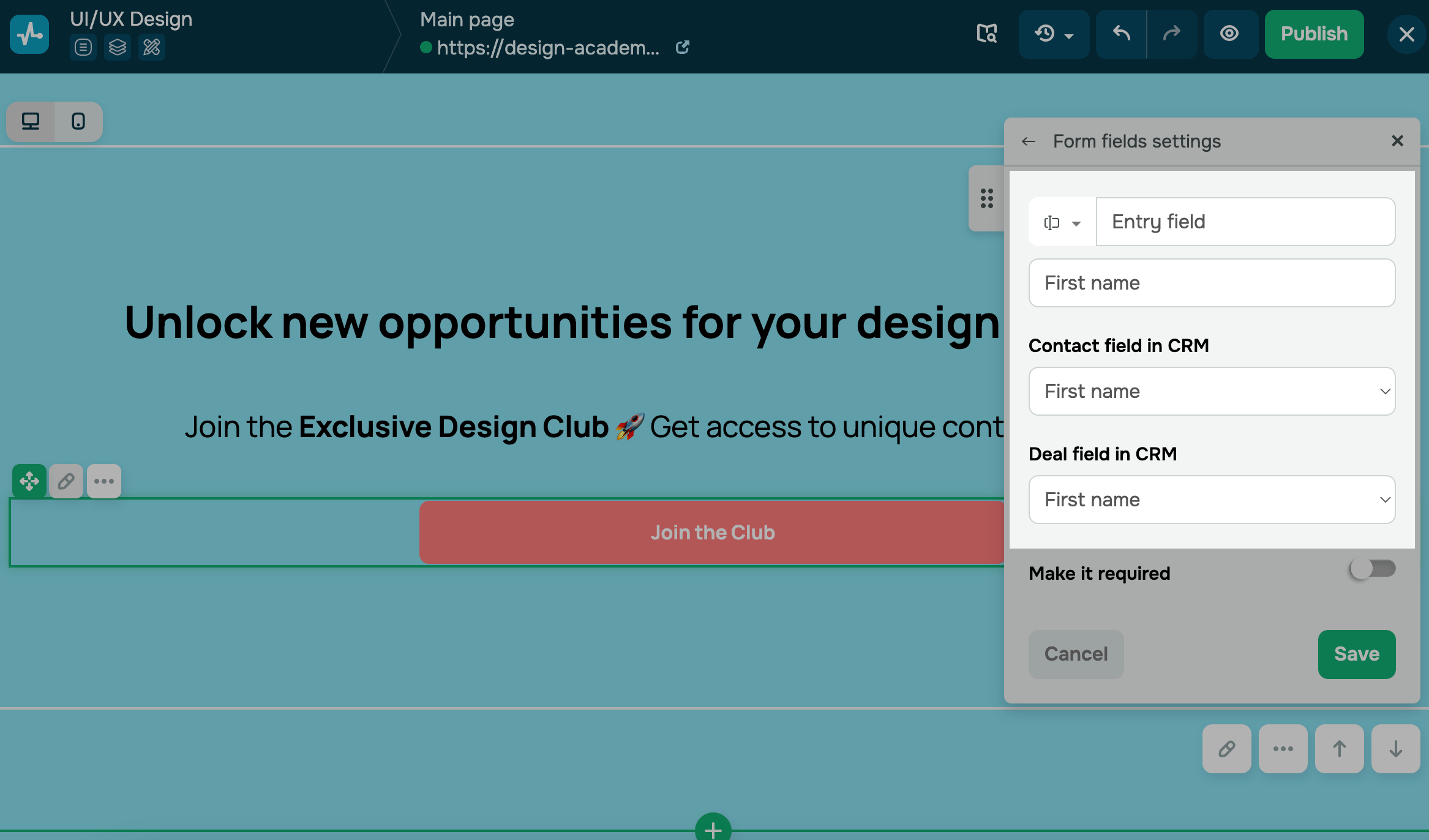
If you add a Form or Payment pop-up to your website, visitors can fill in its fields and submit their information. When a user submits a form, the information they’ve entered is saved to your CRM system as variables, even if their payment fails.
Every form field is mapped to a variable in CRM contact and deal fields. Collected form data will be saved to the CRM system as String-type values.
| System variables |
Default variables in the CRM system. These include the |
| Custom variables |
Variables you can create in the CRM system and use in your payment form’s field settings, such as locations or other data. To create a variable, go to CRM > Contacts > Settings > Fields and add a field. This field will be mapped to a variable you can use in your payment form. This way, you can transfer UTM tags into contact fields. |
Use collected data
With SendPulse, you can use data collected using your website payment forms to automate marketing campaigns. Let’s go over some examples of how you can do this.
| CRM | Collected information is stored in contacts and deals. If a user abandons their purchase, your team member can follow up to offer assistance or answer any questions. |
| Chatbots |
If you add a chatbot link to your payment page, users’ data will be saved to your chatbot’s audience once they subscribe to it. You will be able to send automated flows to stay in touch with customers. To give you an idea, you can add a link to your eLearning chatbot. |
| Automation | Automate data processing using emails and other campaigns triggered by new CRM or mailing list contacts. |
| Send email campaigns to your contacts using multiple templates. |
 Last Updated: 22.12.2025





or