Customize a post-submission form page
With SendPulse, you can set up a submission confirmation page that visitors will see after filling out your form. Add this page to thank users for submitting your form, share relevant information, or redirect them to other pages.
Let’s talk about how to set up your post-submission form page.
Go to the website builder. Add and configure the Form widget.
Go to Additional form settings.
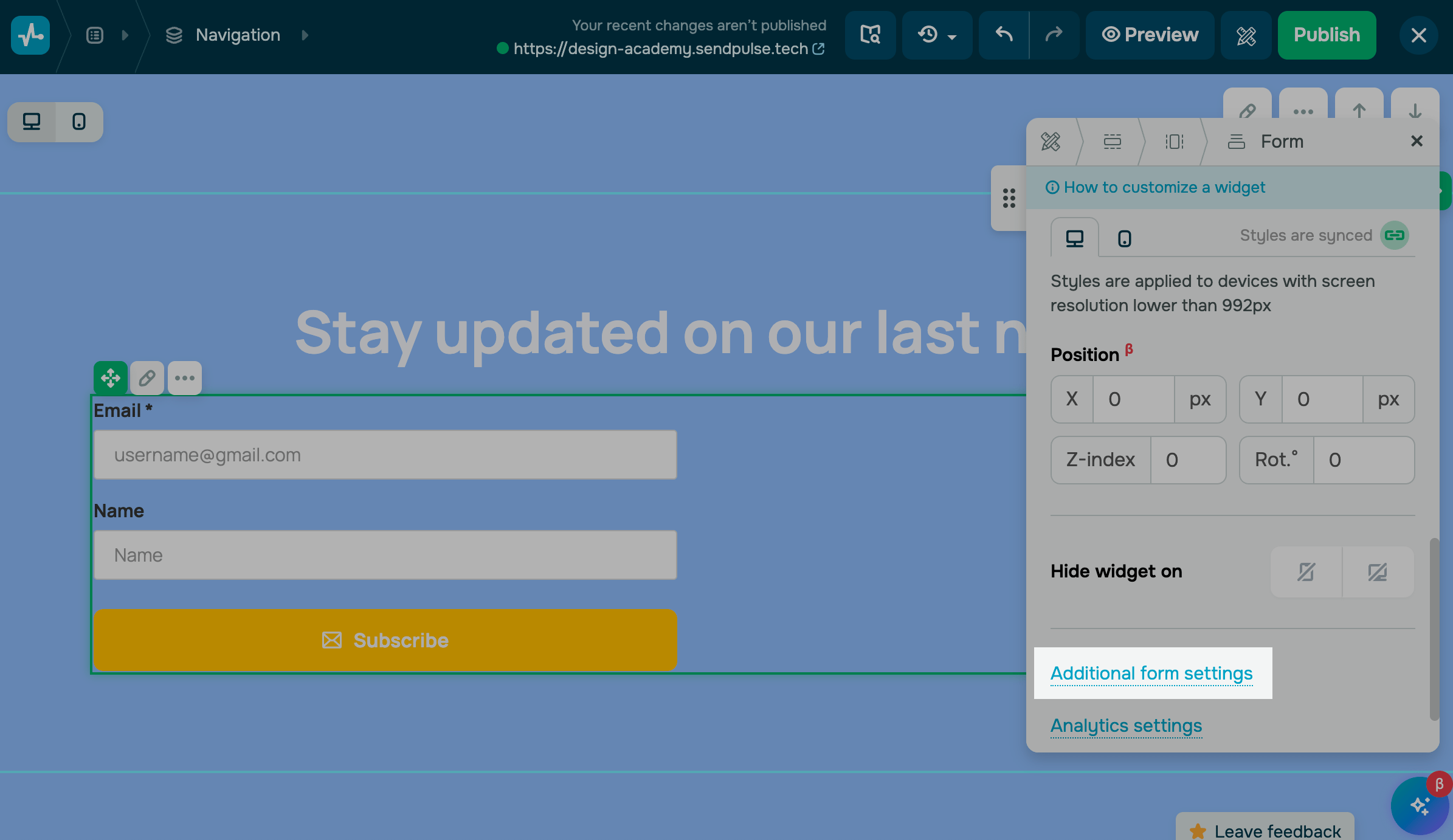
You can display a thank-you message with a subscription confirmation or redirect users to a certain URL. For example, you can create a confirmation page and add a link or forward users to a page with other content.
You can use redirection for PayPal, Fondy, Stripe, Mercado Pago, Wayforpay, Flutterwave, but it is not available for LiqPay.
Show a message
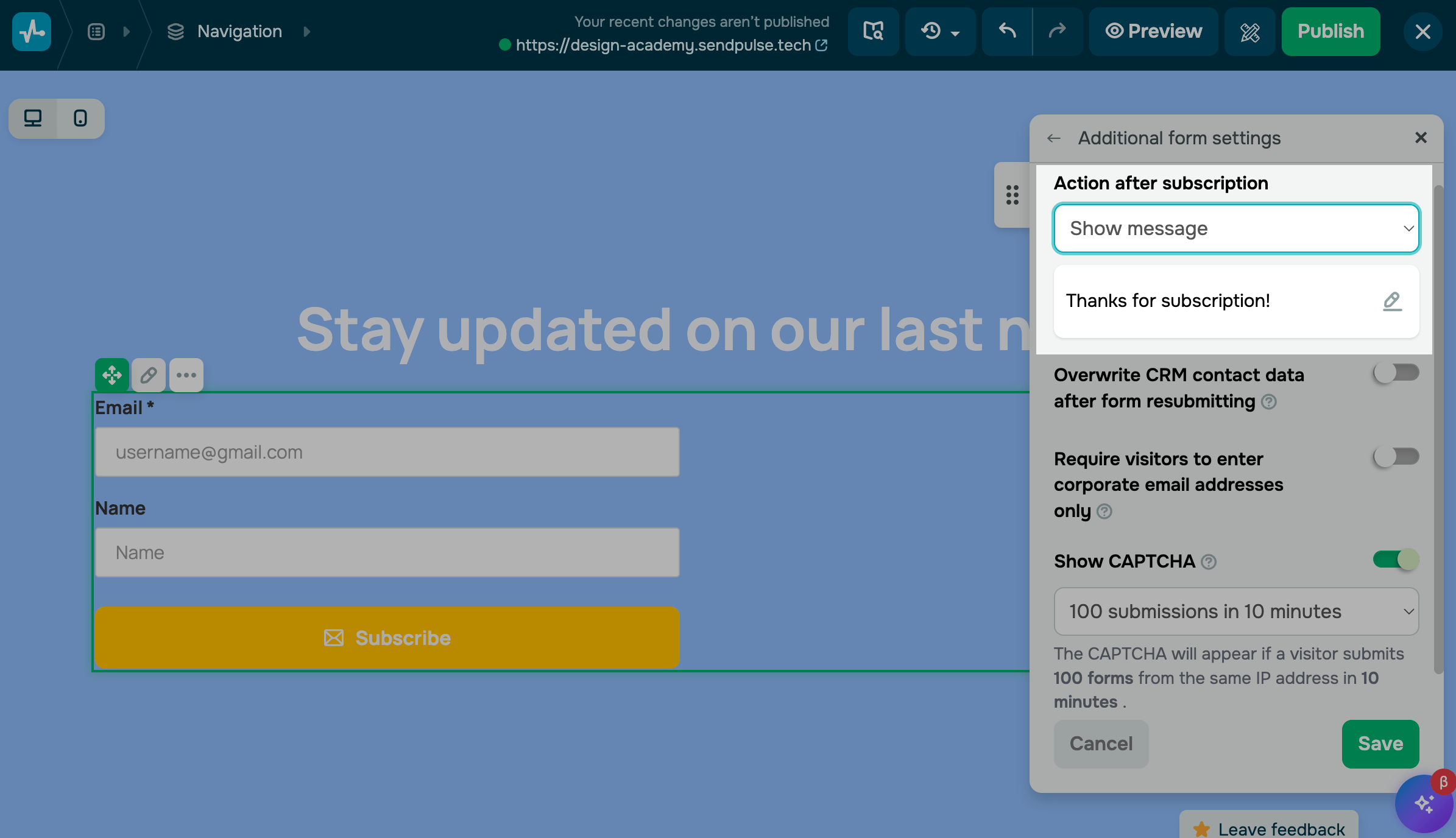
In the Action after subscription section, select the Show message option to display your thank-you message.
To edit the text, click the pencil icon on the right, and the editor will open. Select the text you want to edit, and choose its color and formatting. You can also add lists, hyperlinks, or additional elements by editing the source code.
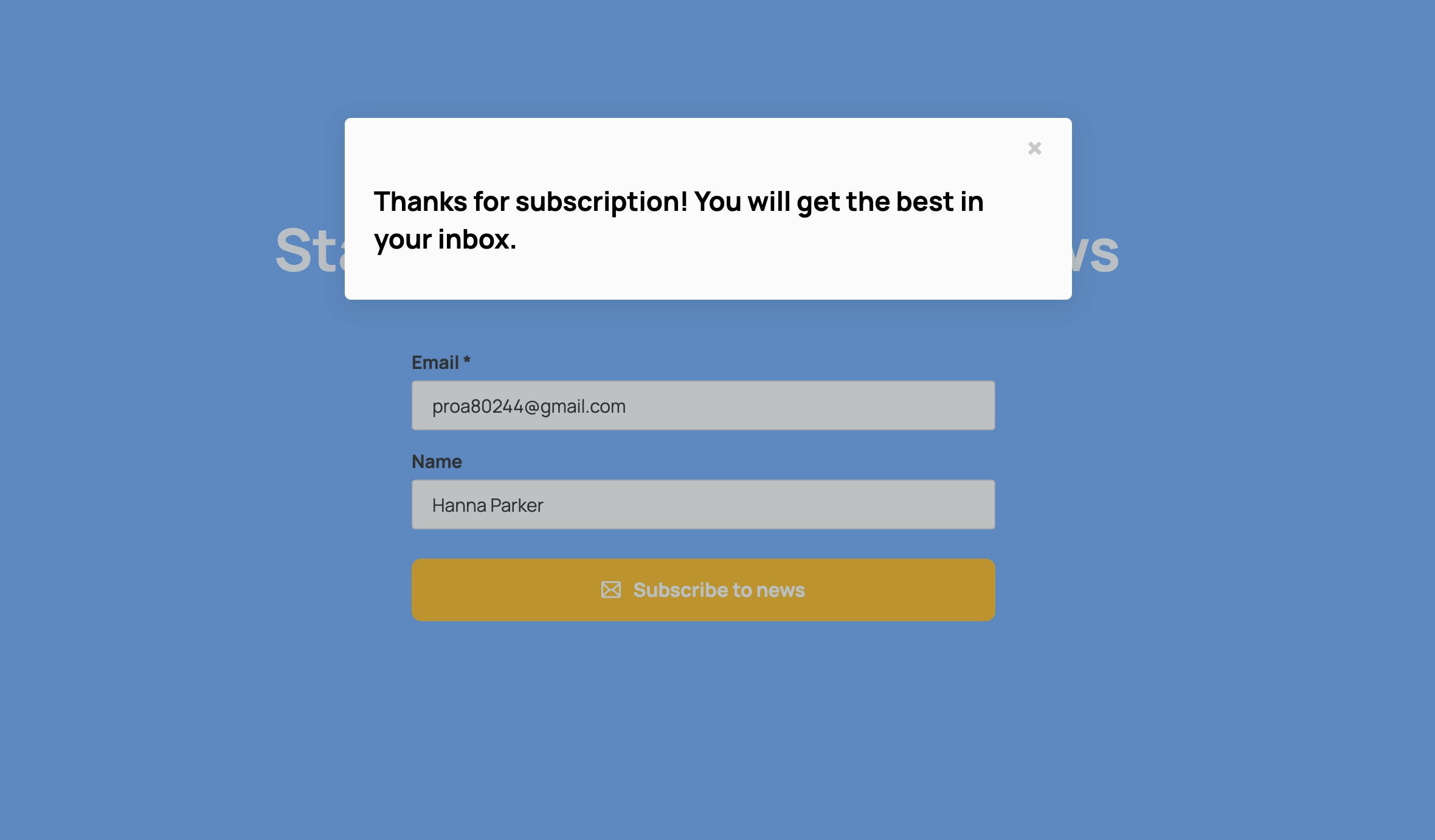
After the user subscribes, they will see your message as a modal window.
Go to page
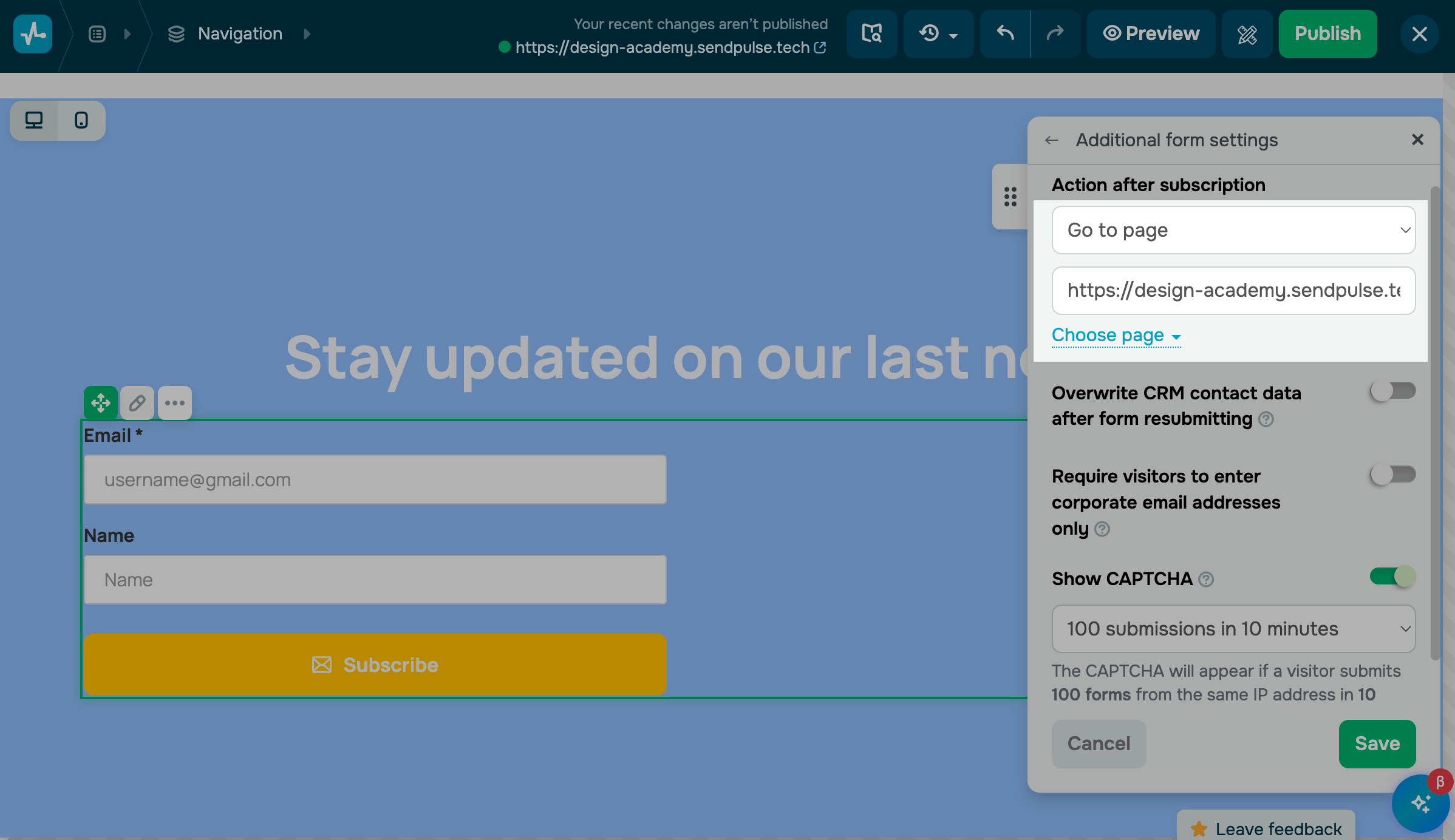
Select the Go to page option.
Website link
You can specify the URL where you want users to go or select a linked page created using the website builder.
SendPulse-powered chatbot link
You can add a link to your chatbots to enable users to subscribe and continue your conversation. On top of that, you can save subscriber data. These data points can be used for webinar sign-ups, sharing lead magnets, or subscribing to company newsletters.
Read more: How to transfer subscriber data from website forms to chatbots.
 Last Updated: 22.12.2025





or