Generate an assignment review using AI
Use AI to generate feedback for a student's assignment and recommend a score. The AI analyzes the selected lessons, the student's assignment submission, and your prompt, but the final grading decision remains with the instructor.
Let's talk about how to generate and improve assignment reviews with AI.
SendPulse offers up to 200 free AI requests across all tools. To track your remaining requests or use your own AI account, add your API keys in account settings.
Learn more: Integrate ChatGPT with SendPulse tools, Integrate Claude with SendPulse tools, and Integrate Google Gemini with SendPulse tools.
Generate an AI review
Open a student's assignment, and in the assessment section, click the AI icon. In the dialog, fill in the fields:
| Lesson |
Choose the lesson whose content the AI uses to create the assignment. By default, the current lesson is selected. You can choose any other lesson from the course. |
| Text field | Enter a prompt describing the assignment, focus, and output format. |
| [Model] | Choose an AI model. By default, gpt by OpenAI is selected, but you can switch to another model or customize its settings to match your preferred writing style or course language. |
Once you add all the necessary information, click the icon.
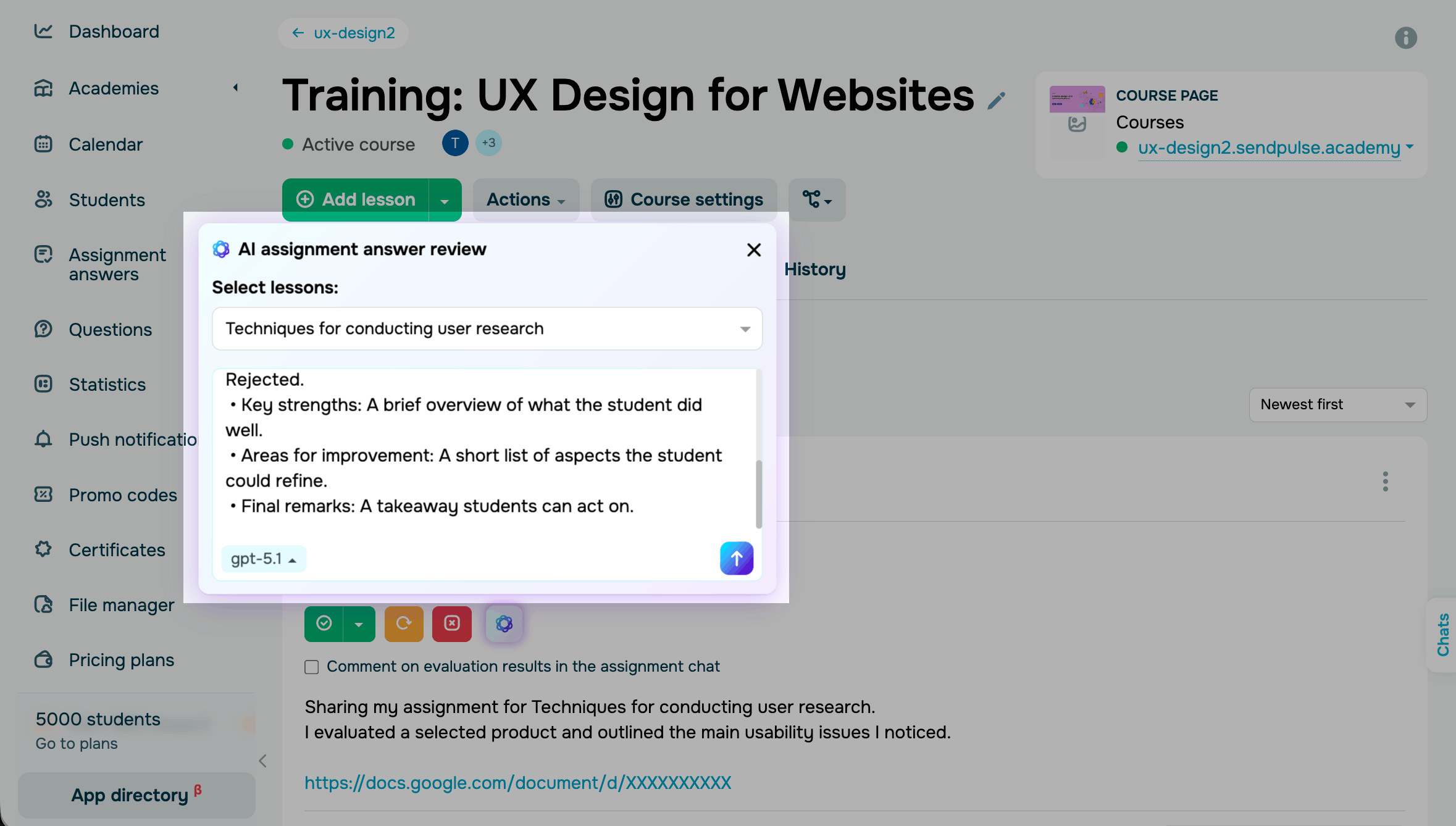
To create a clear and effective prompt, include the following:
- Role. Mention who writes the assignment: a mentor, instructional designer, or industry expert.
- Review criteria. Specify which lessons and grading criteria to apply.
- Scoring method. Define the grading scale, such as percentages, A–F, or 1–10.
- Review outcome. List the possible recommendations the AI can provide, such as accept, return for revision, or reject.
- Feedback structure. Say what the feedback should include, such as score, strengths, areas for improvement, and summary.
- Tone. Set the feedback tone, such as friendly, formal, or supportive, to match your communication style.
Prompt sample:
You are a course instructor. You have a lesson assignment, course materials, and a student's submitted answer. Analyze the response based on the assignment requirements and lesson materials. Evaluate how well the student completed the assignment and generate detailed feedback.
Response structure: • Score: a number from 1 to 10. • Recommended result: Accept / Return for revision / Reject. • Key strengths: a brief list of what the student did well. • Areas for improvement: what should be improved or clarified. • Final remarks: one piece of advice the student can act on.
Edit the review
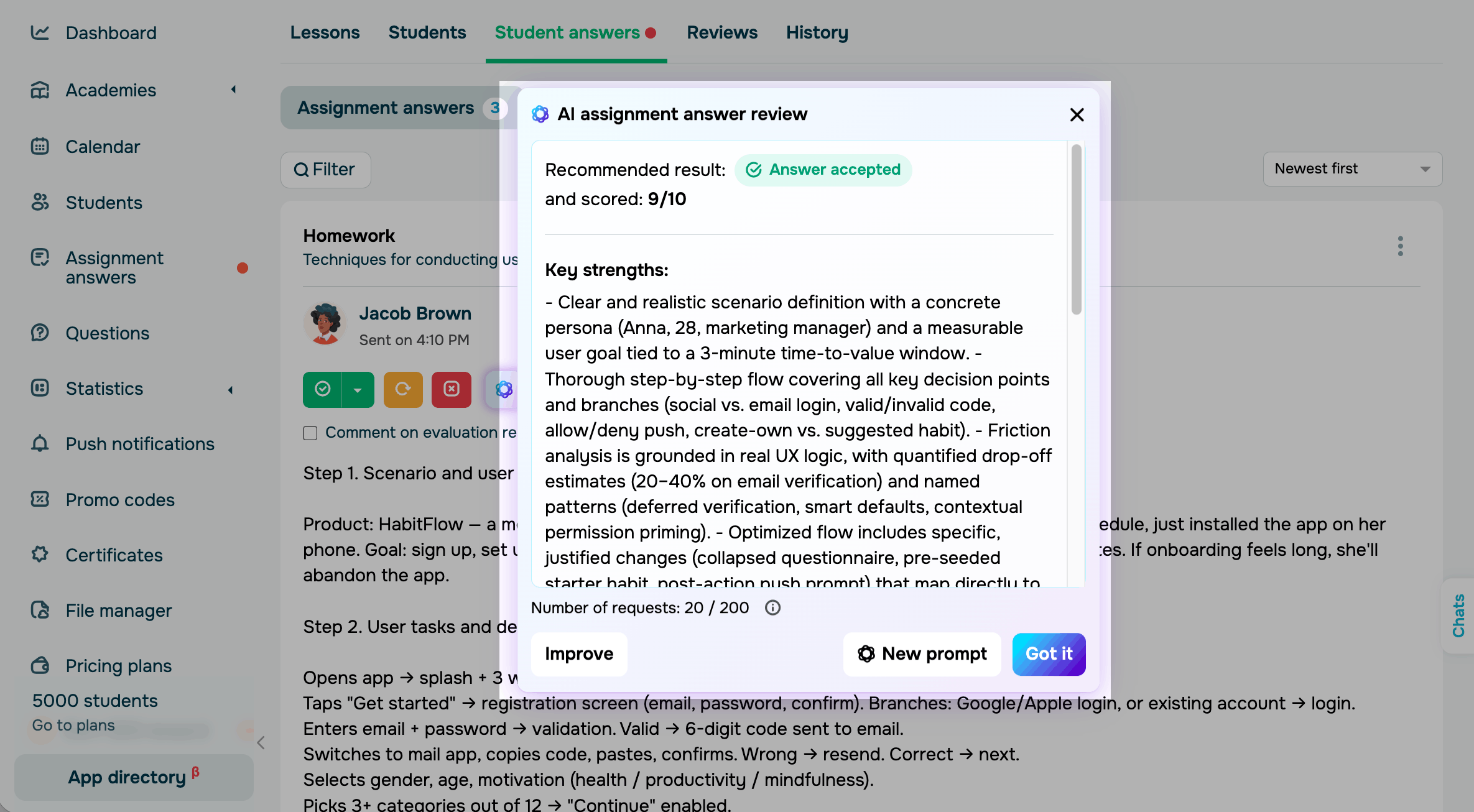
Go over the generated review before posting to make sure it matches your assignment, uses clear wording, and gives a fair evaluation.
| Improve | Generates a revised assignment based on your changes. |
| New prompt | Generates a new assignment without using your previous edits. |
| Got it | Closes the AI assistant window. |
Once you get the response you need, copy it to the student assignment, select a score, and add a comment.
 Last Updated: 16.05.2026




or