Customize your academy
Academy settings help you manage your online academy independently of individual course settings.
To open your academy settings, select your academy and click Academy settings. Open the General tab.
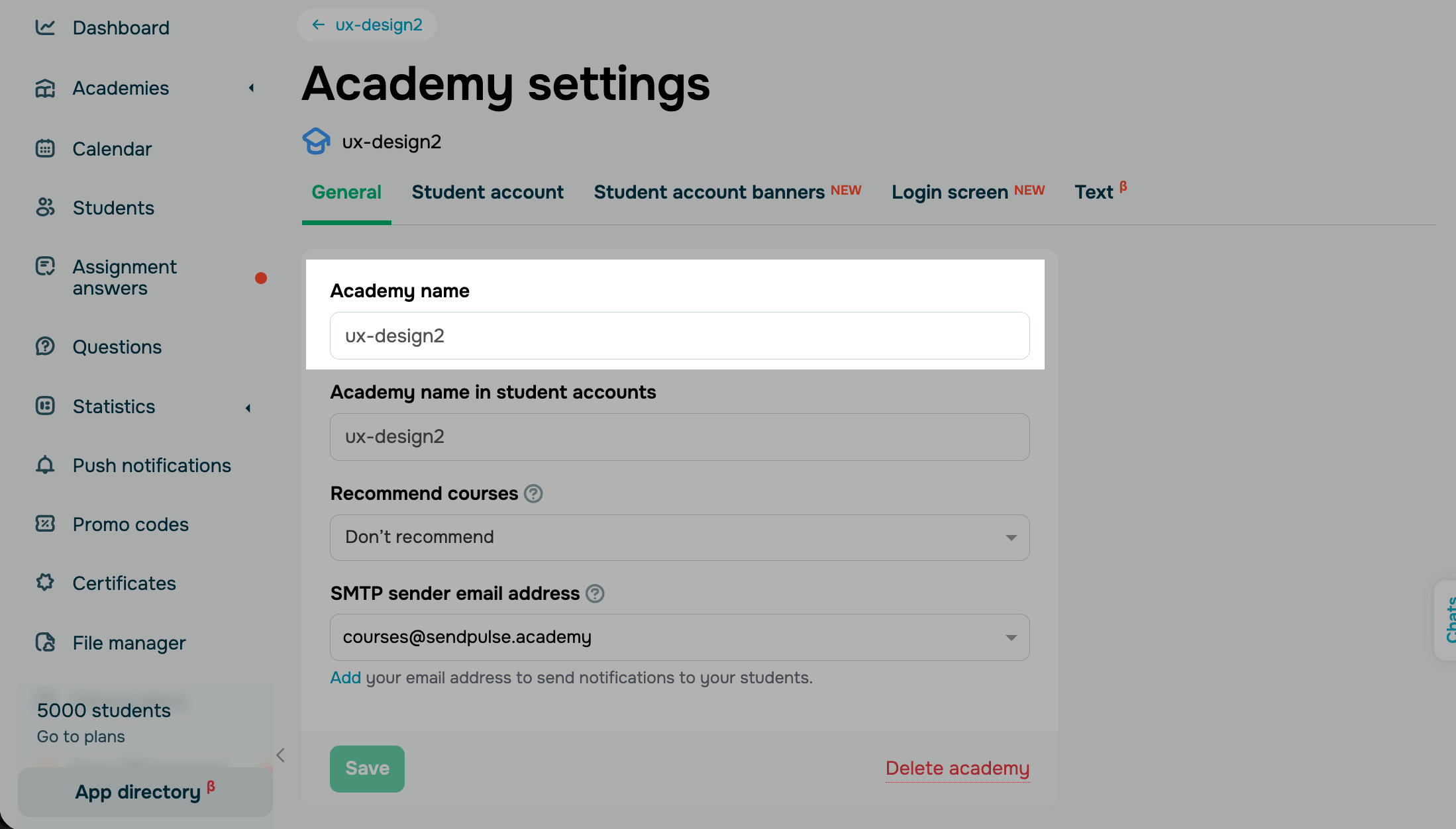
Academy name
In the Academy name field, enter an internal academy name to tell your academies apart.
In the Academy name in student accounts field, enter the academy name that students will see.
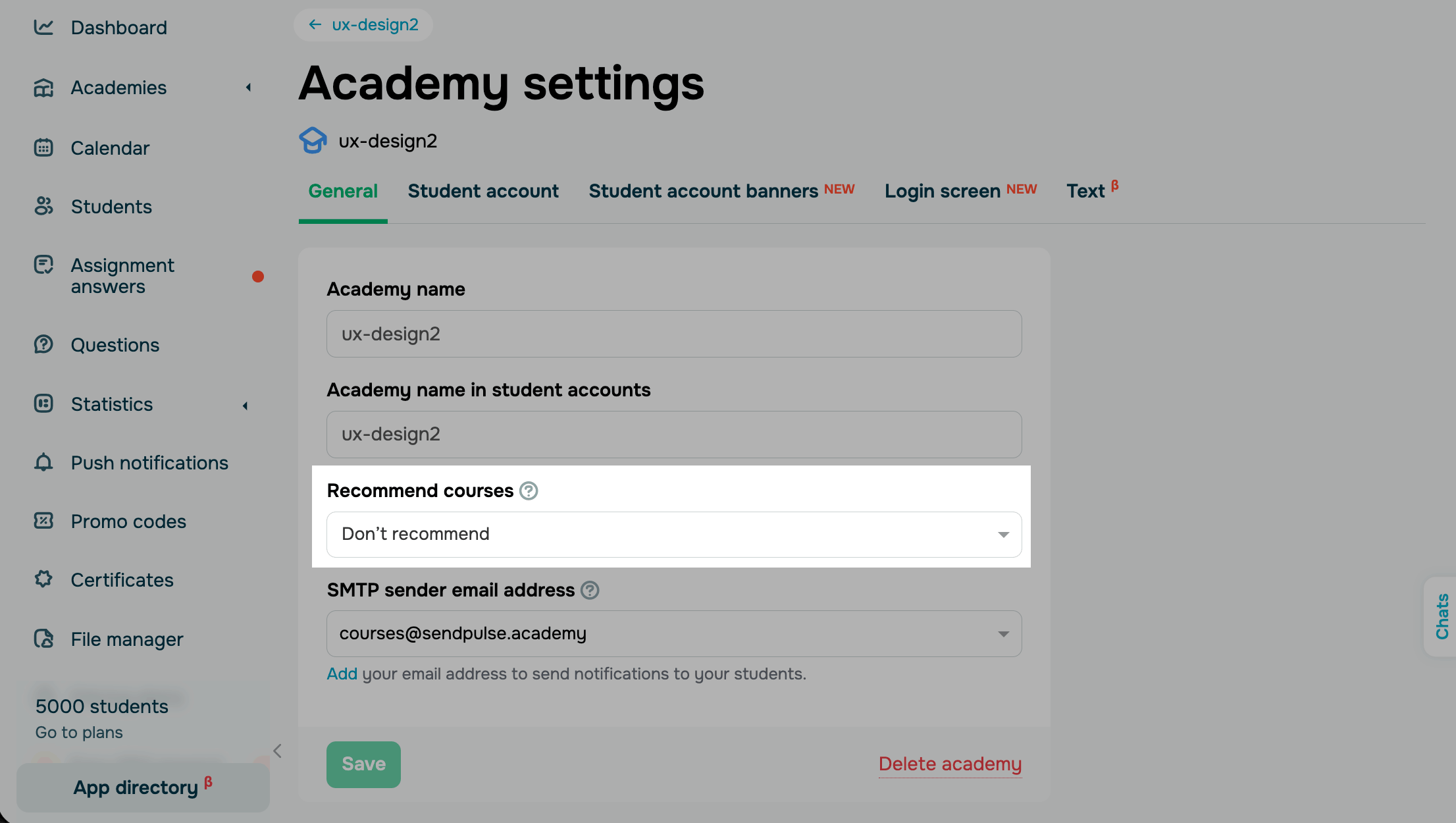
Recommend courses
Recommendations suggest your other courses to students in their accounts that they may find interesting.
By default, recommendations are turned off, and Don't recommend is selected. To add recommendations, select the courses to recommend from the drop-down list.
For example, if your course covers "Python programming basics," related courses could be "Advanced Python" or "Building web apps with Python." This option helps students quickly find other programs that may interest them and improve their skills.
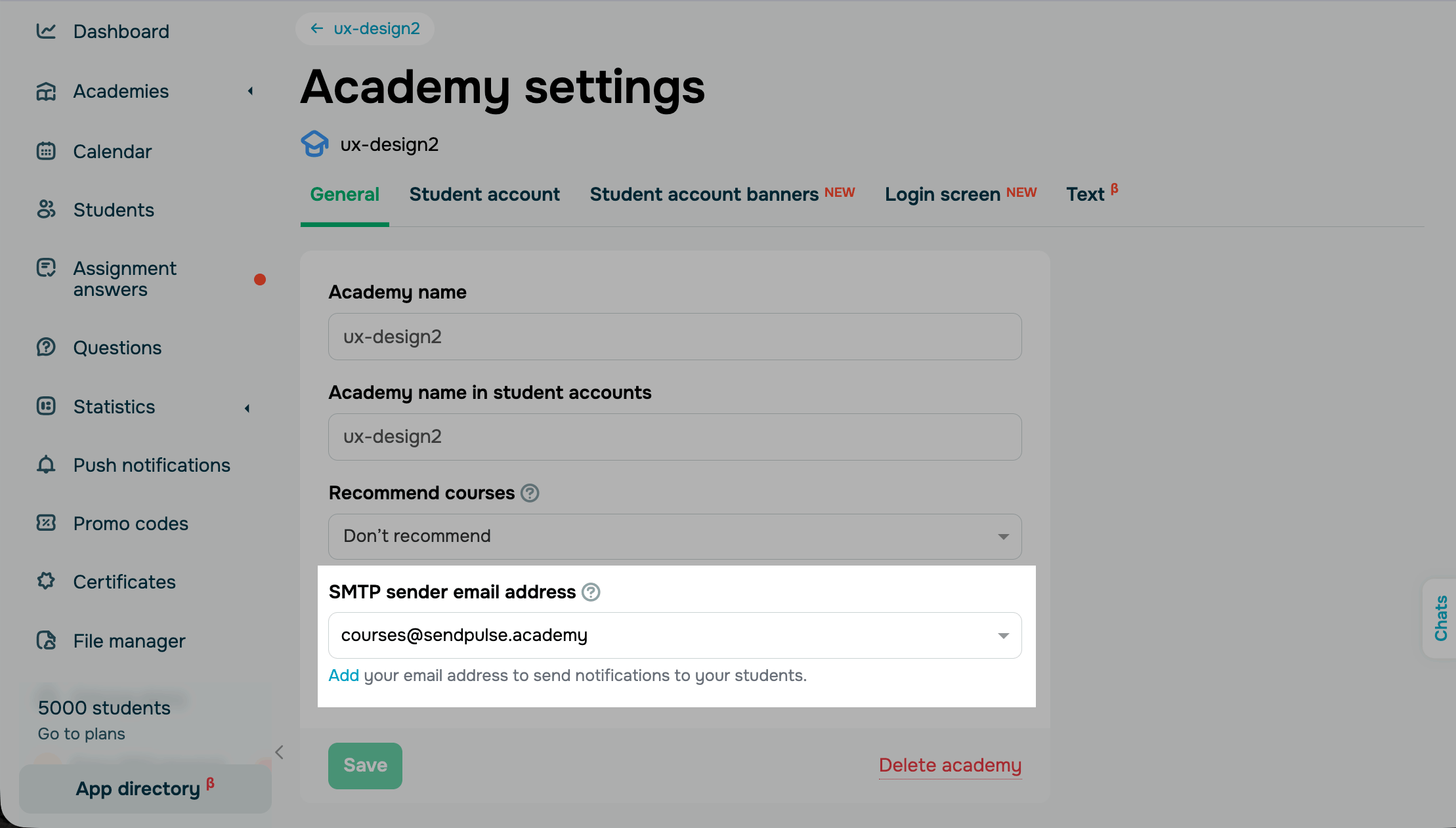
SMTP sender email address
You can select an email address from which to send automated email notifications to students, informing them about various events from the start till the end of your course. You can set a dedicated email address for each course.
Before you select an email address in the course settings, you need to add it to the SMTP service in the SMTP Settings > Sending Domains tab.
Read more: Add a sender email address.
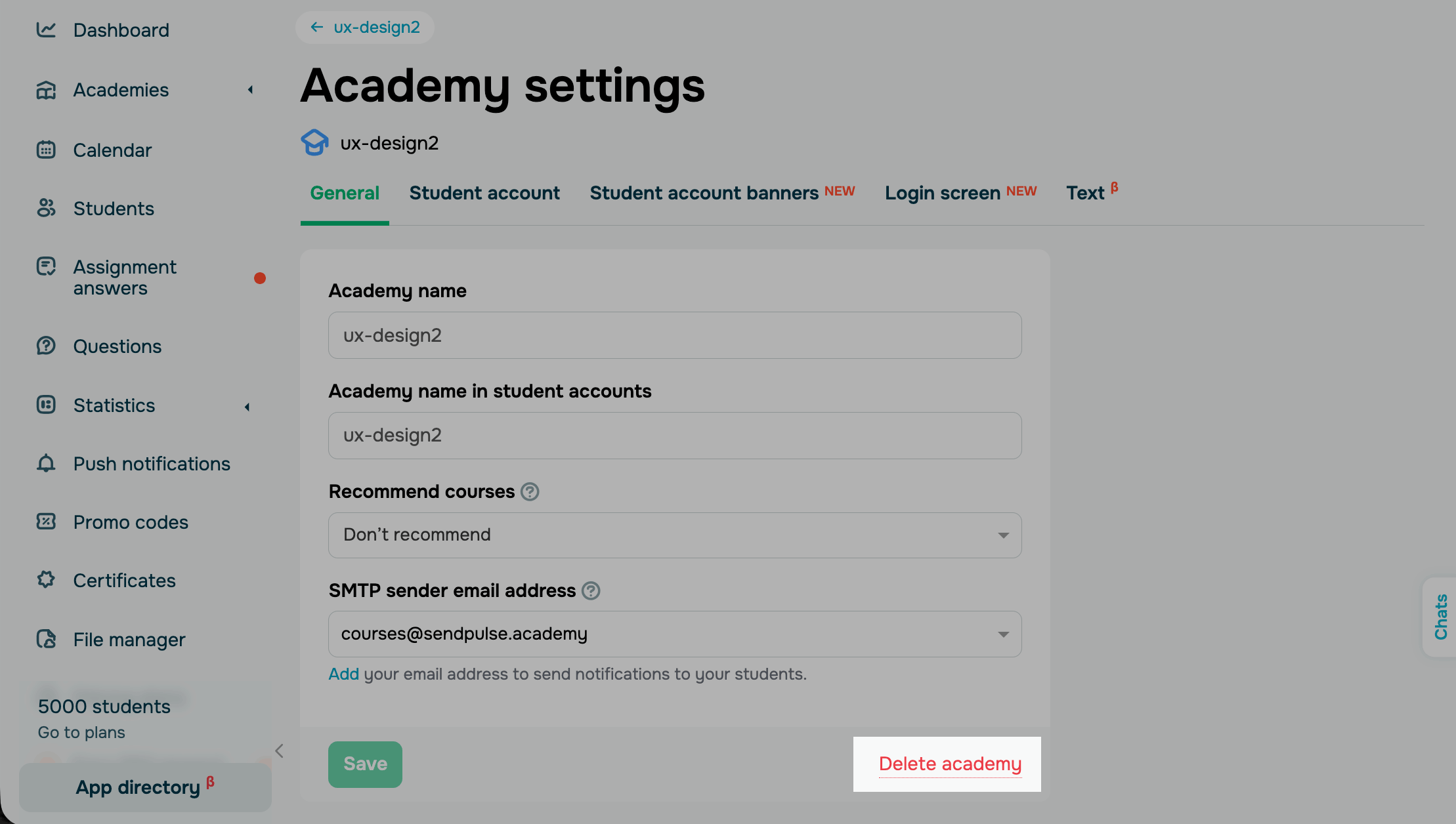
Delete an academy
Click Delete academy. In the modal window, type delete and confirm the action.
All academy courses are permanently deleted. Student data is stored in the Audience tab.
 Last Updated: 10.07.2026





or