Manage custom variables
Use custom variable management tools in a mailing list to keep your contact data organized and up to date.
For example, if you need to correct outdated information, you can update the value directly in the mailing list.
Let's talk about how to manage custom variables in a mailing list.
View variables
Custom variables appear as columns in your mailing list. To view your contacts and their variable values, go to Mailing lists and select a mailing list.
To manage which variable columns are visible and which variables subscribers can edit, click the three dots on the right side of the column header row.
Edit variables
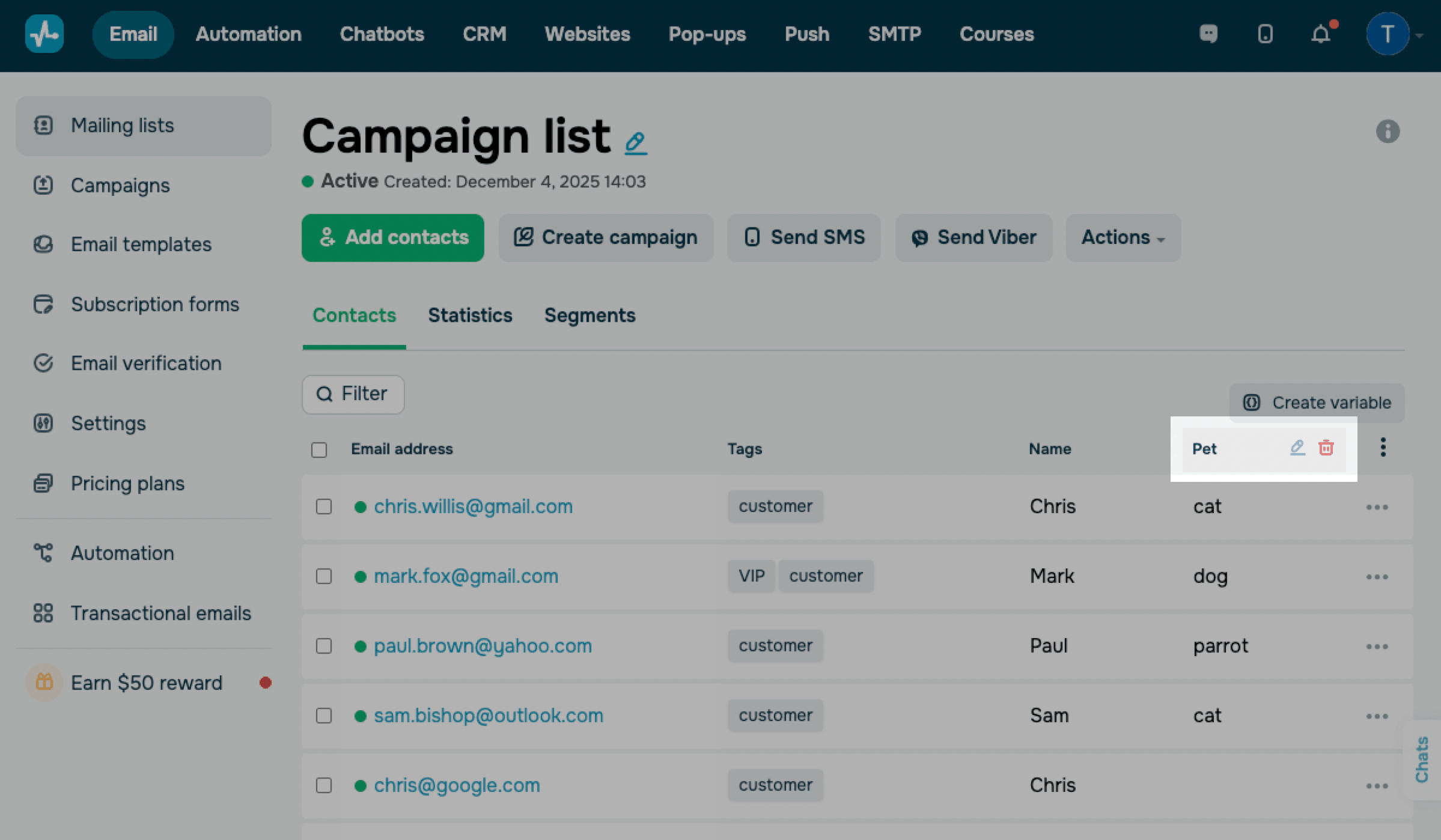
To edit the names of variables, hover over the name of a variable with a mouse pointer and click the pencil icon to edit the variable name or click the bin icon to delete the variable.
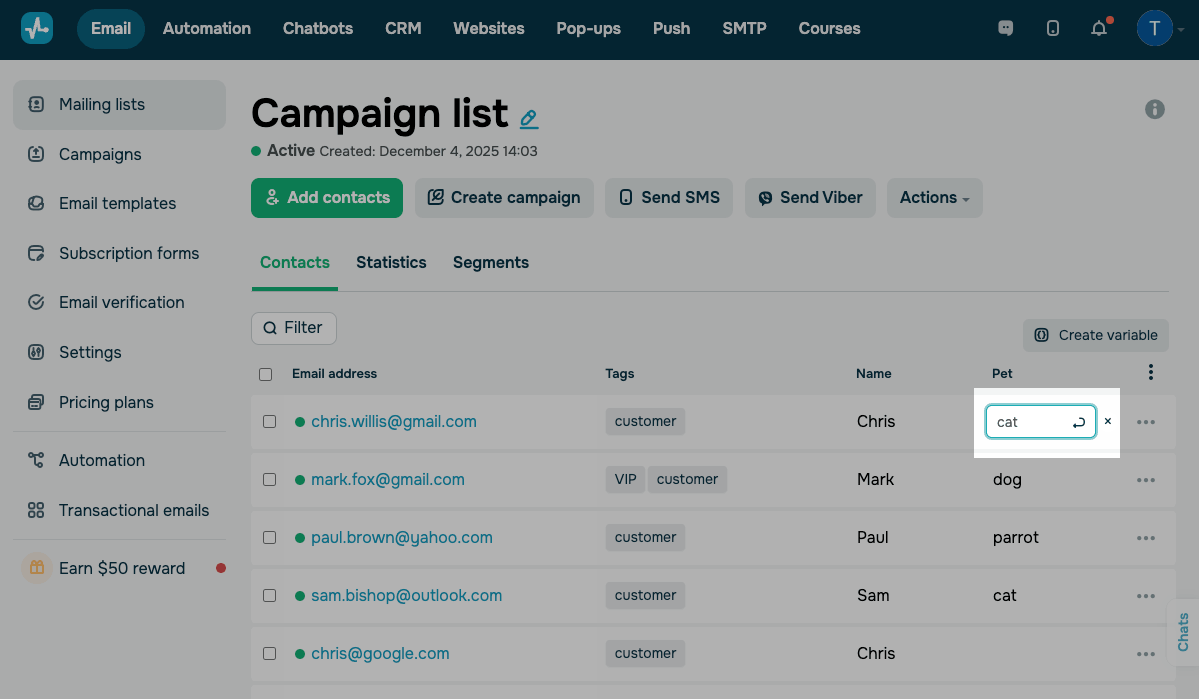
To edit a value of one variable for a single contact, click this value and make changes. Save the updated value by pressing the Enter key or by clicking the arrow icon (Change variable value).
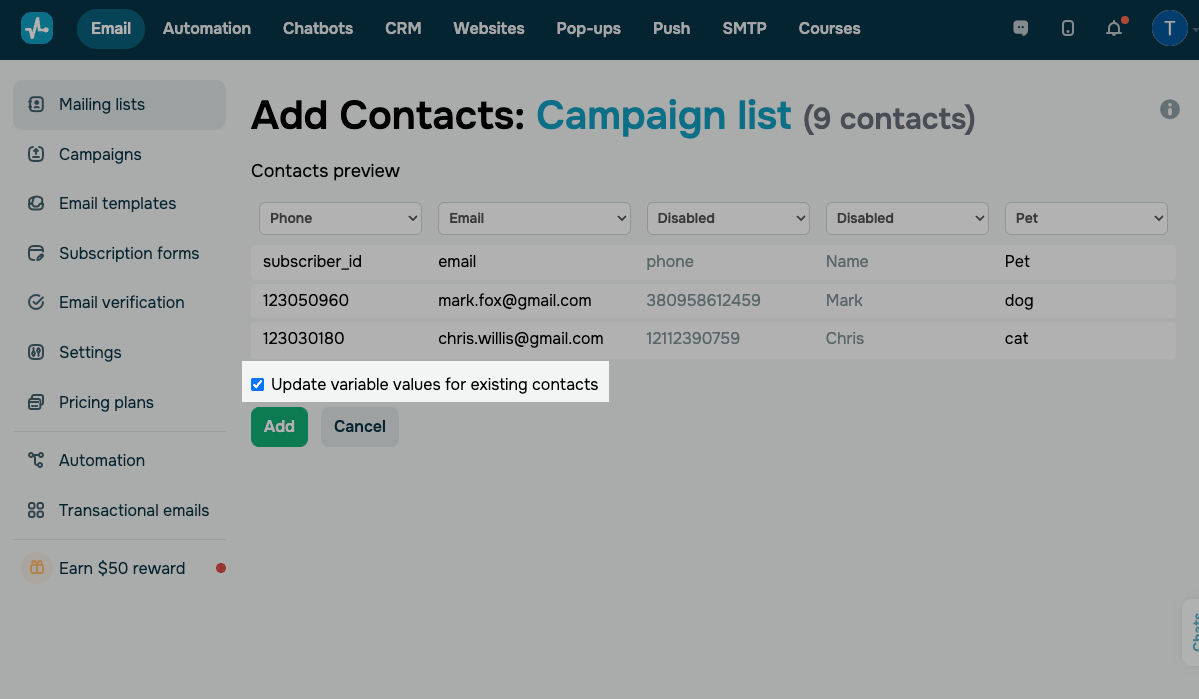
To update variable values for several contacts at once, upload a file with the list of contacts and updated data to the service. Select the Update variable values for existing contacts checkbox and click Add.
Delete variables
You can delete a variable for a specific contact or the whole mailing list.
The Email and Phone variables cannot be deleted.
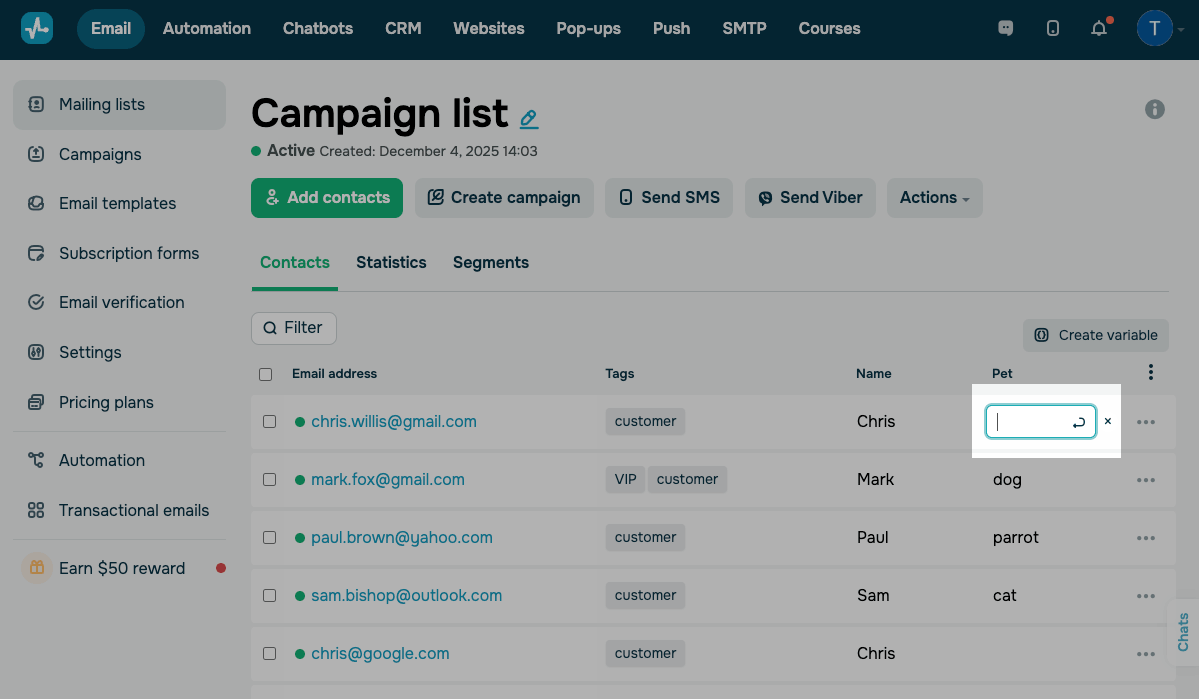
To delete a variable value for a single contact, hover over the variable, and click the pencil icon. Then delete the variable value, and press Enter or the arrow icon next to the field where the value was.
To delete a variable, hover your cursor over the column name. Then click on the trash can icon that appears.
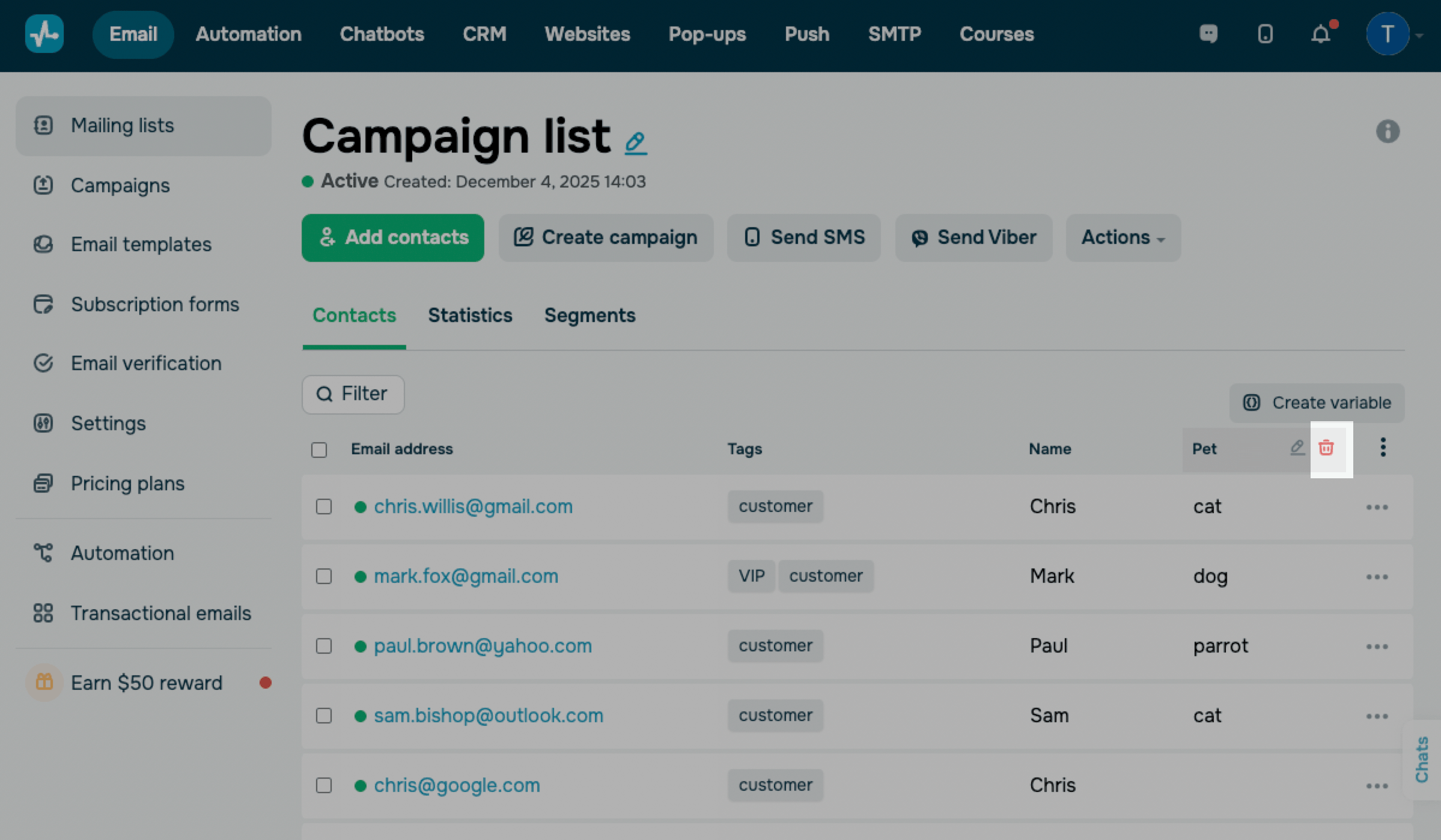
Afterwards, you will see a pop-up window where you need to confirm that you actually want to delete the variable.
 Last Updated: 17.04.2026





or