Trigger SendPulse pixel events automatically
Condition-based triggers send events to SendPulse based on website visitor activity. This works best for standard scenarios like page views, click-throughs, and similar events.
Let’s talk about how to trigger a SendPulse pixel event automatically.
If available conditions don’t meet your needs, you can trigger events manually using code.
Select conditions
Go to your added website and click Add event. Select the Automated, condition-based trigger type and add conditions.
User behavior
| After scrolling 50% of a page | Tracks how far the user scrolls the page.
The event will trigger when a visitor scrolls halfway down the page. |
| When the cursor moves outside the window | Tracks the mouse cursor movement.
The event will trigger if the visitor starts moving the cursor to switch to another tab or close the current one. |
| Session inactivity | Tracks how long a user stays inactive during a session.
The event will trigger when a user does not interact with your page for the selected amount of time. Set how long a user needs to remain inactive. Select seconds or minutes. |
| Upon page element click | Tracks clicks on a target element. Enter the element’s CSS class in the field to enable tracking.
Read more: Trigger pixel events on page element clicks |
Pages and URLs
| Event | Description | How to set it up |
| Current page URL | Tracks the page the user is currently viewing.
The event will trigger after a visitor loads the page with the given URL. |
Select the equal to, not equal to, or contains conditions.
Enter a value that contains the link or part of the link to the current page. |
| Current page URL | Tracks the page the user is currently viewing.
The event will trigger after a visitor loads the page with the given URL. |
Select the equal to, not equal to, or contains conditions.
Enter a value that contains the link or part of the link to the current page. |
| Time on current page | Tracks how long the visitor stays on your page.
The event will trigger when a visitor spends the amount of time you specify in the settings. |
Select a more or less condition.
Enter a value that is higher or lower than the website visit duration in seconds, minutes, or hours. |
| Page title | Tracks pages by title name.
The event will trigger if a visitor visits a page with the same title. |
Select the equal to, not equal to, or contains conditions.
Enter a value that equals or contains characters from the target page title. |
| Pages visited | Tracks the total number of pages visited.
The event will trigger when a user visits more or fewer than the given number of pages. |
Select a condition more or less.
Enter the number of pages a visitor must view before the event triggers. |
| URL of the page visited | Tracks the page the user came from.
The event will trigger after a page with the given URL loads. |
Select the equal to, not equal to, or contains conditions.
Enter a value that includes the full URL or a part of the target page URL. |
Visitor data
| Event | Description | How to set it up |
| Traffic source | Tracks the page the visitor came from.
The event will trigger if the given URL matches the referral URL. |
Select the equal to, not equal to, or contains conditions.
Select Email campaign, Chatbot, or Website. |
| Traffic type | Tracks where the visitor came from.
The event will trigger only if visitors come from the selected traffic source. |
Select the equal to or not equal to condition.
Choose a traffic source:
|
| Browser language | Tracks the user’s browser language.
The event will trigger when a user visits the selected language version of your page. |
Select the equal to or not equal to condition.
Select a browser language from the list. |
| Browser | Tracks the browser and device your website visitor is using.
The event will trigger when a visitor visits your website from a specific browser or any browser on mobile/desktop. |
Enter a value that matches the browser name or matches all browsers on mobile or desktop. |
| Device location | Tracks visitor location using their IP.
The event will trigger when a user visits your website from a specific country. |
Select the show for or not show for condition.
Select a country from the drop-down list. |
Time
| Event | Description | How to set it up |
| Time on site | Tracks how long the visitor spent on all pages of your website.
The event will trigger if a visitor spends the given amount of time on your website. |
Select the greater than or less than condition.
Enter a value that is longer or shorter than the visit duration in seconds, minutes, or hours. |
| Time period based on your site visitor’s time zone | Tracks the amount of time the user spent on your website.
Your website visitor’s time zone is applied. Your widget will appear only during the selected timeframe. |
Select the timeframe during which the widget will appear on your website.
For example, you might set a promotion period or your business hours, like from 6:00 PM to 12:00 AM. |
| Time period based on your account time zone settings | Tracks the amount of time the user spent on your website.
The time zone in your account settings is applied. The event will only trigger during the selected timeframe. |
|
| Date range | Tracks the date when the user visited your website.
The event will only trigger during the selected dates. |
Select the timeframe during which the widget will appear on your website.
A new day begins after 00:00 midnight. Night time should be set as follows: before 23:59, the When you create a widget, your browser's time zone is applied. |
| Day of the week | Tracks the days of the week when the user visits your website.
The event will trigger when a user visits your website on the selected days of the week. |
Select one or more days of the week. |
UTM tags
| Event | Description | How to set it up |
| UTM Medium | Tracks the parameter used to define the traffic type.
The event will trigger only when a visitor’s |
Select the equal to, not equal to, or contains condition.
Enter a value that matches or includes the utm_medium parameter. Options include:
|
| UTM Content | Tracks the parameter that determines the part of the page the user came from.
The event will trigger only when a visitor’s |
Select the equal to, not equal to, or contains condition.
Enter a value that matches or includes the utm_content parameter. Options include:
It may also include your page element names. |
| UTM Term | Tracks the parameter used to determine which search term or query brought the visitor to your website.
The event will trigger only when a visitor’s |
Select the equal to, not equal to, or contains condition.
Enter a value that matches or includes the |
| UTM Campaign | Tracks the parameter that determines the name of the advertising campaign that brought the visitor to your website.
The event will trigger only when a visitor’s |
Select the equal to, not equal to, or contains condition.
Enter a value that matches or includes the |
| UTM Source | Tracks the parameter that determines the traffic source where the user came from.
The event will trigger only when the visitor comes from the selected traffic source. |
Select the equal to, not equal to, or contains condition.
Enter a value that matches or includes the Options include:
|
Frequency
The Frequency trigger type tracks how many times a user visits your website within a selected timeframe.
Select a pop-up display frequency: Once a day, Once a week, Once a month, Once a year, or Set period.
Select binding operators
You can combine multiple conditions using the following operators:
| any | Use this operator to match at least one filter condition.
Contacts will be added to the segment if at least one filter criterion is met. |
| each | Use this operator to require all added conditions to be met.
Contacts will be added to the segment only if all filter criteria are met. |
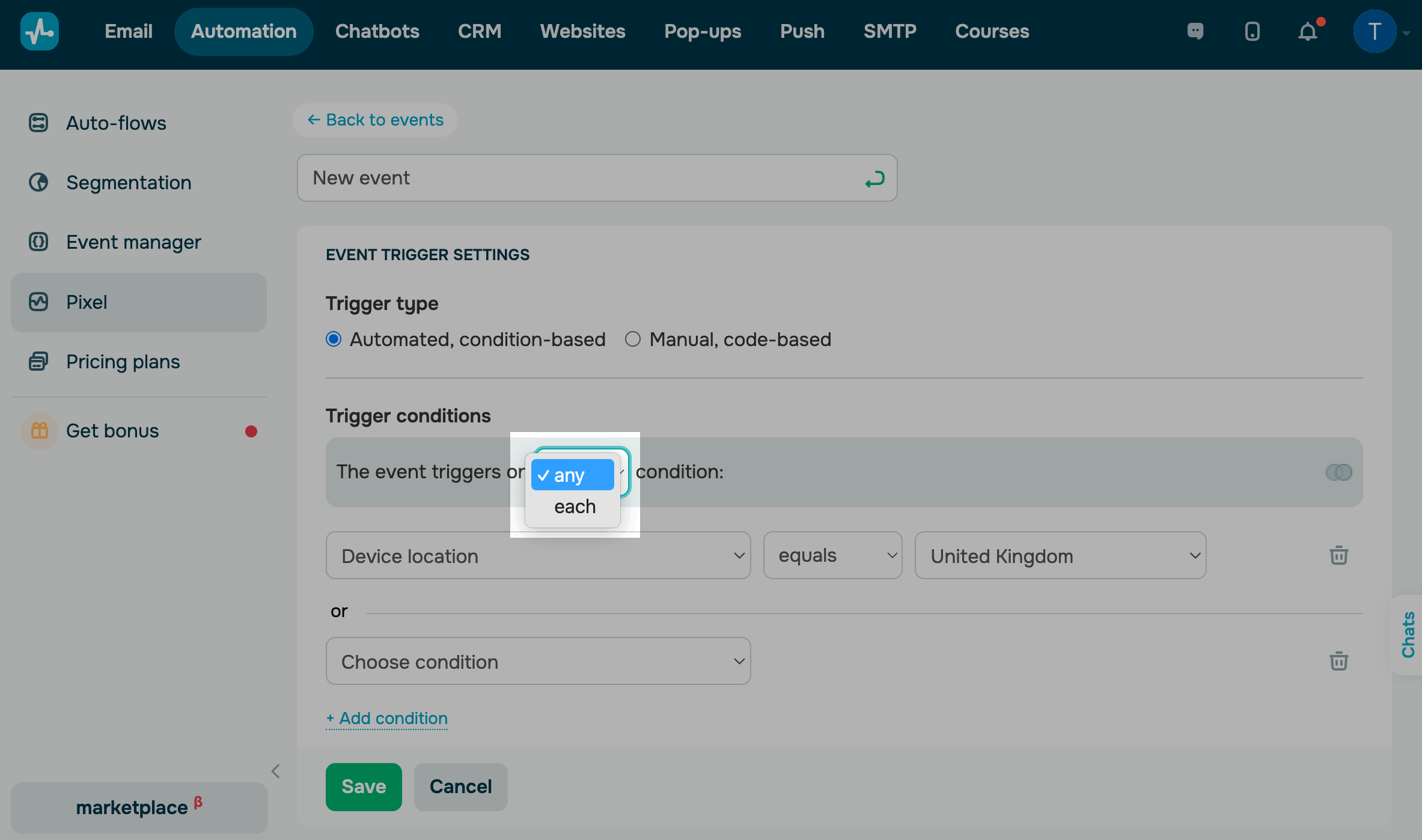
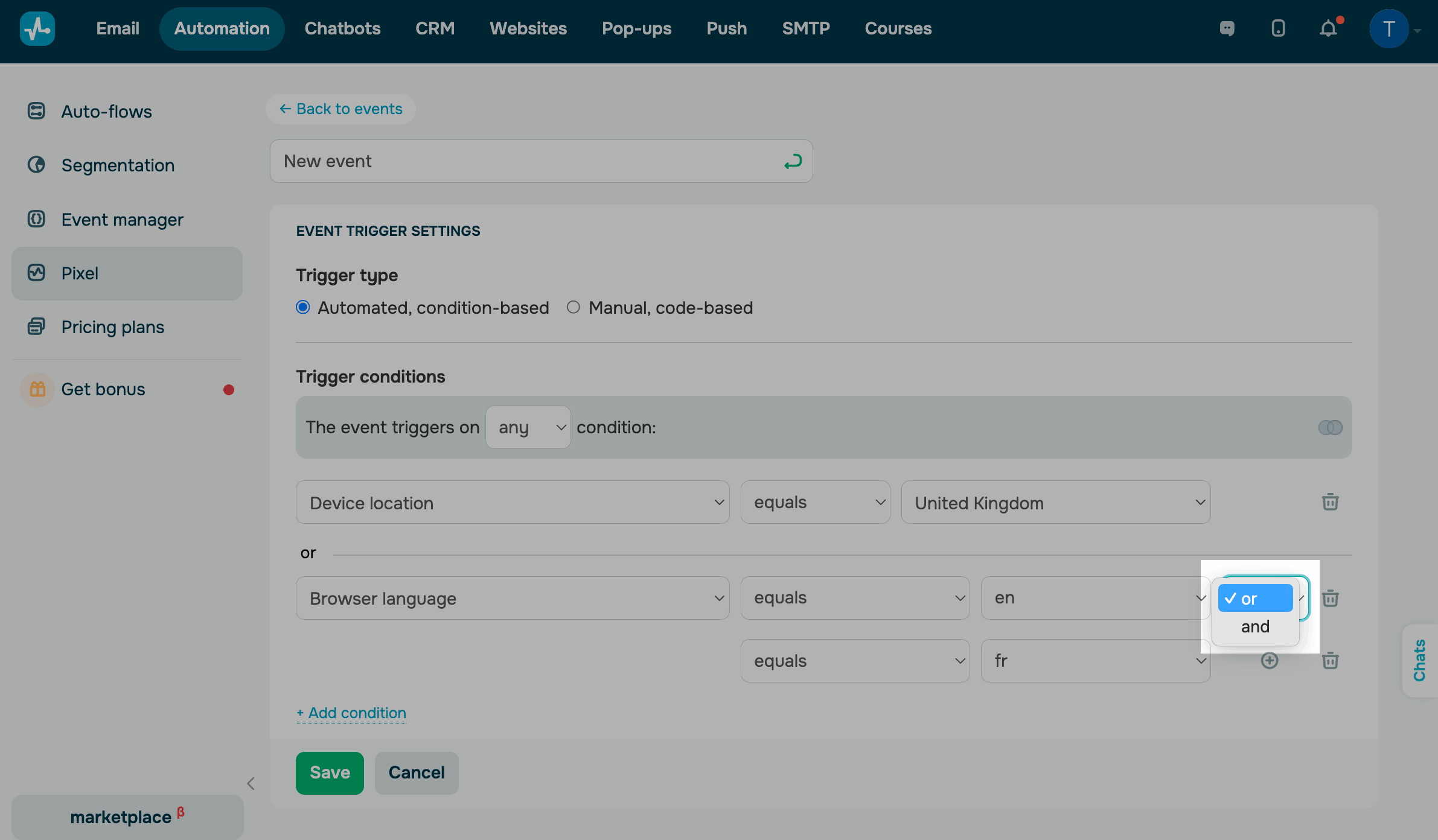
You can also combine criteria within a single condition using the following operators:
and |
Use this operator to require both values within the same criteria group to be met. |
or |
Use this operator to match one of the values within the same criteria group. |
Click Save.
 Last Updated: 25.02.2026




or