Accept payments with Telegram Stars
In Telegram chatbots, you can accept payments using Stars, Telegram's in-app currency. This helps you monetize your chatbot without integrating third-party payment solutions or a merchant account.
For example, you can sell a video lesson and set its price in Stars. Once a subscriber pays in Telegram, they receive access to the video automatically.
Let's talk about how to accept payments with Stars and withdraw your earnings.
Choose a payment option
Choose a payment option based on what you sell and your payment tracking needs.
Paid content
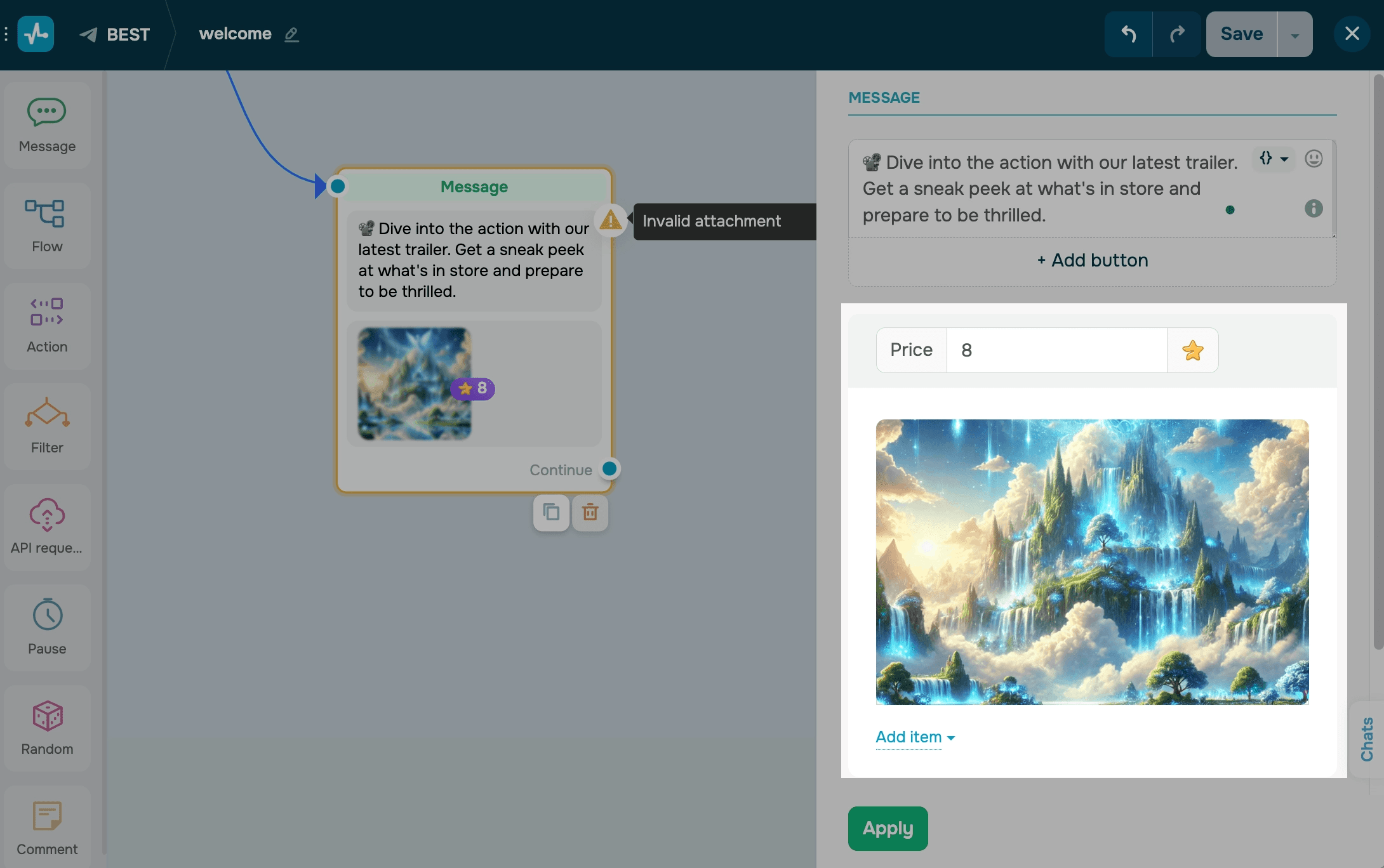
Use the Paid media element to sell access to images and videos. You can add it in the Message element, alongside other media files. A single message can include up to 10 images or videos.
To add paid content, in the Message element, click Add and select Paid media. In the Price field, enter the number of stars required to unlock the message, then choose how to upload your file:
| File |
Upload a file from your device by clicking the upload area or dragging and dropping the file into it. To select a file from SendPulse's file manager, click Choose file. File names can contain up to 40 characters. |
| URL |
Add a link to a file hosted externally. We recommend using direct, secure links like To set a dynamic file path, choose a variable or add a JSON path in the field. For example, you can pass a file URL as a variable value using the API request element or an A360 event. This helps you send a different image or video to each subscriber. You can also attach large files using Telegram channel links. Read more: Add a 2 GB Telegram video to a chatbot message. |
To upload more files, click Add item and select Image or Video.
SendPulse does not process payment notifications for paid content. Because of this, your flow does not continue automatically after payment, and a CRM deal is not created.
Payment button
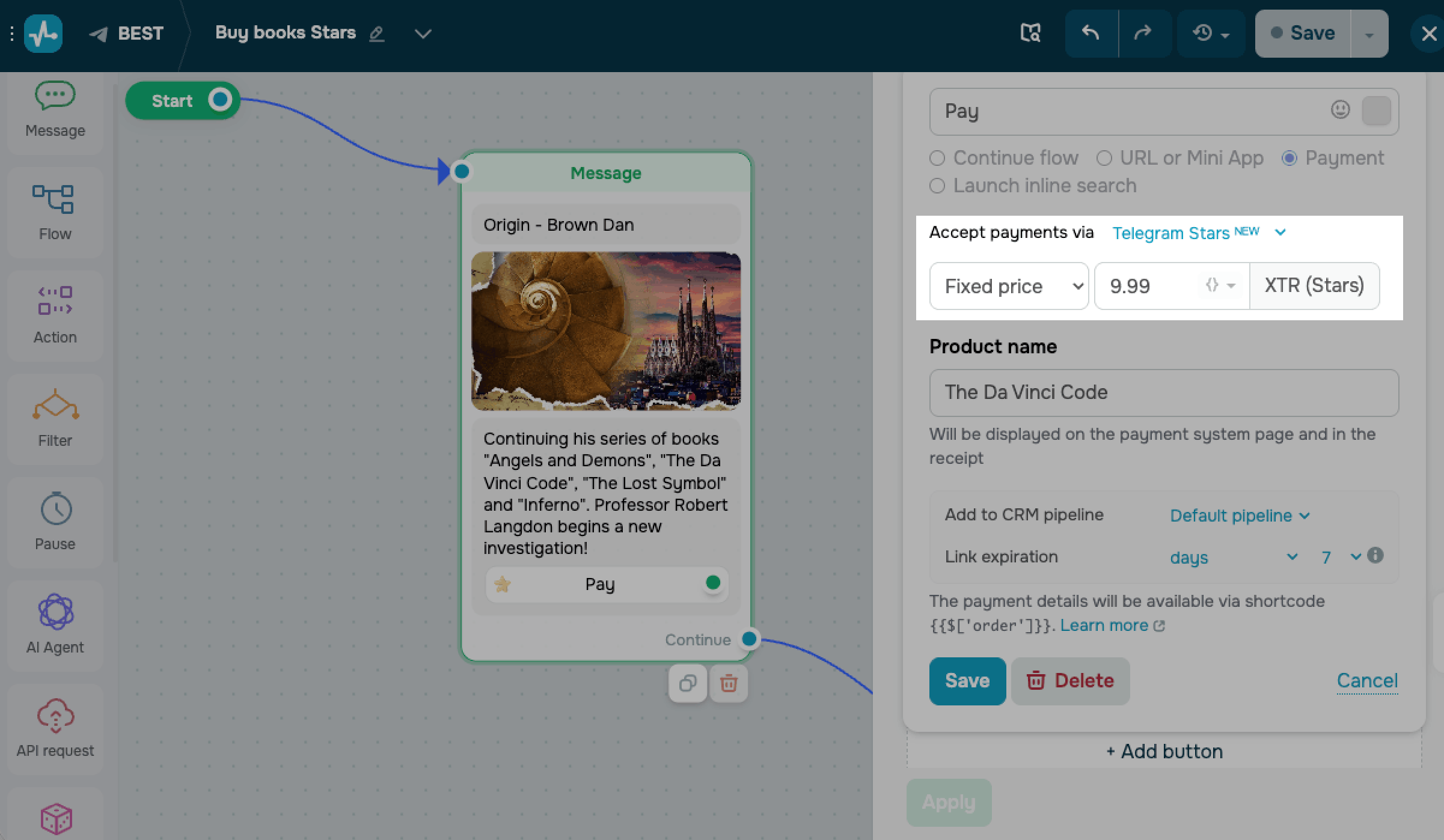
Use a payment button with Telegram Stars to sell a product, service, or access to content. Payments made this way can appear in your payment list, continue your flow, and create a deal.
To accept payments using Stars, add a payment button and, in the Accept payments via field, select Telegram Stars. Enter a price and a product name in XTR (Stars).
Subscribers pay with Telegram Stars directly in the Telegram app. No external payment page is required.
To refund a payment, go to your payment list, open the order menu, and select Refund payment.
Read more about payment buttons in Accept chatbot payments.
Withdraw your earned Stars
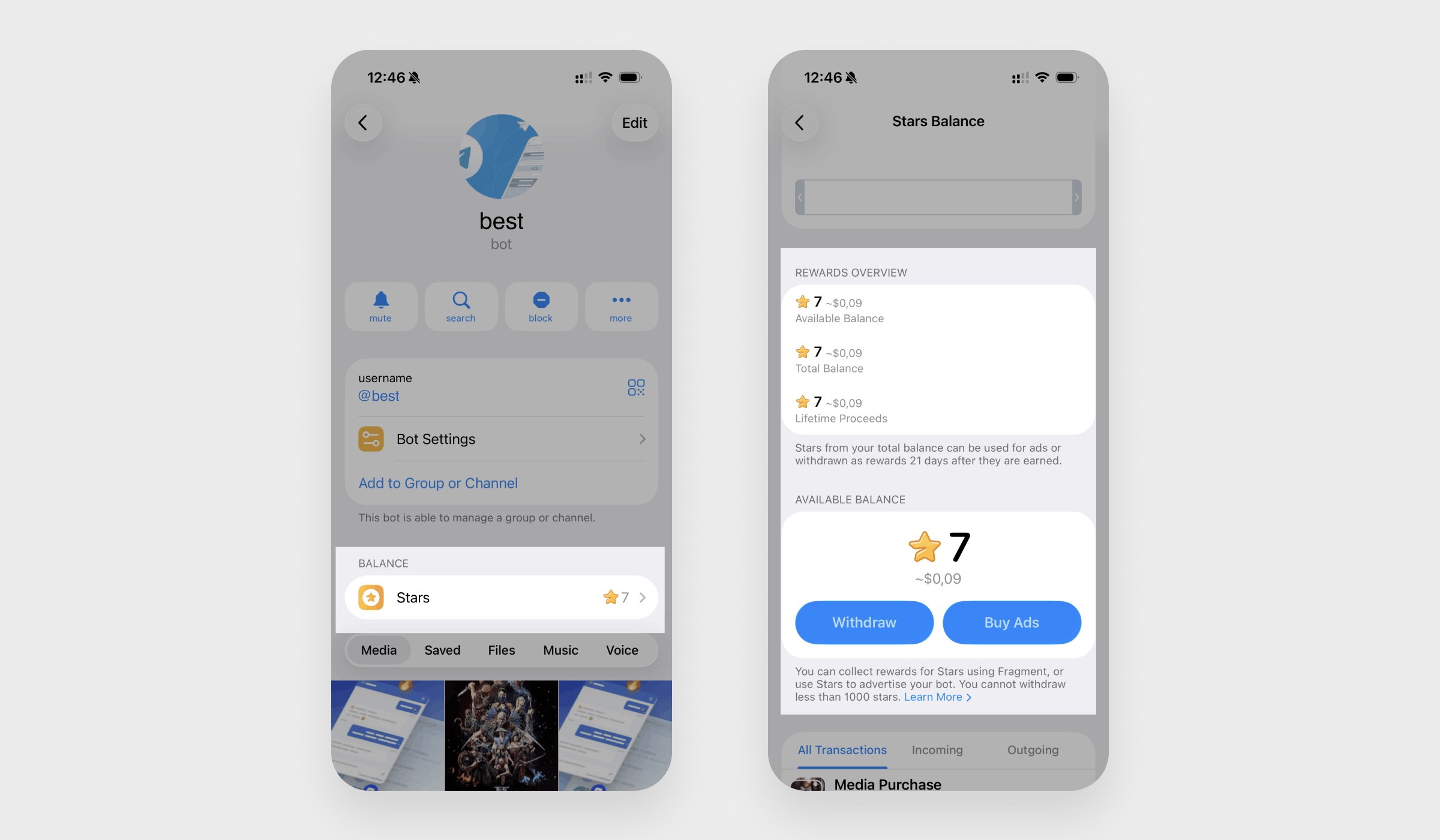
Stars earned through your chatbot are credited to its balance in Telegram. To check your balance, go to your chatbot's profile and select Stars.
To withdraw your Stars, click Withdraw. Telegram converts them to TON cryptocurrency through Fragment.
To spend stars on ads for your chatbot, click Buy Ads.
You can withdraw Stars 21 days after earning them, provided your balance exceeds 1,000 Stars.
To learn more about withdrawal terms, see Telegram Stars.
 Last Updated: 03.07.2026




or