Customize buttons in a Telegram chatbot
In Telegram chatbots, you can change the button colors as well as arrange buttons and quick replies in rows in any order. This helps you group related options and draw attention to the target action.
You can customize style only for Continue flow button type.
For example, in a welcome message with six product categories and a Support button, you can place three categories in a row and move Support to a dedicated row at the end.
Let's talk about how to customize buttons in a Telegram chatbot.
Change the button color
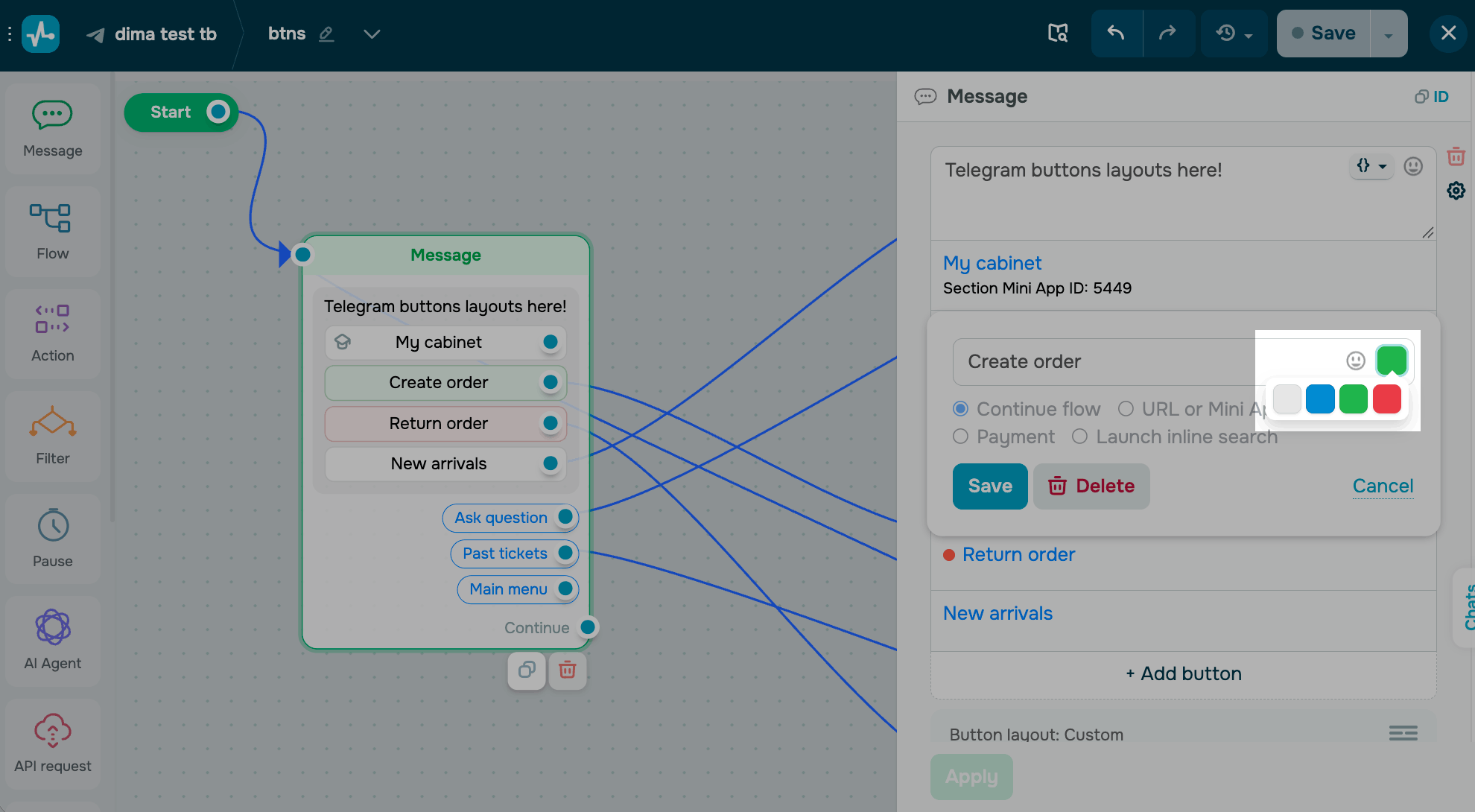
To make a button stand out, change its color. In the Message element settings, click the color icon next to a button name and choose a color.
Arrange buttons in rows
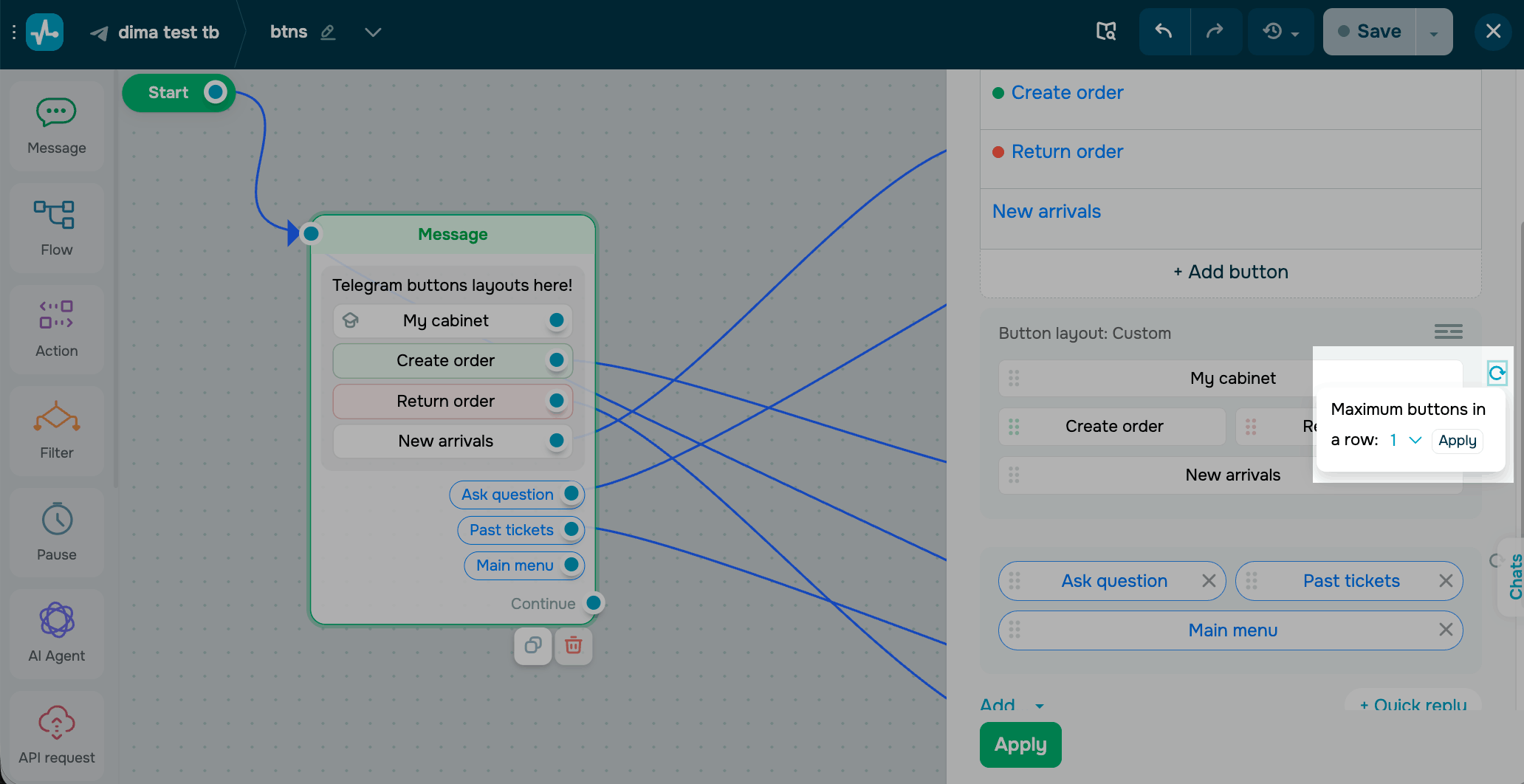
You can add up to 25 buttons and 10 quick replies. By default, SendPulse places them in one column. When you add more than one button, the Button layout section appears in the Message element settings with a preview of the current layout.
To change the layout, click the Button layout section and drag a button to a new position.
To create a row, place a button before, after, or between existing rows. To remove a row, move all its buttons to other rows. SendPulse deletes empty rows automatically.
To replace a custom layout with an even grid, reset your current layout. In the Button layout section, choose a maximum number of buttons per row, from 1 to 4, and click Apply.
See how your buttons look
To see your buttons in Telegram, click Save and send it to yourself. A message will appear in your Telegram chat with the button colors and layout you've set.
 Last Updated: 07.10.2026





or