Set up an AI model in your chatbot
Use an AI model from OpenAI, DeepSeek, Gemini, or Claude in your chatbot to generate responses tailored to user requests and conversation context.
AI can generate text based on your prompt, search for up-to-date information online, or reply using conversation history. You can also adjust generation settings to fine-tune response style and accuracy.
Let’s go over how to choose an AI model, set a conversation context size, tokens, and temperature.
Basics
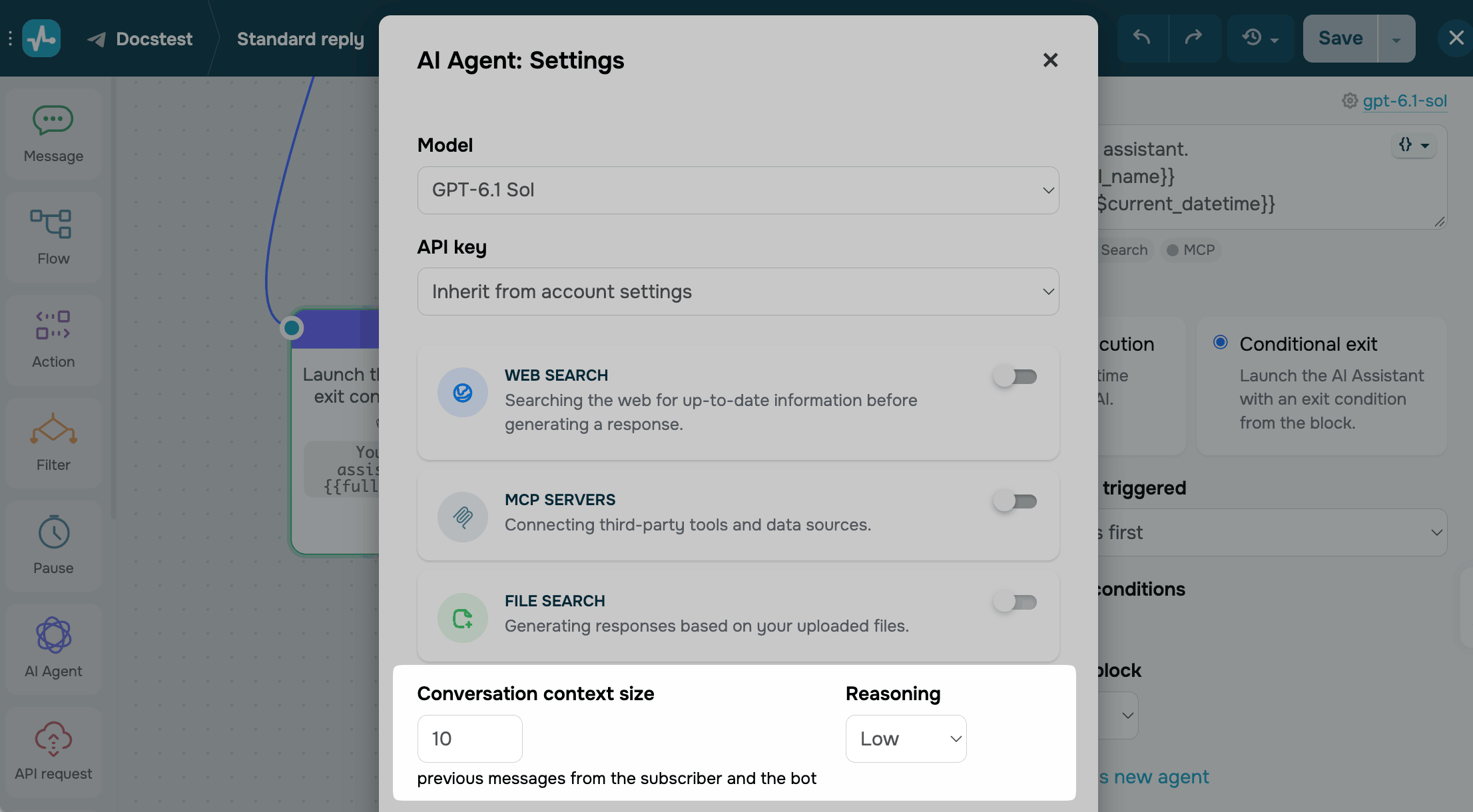
The available settings in the window vary depending on the model you select. For example, GPT-5 models show Reasoning, while older models show Maximum number of tokens in response and Temperature instead.
Depending on the API key you choose, your AI provider bills the model's requests at its own rates, or SendPulse charges AI credits.
Web search and file search are billed in addition to tokens. Requests to MCP servers aren't billed, but every connected tool increases the tokens each request uses.
Read more about pricing: OpenAI API pricing, Anthropic API pricing.
You can set up the model in a saved AI agent in the AI Agents section or directly in the AI Agent flow element with the Custom agent option. The settings are the same.
Choose a model and an API key
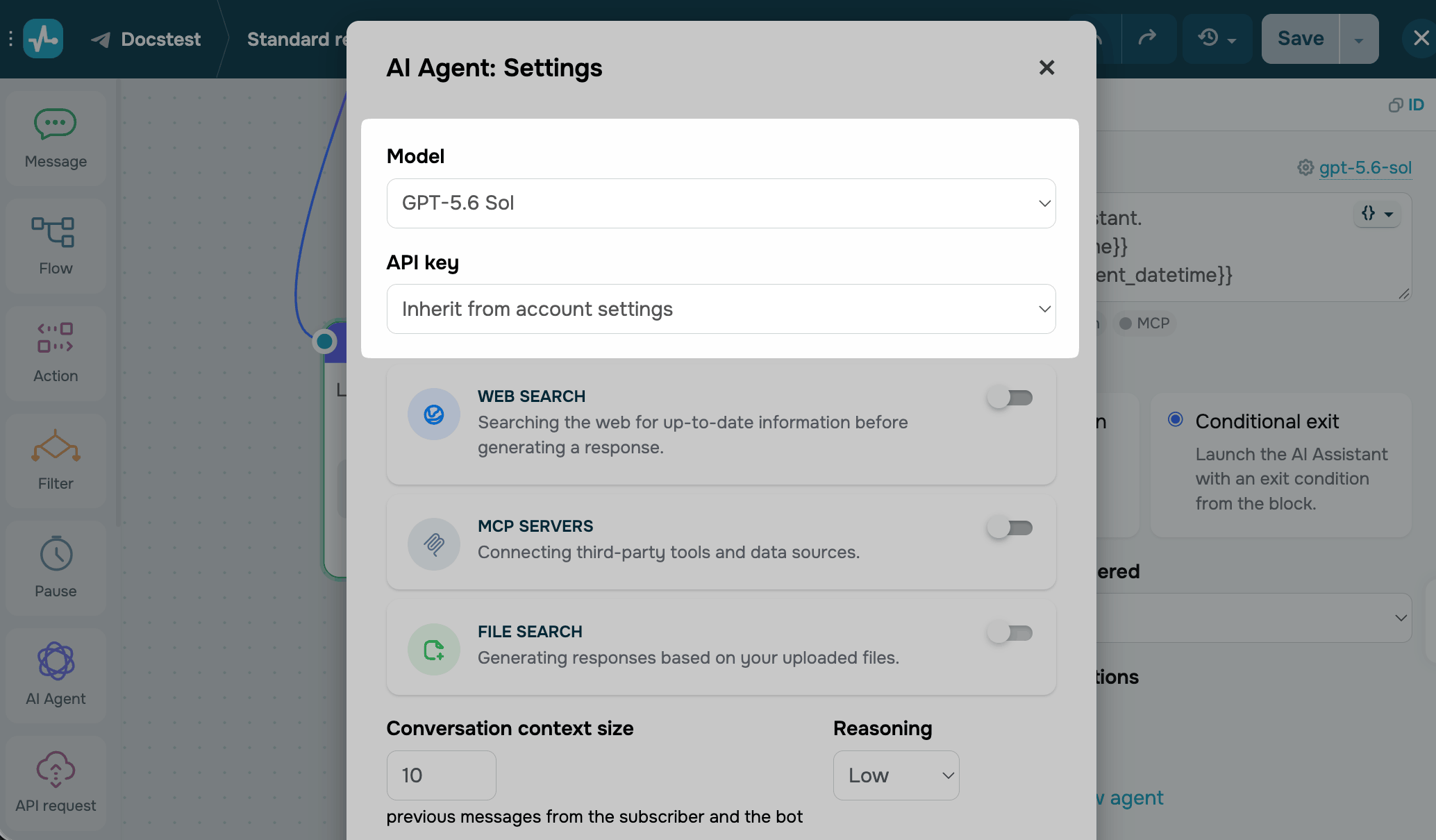
To set which AI model replies to your subscribers and how you pay for its requests, select a model and an API key.
In the Model list, select an AI model. Models labeled Deprecated model are outdated. To keep your chatbot working reliably, select a current model.
In the API key list, choose one of the following options to authorize requests:
| Inherit from account settings | SendPulse uses the API key you added for this provider in Account settings > AI tools. If there is no key for the provider, SendPulse charges your AI credits. |
| Your own key | Lets you paste a key for this element only. The link under the field leads to the provider's API key page, for example, platform.openai.com/api-keys. |
If a saved agent is selected in the element, the model and key come from the agent.
Turn on tools
Tools give the model access to information beyond your prompt and the conversation. Turn on only the tools the model needs: each tool adds to the cost of requests.
Any tool requires at least the Low level of Reasoning in models that have this setting.
Search the web
Available only for OpenAI, Claude and Gemini
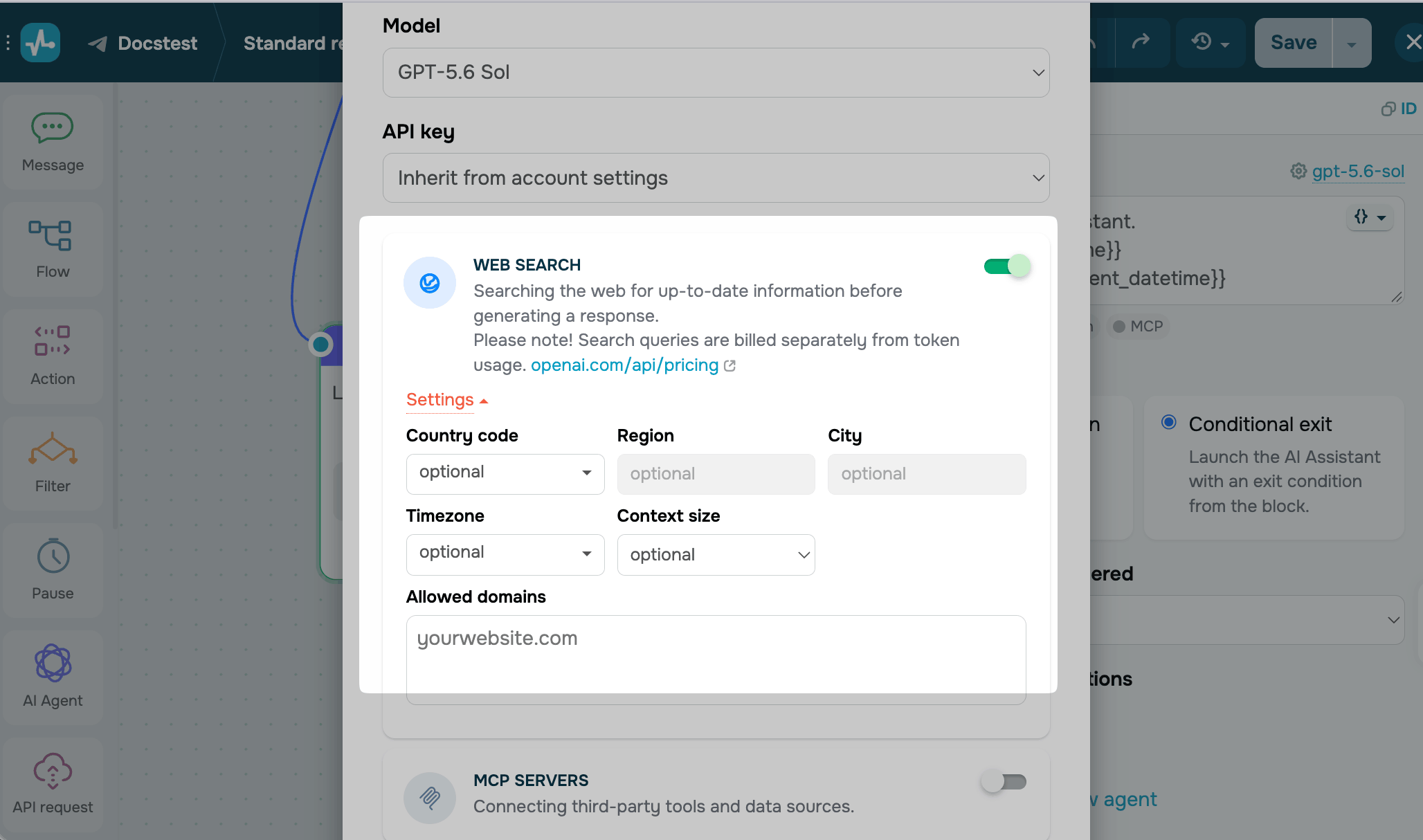
To let the model look up current information online before it replies, turn on the Web search toggle. The model searches only when it needs current information for a full answer.
If web search is off, the model relies on your prompt, the conversation, and the data it was trained on.
Your provider bills search requests in addition to tokens.
To make results more relevant, click Settings and fill in the following fields as needed. All fields are optional:
| Country code, Region, City | Set the location to search for local results, for example, stores or events in a specific city. |
| Timezone | Set the time zone so that the model interprets dates and times correctly. |
| Context size | Choose how much content from the search results the model receives. |
| Allowed domains | Enter the website links the model can search, for example, yourwebsite.com. For example, you can use this field to answer only from your own website. |
Connect MCP servers
Available only for OpenAI and Claude
MCP (Model Context Protocol) is a standard that lets AI models work with third-party systems. An MCP server turns a system’s API into tools the agent can use, along with instructions on when to run each tool and which values to pass.
A store's MCP server, for example, can retrieve the product catalog or add items to the cart right in the chat. SendPulse’s MCP can retrieve account data or send messages.
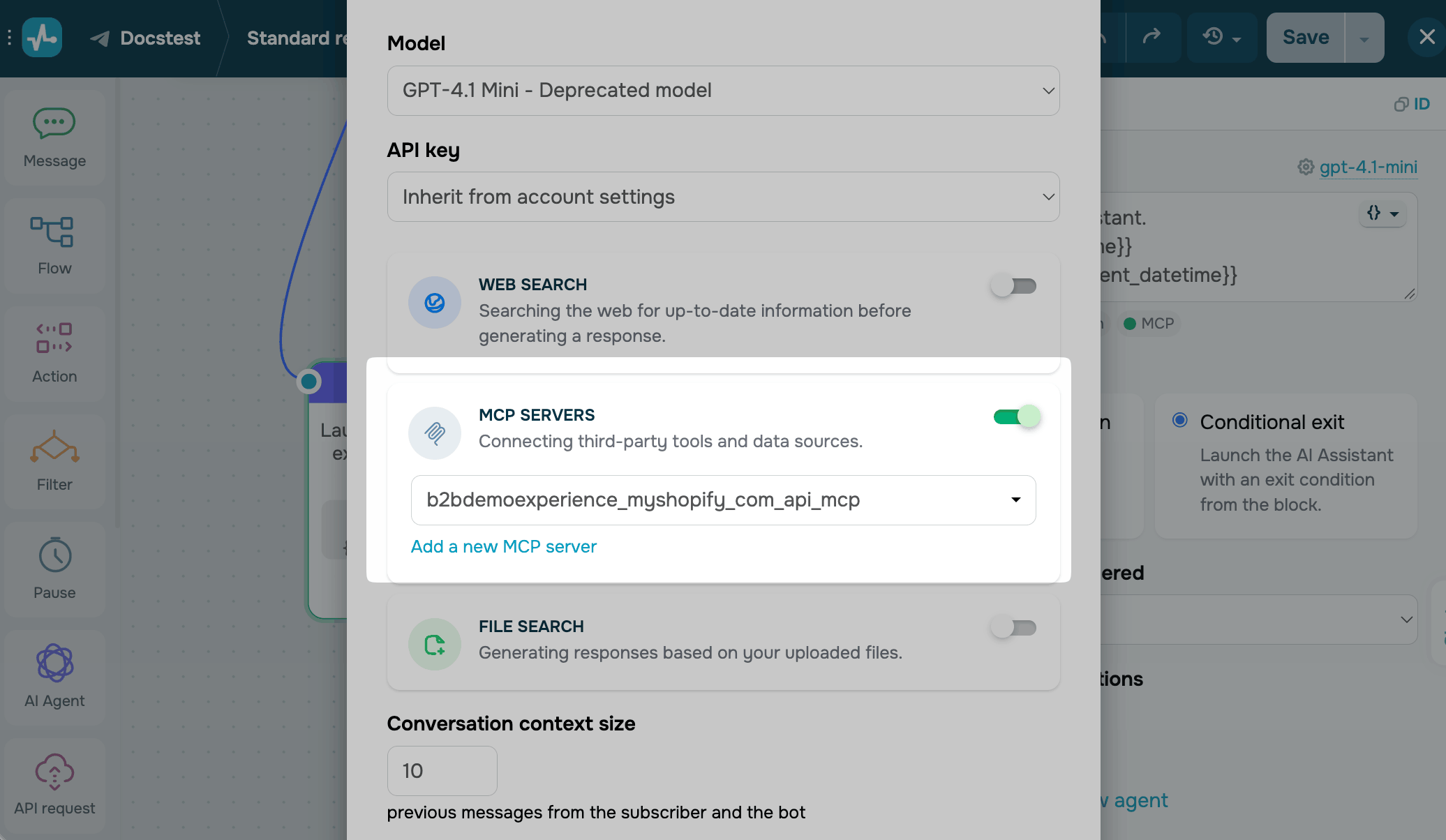
Turn on the MCP servers toggle, then choose one of the servers you added on the MCP Servers tab of the AI Agents section. All chatbots in your account share these servers. To add a new server without leaving the element, click Add a new MCP server. Read more: Add an MCP server.
MCP server requests are free, but web search and file search are not. Keep in mind that every tool you add makes requests to the AI model larger, so your AI agent uses up more tokens.
Your AI agent can use all tools you selected when connecting the MCP server. When a subscriber reaches the AI Agent element, the agent decides which tools to run, for example, to find products, send a message, or create an order.
Search your files
Available only for OpenAI with your API keys
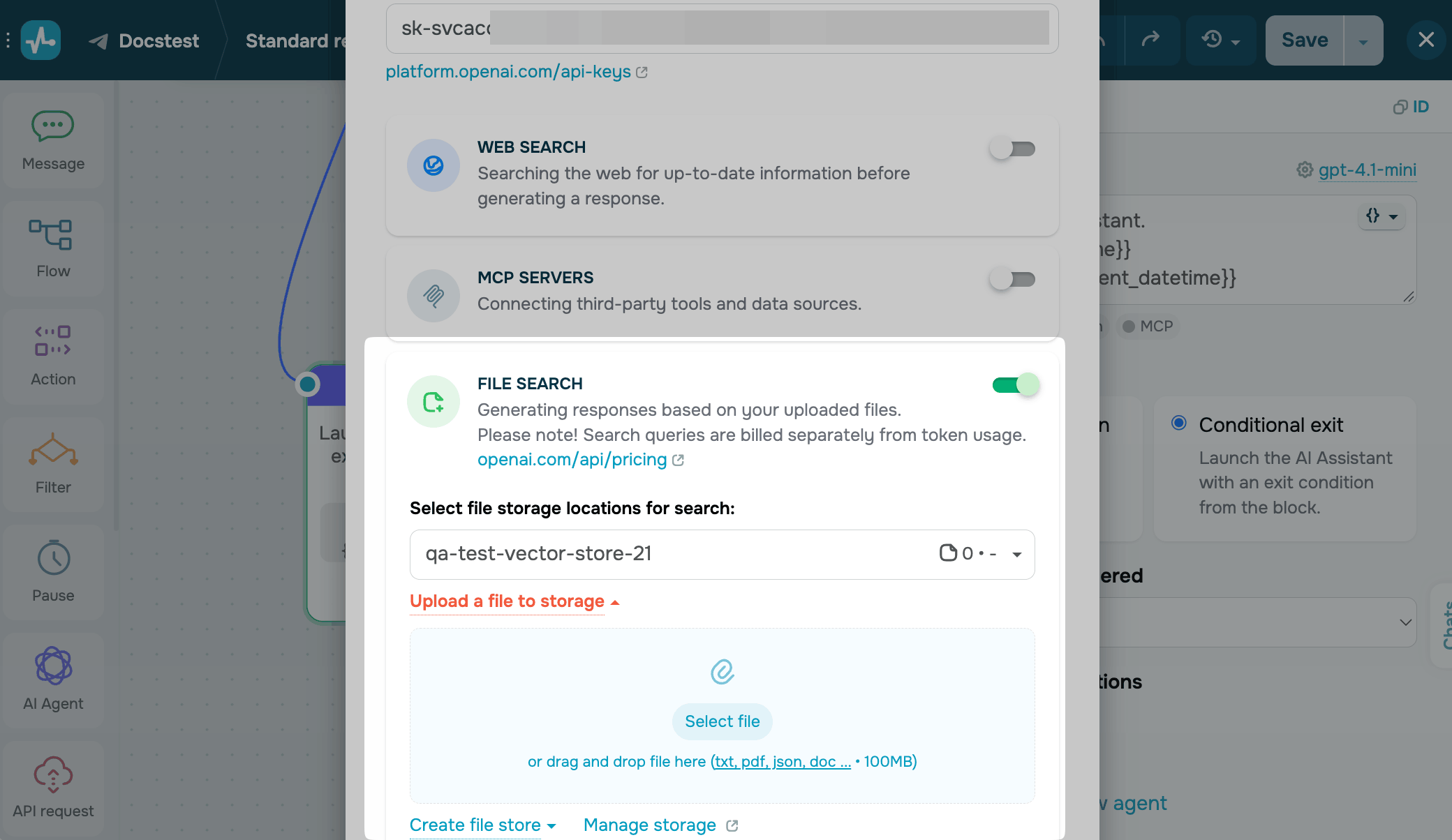
To let the model answer based on your files, turn on the File search toggle. For example, if your files include a price list and return rules, the model can tell a subscriber whether an item is in stock and how to return it.
Your provider bills search requests in addition to tokens.
In Select file storage locations for search, select a file store. The list shows how many files each store has.
To add a file, click Upload a file to storage, then click Select file or drag the file to the area. You can upload TXT, PDF, JSON, DOC, and other formats, up to 100 MB per file.
To create a new store, click Create file store. To view or delete files in your stores, click Manage storage.
Adjust context and responses
Available only for OpenAI
To control how much the model knows about the conversation and what its replies look like, set the remaining fields.
In the Conversation context size field, enter how many previous messages from the subscriber and the chatbot the model receives with each request. The default is 10 messages. More messages help the model follow a long conversation but make each request more expensive.
In models with the Reasoning setting, select one of the following levels for how deeply the model analyzes requests before it responds:
| Minimal | The fastest responses with the lowest token usage. |
| Low | A basic level of analysis suitable for most requests. |
| Medium | In-depth processing that improves accuracy but may slow responses. |
| High | The most thorough analysis, with the highest token usage and the longest response time. |
In the Maximum number of tokens in response field, set a number.
A token is a part of a word used for natural language processing. For English text, 1 token equals approximately 4 characters or 0.75 words. For other languages and more accurate calculations, use the OpenAI calculator.
Save and test the model
To apply the settings, click Save in the window, and then click Apply in the element.
To check how the model replies, click Save and send to yourself in the upper right corner of the builder. Then ask the chatbot a question that needs the tools you turned on.
Troubleshoot AI model issues
If the model doesn't work as expected, check these common issues:
| The model doesn't use web search, files, or MCP tools | Set Reasoning to at least Low. Check that the tool's toggle is on and a file store or MCP server is selected. |
| Replies are cut off | Increase Maximum number of tokens in response. |
| Web search returns irrelevant results | In the web search Settings, add your website to Allowed domains or set the location. |
| The model forgets what the subscriber said earlier | Increase Conversation context size. |
| Requests cost more than expected | Lower Conversation context size and Maximum number of tokens in response, and turn off the tools the model doesn't need. |
| A file doesn't upload | Check that the file has a supported format and is no larger than 100 MB. |
| The model is marked Deprecated model | Select a current model in the Model list. |
| Requests spend AI credits although you have an API key | Add the key for this model's provider in Account settings > AI tools, or paste the key into the element. |
 Last Updated: 18.11.2025



or