Copy a chatbot flow to another account
You can share a chatbot flow using a link to let other SendPulse users copy it to their own accounts without getting access to yours. This helps agencies and freelancers hand over flows they build for clients. You can also copy flows between your own SendPulse accounts or share ready-made flows with colleagues.
Suppose you've built a flow that sells a digital product, and a client wants the same flow in their chatbot. You can copy the flow link and send it to your client. Your client then opens the link and copies this flow to a chatbot in their account.
Let's talk about how to enable flow copying, copy a flow to another account, and run a copied flow.
Enable flow copying
Before you share a flow, enable sharing and copying in its link settings. You can do this only in the account where the flow was created.
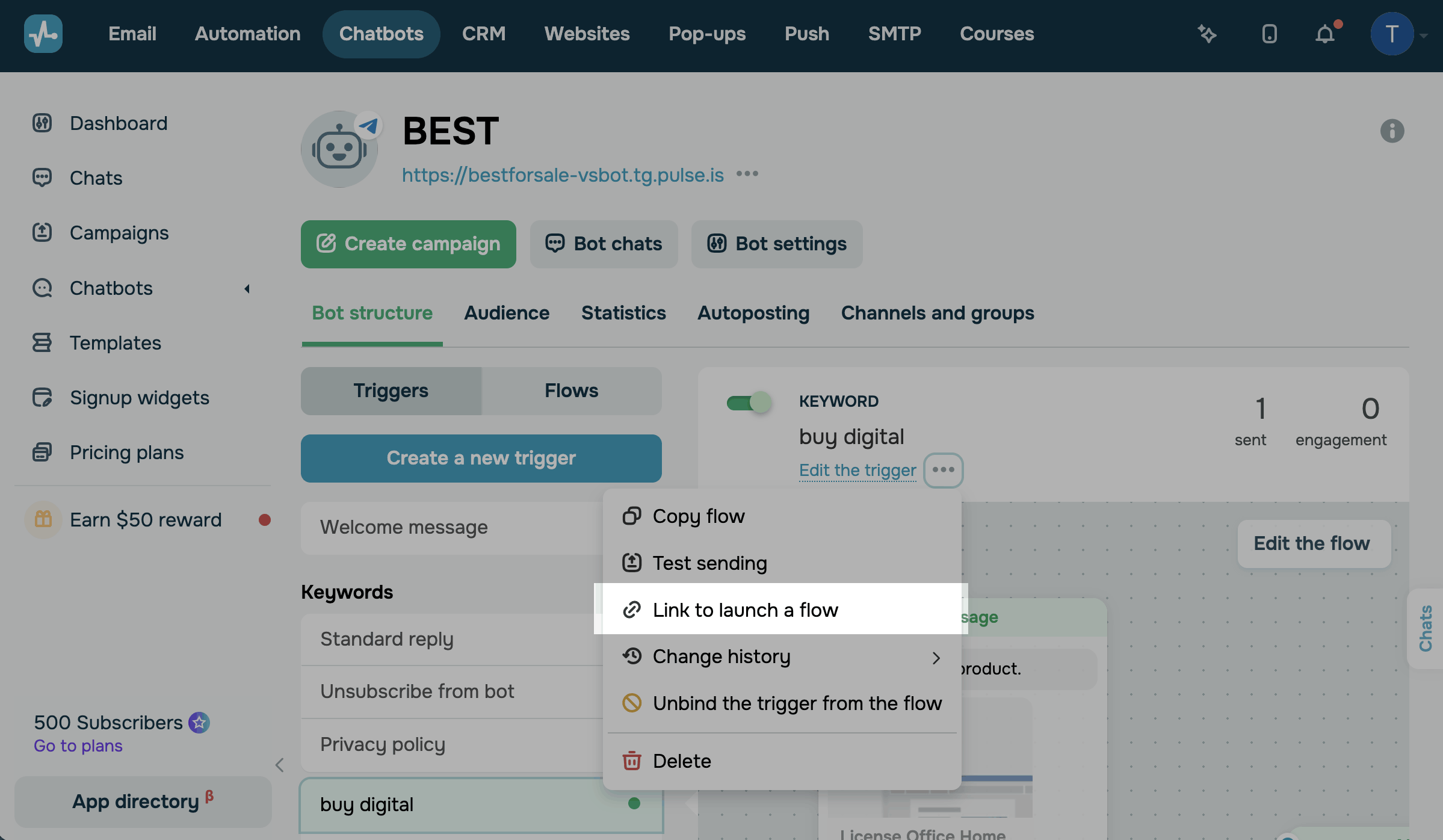
Go to Chatbots and select your chatbot. On the Bot structure tab, click Flows. Choose a flow, click the three dots next to its name, and select Link to launch a flow.
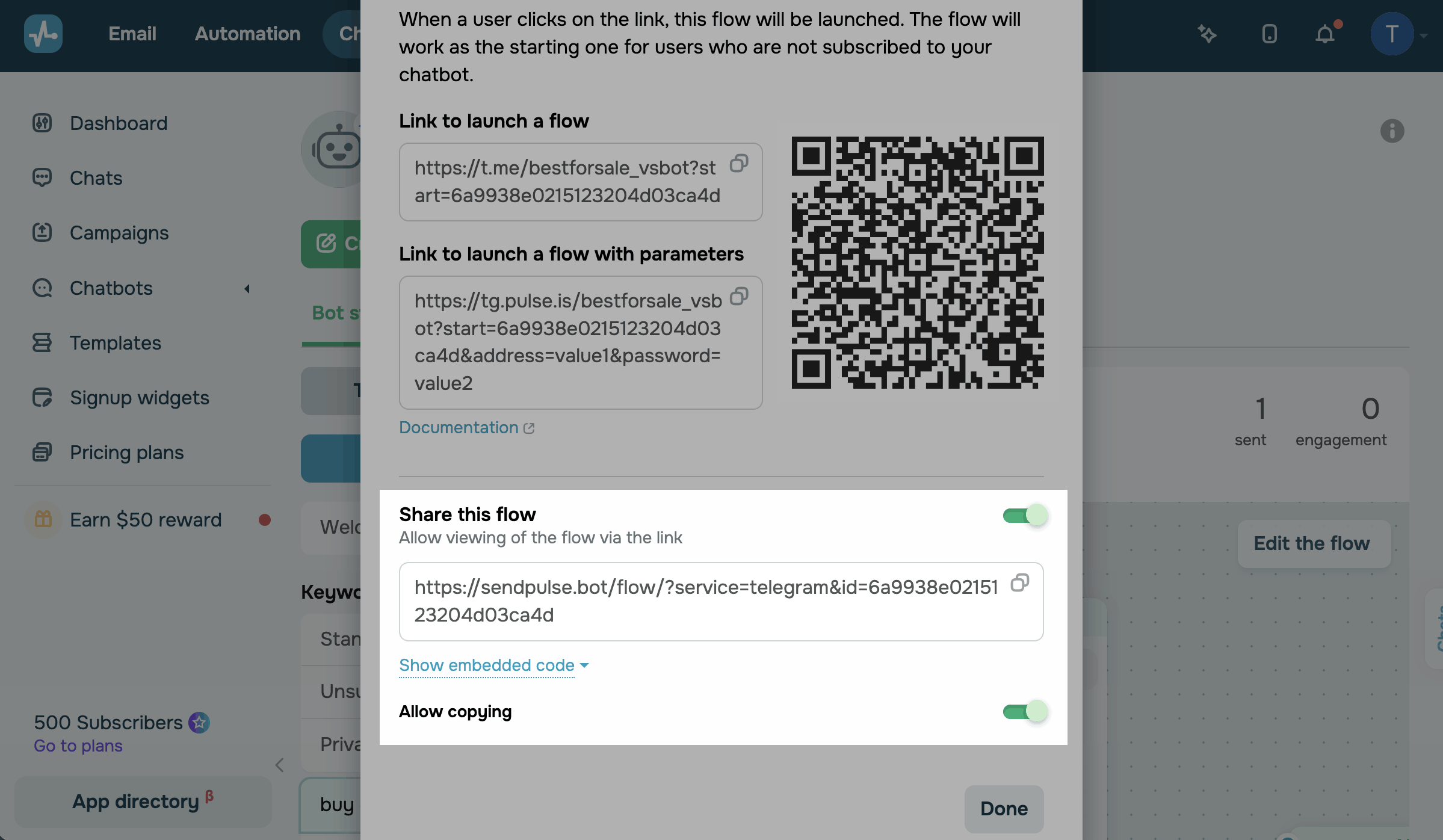
To let anyone with the link view your flow, turn on the Share this flow toggle in the pop-up window. To let them copy it, turn on the Allow copying toggle.
A link to your public flow preview appears in the Share this flow section. To copy the link, click the copy icon, then click Done.
Anyone who has the link can view your flow and copy it to their account. Share the link only with intended recipients.
Send the link to the recipient. To copy the flow to another account you own, save the link and continue to the next step.
Copy the flow to your account
To copy a shared flow, you need its link and a chatbot in a SendPulse account with an active paid pricing plan. Otherwise, the Copy flow page shows a message that copying is available only with a paid plan.
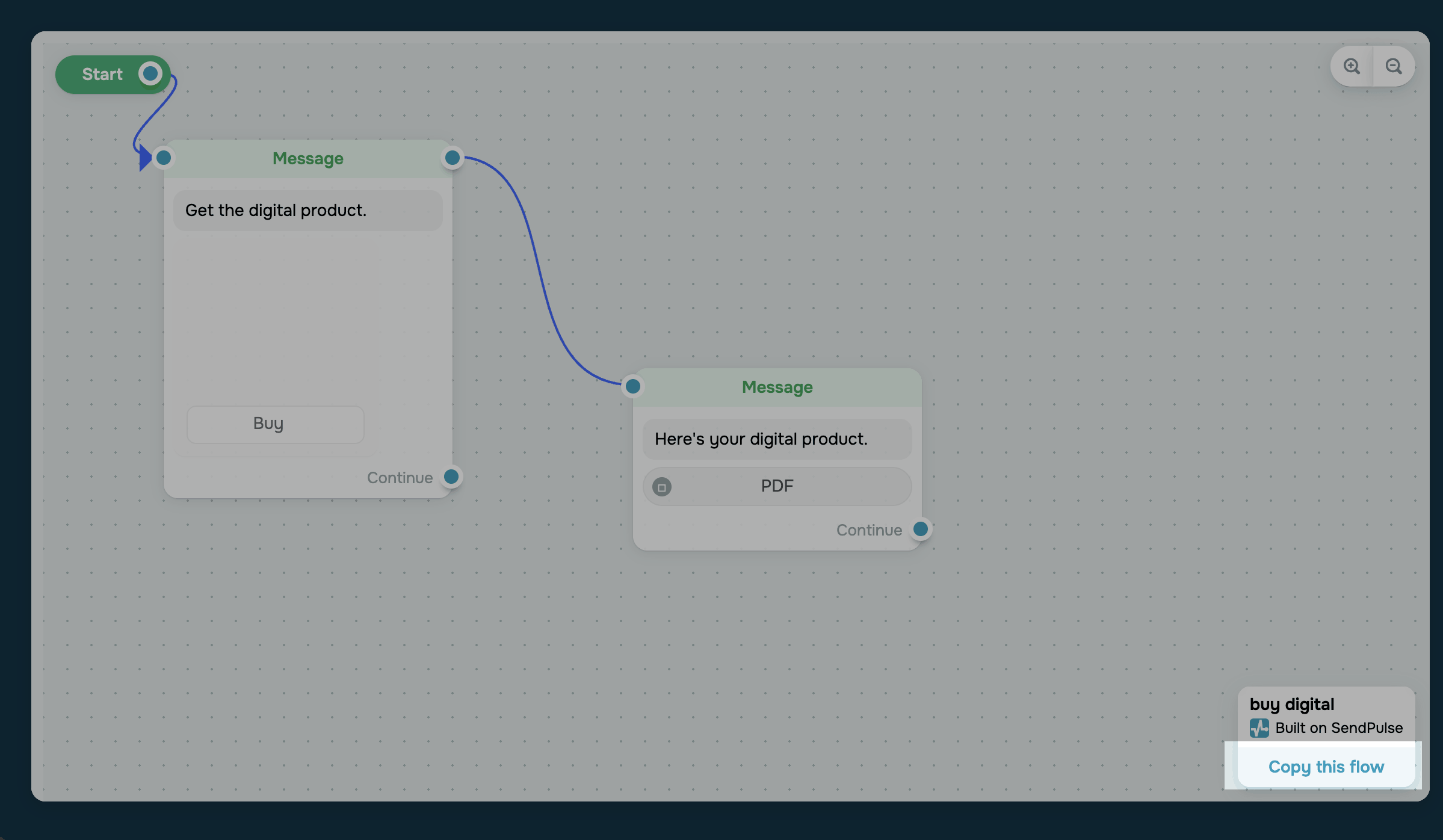
Open the flow link. A preview of the flow will open in a new browser tab.
Make sure you’re logged in to the SendPulse account you want to copy the flow to. The Copy flow page shows chatbots only from the account you’re logged in to. If you’re still logged in to the account where the flow was created, you’ll see its chatbots instead.
Click Copy this flow. If you aren't logged in to SendPulse, a login form will appear.
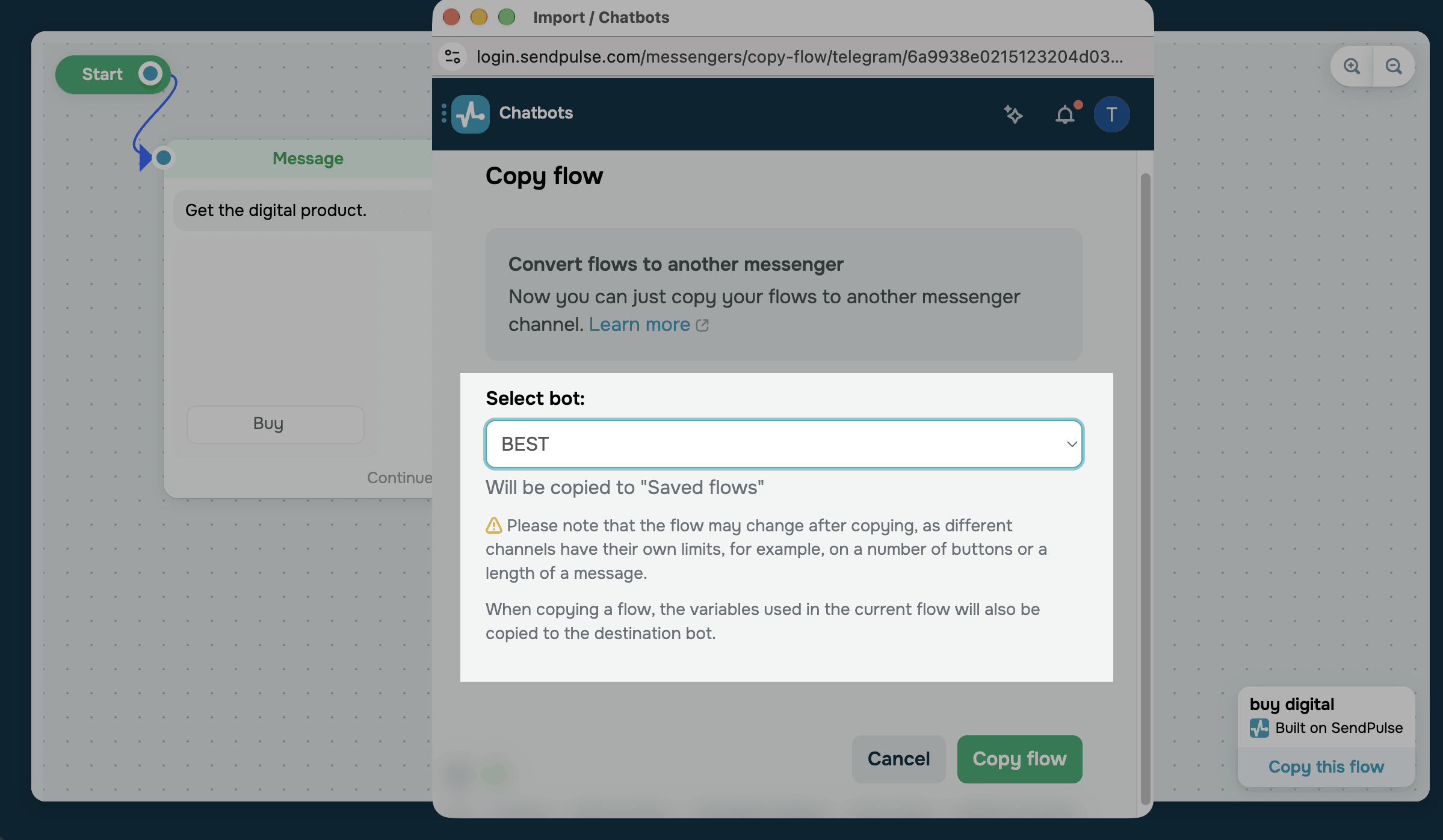
The Copy flow pop-up window will appear. In the Select bot drop-down list, choose a chatbot. The list groups your chatbots by messaging platform, so you can also choose a chatbot on a different platform.
Click Copy flow. SendPulse copies the flow and its variables to your selected chatbot. A Done! notification confirms that the flow was copied successfully.
Each messaging platform has its own limits, such as the maximum number of buttons or characters in a message. If the original flow exceeds these limits, SendPulse adjusts the copied flow to fit them.
Read more: Copy a chatbot flow from one messaging platform to another.
Find and launch the copied flow
The copied flow appears in the account and chatbot you selected.
To find it, go to Chatbots and select your chatbot. On the Bot structure tab, click Flows. The flow keeps its original name and appears in the Unsorted folder.
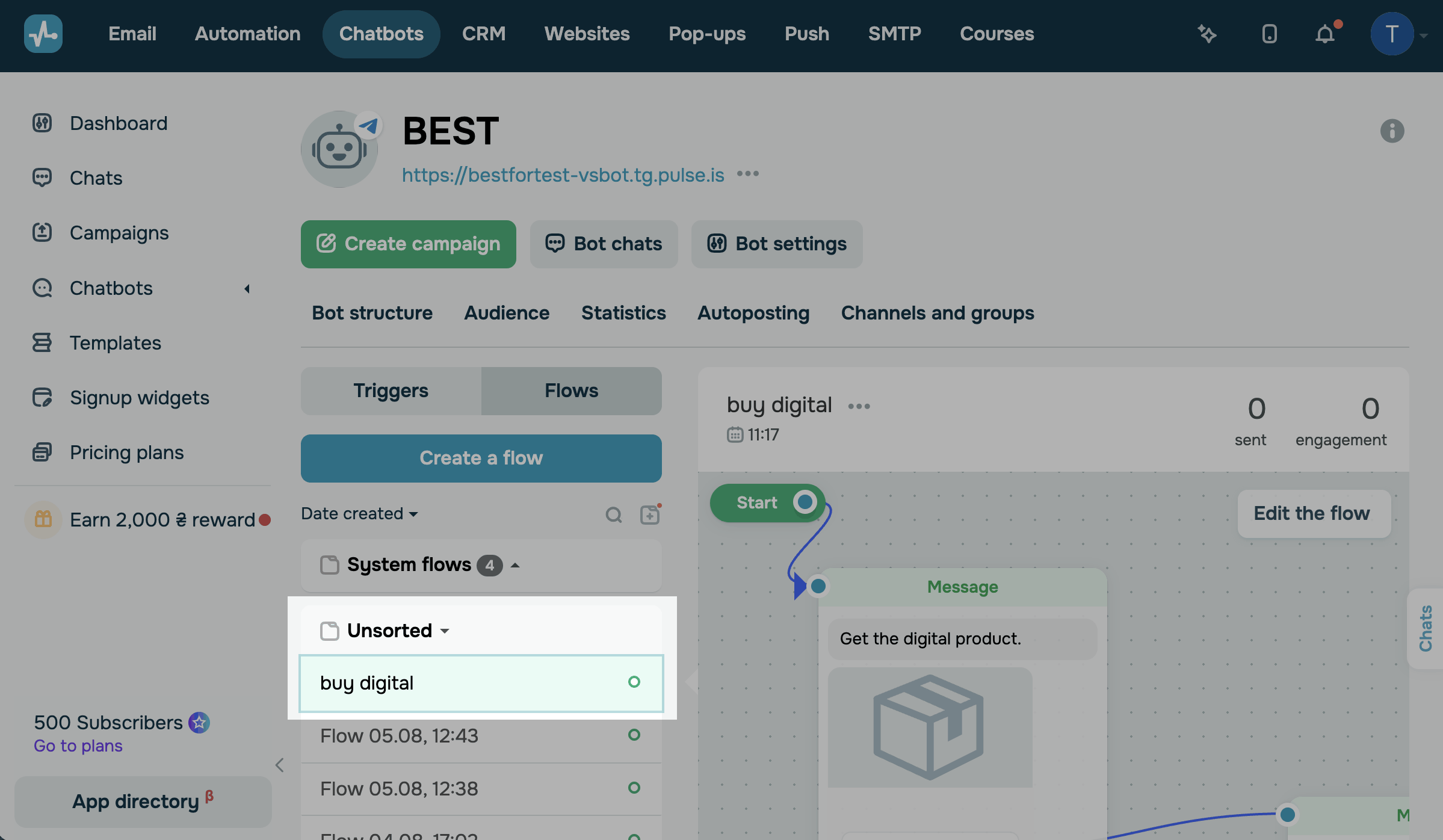
Go over the flow in the flow builder and edit it if needed.
Copied flows don’t include triggers. To run it, create a trigger and select your flow, or launch it using a link or QR code.
You can also copy a flow to another chatbot in your account or add a flow preview to your website.
 Last Updated: 18.10.2026




or