Insert Google Sheets row in the Action element
The Insert Google Sheets row action adds a new row to Google Sheets every time a subscriber reaches this step. Use it to log leads, capture order details, or keep a running list of signups within your flow automatically.
Let's walk you through how to set up the Insert Google Sheets row action.
Add the Action element
Before you start, make sure your Google account is connected. See Connect Google Sheets to your chatbot.
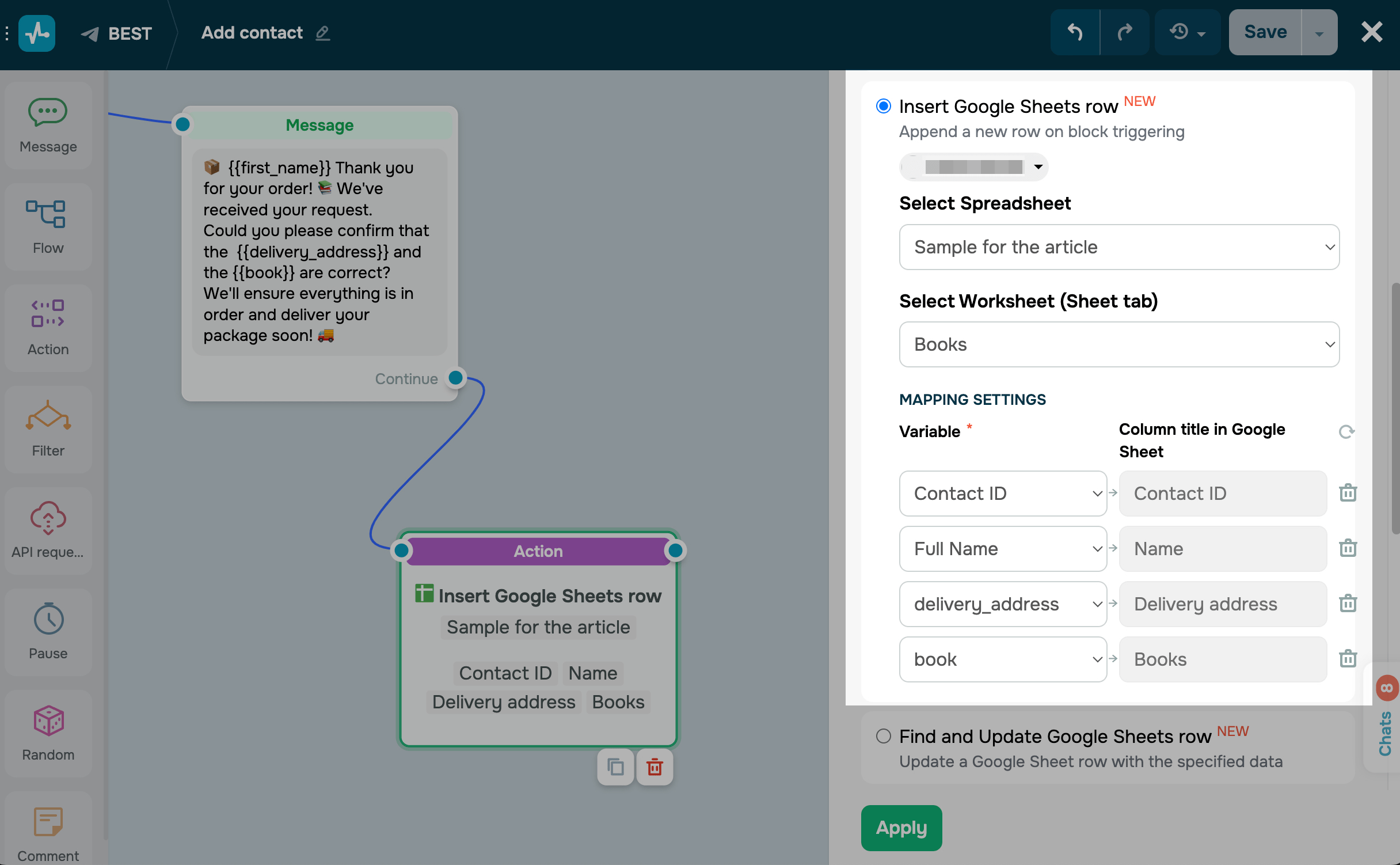
Drag the Action element to the workspace. In the settings that appear, select Insert Google Sheets row.
Select the spreadsheet and sheet where you want to store user data.
Next, map Google Sheets columns to chatbot variables. In the Variable field, select a chatbot variable, and next to it in the Column title in Google Sheet field, select where you want to add its value.
You can map only one chatbot variable to one Google Sheets column. To unmap a Google Sheets column, click the trash can icon next to it.
Save the element
Click Apply. From now on, every subscriber who reaches this step will get a new row added to the spreadsheet with their values.
To test the setup, run the flow once and open your spreadsheet. The new row should appear with the expected data.
 Last Updated: 30.04.2026





or