Generate keys for integrations
Authorization keys help third-party tools and applications access your SendPulse account through the API and take actions on your behalf. Use them to set up integrations and exchange data with your account.
Let's talk about how to get static and dynamic keys in your account settings.
Get a static API key
A static API key works for simple integrations that need a single permanent key.
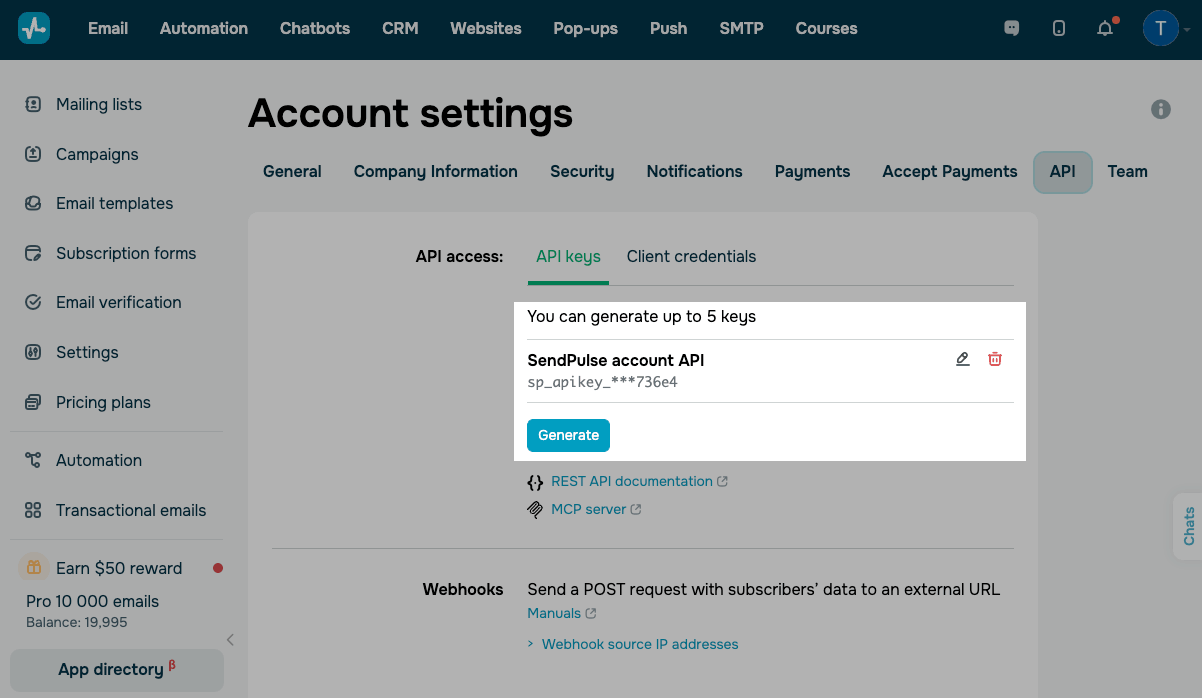
To generate a new static key, go to Account Settings > API. Under API access, open the API keys tab and click Generate.
In the pop-up window, fill in the Name field to be able to easily find the key later.
To limit access to specific IP addresses, turn on the Restricted access toggle and add the addresses. Click Create.
Copy and save the key once you generate it. For security reasons, you won't be able to view or copy it again later.
You can create up to 5 independent keys and delete any of them individually.
Get your Client ID and Secret
Client ID and Secret authorize requests through OAuth 2.0. Access tokens are valid for 1 hour. When the token expires, the integration requests a new one.
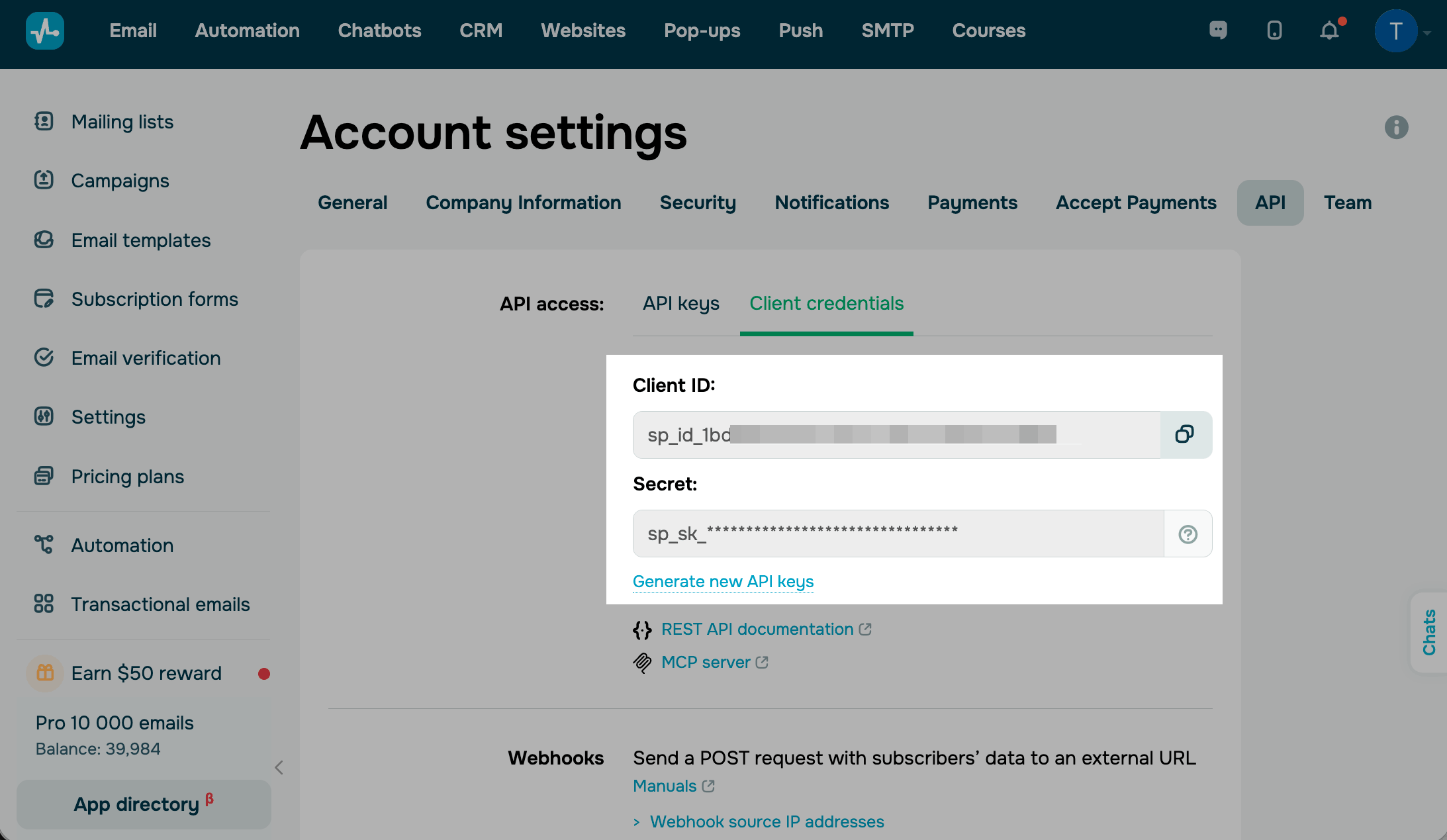
To get your existing key data, under API access, open the Client credentials tab. Copy the values in the Client ID and Secret fields.
Copy and save your Secret once you generate it. For security reasons, you won't be able to view or copy it again later.
Paste the copied keys into the relevant fields in your tool or integration. For API methods and request examples, refer to the REST API documentation. To manage your account through an AI assistant, connect the MCP server.
To generate a new pair of keys, click Generate new API keys and confirm the action.
Generating a new key pair revokes the previous keys. Any integrations that use the old keys will stop working until you update their credentials.
 Last Updated: 02.07.2026





or