Set a background
Backgrounds help shape your website style, support page content, and reflect your brand identity using colors, images, or gradients.
In this article, we will talk about how to set the background of a website section or block.
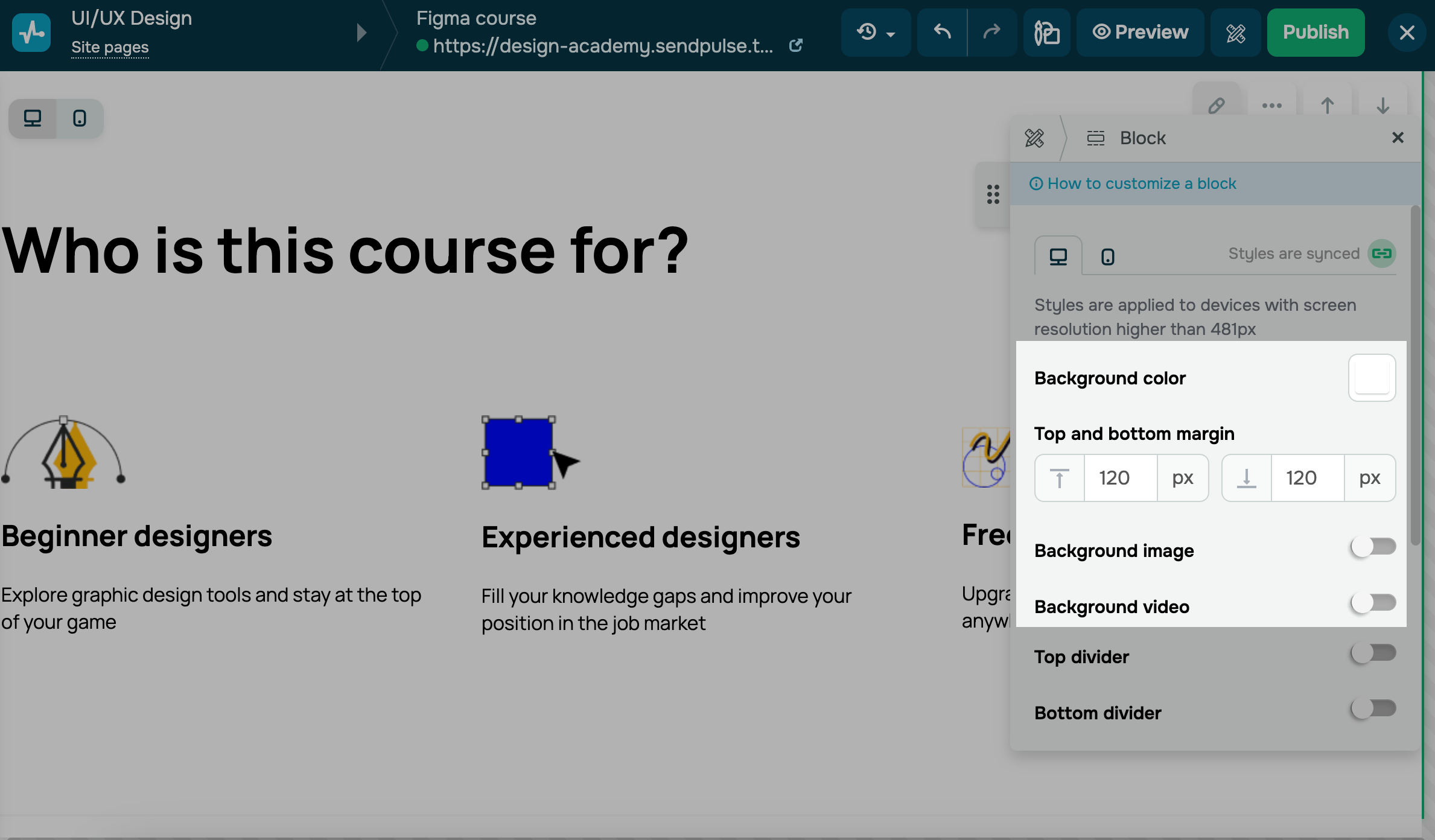
Background color
By default, the color scheme you select in the Overall style section is applied to your page background. You cannot set a custom background for the entire page at once — you can only set it for every block and column individually.
Go to the element background settings, and in Background color, select a color or image. If you need to fill space, set the top and bottom margins of your block in pixels in the Top and bottom margin setting.
Background image
You can also select an image as your block background. Turn on the Background image toggle, and select or upload an image.
To set an image style, you can select from the following options:
| Size | Adjust your image size and placement within the block.
The following options are available:
|
| Position |
Set an image placement within the block. This setting is applicable only if you have selected Default or Fit for the Size option. |
| Repeat |
Repeat an image within the block. This setting is applicable only if you have selected Default or Fit for the Size option. Options available: Do not repeat, Horizontally, Vertically, and Both. |
| Filters | Apply one of the 8 filters to your image. |
| Color overlay | Add an image overlay color, and adjust its saturation. |
| Scroll effects | Add an image scroll effect.
The following options are available:
|
Background video
You can set a video as a block background to create a vivid, dynamic, and memorable experience for your visitors.
Turn on the Background video toggle, and upload or select your MP4 video.
We recommend using short (10-15 seconds) looped videos that replay smoothly without interruptions or abrupt cuts.
 Last Updated: 18.07.2025





or