Trigger pixel events on page element clicks
The Upon page element click condition triggers a SendPulse pixel event when a visitor clicks a specific element on your website, such as a "Book now," "Buy," or "Sign up" button. The condition uses the element's CSS class as a selector, so you can track clicks without changing your website's code.
In this article, we'll walk through how to copy an element's CSS class and use it to configure the Upon page element click condition.
Copy the CSS class of the target element
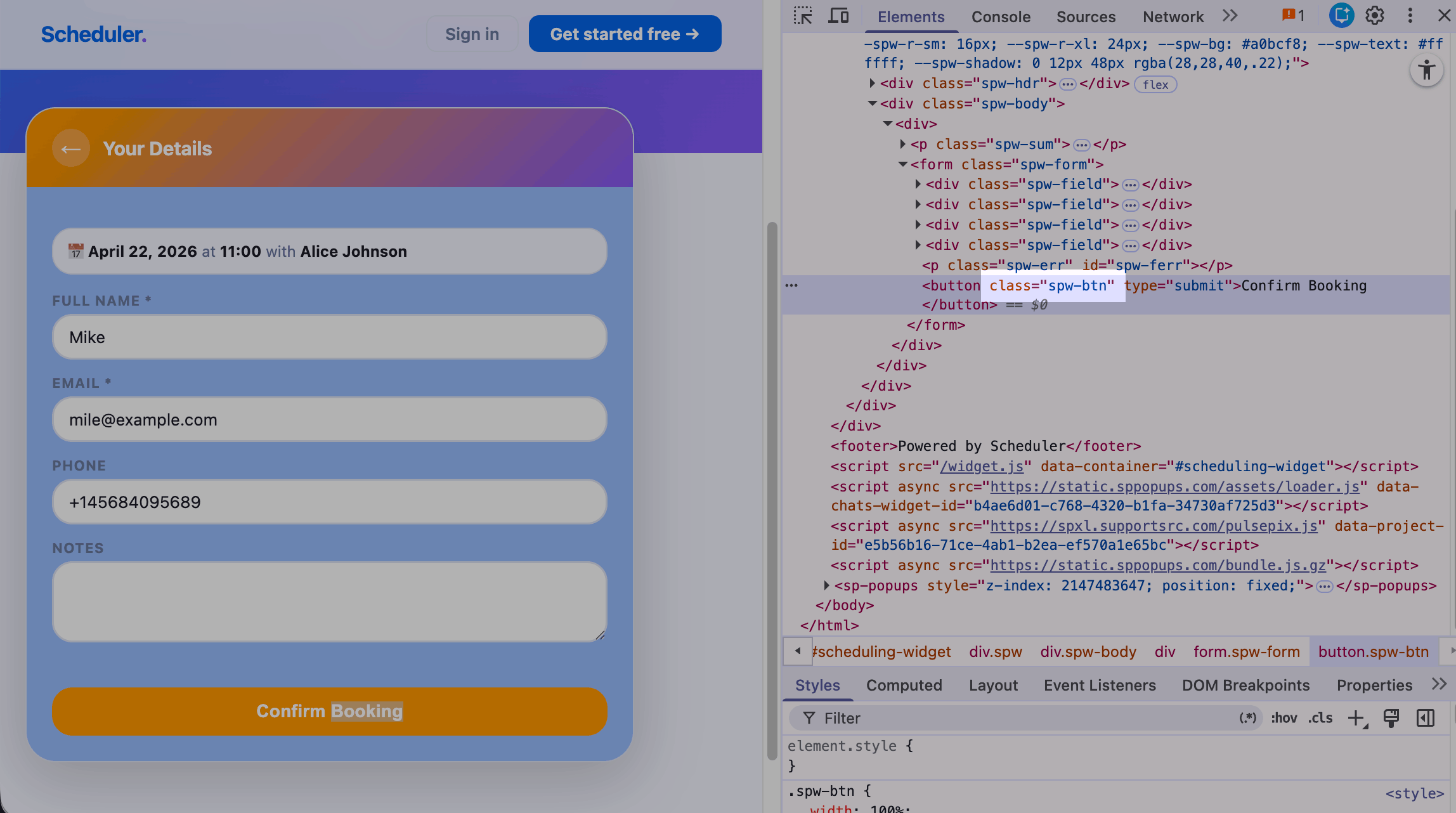
Open the page that contains the element you want to track in your browser. Right-click the element and select Inspect. In the highlighted line of code, locate the class attribute, double-click the class value, and copy it.
Add a pixel event
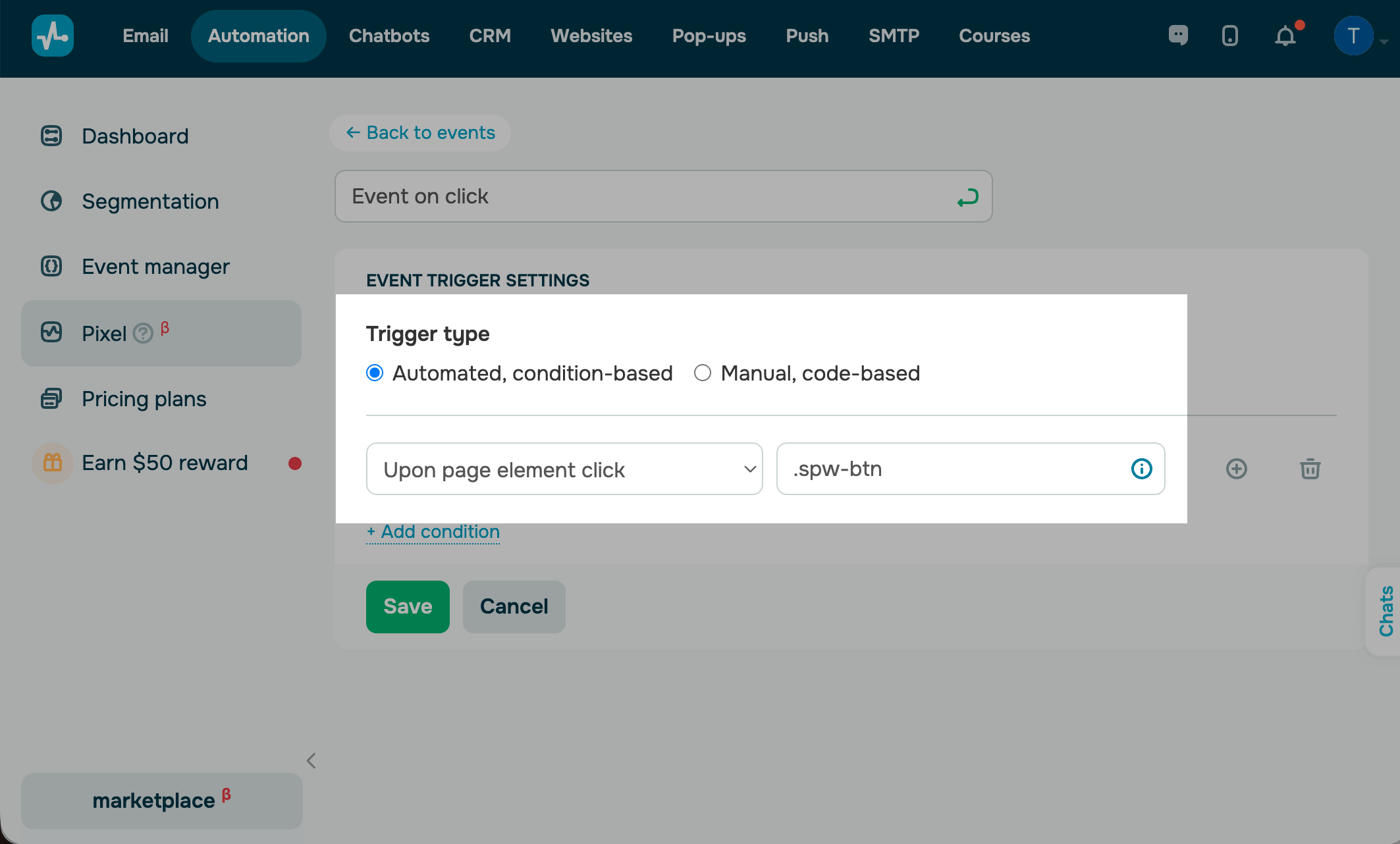
Go to Automation > Pixel and select your website. Click Add event, enter a name for the event, and select the Automated, condition-based trigger type.
In the User behavior group, select the Upon page element click condition.
In the condition field, paste the class you copied and add a dot* before it. The dot tells the pixel that the value is a CSS selector.
Please note that the dot is required. Without it, the event will not trigger.
Click Save. The event starts receiving clicks from identified visitors as soon as they load a page that contains the element.
Common use cases
You can use this trigger to run a chatbot flow or automation when a visitor clicks a specific element.
For example, to run a chatbot flow when a visitor clicks the Book now button, go to the Chatbots section, select a chatbot, and click Create a new trigger. In the trigger settings, select Website pixel event, then choose a website and an event. Build your flow and save the trigger.
The flow runs for every identified subscriber who clicks the tracked element.
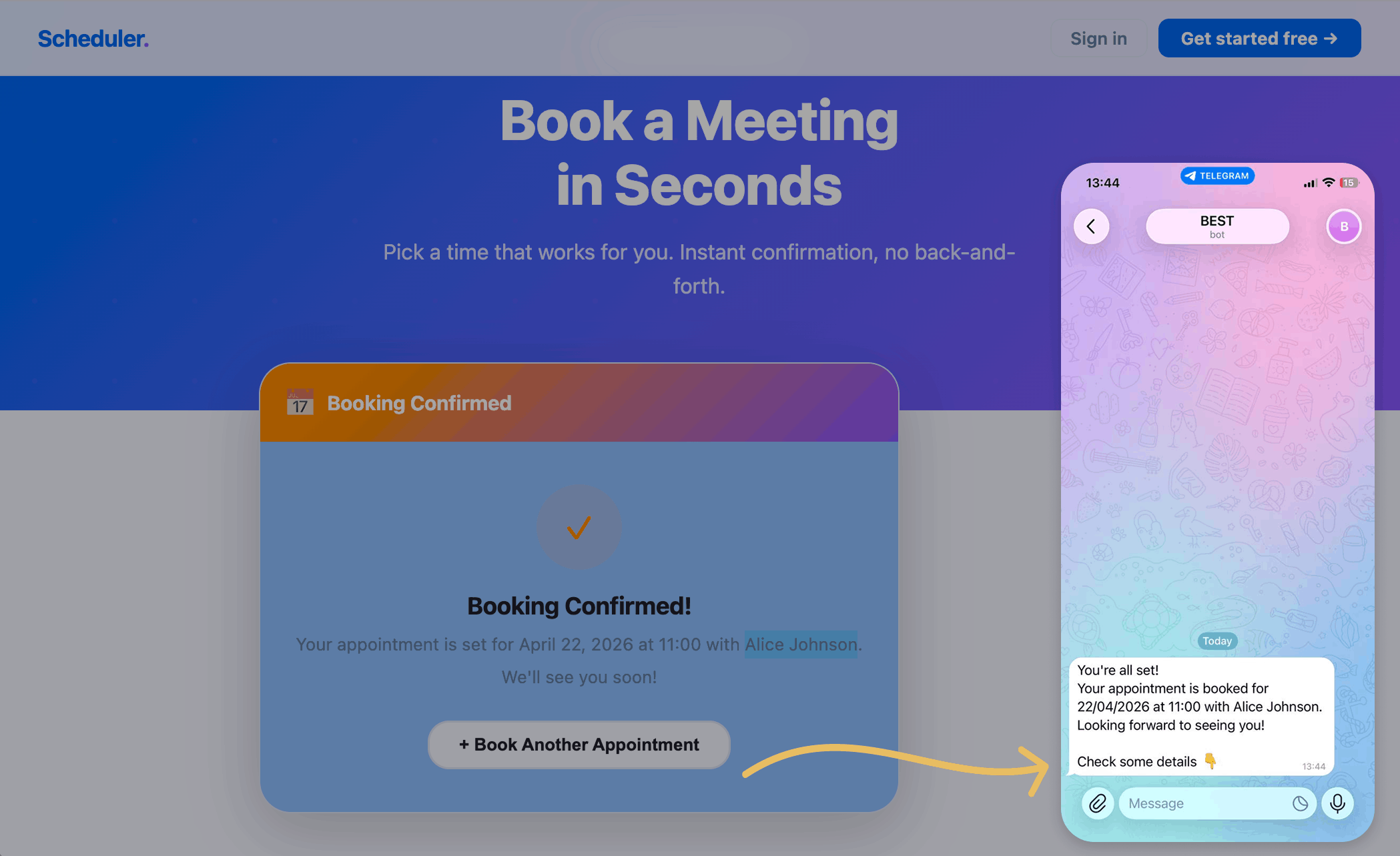
You can also run an automation and create a CRM deal when a visitor clicks the Book now button. Go to the Automation section, click Create an automation. In the trigger settings, select Website pixel event, then choose a website and an event. Build your flow and save the trigger.
Last Updated: 23.04.2026
or