Search for course content in your student account
In your student account, you can find lessons, tests, forms, sections, courses, and certificates across all your courses at once.
Instead of opening each course and scrolling through its program, you can enter a keyword and go straight to the course item you’re looking for.
Let's talk about how to search for course content and navigate to it from the search results.
Find content
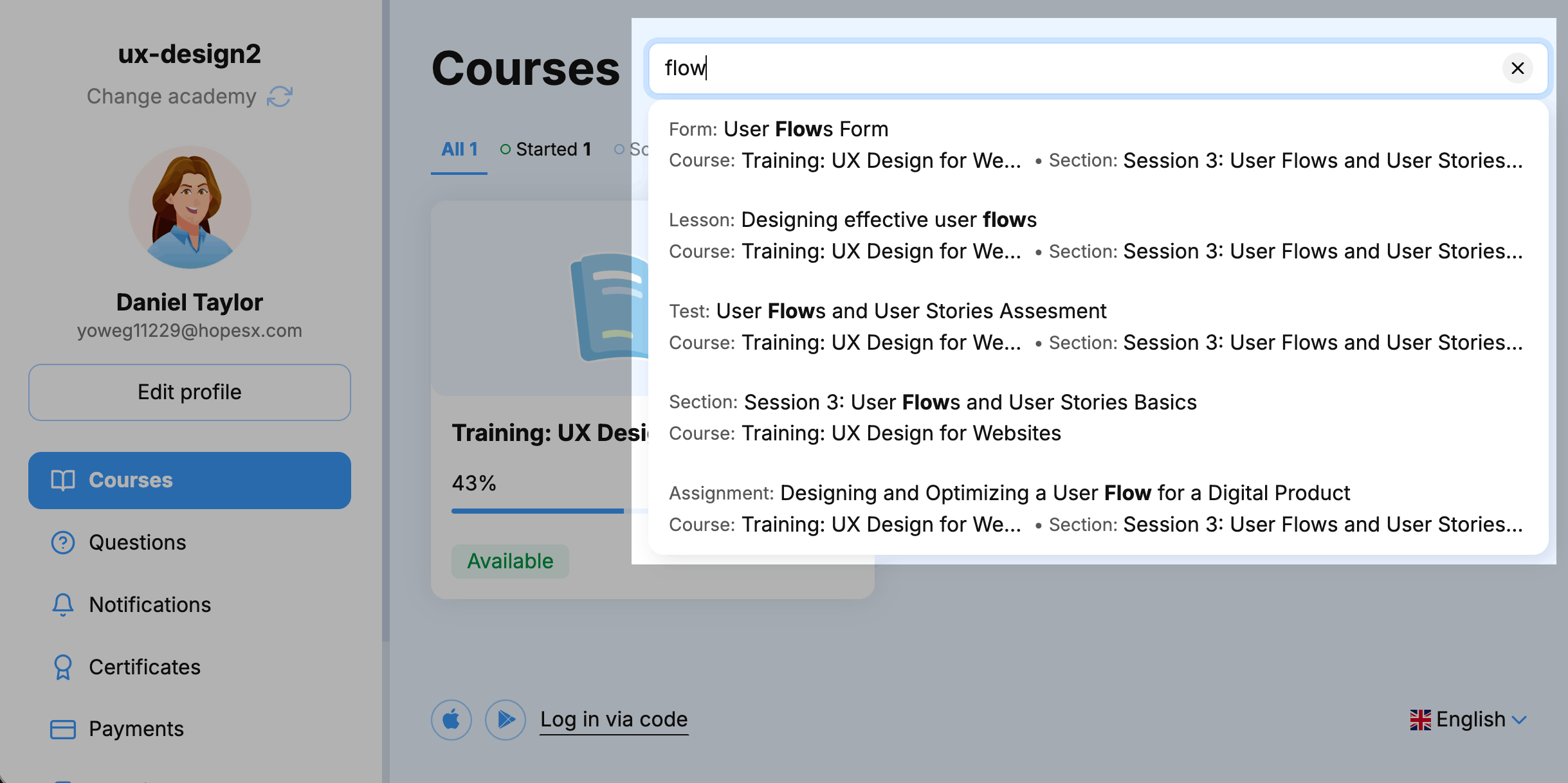
To find content across your courses, go to the Courses section in your student account. Click the search icon in the upper right corner. In the search field, enter at least 3 characters — the results will appear as you type.
Search matches course item names only, not their content, and returns only the items available to you. You will not see course items that your instructor has hidden or that your pricing plan does not include.
Navigate to content from the search results
Each search result shows the content type, course, and section it belongs to.
To go to the course item you’ve searched, click the search result. From there, you can take a lesson or take a test.
You can also search for course content in the Education by SendPulse app. Search works the same in the web version of your student account and in the mobile app.
 Last Updated: 15.07.2026




or