View courses
You can explore and manage your courses in one place. View what you've already started, check upcoming or completed programs, and discover new courses recommended by your instructor.
In this article, learn how to navigate the Courses section, track your progress, and start learning.
Viewing courses
In the Courses section, you will see the following tabs:
| My courses | All courses students are enrolled in are divided into the following sections:
|
| All | All academy courses in which you are not enrolled:
|
You can also see your instructor’s recommended courses in the Recommended courses section in both tabs.
All courses can be filtered by category and date created. To do this, use filters on the right.
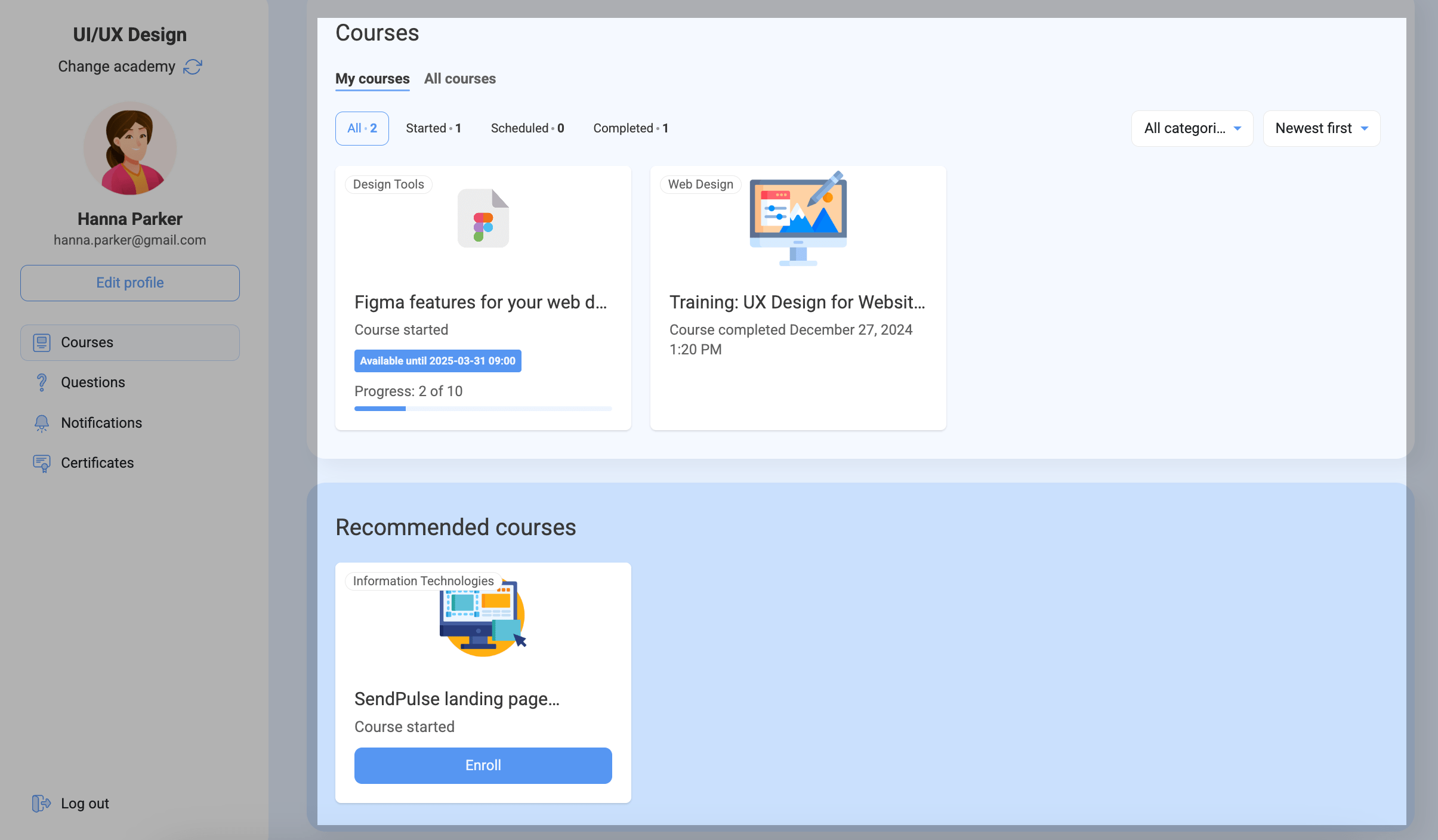
To view courses of another academy, click Change academy in the upper left corner. Select an academy in the modal window.

Getting started
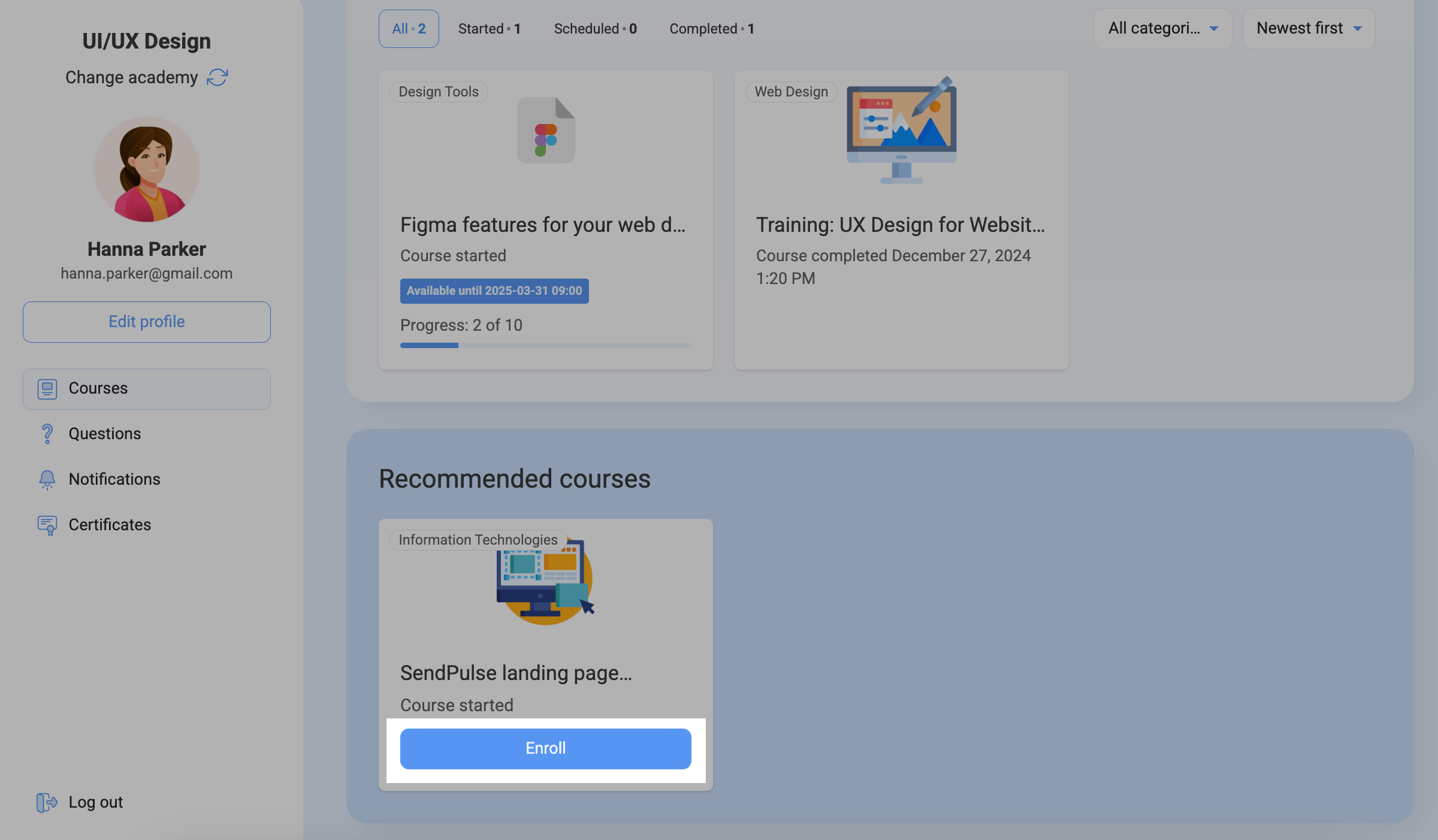
To start a course you registered for or were invited to, click Enroll.
If an instructor has set a course completion time limit, you will see how many days you have left to complete it. Once this time is up, you will not be able to access the course.
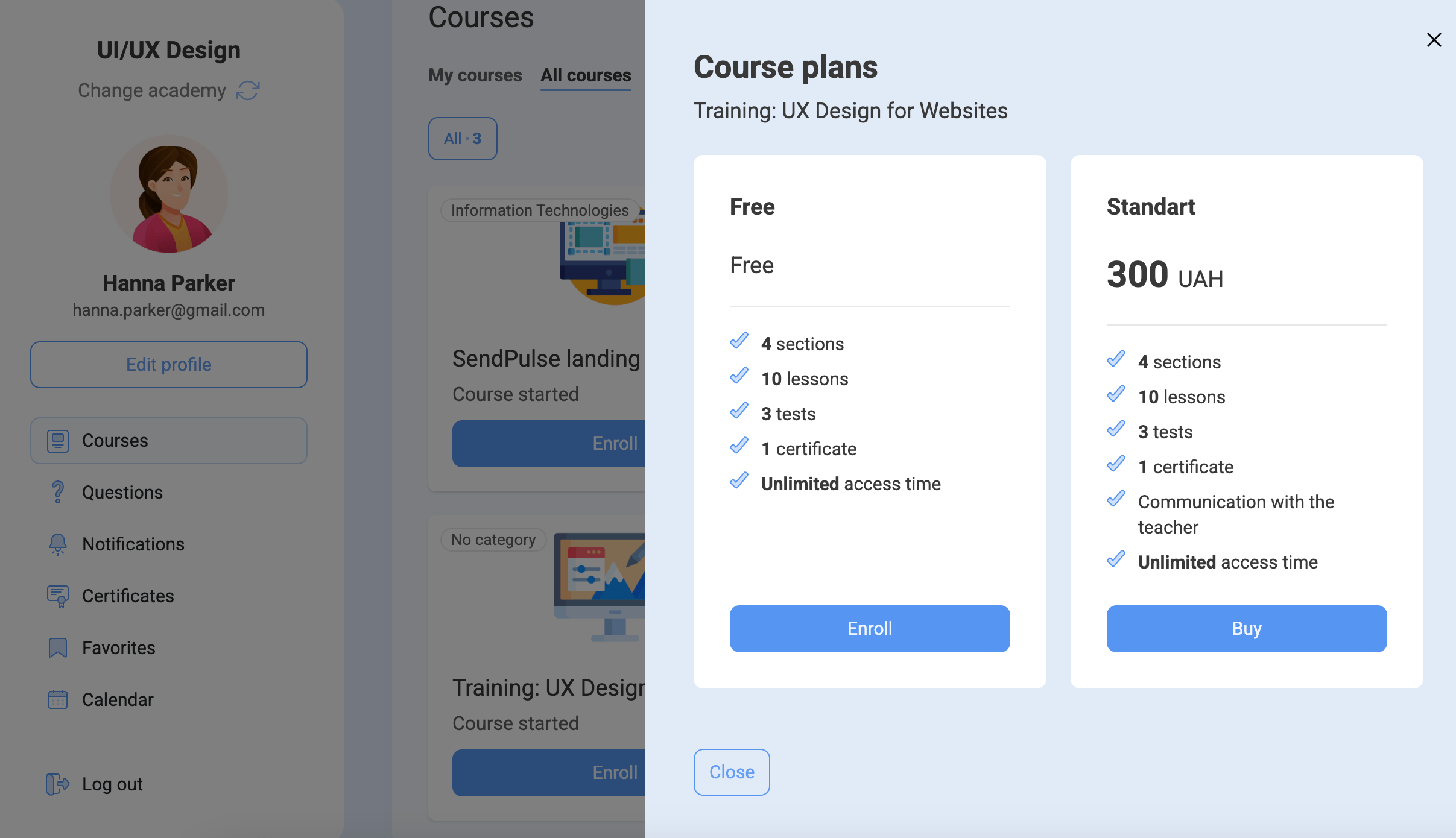
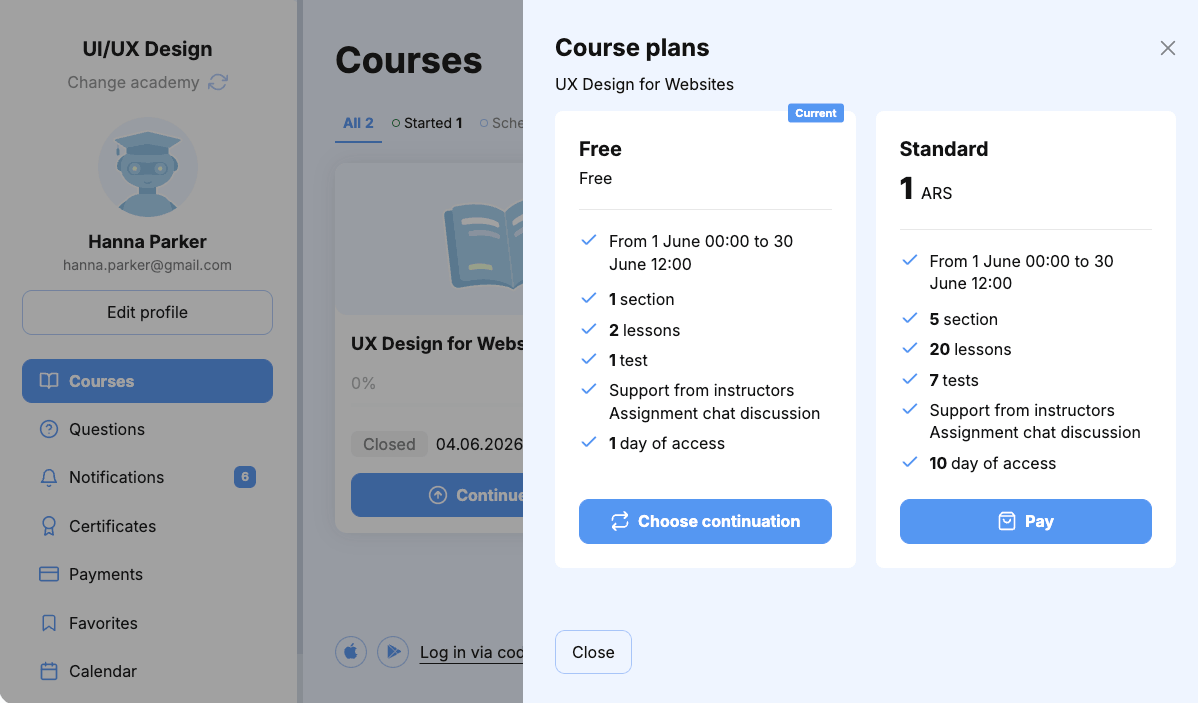
If a course offers multiple pricing plans, you can explore each option, choose the one that suits you, and pay for it.
Then, click the course to open it, and start studying.
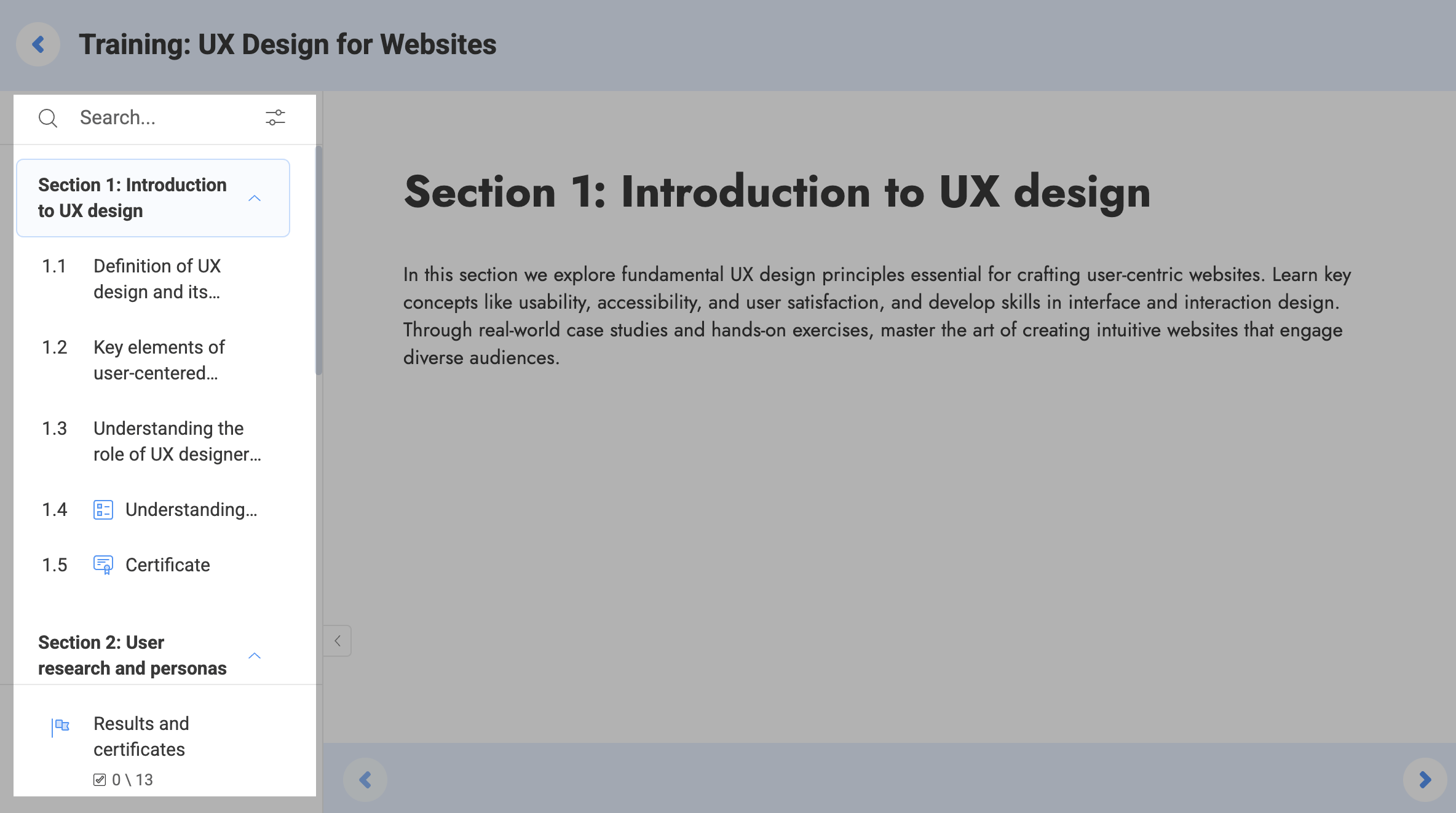
Viewing a course program
When you open a course, its program will be on the left, including its sections, lessons, and tests. Click the first lesson to start studying.
Viewing course progress
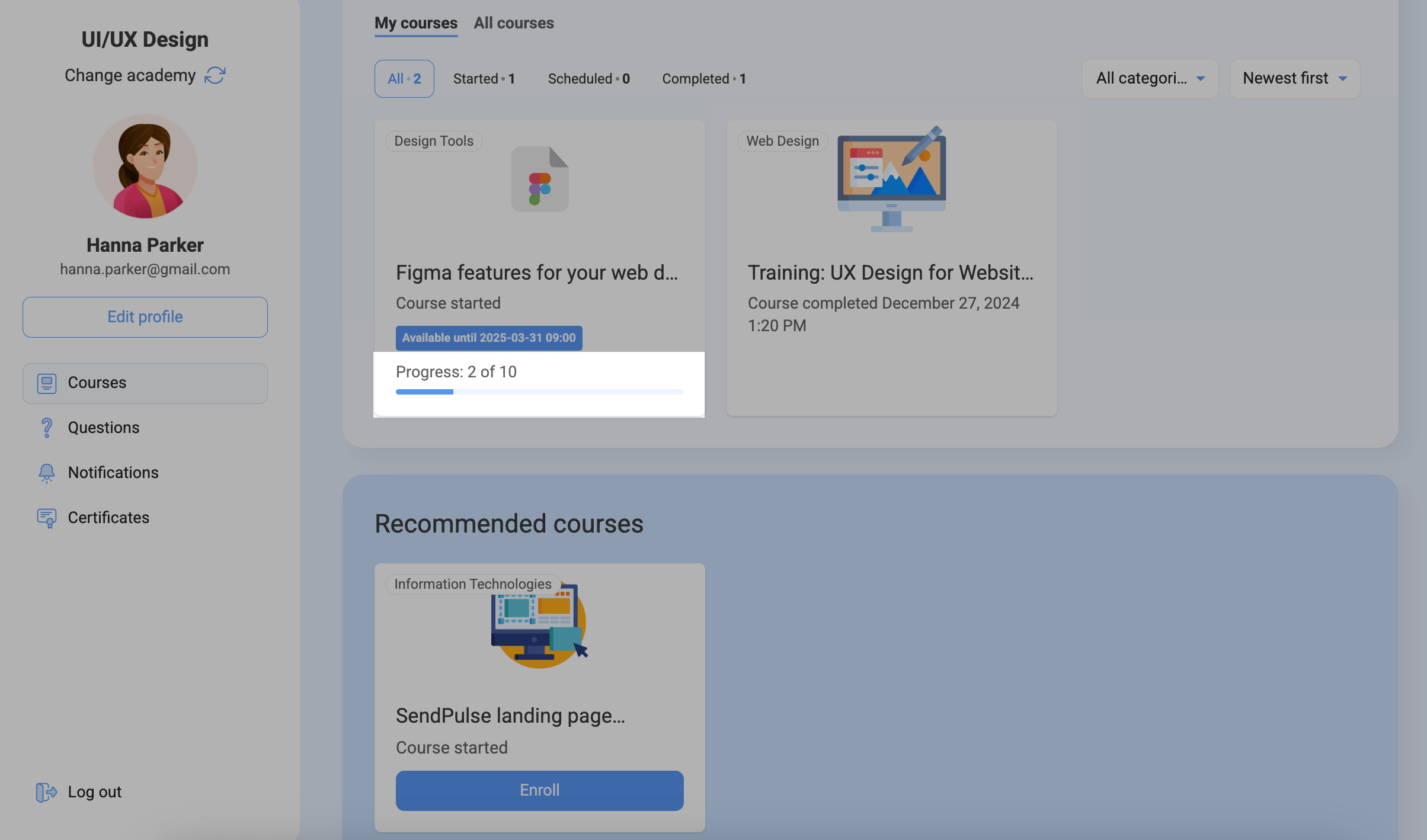
If a course is marked as Course Started, it means that it has been started by its instructor, and you can take it. If you open a course at least once, you will see your course progress.
Extend course access
If your instructor has configured plan renewal offers, you can extend your course access or switch to a new plan after your current one expires.
To extend access with your current pricing plan, click Continue access on the course card. In the Course plans window, click Choose continuation.
Paid offers extend access after payment. Free offers extend access immediately.
To switch to another pricing plan, select it and click Pay. Access is extended automatically after a successful payment.
 Last Updated: 20.05.2025





or