The Divider element in the course builder
Use the Divider element in the course builder to add a horizontal line between lesson elements.
For example, you can visually separate content sections and clearly show where one section ends and another begins.
Let’s talk about how to add and customize a divider in your lesson.
Add the element
In the lesson builder, drag the Divider element from the left sidebar to your workspace, or click the Plus icon under any element.
Customize the divider
In the settings, set your divider’s style:
| Thickness | Sets a divider thickness.
Enter a divider thickness value in pixels. |
| Line type | Sets a divider style.
Choose one of the following divider styles:
|
| Color | Sets a divider color.
Select a divider color. |
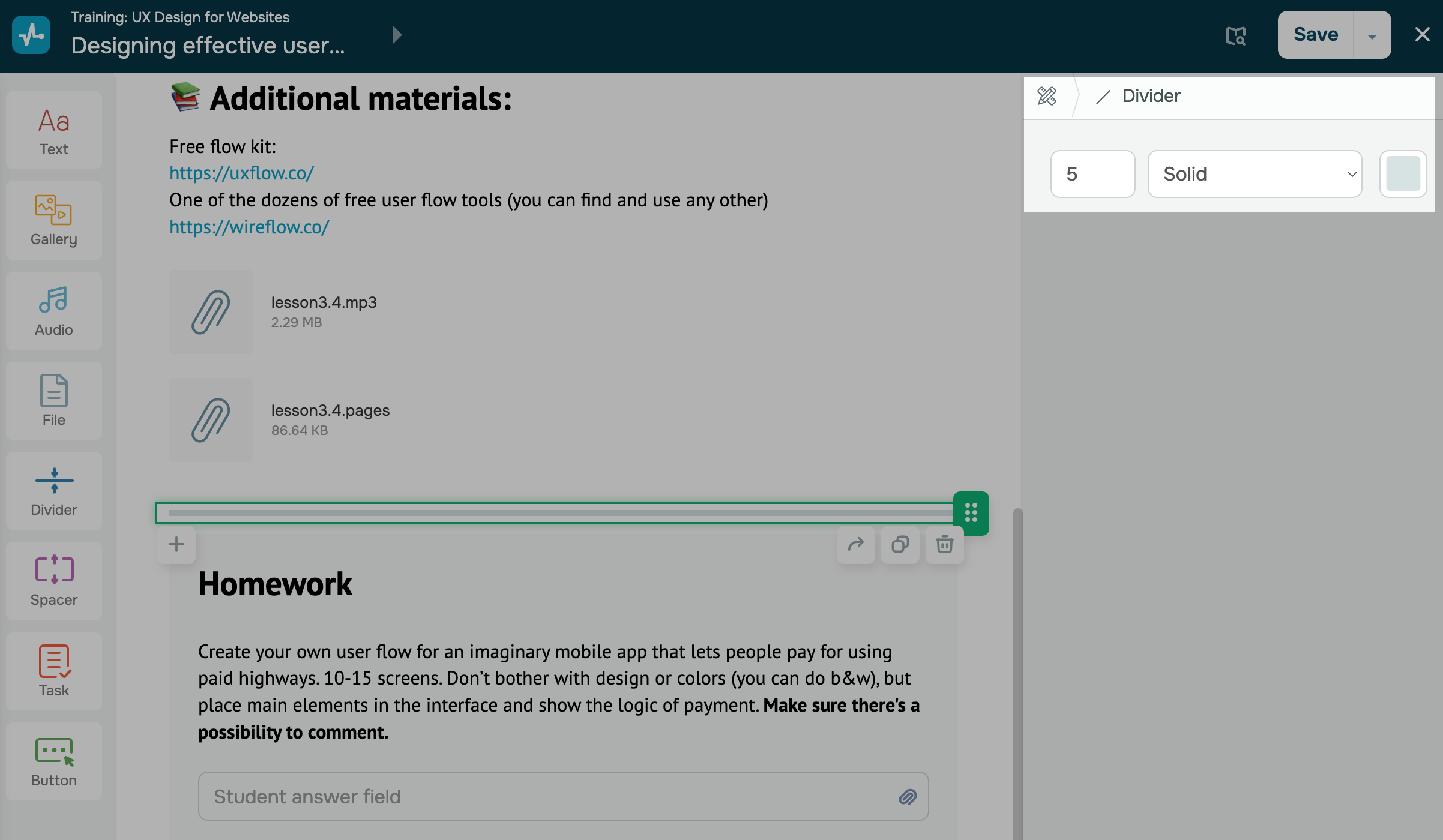
After you finish setting up the element, click Save in the upper-right corner of the builder.
 Last Updated: 22.12.2025




or