Manage deal lost reasons
Lost reasons are predefined options that explain why a deal was lost. Each pipeline has its own list of lost reasons. They help you analyze sales performance, spot recurring patterns, and improve your strategy.
Let’s talk about how to add lost reasons.
View lost reasons
Lost reasons are stored in each pipeline's settings and are available with all plans.
To access the list, select your pipeline and click Settings. Go to the Closed deals tab.
Each pipeline has these default reasons: Budget constraints, Client went with a competitor offer, Low interest, Long sales cycle, Poor product or service fit, and Other.
Manage lost reasons
Customize the list of lost reasons based on your sales workflows and needs.
Use the following options to manage lost reasons:
| Disable | Turn off the toggle next to the reason. It is removed from the list when closing a deal, but it remains visible in your settings. |
| Edit | Click the pencil icon and rename the reason. |
| Delete | Click the trash can icon to remove the reason from the list. |
| Rearrange | Drag the reason by the icon next to it to the position you want. |
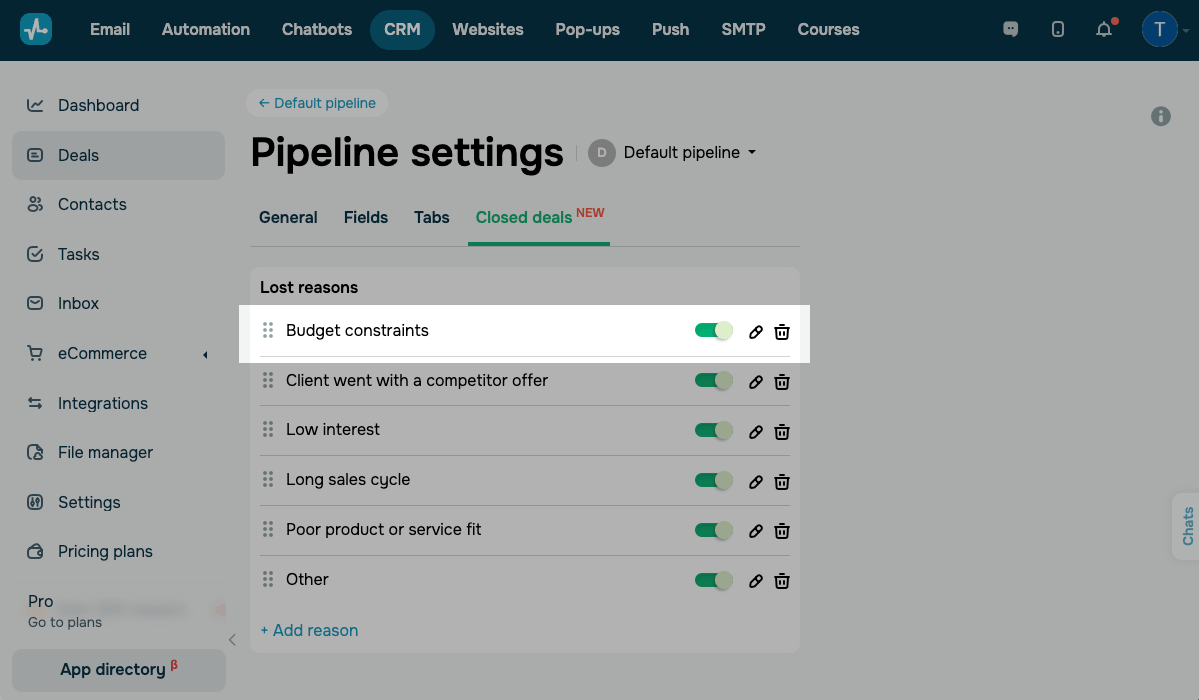
To add a custom reason, click Add reason. Enter a reason name and click Add reason.
Added lost reasons appear in the deal window when you select Deal lost. If you delete a reason from the list, the history of the affected deals shows Reason deleted.
If you downgrade to a free pricing plan, the list reverts to the default reasons.
 Last Updated: 11.06.2026





or