The Carousel element in chatbots
This element is used to create a carousel of up to 10 cards. For example, it can be used to showcase various products. You can add an image, title, and button to every card.
This element is supported by Facebook, Instagram, WhatsApp, Viber, Telegram, and live chats (as Cards).
To send products from your Facebook Commerce Manager catalog instead of a carousel, use the Catalog element. Read more: Add a product card in a WhatsApp chatbot.
In the Message element, click + Add, and select Carousel.
By default, the Message element already includes the Text element. Add the Carousel element. Once you do this, you will be able to delete the Text element — hover over the right element side, and click the trash can icon.
Fill in the fields:
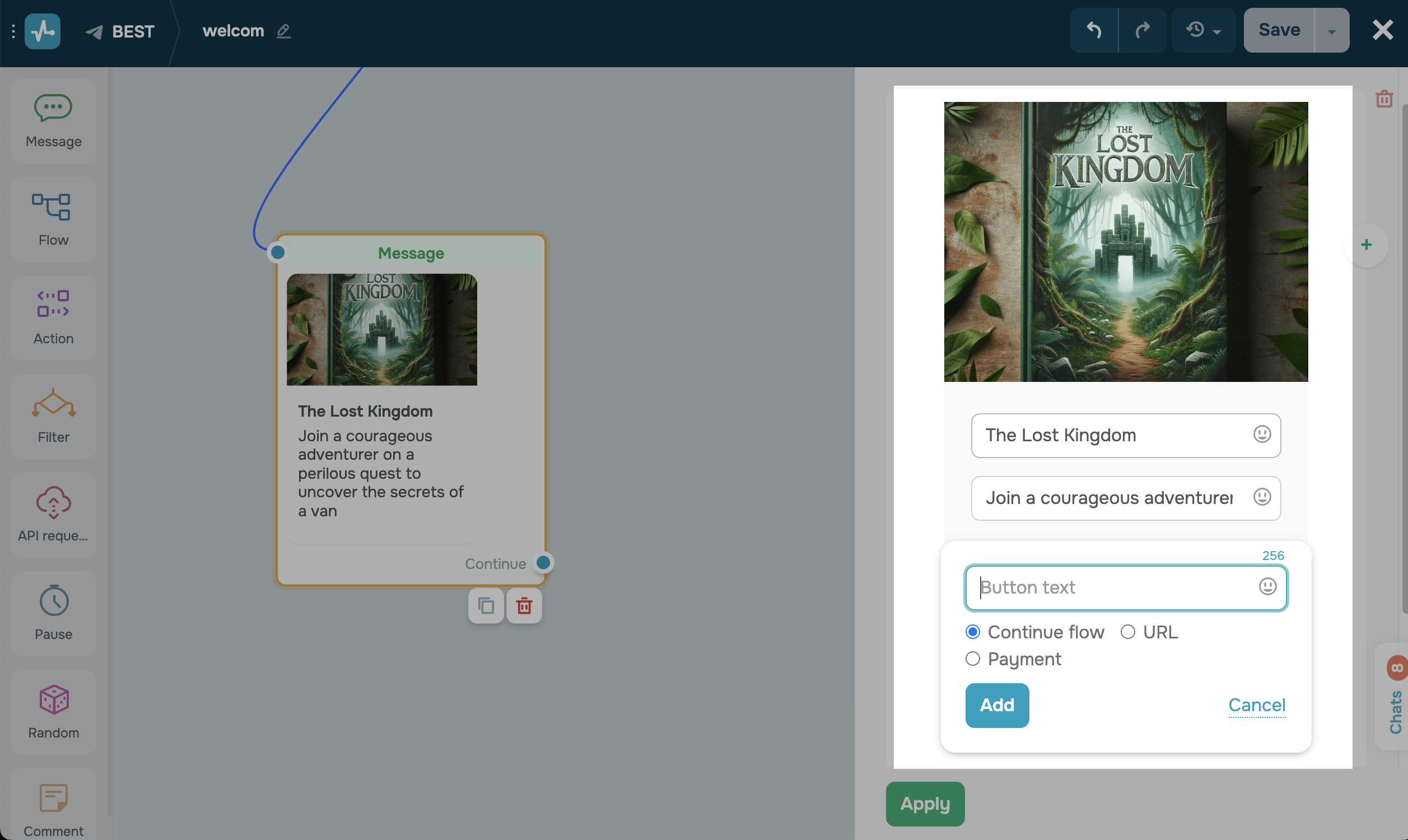
| Image | Click Select a file, and upload the image. You can add images no larger than 2 MB in the PNG and JPG formats. |
| Title | Enter up to 32 characters of text. You can also add emoji. |
| Caption | Enter up to 80 characters of text. You can also add emoji. |
| Button | Click + Add button, enter your text, and select a button type. Fill in the fields based on your button type, and click Add to save the button settings. |
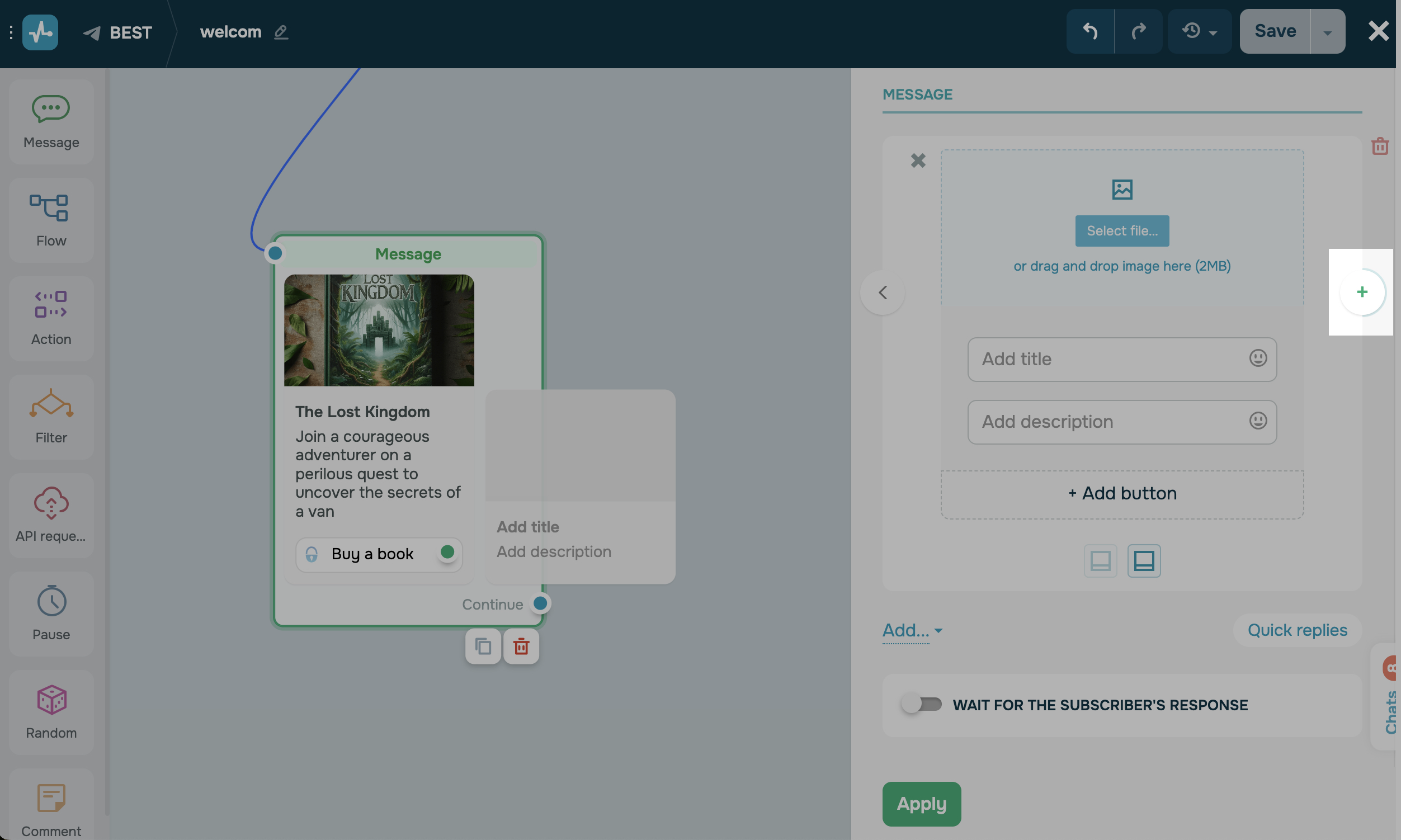
To add a new card to the carousel, click the + icon on the right. You can add a total of 10 cards to one Message element. To remove a card, click the cross icon on the left.
Once you finish customizing the element, click Apply to save the changes.
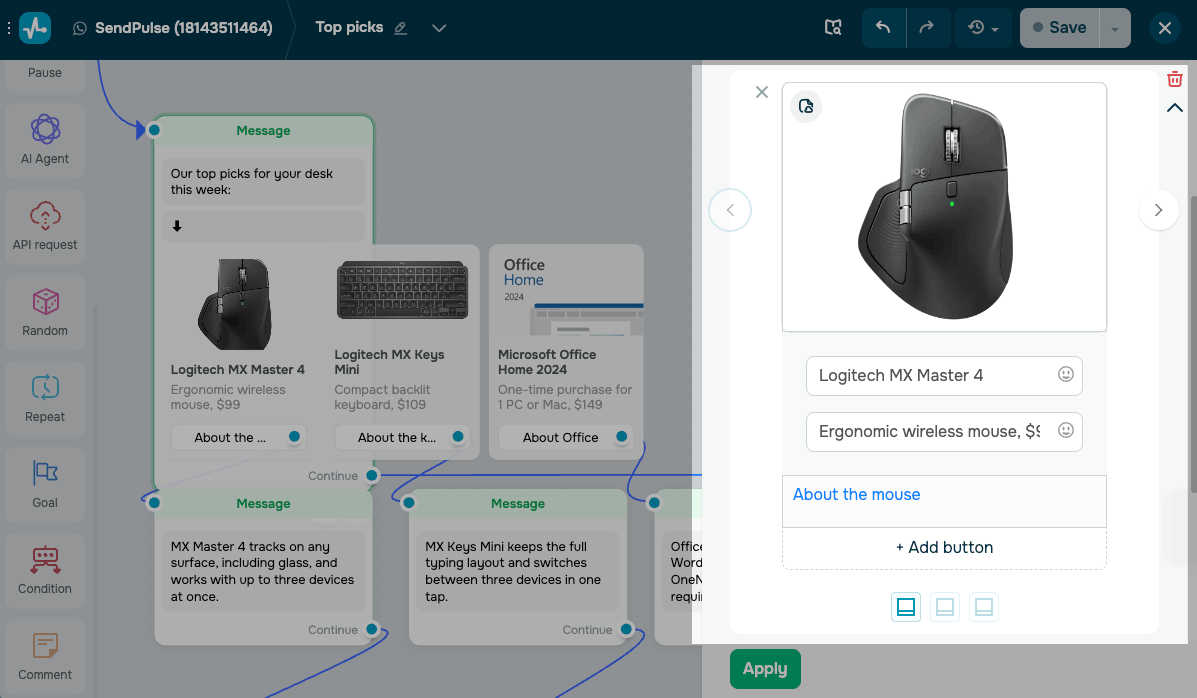
To add a carousel to your WhatsApp chatbot, follow the steps above and add from 2 to 10 cards.
Every card must have an image and at least one button. The number and type of buttons must match on all cards.
WhatsApp also requires a text message before the carousel and adds a message with a down arrow above the cards.
 Last Updated: 26.02.2025





or