Find and update row in the Action element
The Find and update row action locates a specific row in Google Sheets and refreshes its values. Use it when the same subscriber comes back to update their record instead of creating a duplicate. For example, you can update an order status, adjust a student's progress, or move a deal to the next stage.
Let's walk you through how to set up the Find and update row action.
Add the Action element
Before you start, make sure your Google account is connected. See Connect Google Sheets to your chatbot.
Drag the Action element to the workspace. In the settings that appear, select Find and update row.
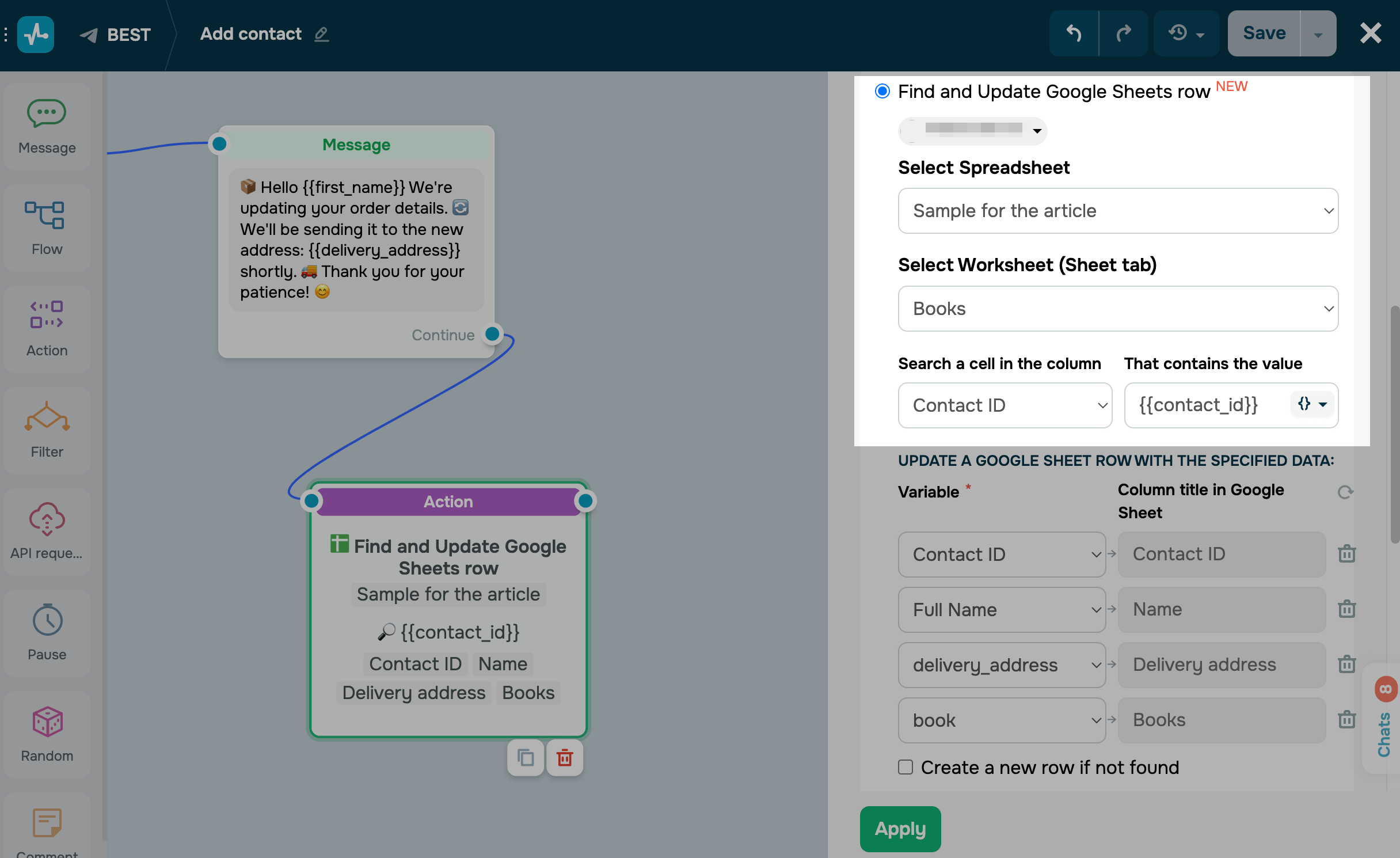
Select the spreadsheet and tab where you want to update user data.
Configure row search
In the Search a cell in the column field, select the column where you want to find the value indicated in the That contains the value field. You can enter your own value or select a chatbot variable.
Row search helps identify your subscribers to update their data. If you use variables to identify subscribers, you can use their email addresses, phone numbers, Contact IDs, or other data in your Google Sheets spreadsheet and chatbot variable.
If you enter your own value, you can identify subscribers using certain shared attributes instead of personal user data.
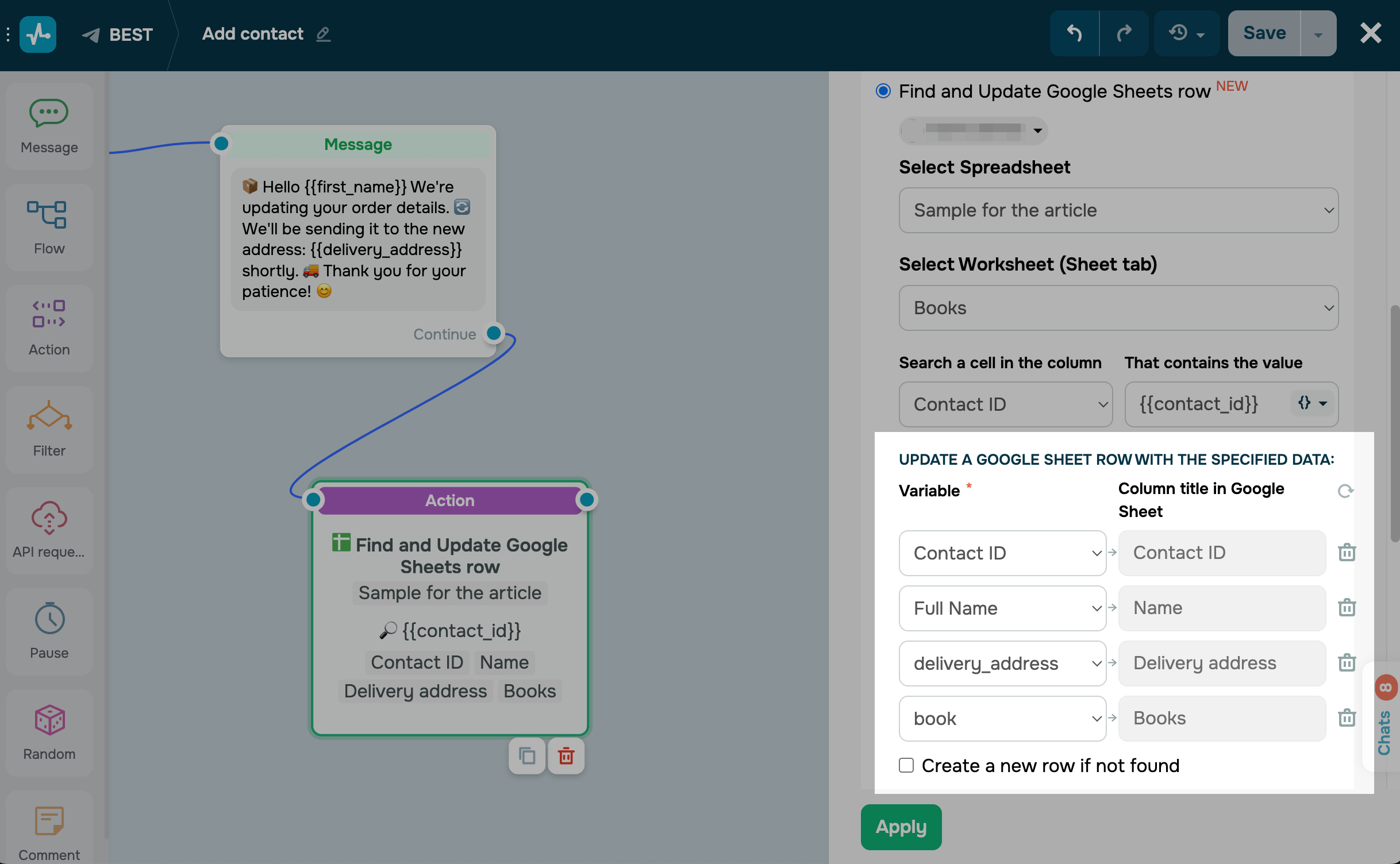
Next, map your Google Sheets columns to chatbot variables. In the Variable field, select a chatbot variable, and next to it in the Column title in Google Sheet field, select where you want to add its value.
You can map only one chatbot variable to one Google Sheets column. To unmap a Google Sheets column, click the trash can icon next to it. Note that if you do so, you will not be able to use this column to find values.
To create a new row if an existing one is not found, select the checkbox.
Save the element
Click Apply. The element is now ready and will update the matching row with the new values every time a subscriber reaches this step — or create a new row, if you enabled the option.
To test the setup, run the flow once and open the spreadsheet — the matching row should show the updated values.
 Last Updated: 30.04.2026





or