Сonnect SendPulse's MCP server to Сlaude
Claude is an AI assistant developed by Anthropic. It is available as a web app, Cowork, and a mobile app that supports MCP integrations. Once you connect SendPulse's MCP server to it, you can manage your SendPulse account directly in a Claude chat using natural-language requests.
Let's talk about how to connect SendPulse's MCP server to Сlaude.
To learn more about SendPulse's MCP server and how it works, see MCP basics.
Add SendPulse’s MCP server
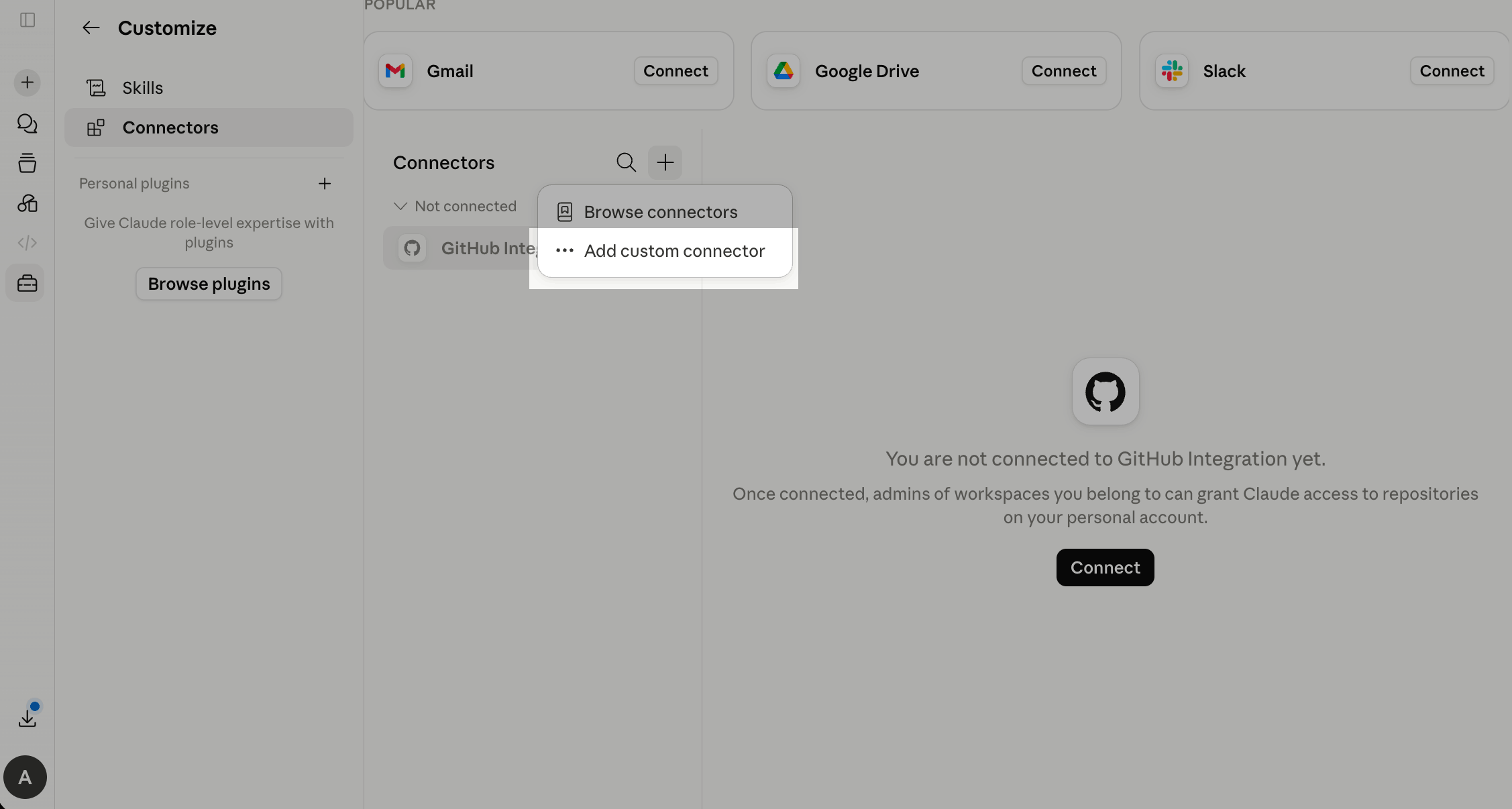
In the Claude app, go to Customize > Connectors. Click + and select Add custom connector.
With Team and Enterprise plans, only the account owner can add custom connectors.
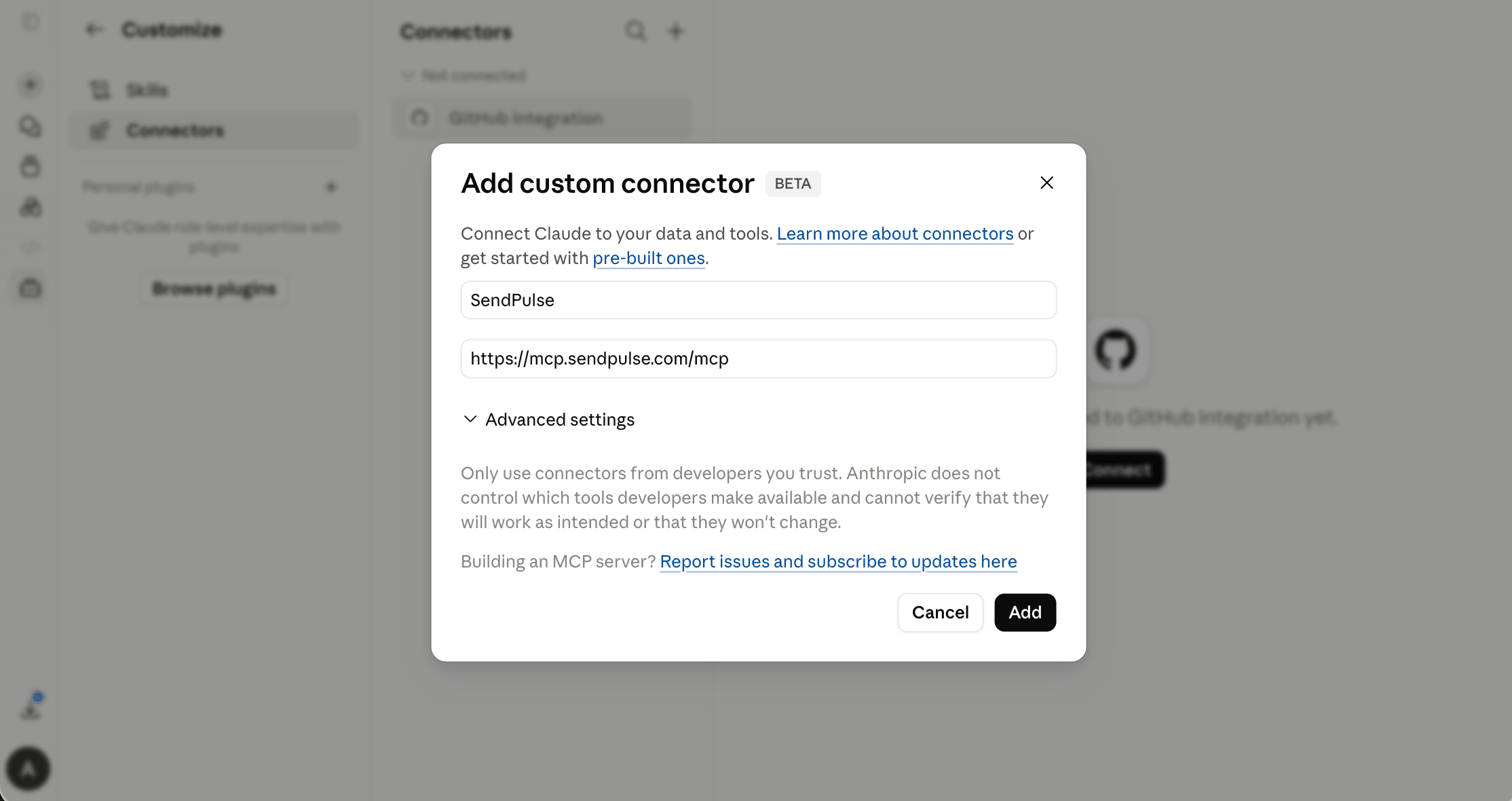
In the modal window, enter a connector name and paste SendPulse's MCP server link: https://mcp.sendpulse.com/mcp. Click Add.
To find the link, log in to your SendPulse account. Go to Account settings > API, and in the MCP section, copy the link.
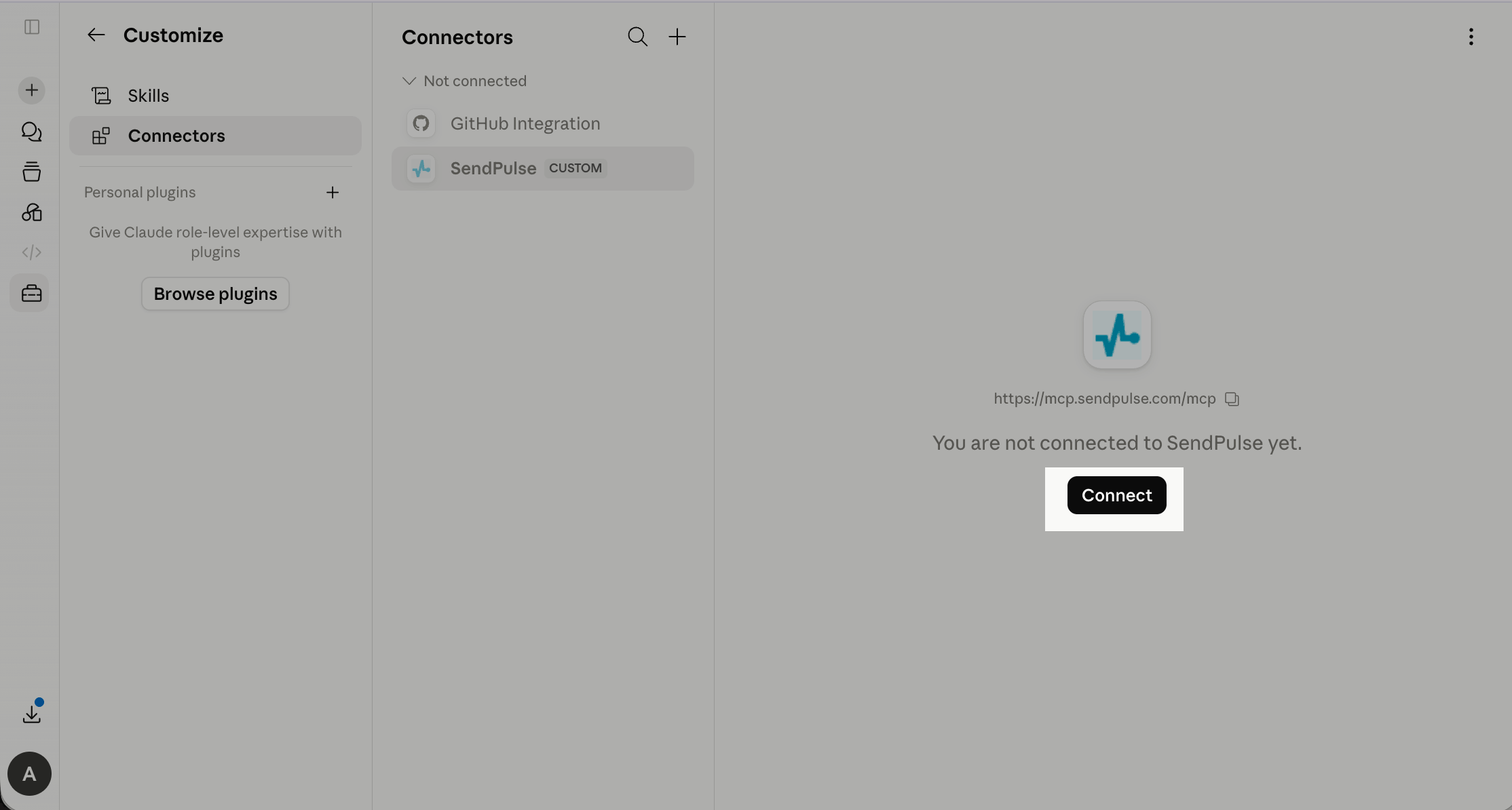
After you add a connector, you will be redirected to the Connectors page. In your connector, click Connect.
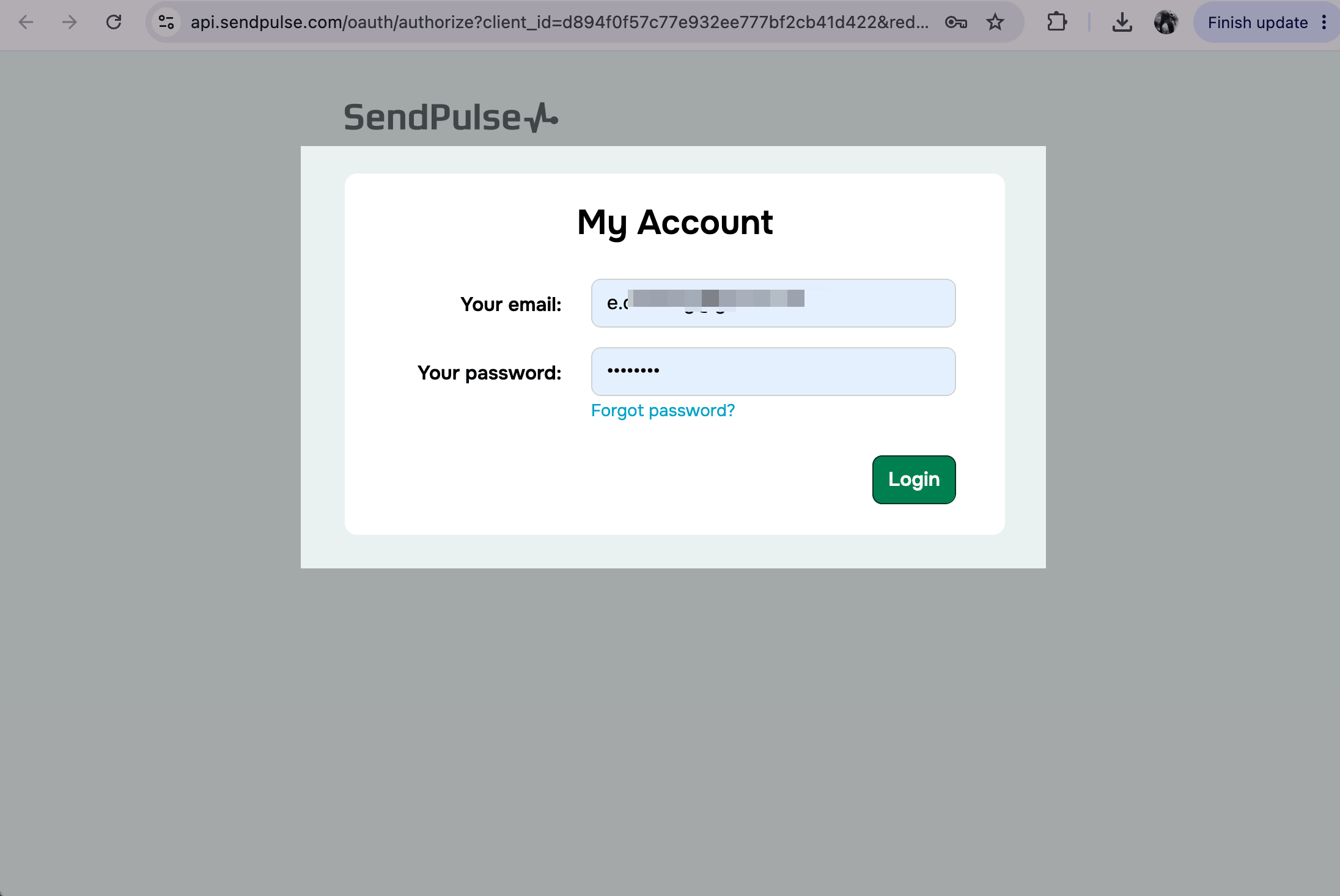
The SendPulse authentication page will be opened in your browser. Enter your login credentials and click Login.
Run actions through MCP
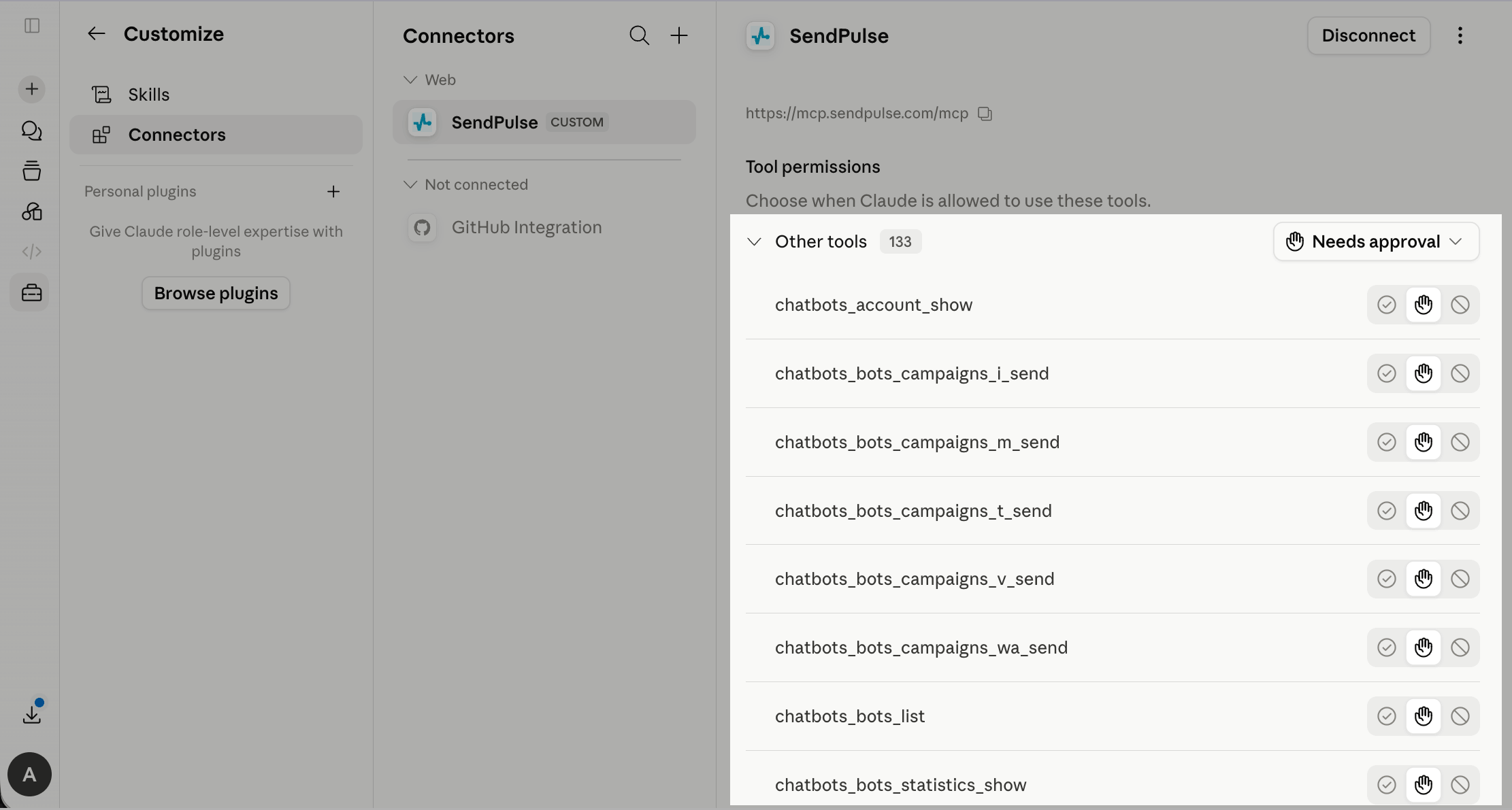
Once you’ve connected the MCP server, you can send messages and take other actions in your SendPulse account using tools.
To see available tools and manage access permissions in your client, go to the Tool permission section.
Read more: List of MCP tools.
To begin, start a new chat. Enter your request using natural language and click Send.
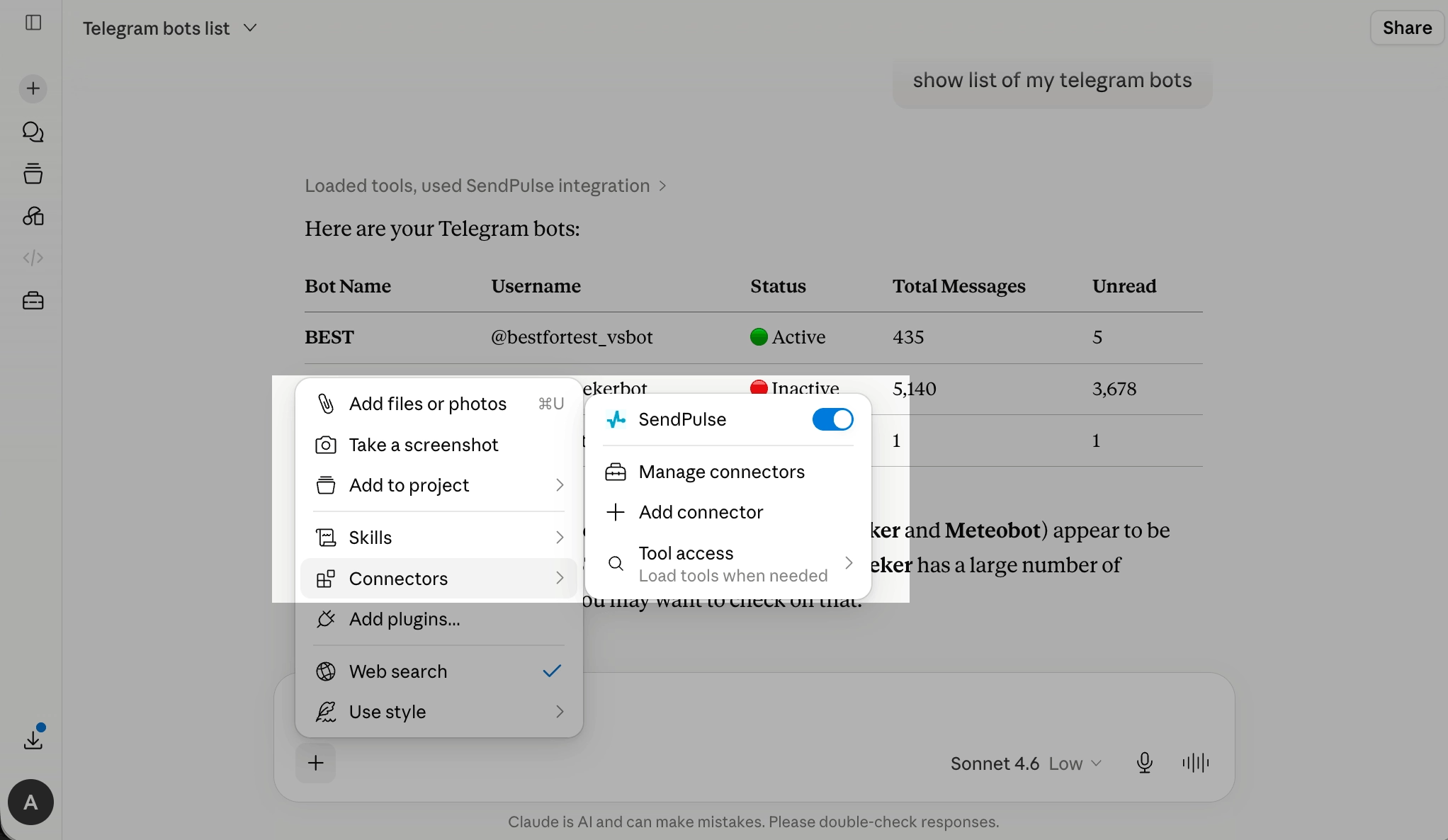
To verify that the MCP server is connected, click + in the chat. Select Connectors and check the toggle next to SendPulse.
Read more: Chat with your AI assistant.
 Last Updated: 10.06.2026





or