Block or unblock a Telegram group or channel member
With Telegram chatbots, you can block and unblock group or channel members, approve join requests, and check whether a subscriber is a member. Online schools, coaches, media publishers, and agencies that run communities for their clients use these actions to manage access without moderating members by hand.
Suppose an online school sells a monthly membership to a private group with 300 students. When a student's subscription payment fails, the chatbot blocks them in the group. When they renew, the chatbot unblocks them and sends a new invite link.
Let's talk about how to check membership, block and unblock members, and approve join requests automatically, depending on your group or channel type.
Benefits and use cases
With your chatbot as a group or channel admin, you can do the following:
- block members who stopped paying or broke your community rules;
- unblock members after they renew a subscription or complete a target action;
- approve join requests only from users who meet your conditions;
- send different messages to members and non-members of your group or channel.
Here's how businesses can use these actions:
- Paid communities. If you grant paid access to a private group, your chatbot can check the subscriber's subscription status with the Filter element and block or unblock them automatically.
- Course cohorts. If you run a group for each course stream, your chatbot can approve join requests only from enrolled students and block them when the course ends.
- Community moderation. If a member breaks the rules, a team member can run a flow that blocks them in every group you add to it.
Getting started
Before you block or unblock members, add your chatbot as an admin of your group or channel. Your chatbot needs the following permissions:
- To block and unblock members: Ban Users.
- To approve join requests: Add Subscribers in a channel, or Invite Users via Link or Add Members in a group.
- To check membership: no special permission, but your chatbot must be an admin.
Read more: Add your chatbot to a Telegram channel or group.
How blocking works in groups and channels
In all group and channel types, Telegram removes a blocked member, and they can no longer send or read new messages. Whether they can come back depends on the type, as shown in the following table:
| Type | Rejoining | Telegram search |
| Private group with hidden chat history | Can rejoin through an invite link. | Not available |
| Private group with visible chat history | Can't rejoin through an invite link. | Can't find the group. |
| Public group | Can't rejoin through a share link or invite link. | Can still find the group. |
| Private channel | Can't rejoin through an invite link. | Can't find the channel. |
| Public channel | Can't rejoin through a share link or invite link. | Can still find the channel. |
Learn more: Telegram group and channel types.
Check whether a subscriber is a member
To send different messages to members and non-members, check membership with the Member of a channel or group condition in the Filter element.
Telegram shares membership data only with admin chatbots, so the condition works only for groups and channels where your chatbot is an admin.
Drag the Filter element to the workspace and link it to the element after which you want to check membership. Select the Member of a channel or group condition, then select Yes or No.
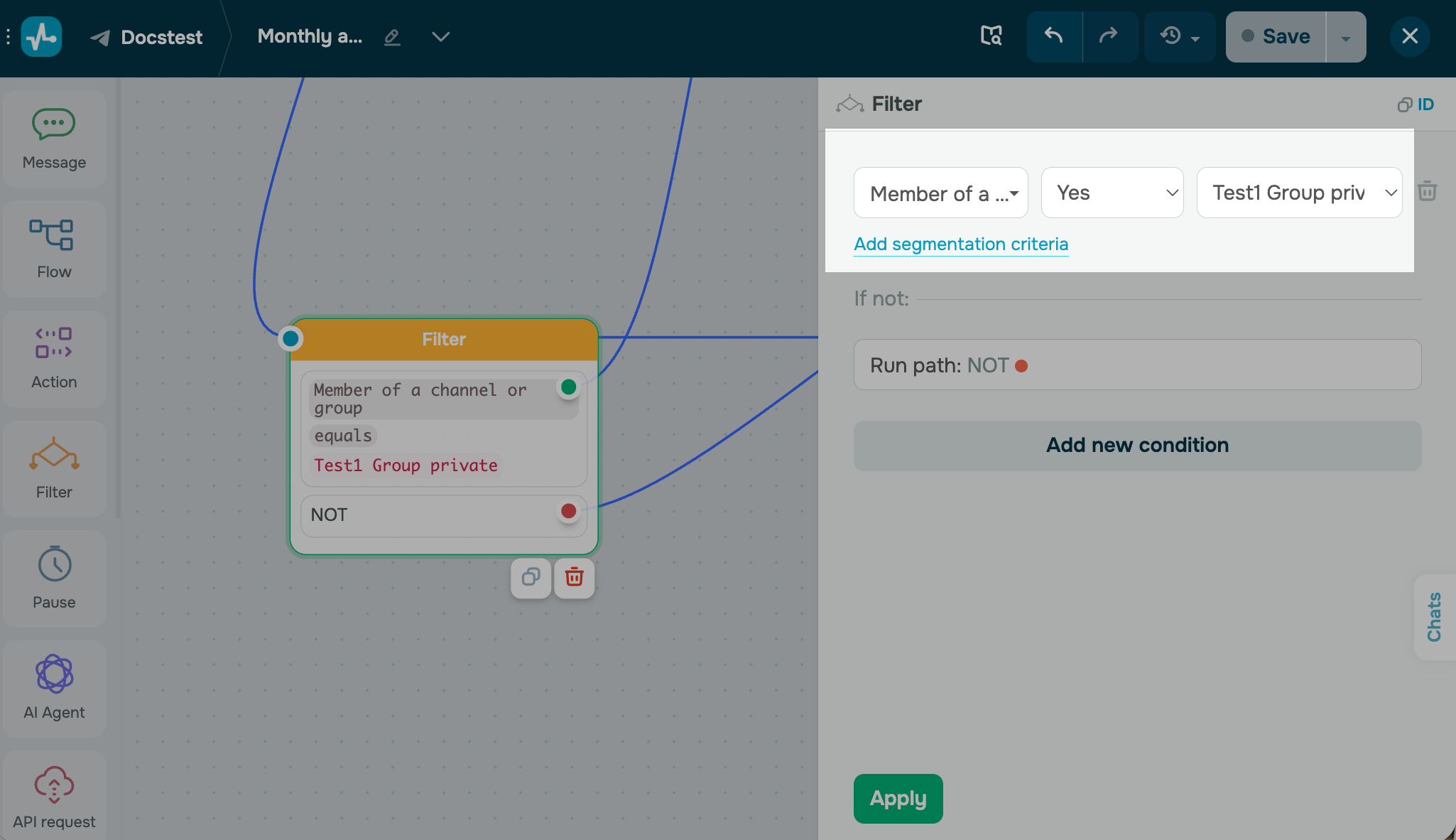
If the subscriber matches the condition, they go to the Yes branch. If they don't, they go to the No branch.
Block a group or channel member
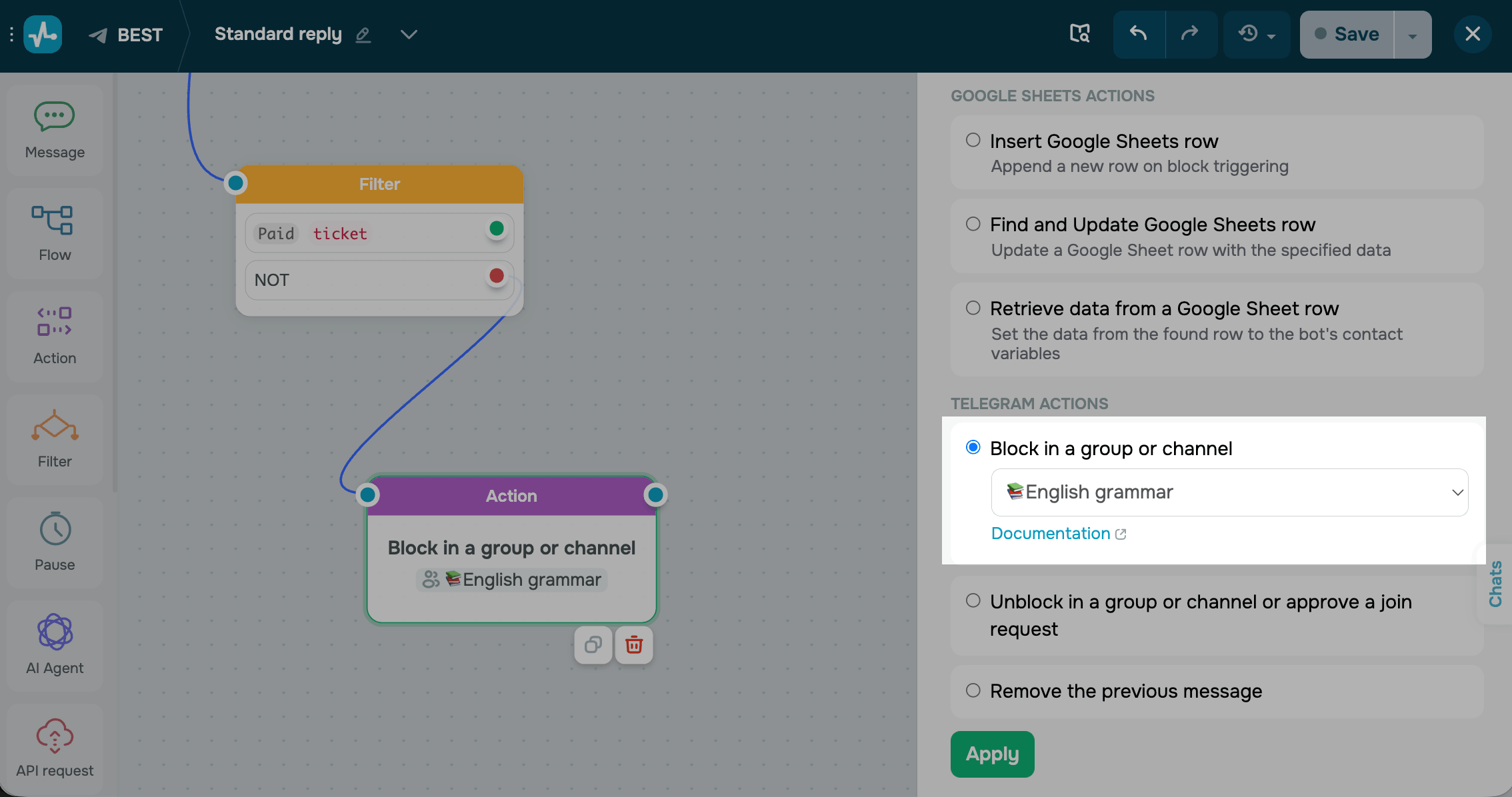
To block a subscriber in a group or channel, drag the Action element to the workspace. Link it to the element after which you want to block the subscriber. For example, link it to the No branch of a Filter element that checks the subscription status.
Select the Block in a group or channel action and select a group or channel from the list. Click Apply.
Your chatbot blocks the subscriber every time they reach this element. The subscriber stays blocked until your chatbot or another admin unblocks them.
Read more: Block in a group or channel in the Action element.
How unblocking works in groups and channels
An unblocked member doesn't return to the group or channel automatically. How they can rejoin depends on the type, as shown in the following table:
| Type | Rejoining | Messages sent while blocked |
| Private group with hidden chat history | Through an invite link. | Not visible |
| Private group with visible chat history | Through an invite link. They can find the group in Telegram search only after rejoining. | Visible |
| Public group | Through a share link or invite link, or through Telegram search. | Visible |
| Private channel | Through an invite link. They can't find the channel in Telegram search before rejoining. | Visible |
| Public channel | Through a share link or invite link, or through Telegram search. | Visible |
Unblock a member or approve a join request
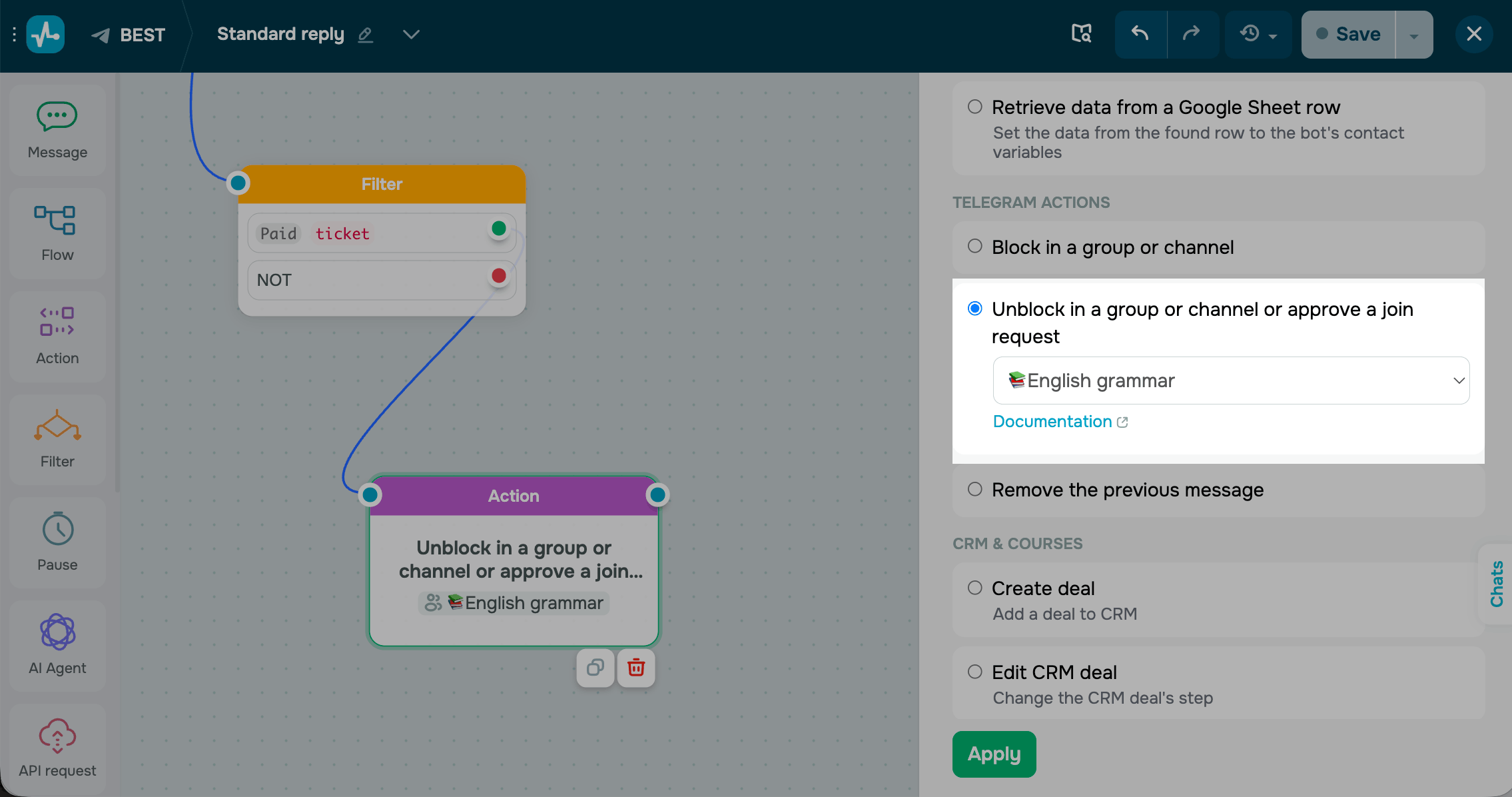
The Unblock in a group or channel or approve a join request action works in one of the following ways:
- If the subscriber is blocked, your chatbot unblocks them.
- If the subscriber sent a join request, your chatbot approves it, and the subscriber joins right away.
To add the action, drag the Action element to the workspace and link it to the element after which you want to restore access. Select the Unblock in a group or channel or approve a join request action, then select a group or channel from the list and click Apply.
Read more: Unblock in a group or channel in the Action element.
To restore access manually, go to the group or channel settings in Telegram and remove the user from the list of removed users.
Approve join requests automatically
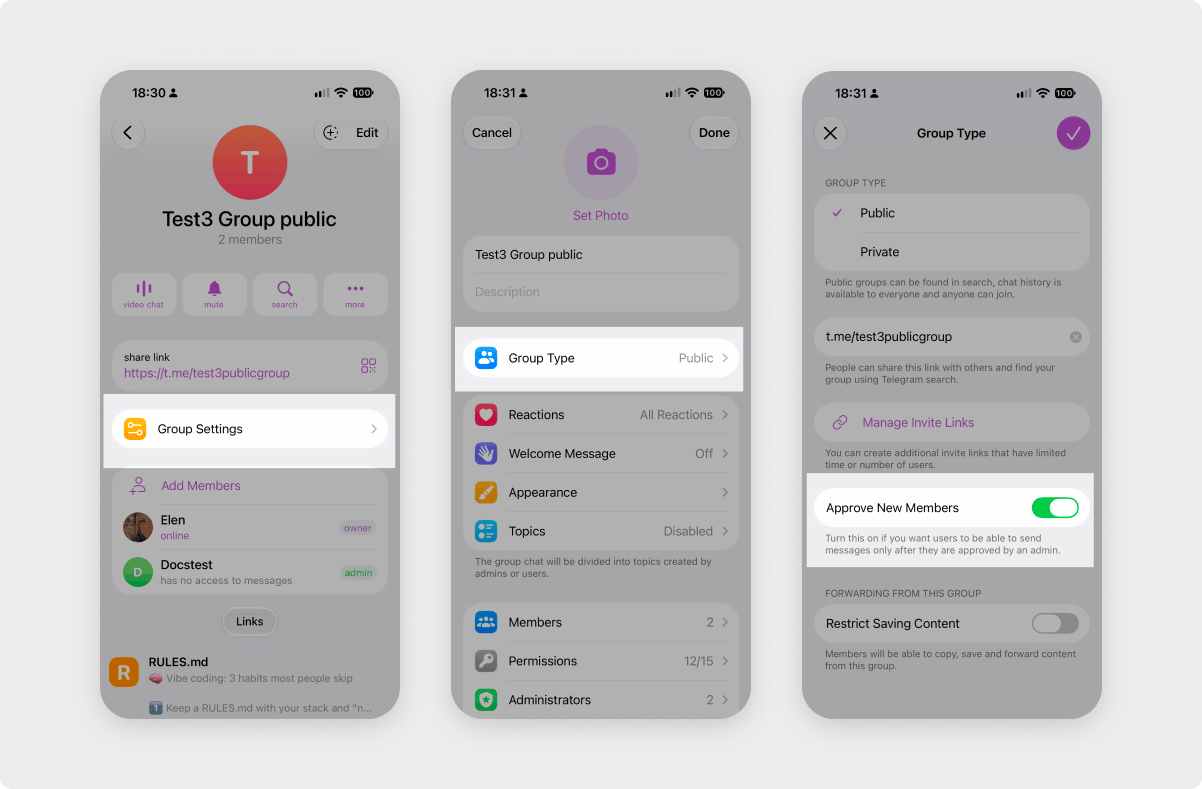
A join request is a request that Telegram sends to admins when a user opens an invite link with admin approval turned on. To let only selected users into a private group or channel, combine join requests with a flow.
Your chatbot can message a user who sent a join request, even if they haven't subscribed to your chatbot yet. Telegram lets your chatbot message them for 5 minutes after the request or until an admin processes it. The user becomes a chatbot subscriber only after they send a message or click a quick reply button.
To turn on join requests, open your group or channel in Telegram and select Group Settings or Edit > Group Type. Turn off the Approve new members toggle.
In SendPulse, create a flow with the Join or request to join a group or channel trigger. At the start of the flow, check the user's conditions with the Filter element. Link the Yes branch to the Unblock in a group or channel or approve a join request action. Link the No branch to a message that explains how to get access.
Read more: Run a flow when a user joins your Telegram group or channel.
Grant and revoke paid access
To sell access to a private group, build a flow that checks the subscriber's subscription and then unblocks or blocks them. Add the elements to the flow in the following order.
Go to your flow builder and add the Filter element to your flow. Select the Product subscription condition, select your CRM subscription product, and set the status to Active.
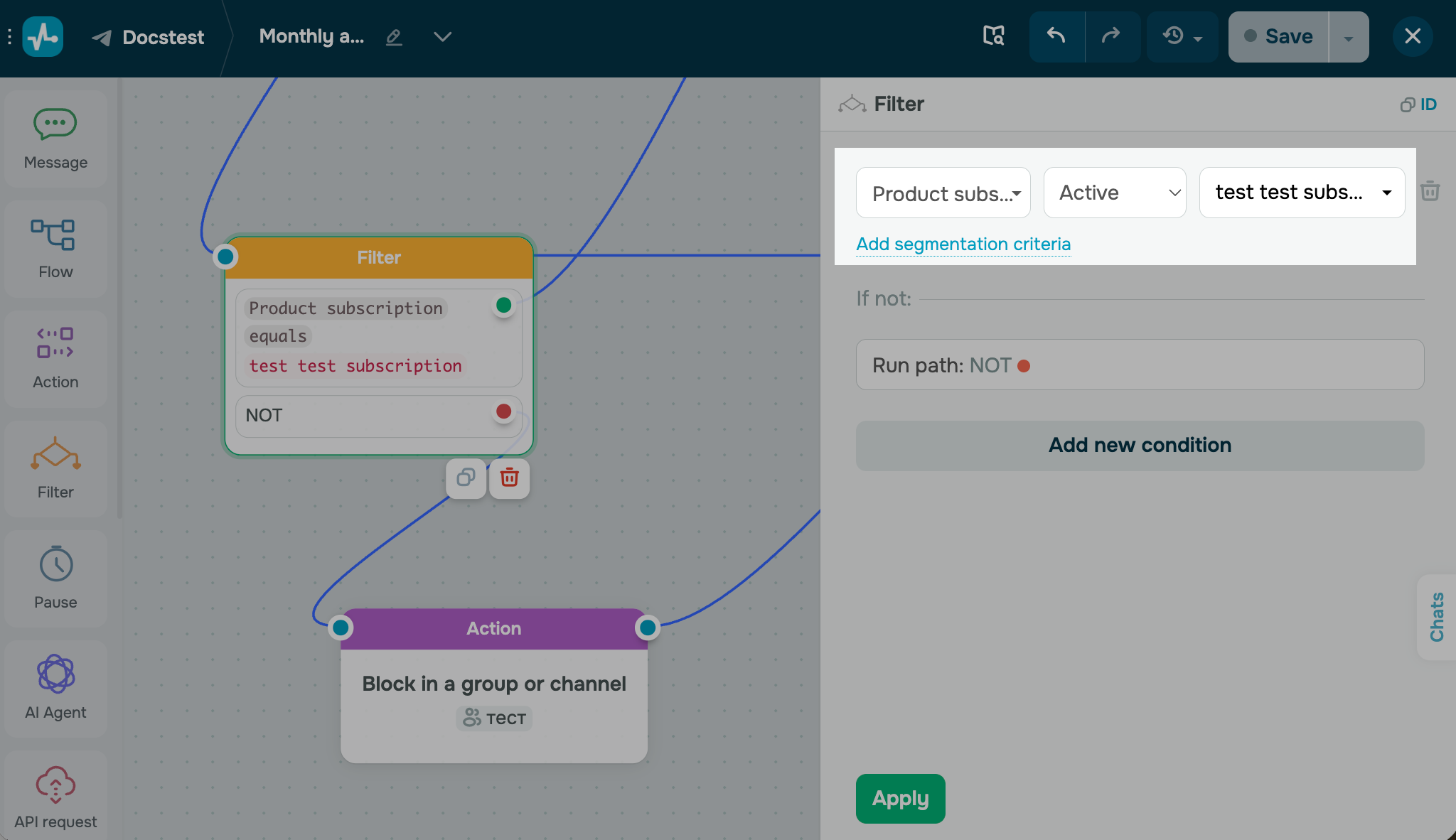
Link the Yes branch to the Action element with the Unblock in a group or channel or approve a join request action. After it, add the Message element with an invite link to your group.
Link the No branch to the Action element with the Block in a group or channel action. After it, add the Message element with your subscription product card.
In the product card message, link the branch that follows a successful payment to the unblock action. This way, your chatbot unblocks subscribers who pay and sends them the invite link.
Read more: Manage Telegram subscription payments.
Troubleshoot blocking issues
If blocking or unblocking doesn't work as expected, check these common issues:
| The group or channel isn't in the action list | Make your chatbot an admin of this group or channel, then go to the Channels and groups tab. See Add your chatbot to a Telegram channel or group. |
| The subscriber isn't blocked | Grant your chatbot the Ban Users permission in your group or channel admin settings in Telegram. |
| A blocked member rejoined | To keep blocked members from rejoining, make the chat history visible. In a private group with hidden chat history, blocked members can rejoin through an invite link. See Change your group or channel type. |
| An unblocked member didn't return to the group | Send the subscriber an invite link or share link after you unblock them. Telegram doesn't return unblocked members automatically. |
| The join request wasn't approved | In Telegram, check that your chatbot has permission to invite users and that the link has admin approval turned on.-- |
Now that your chatbot manages access, you can publish posts to your group or channel, welcome new members with a flow, or accept payments with Telegram Stars. To explore other features, go to the Telegram chatbot section.
 Last Updated: 27.12.2024



or