The Checkbox pop-up element
Use this element to add a checkbox that visitors can select. For instance, it can help you confirm their consent to data processing.
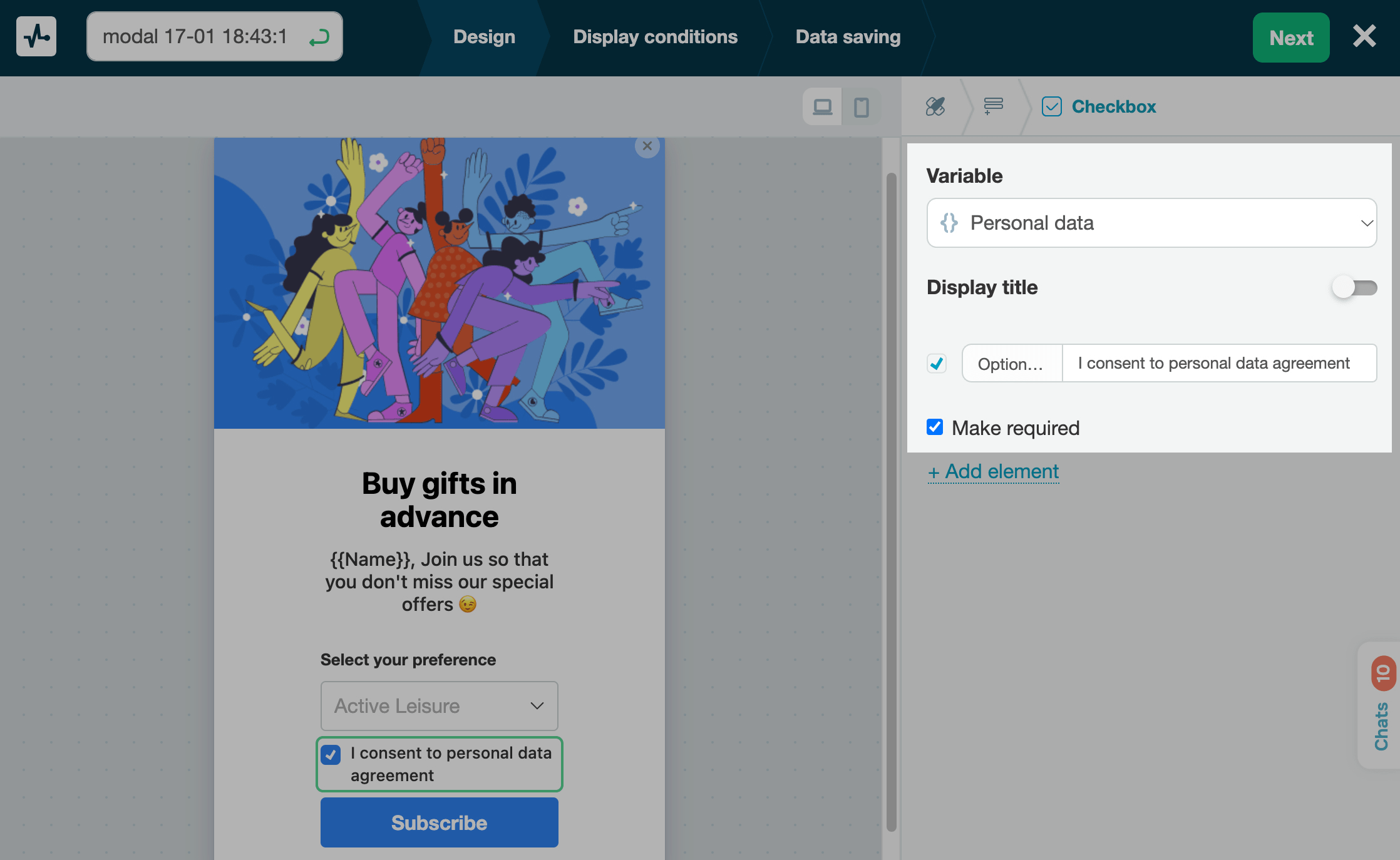
In the pop-up builder, select the Checkbox element and go to its settings.
Choose where to save the data
In the Variable field, select or create a variable to store the value. When a user selects your checkbox, the field text will be saved to a String variable.
Customize the element
To clarify what you expect users to do, use the following settings:
| Display title | Turn on the toggle and name your checkbox field. |
| Option text | Enter the text that visitors will see. |
| Make required | Use this option to make sure users select the checkbox before submitting your form. |
 Last Updated: 18.06.2025





or