Copy a page to another website
You can copy a page from one website to another within the same SendPulse account. This saves time when you reuse a ready-made page, such as a landing page, contacts page, or promo, across multiple websites instead of building it from scratch.
Let's talk about how to copy a page to another website and configure it on the destination website.
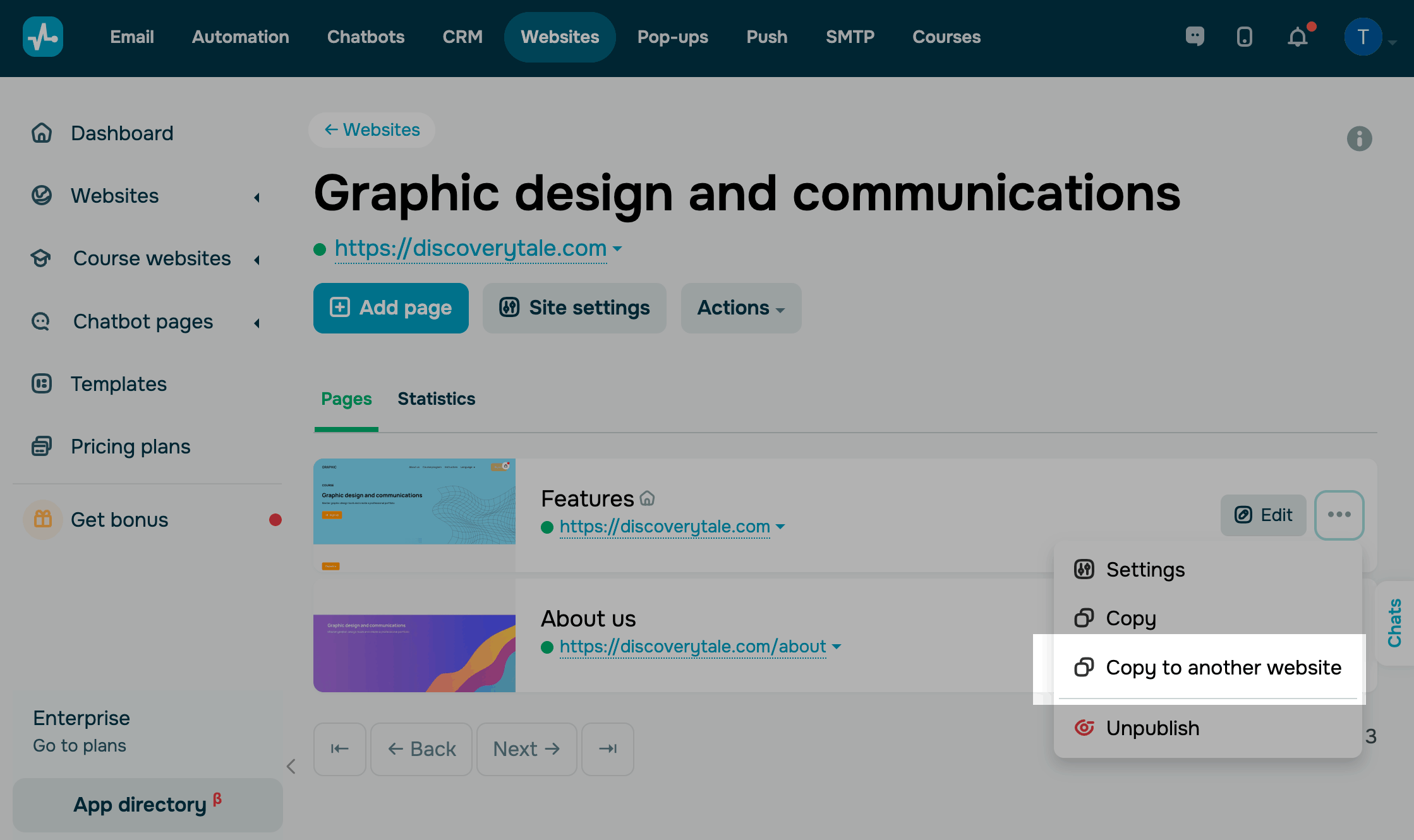
To copy a page to another website, go to Pages tab and find the page you want to copy. Click the three dots next to the page and select Copy to another website.
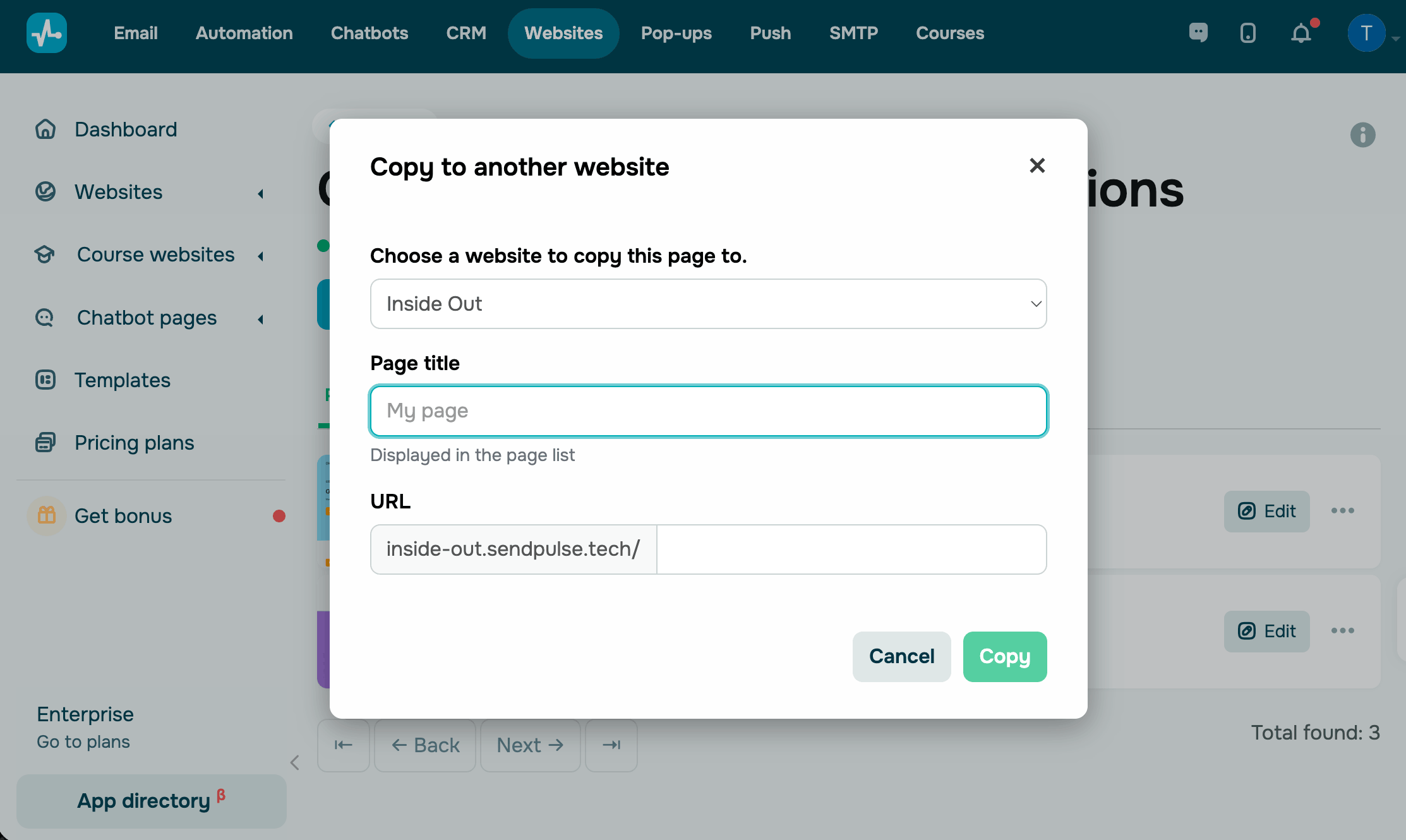
In the modal window, configure the page copy settings:
| Choose a website to copy this page to | Select the website where you want to place the copy from the drop-down list. Only your account's websites are listed. |
| Page title | Enter the internal name of the copied page. It will appear on the destination website's page list. |
| URL | Paste the page link from the destination website. The URL must be unique within that website. |
Click Copy to confirm.
The copied page appears on the page list of the destination website. You can edit this page in the website builder, adjust its settings, and publish it.
When you copy a page to another website, its layout, blocks, content, and styles will be transferred to the destination site. The header, footer, and styles will be inherited from the new website.
Please note that the copied page remains unpublished until you open and publish it on the destination website.
 Last Updated: 21.04.2026




or