Manage and use promo codes
You can add promo codes to allow students to use them when paying for your course. This way, you will be able to attract a larger audience and boost sales.
In this article, we will talk about how to add course promo codes and view statistics.
Why do you need promo codes?
A promo code is a unique set of characters that customers can use to receive a discount or other benefits when paying online.
Promo codes for discounts encourage users to try your product or buy them again.
Promo codes can also be used in advertising source analytics. Unique values of each source allow you to track which one is used most often.
How to create a promo сode
Go to the Courses section > the Promo codes tab, and click Add promo code.
Enter your promo code value, or click the button to generate a random set of symbols automatically. Your promo code can contain Latin letters and numbers and must consist of one word without spaces.
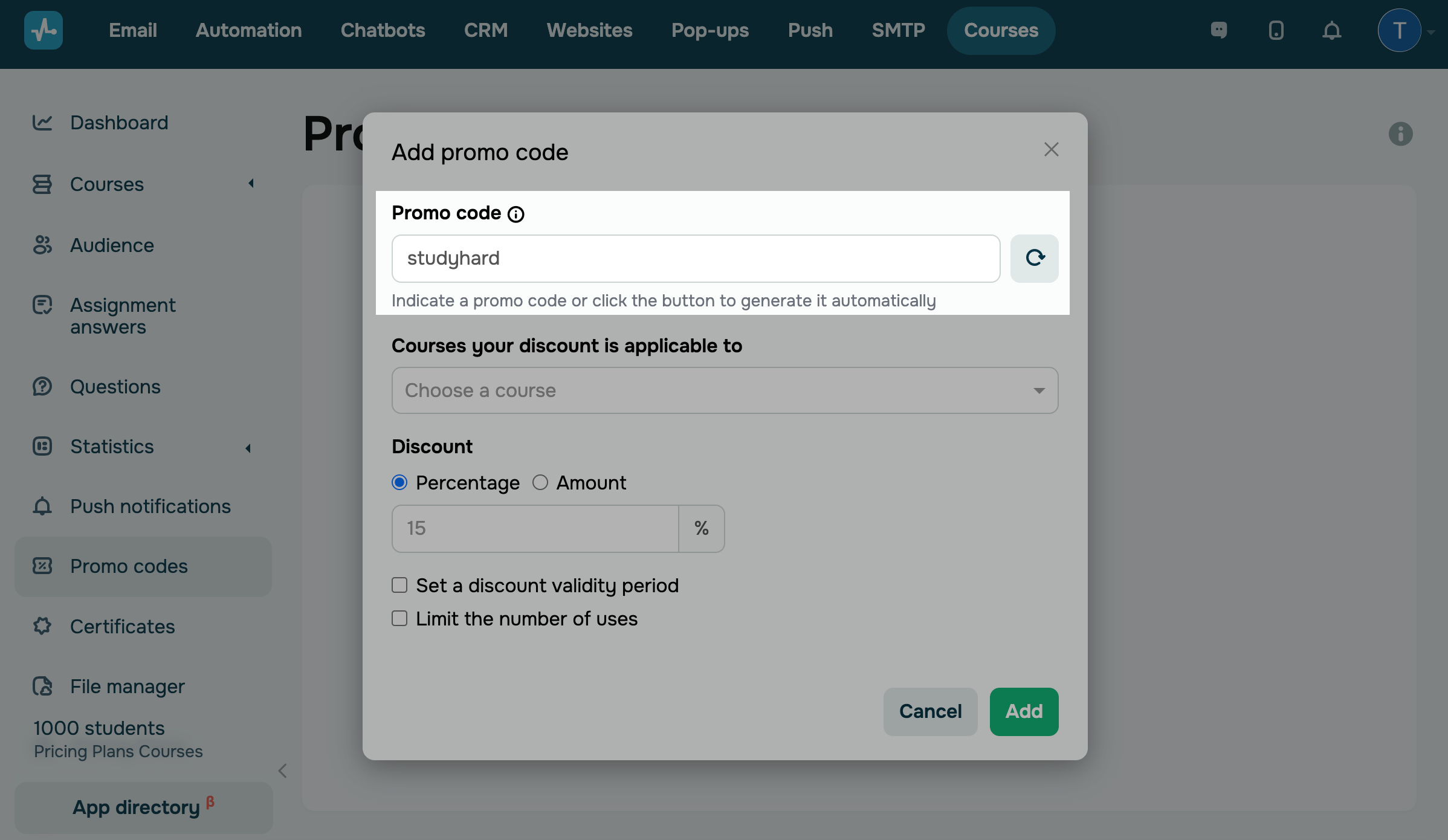
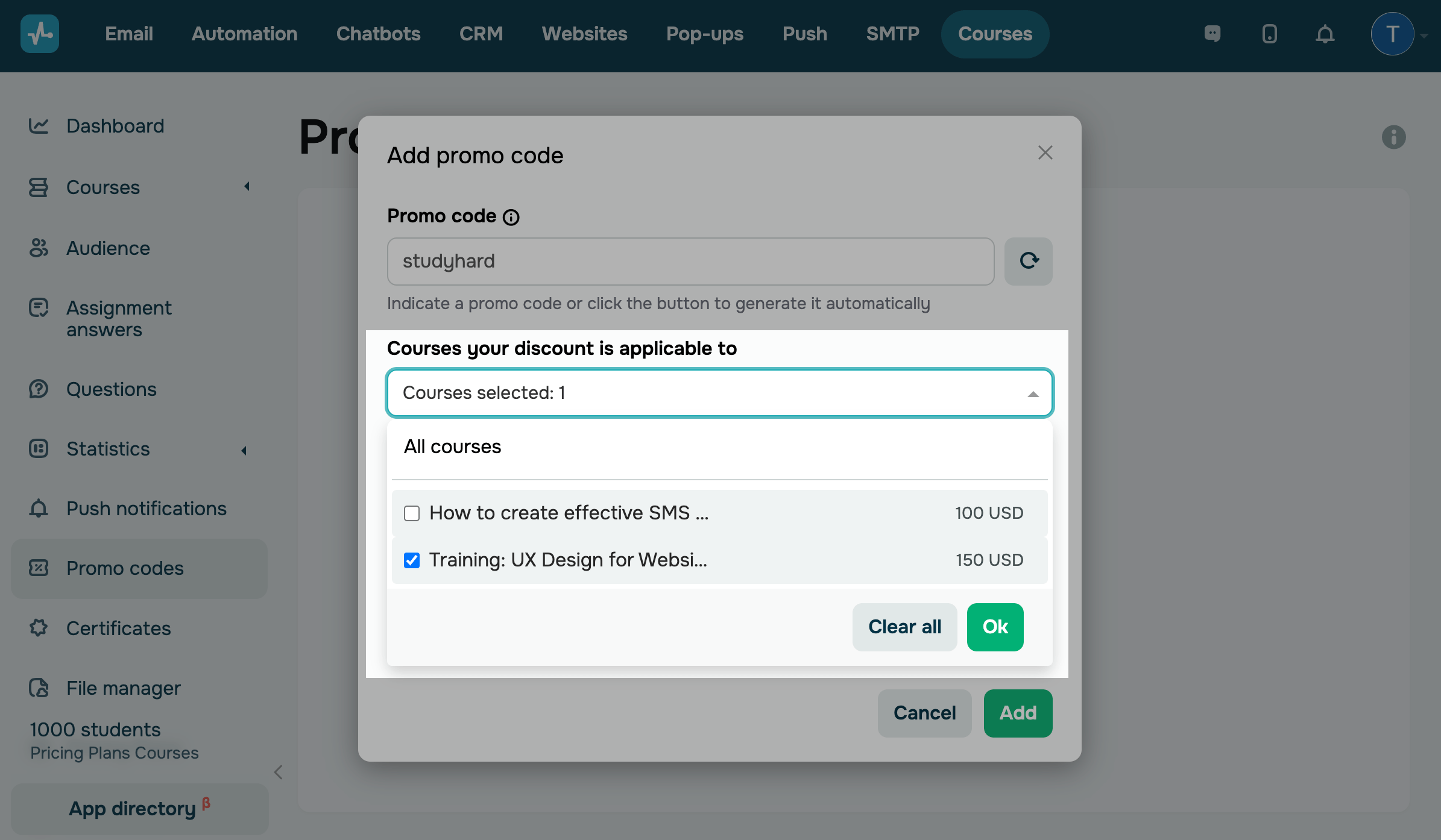
Select courses from the drop-down list. You can add one promo code to one or several courses at the same time.
Promo codes are applicable only to paid courses.
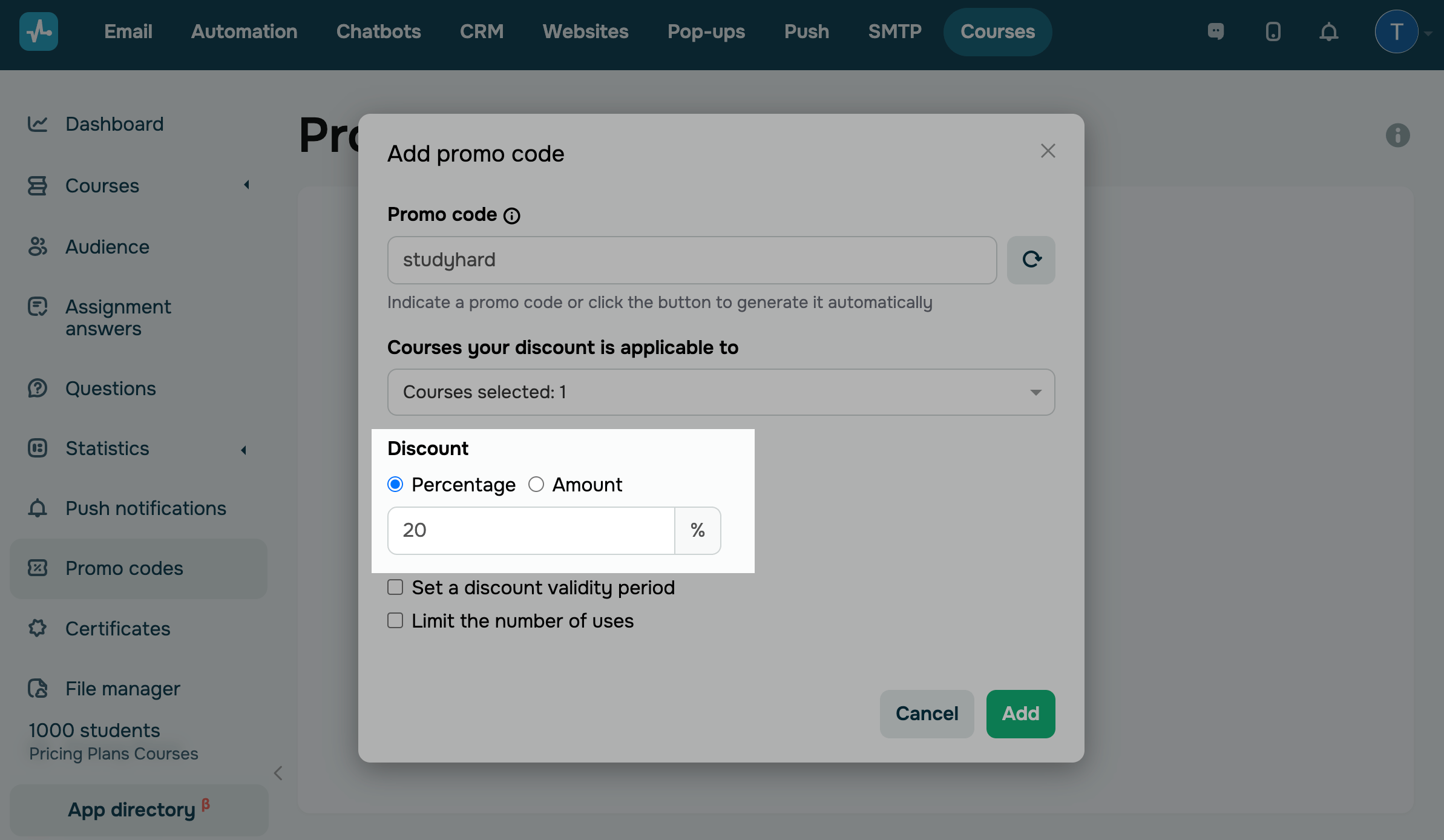
Set a course discount amount or percentage.
To set a percentage discount, select Percentage and enter a percentage of your course price.
To set a fixed discount, select Amount and specify a discount amount. Enter a discount amount that’s lower than your course price.
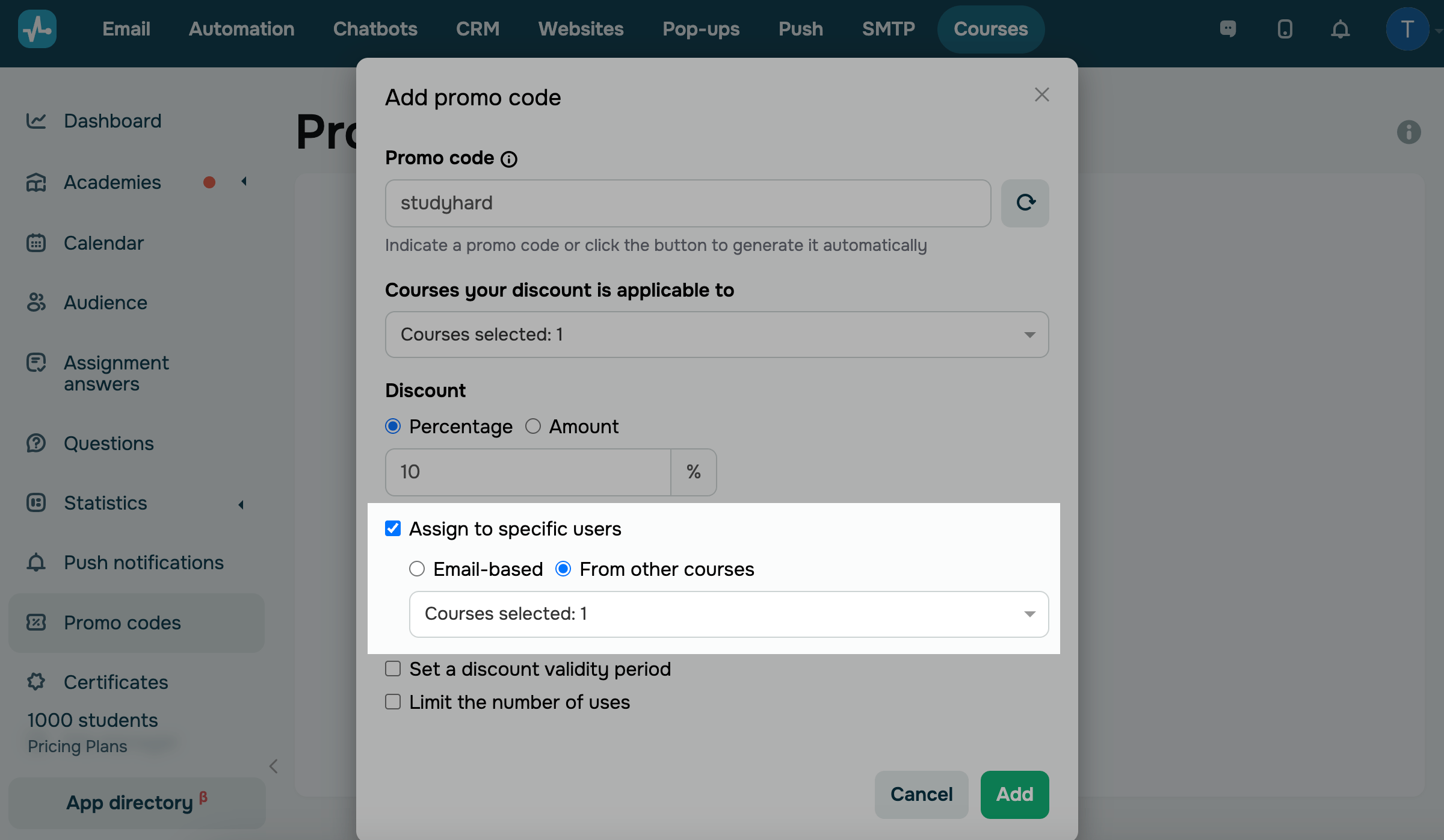
To give your promo code only to specific students, turn on the Assign to specific users toggle. Define which students can use it:
| Email-based |
Type in the email addresses of students who can apply your promo code. Students are recognized by the email address they use during course enrollment. |
| From other courses |
Select courses where your promo code will be valid from the dropdown list. Only courses with paid pricing plans appear on the list. |
Turn on the Set a discount validity period toggle to set your promo code validity period. Select a start and end date and time of your promo code if necessary. You can also choose your time zone — click the UTC option to do it.
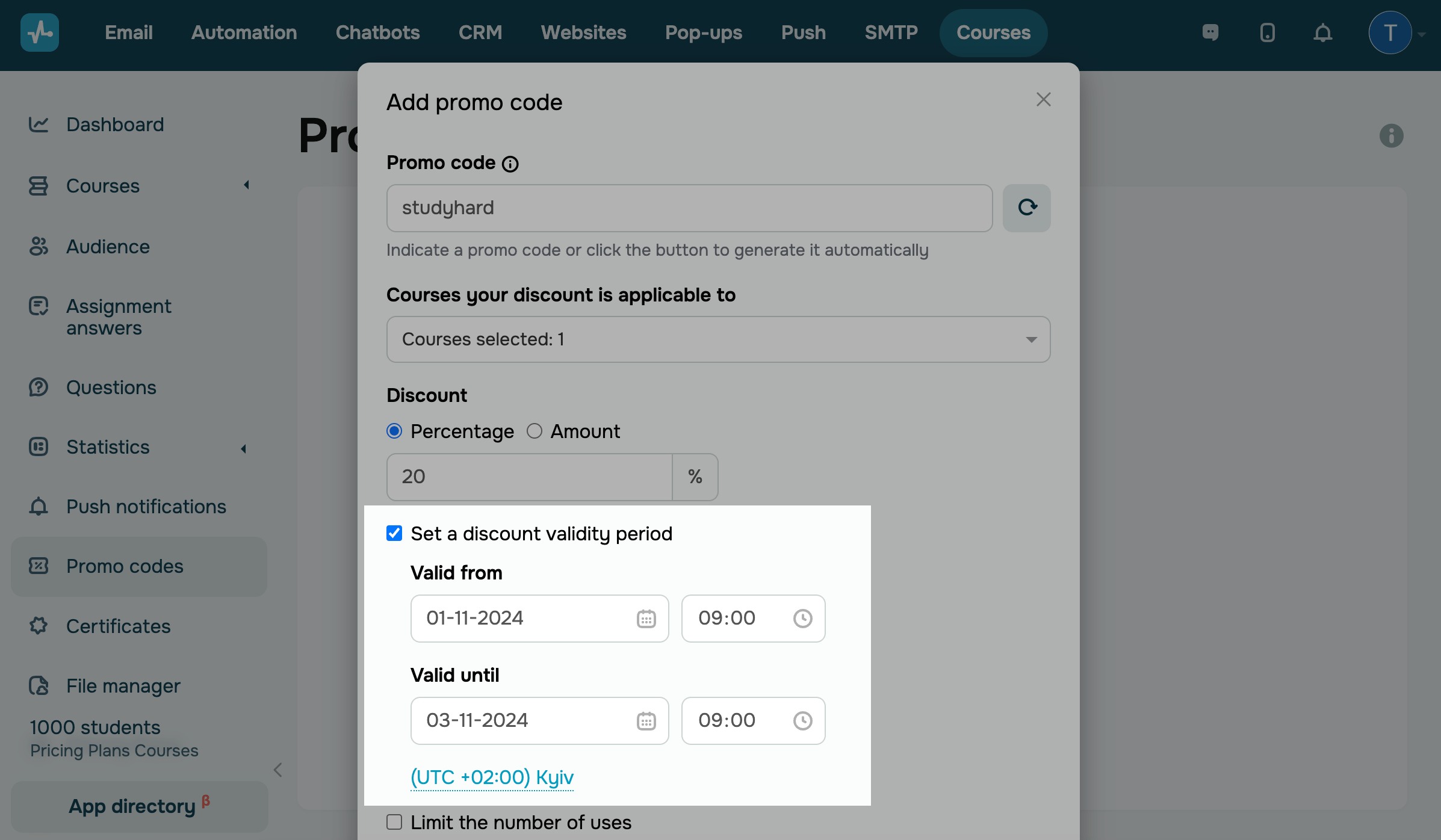
You can also set a promo code limit on the number of times it can be used. Select the Limit on the number of uses checkbox, and enter a number. The selected number of students who apply your promo code first will receive a discount.
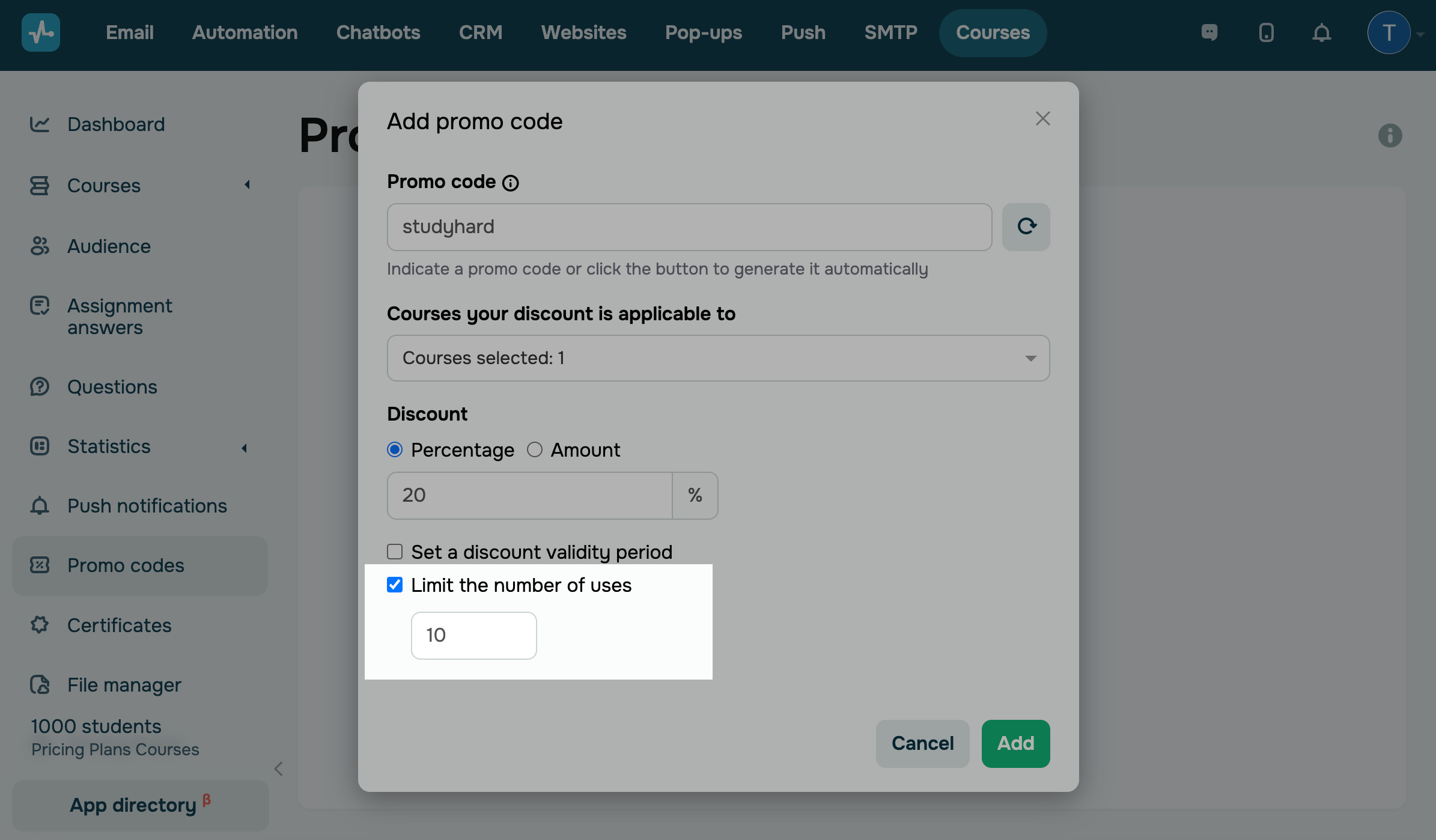
Click Add to save your promo code.
How to apply a promo code
Students can use promo codes when paying for courses using their personal accounts, on course websites, and via pop-ups. For example, they can sign in to their personal account, and click Pay.
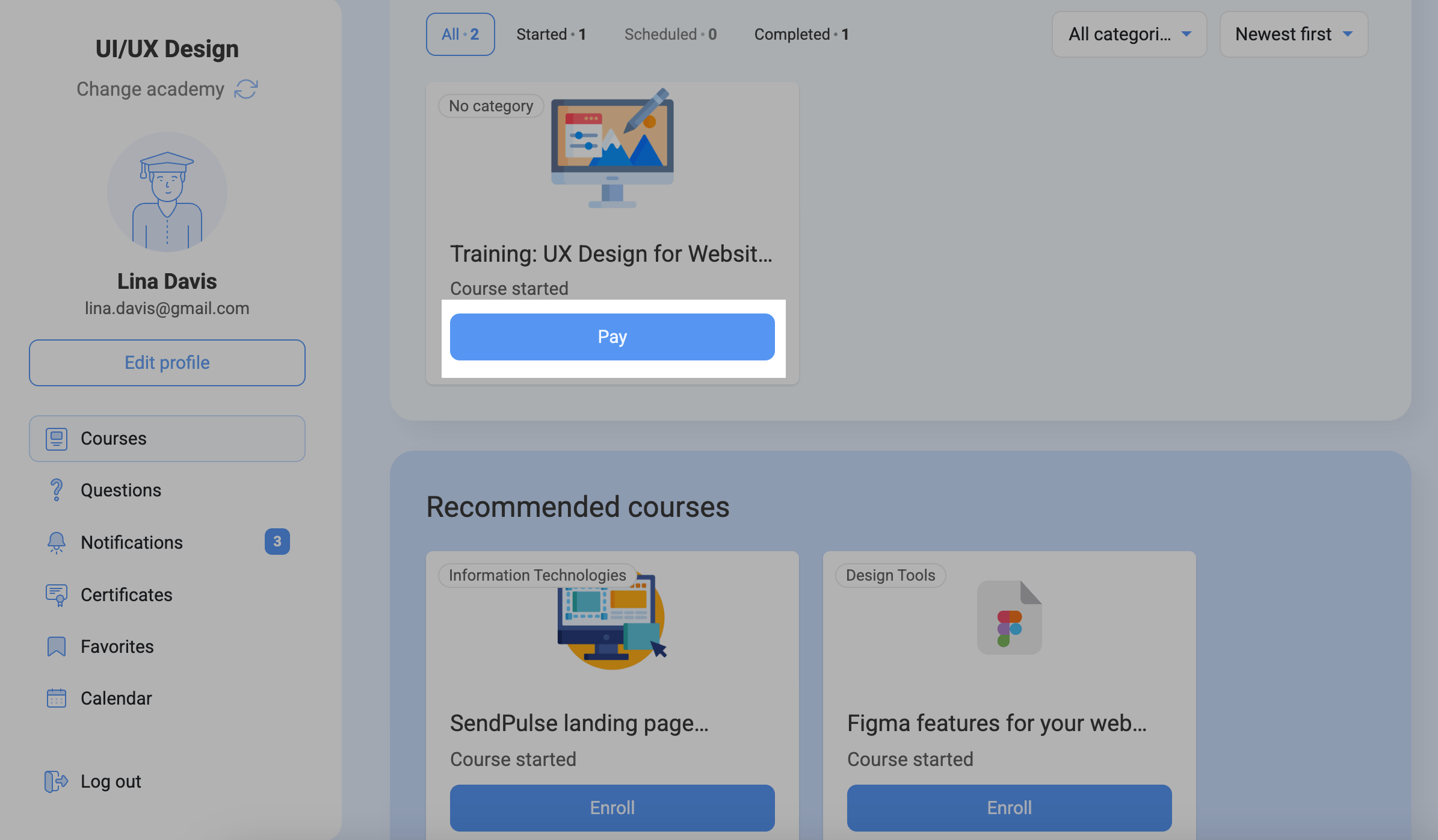
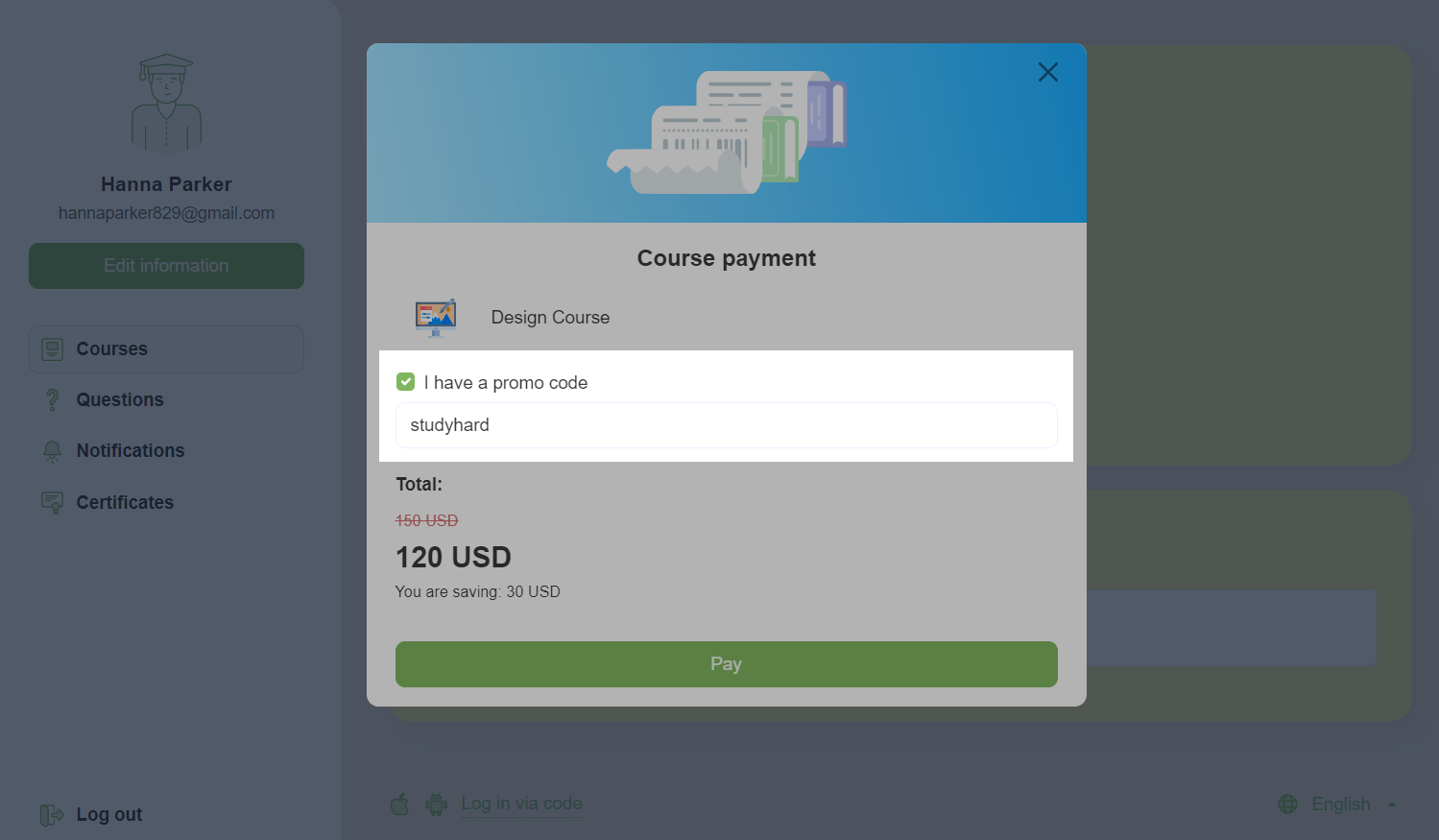
Afterward, students will see a modal window where they can enter a promo code before paying. Select the I have a promo code checkbox, and enter its value.
If a promotional code is deactivated or has limits on the number of uses, the user will see a hint that their promo code is not valid. If a promotional code has been deleted or has expired, this option will not be displayed.
Below you will see the discount and payment amount. Click Pay to go to the payment page.
How to view promo codes
In the Students section
Open the required course, and go to the Students section to see which students have used your promo code. Next to the successful payment status, you will see a discount. Hover over the discount to see the promo code that was used to receive it.
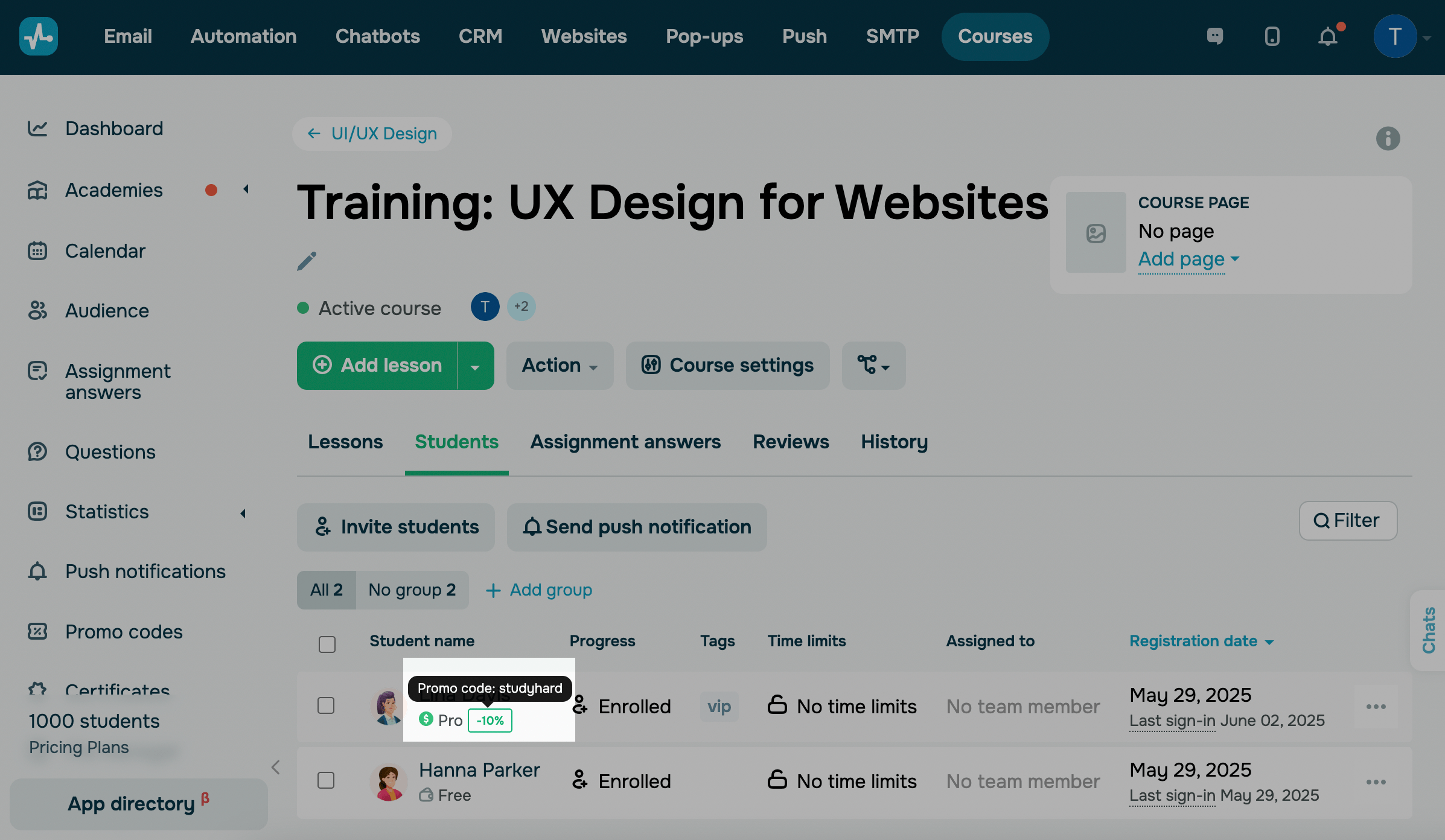
You can also filter students by promo codes. Click the Filter icon, and in the Promo codes field, select a valid value for this course.
In the Promo codes section
Go to the Promo codes section, where there is a promo code list from all courses — the most recent ones are at the top. Next to each promo code value, there is a course name to which it is linked. If you have more than one linked course, hover over the number to see other courses.
You can also copy the promo code value. Click the corresponding icon to the right of your course name.
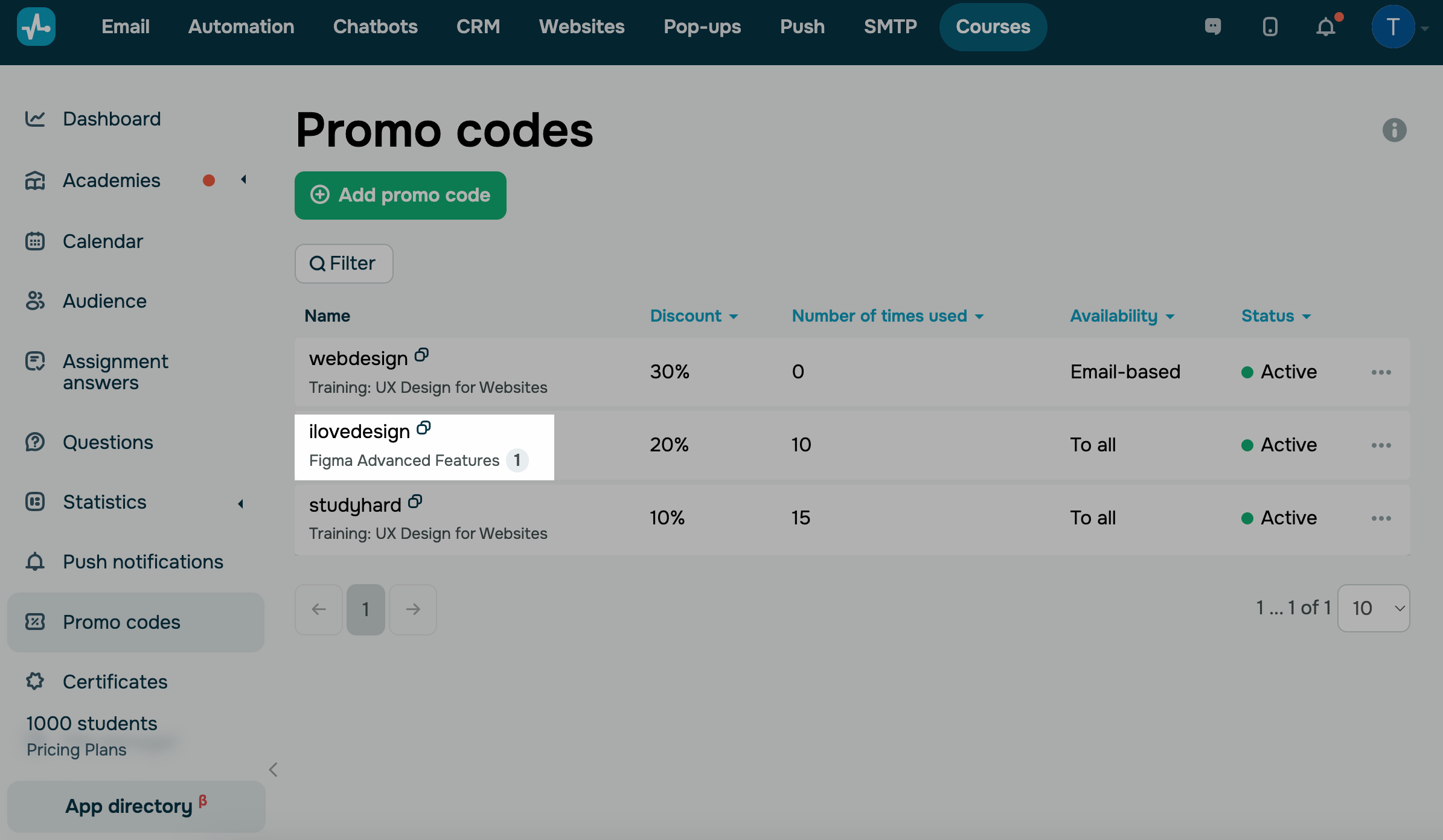
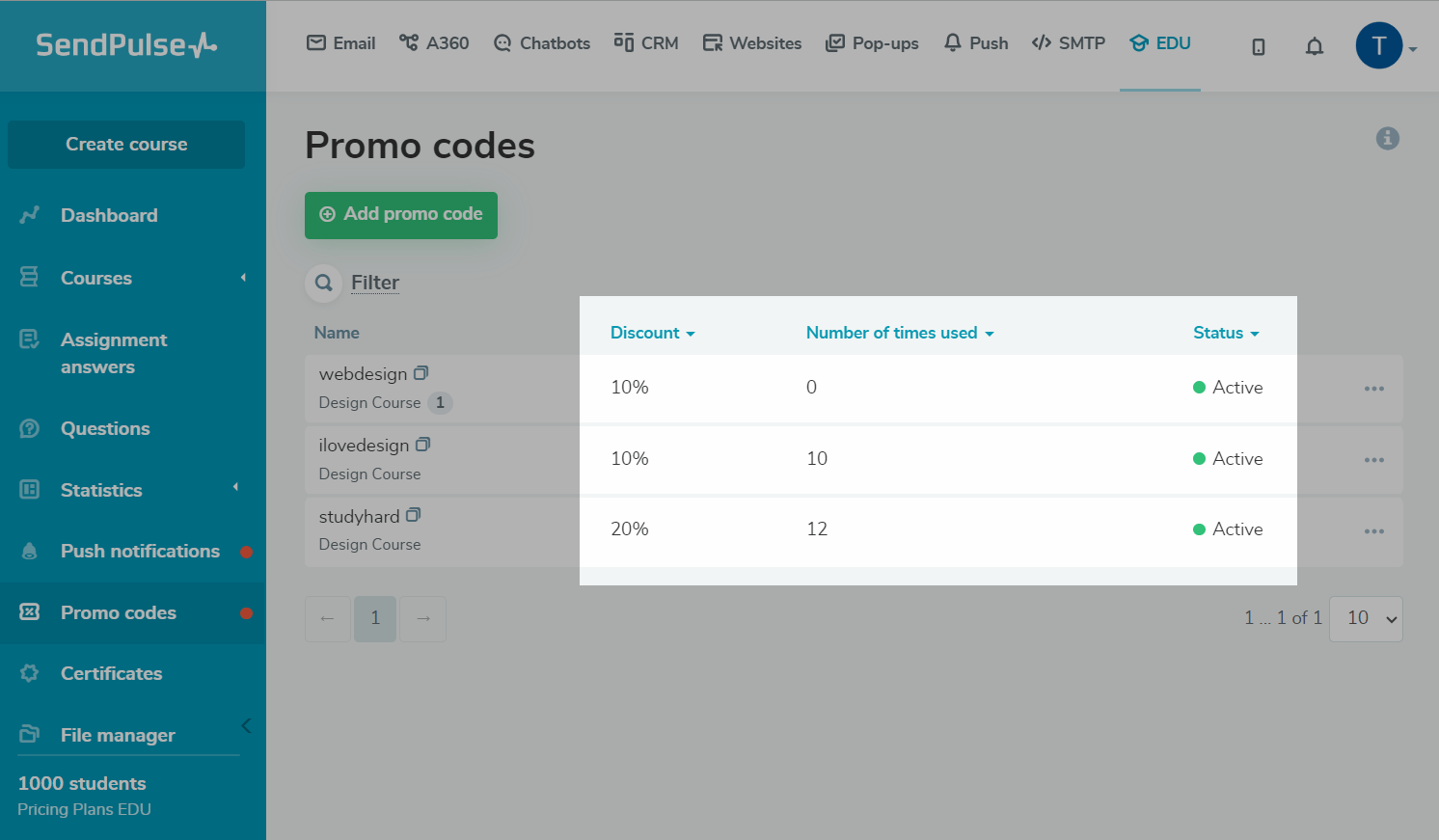
You can also view information about the discount amount, the number of students who used your promo code, and your promo code status.
| Active | Students can use your promo code now. |
| Inactive | Students will not be able to use your promo code when paying because it is deactivated or the limit has been reached. |
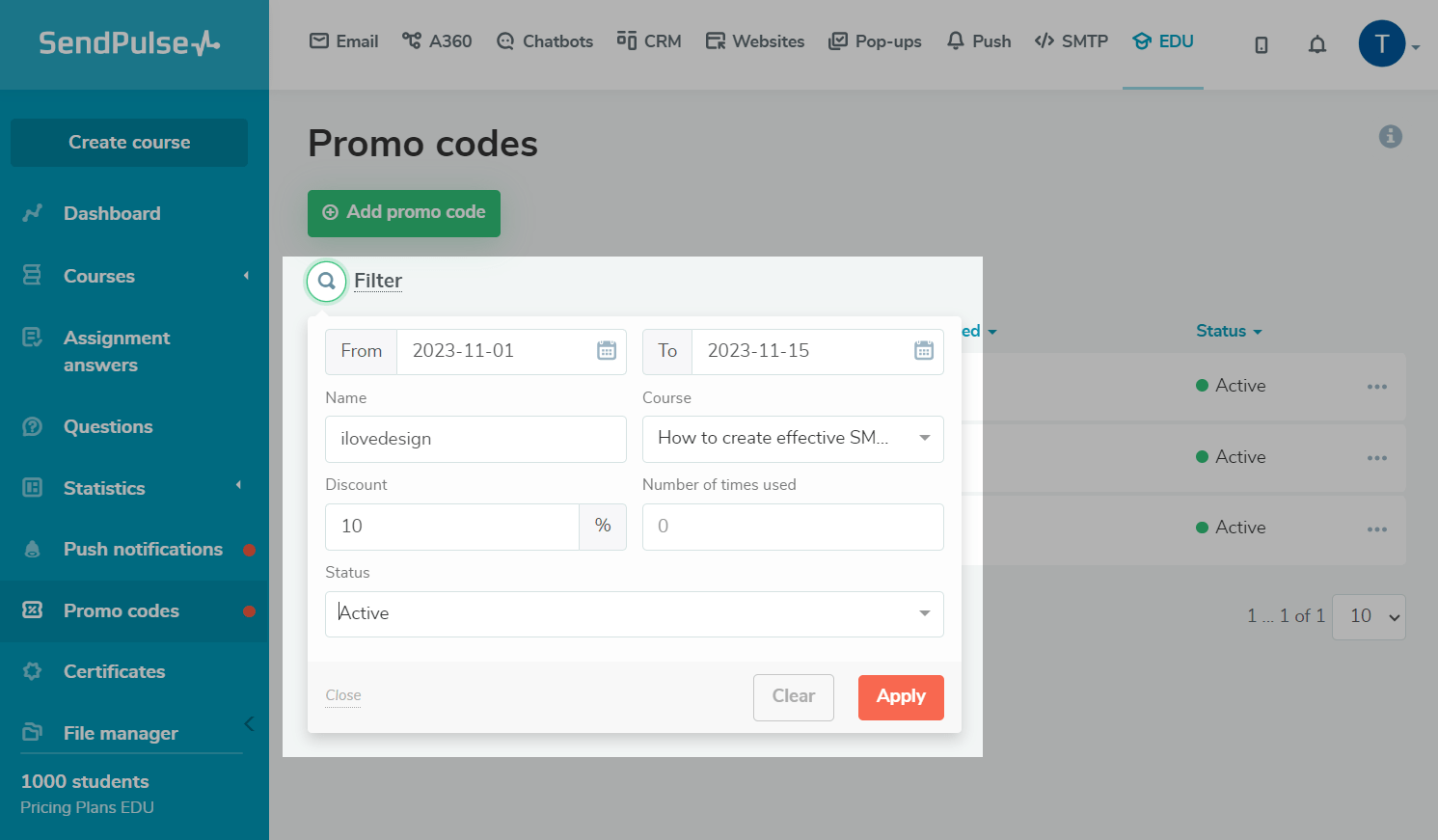
To filter individual promo codes and view them, click the Filter icon, and select a condition:
- promo code start date;
- promo code end date;
- promo code value;
- course name;
- discount amount;
- number of uses.
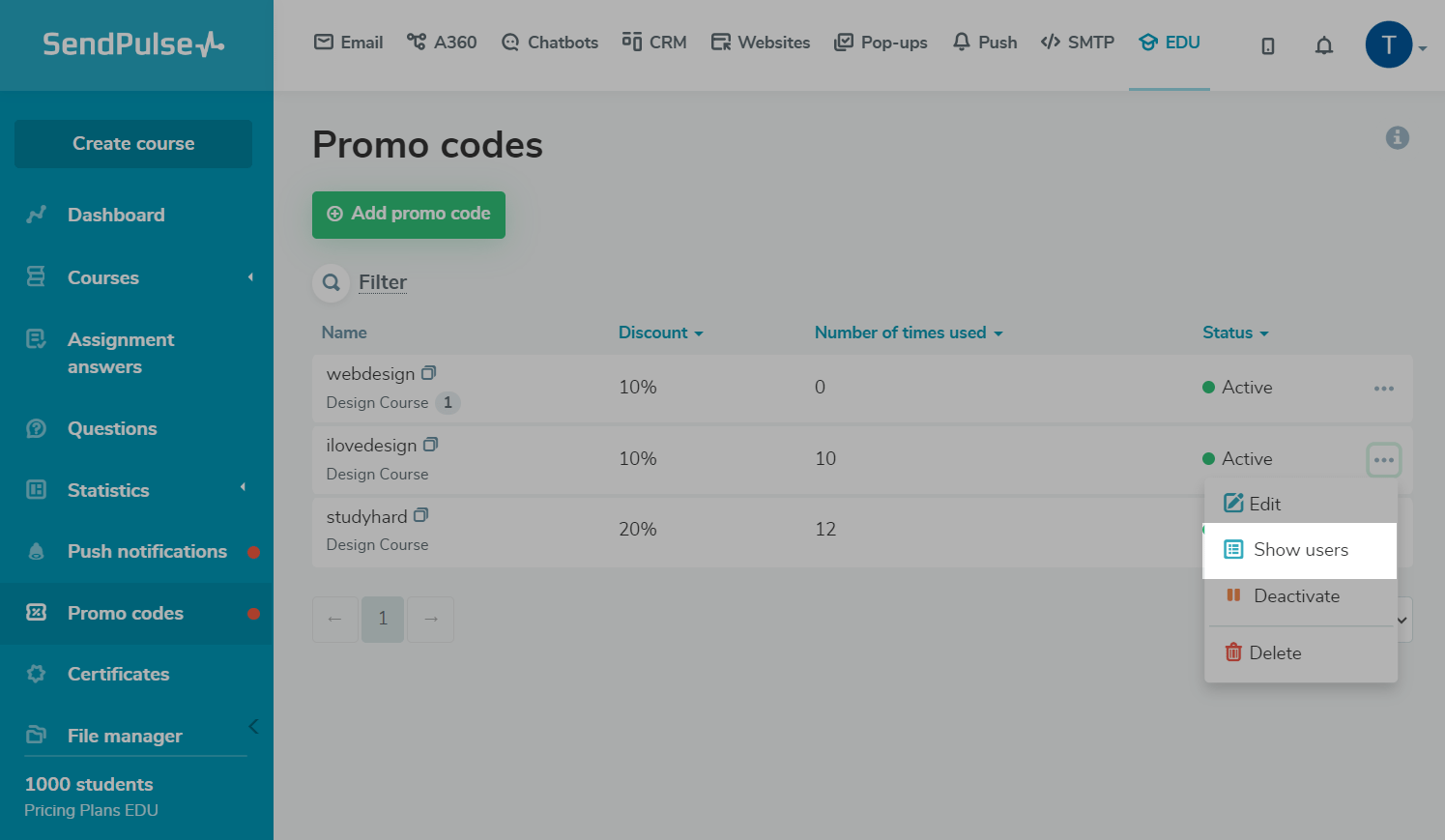
You can also view the list of students who used your promo code. Click the three dots next to a promo code, and select Show users.
How to edit promo codes
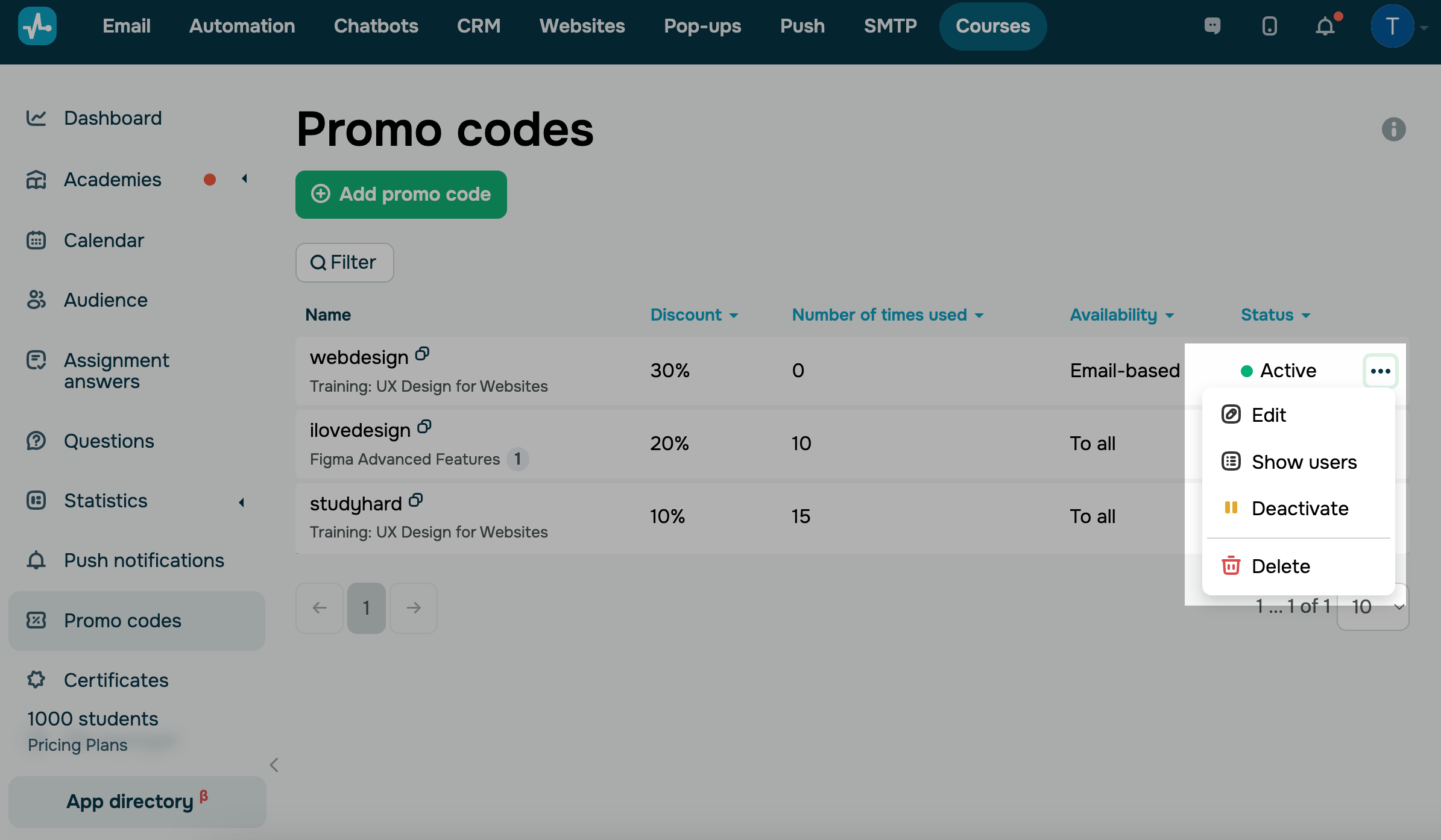
You can edit, deactivate, and delete promotional codes. To do this, click the three dots next to a promo code:
| Edit | Opens customizable promo code settings. |
| Show users | Shows students who used your promo code at checkout. |
| Deactivate | Makes your promo code unavailable to students. It remains in your account with all settings, so you can reactivate it as needed. |
| Delete |
Permanently removes your promo code and its settings from your account. You can only delete promo codes that your students haven't used yet. If a promo code has been used, it can only be deactivated. |
 Last Updated: 02.06.2025





or