Set section access
Go to the lesson builder, click the panel in the upper left corner to open the list of lessons, and select Section Settings in the menu of the required lesson.
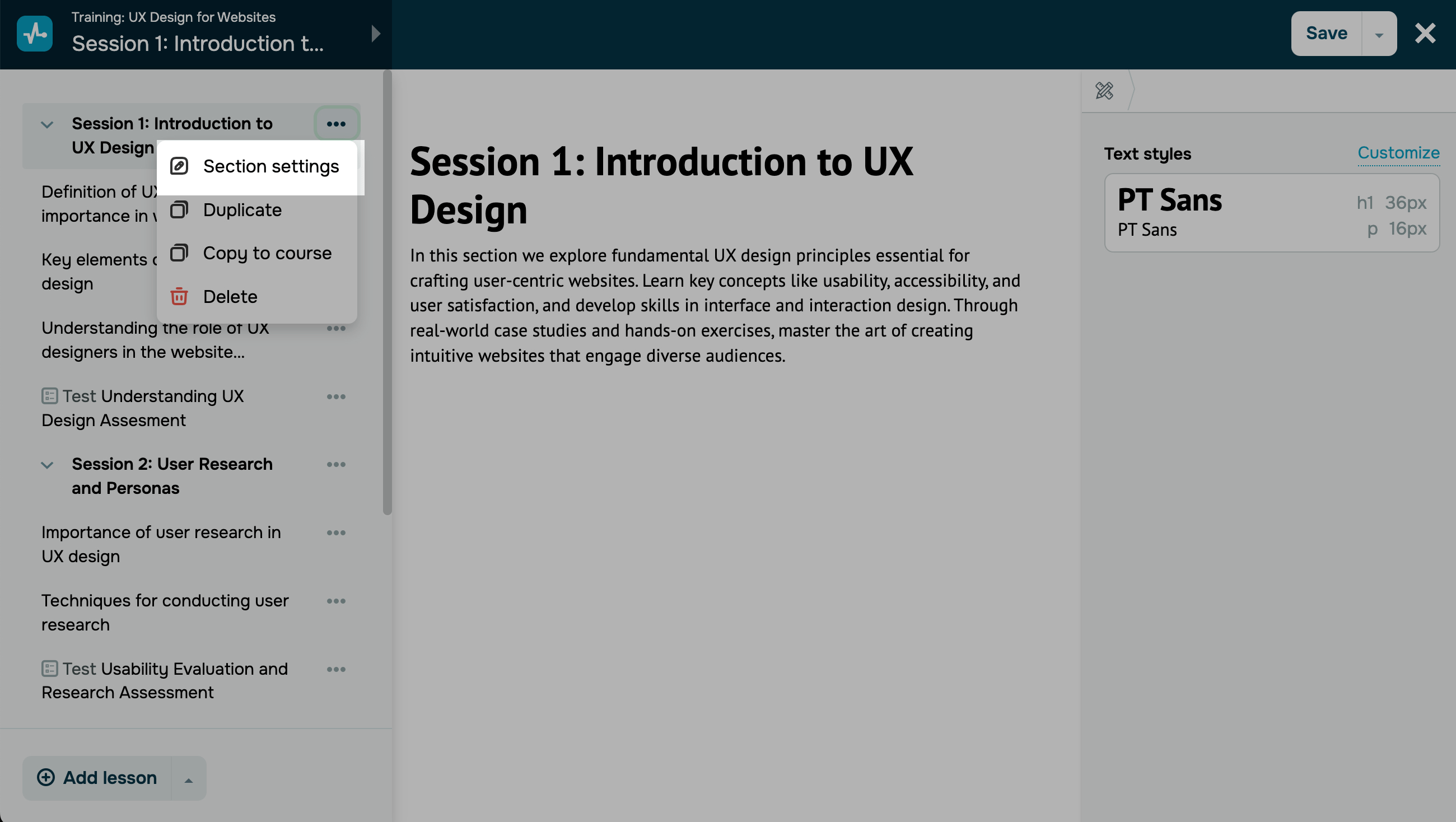
Section access options
You can schedule an opening for a course that is already running or planned for the future. This option is unavailable for inactive courses.
All lessons and tests in the section that do not have a specific date set will be shown to students at the same time as the section is published.
When you create a new section in a running course, its access is automatically set to Closed. To make the lesson available, change its settings.
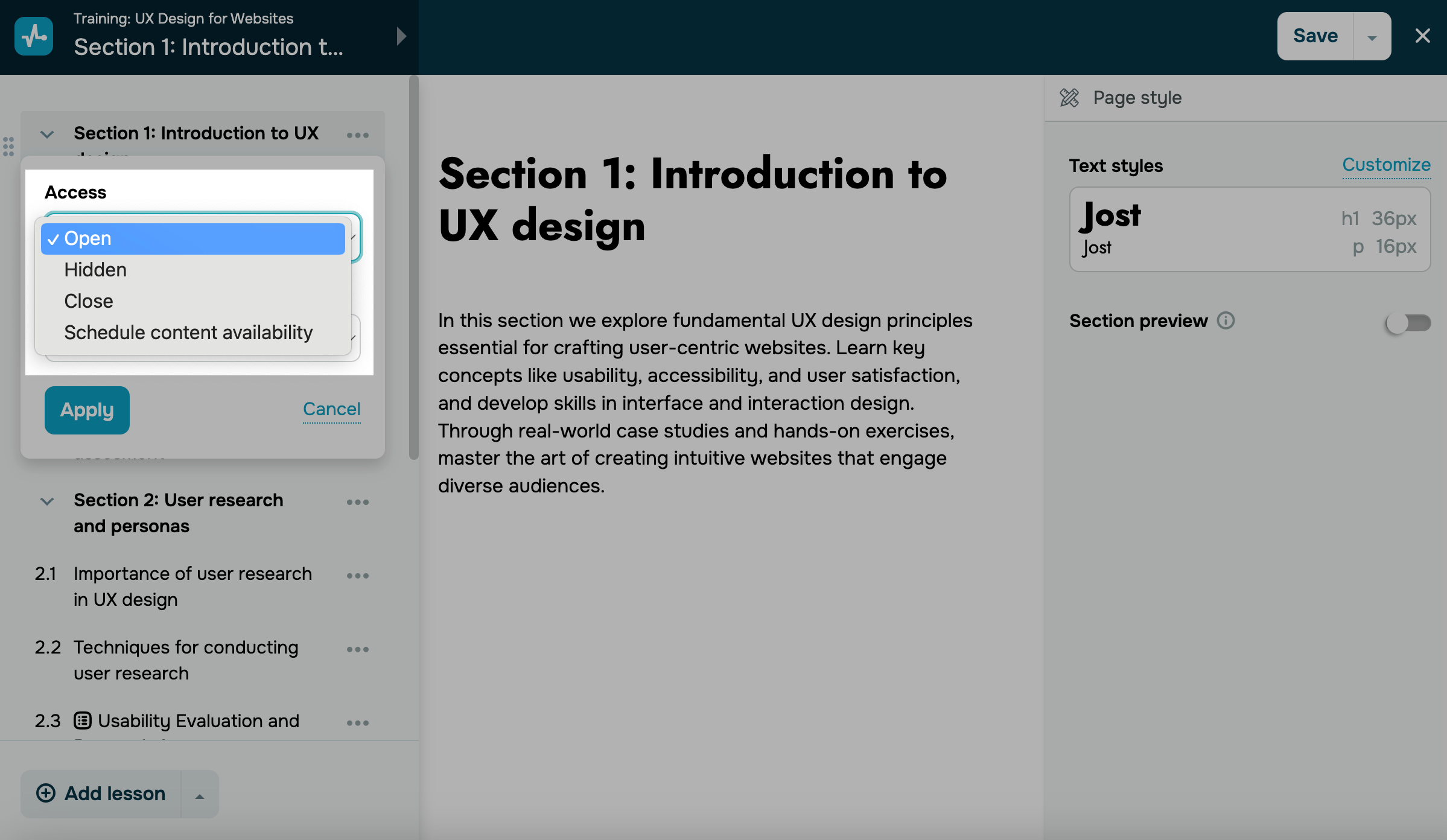
In the Access field, select a section availability option for students:
| Open | The section will become available to students immediately. If your course is non-sequential, students will be able to view them right away. If it is sequential, they will only be able to access them after completing the previous lesson. |
| Hidden |
The section will not be available to students, but instructors will be able to view and manage it in the course builder and instructor accounts. Such sections will not affect course completion. |
| Close | The section will not be available to students. Unlike sections with the Hidden status, the section will appear in the course program for students with the Close status. |
| Schedule content availability | The section will be available on a scheduled date and time. |
You can select from the following scheduling options:
| On a date | The section will be available on a selected date and time.
Select a date in the calendar and enter the time. Choose a timezone. If you set the content opening date in the past, the lesson or test will be displayed as Open. |
| In | The section will be available based on the publication date of the previous lesson.
Enter the number of days after the previous lesson when access to this lesson should be opened. This option is available only if you have scheduled the opening date of the previous lesson. If you want all subsequent sections to open after the selected time, enable the Apply to all sections in this list option. |
The scheduled section opening will appear in the Calendar tab for instructors and in the student account, provided you are using paid pricing plans.
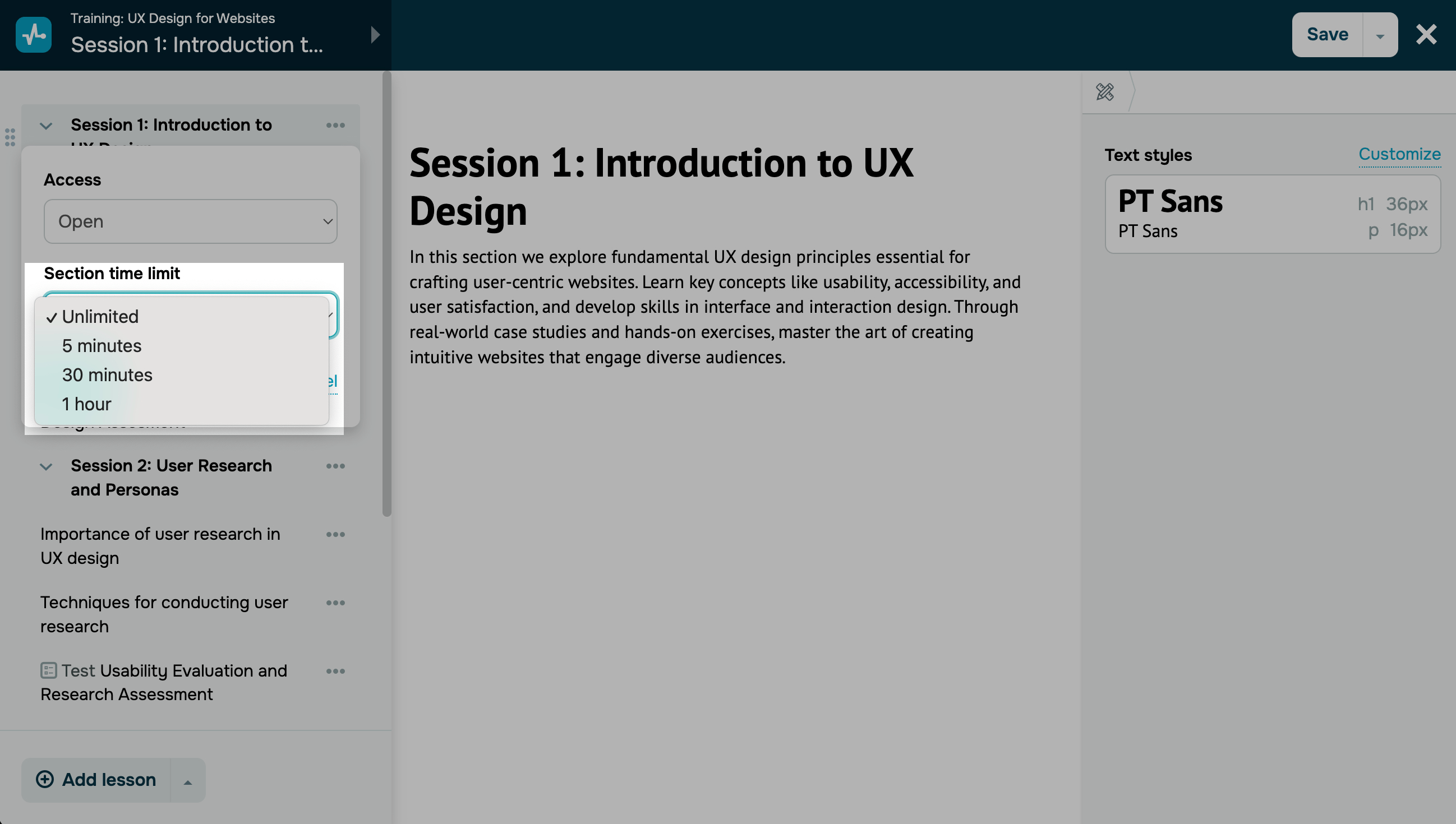
Time limit
Set the estimated time students can spend completing all lessons in the section (Section time limit): unlimited, 5 minutes, 30 minutes, or 1 hour.
Once you configure the required settings, click Apply.
 Last Updated: 17.12.2025





or