Сonnect SendPulse's MCP server to Visual Studio Code with GitHub Copilot
GitHub Copilot is an AI coding assistant developed by GitHub with support for MCP integrations. Once you connect SendPulse's MCP server to it, you will be able to manage your SendPulse account directly in Copilot Chat using natural-language requests.
Let's talk about how to connect SendPulse's MCP server to VS Code with GitHub Copilot.
To learn more about SendPulse's MCP server and how it works, see MCP basics.
Add SendPulse’s MCP server
To add configuration files for all projects in the VS Code app, go to the command palette using Cmd+Shift+P (for macOS) or Ctrl+Shift+P (for Windows OS) commands. Search for Open User Configuration and select it.
If you need to add configuration files for one project, create a vscode/mcp.json file in your core project and open it.
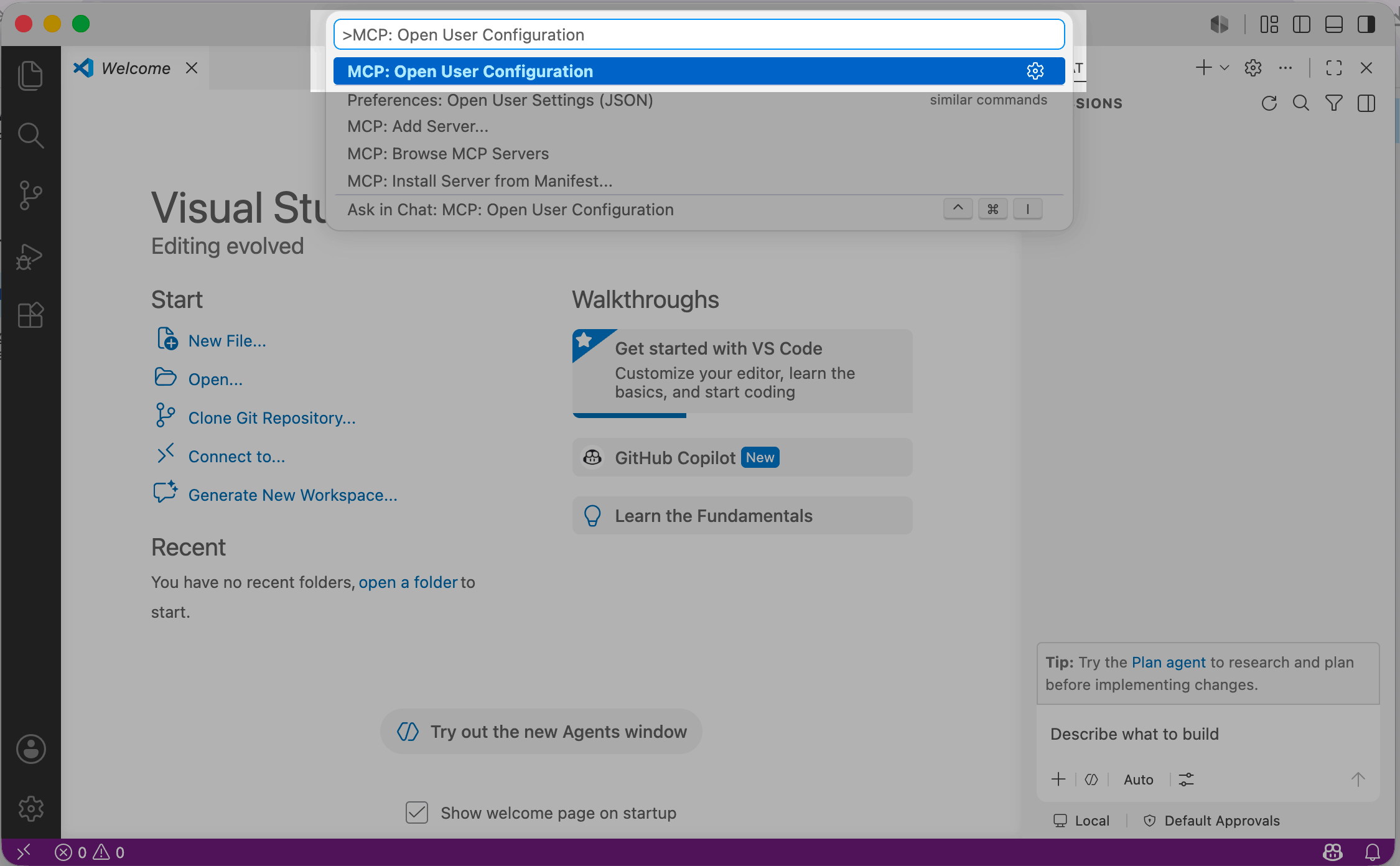
In the configuration file, paste the code below:
{
  "servers": {
    "sendpulse": {
      "type": "http",
      "url": "https://mcp.sendpulse.com/mcp",
      "headers": {
        "X-Client-ID": "YOUR_CLIENT_ID",
        "X-Client-Secret": "YOUR_CLIENT_SECRET"
      }
    }
  }
}
To find your keys, go to your SendPulse account > Account Settings > API > Client credentials. Сlick Generate new API keys and copy your Client ID and Secret.
To find SendPulse’s MCP link, scroll down to the MCP section and copy the link.
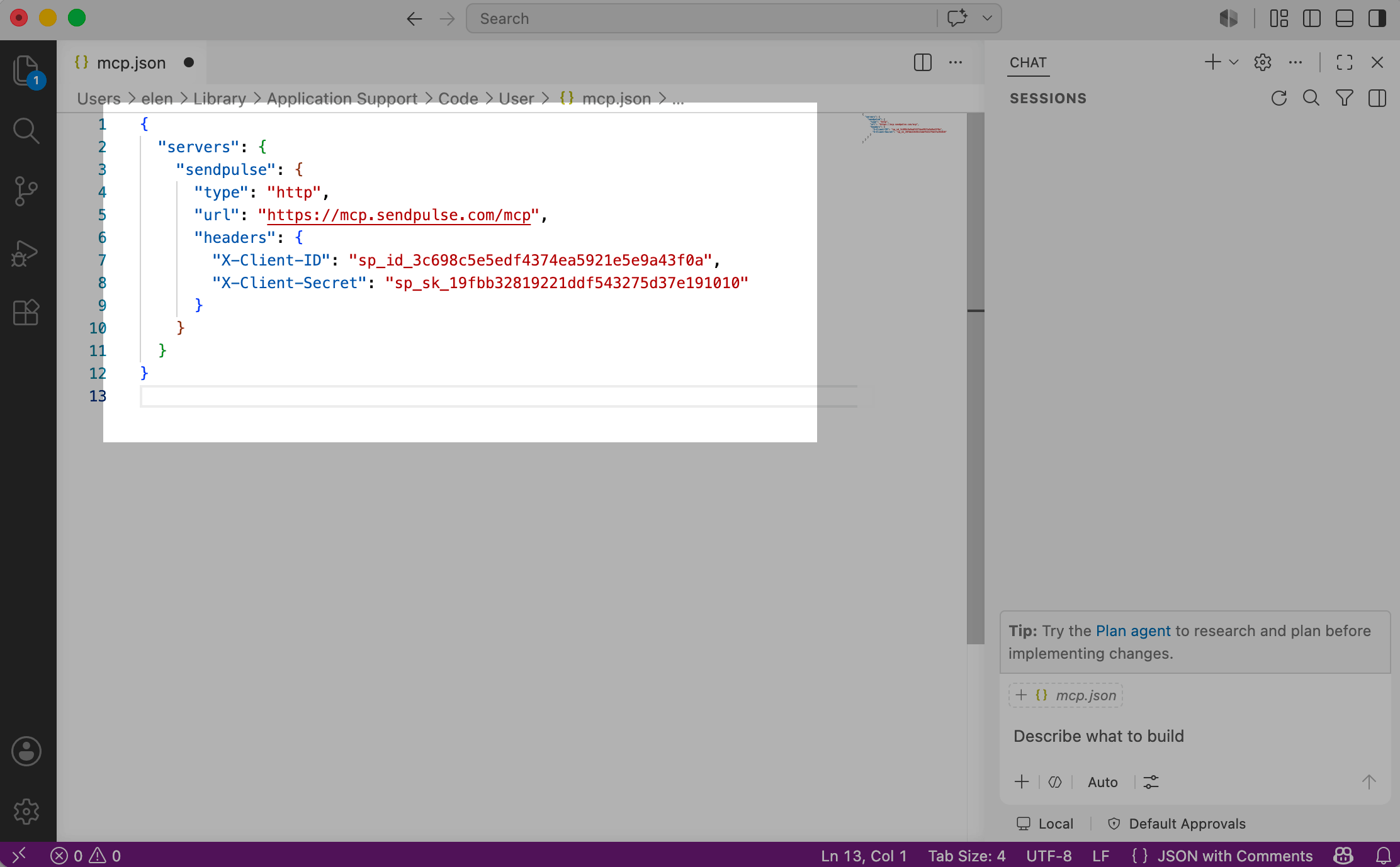
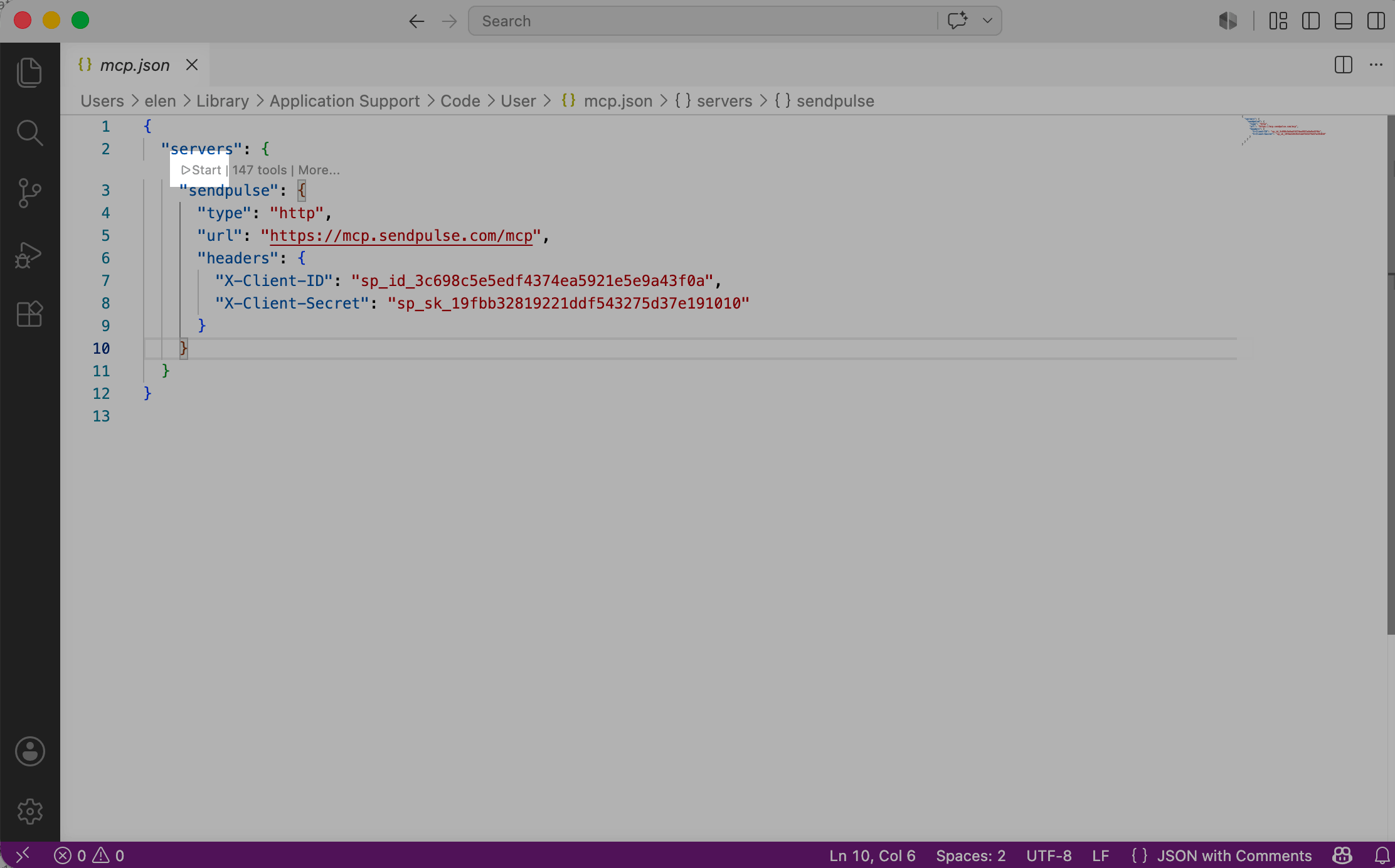
Once you paste the code, save the file and click Start.
Run actions through MCP
Before proceeding, make sure you have the GitHub Copilot Chat extension installed and that you have logged in to your GitHub account.
Once you’ve connected the MCP server, you can send messages and take other actions in your SendPulse account using tools.
If the MCP server is connected, the +mcp.json configuration file will appear in the chat. You can also click Configuration tools in the chat. In the list that appears, find SendPulse MCP.
To start a chat, click the secondary sidebar in the upper corner.
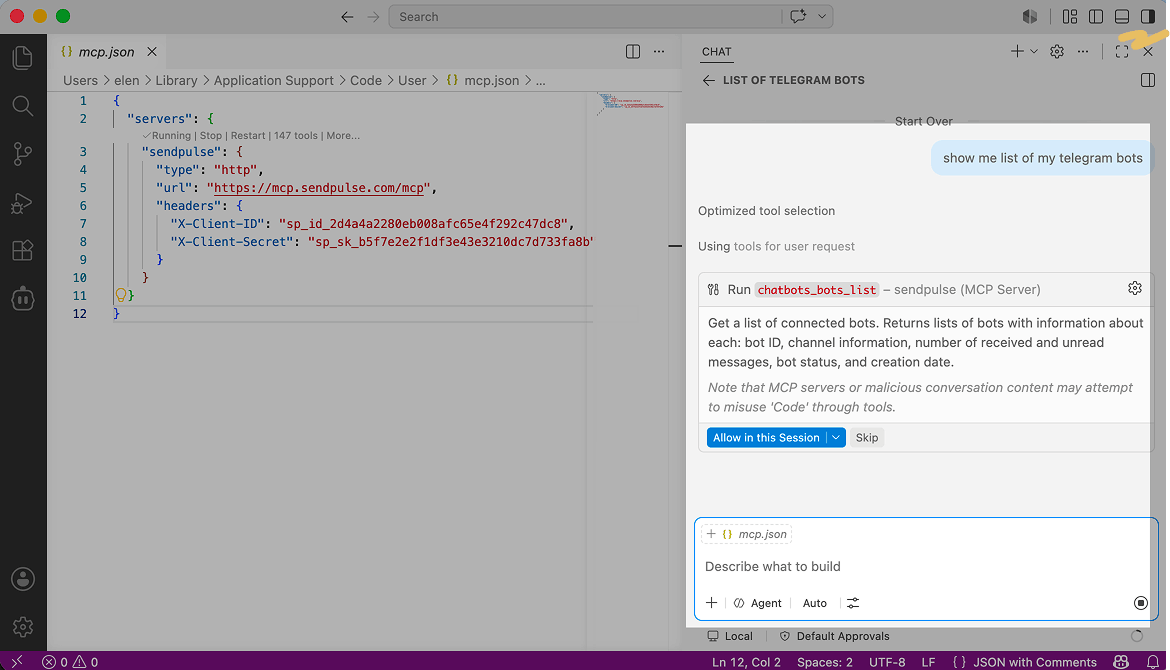
Enter your request using natural language. The AI assistant will then name the tool and give a description of what it plans to run. If the selected tool is appropriate, click Allow for this session to let it run the action in your account.
 Last Updated: 10.06.2026





or