Integrate Google Gemini with SendPulse tools
Integrate with Google Gemini to use AI text generation models in your SendPulse account and make them available across supported tools.
Let’s talk about how to integrate your SendPulse account with Google Gemini.
Create an account
Go to Google AI Studio. If you don’t have an account, click Create account and come up with a username and password. Enter your email address and phone number for verification. Confirm account creation and accept Google’s privacy policy.
If you already have a Google account, sign in using your email address or phone number.
Copy the API key
Once you sign in, go to Dashboard, select API keys, and click Create API key.
In the modal window, enter a key name and choose a project to store the key. Click Create key. After the page refreshes, find your API key and click the Copy API key icon next to it.
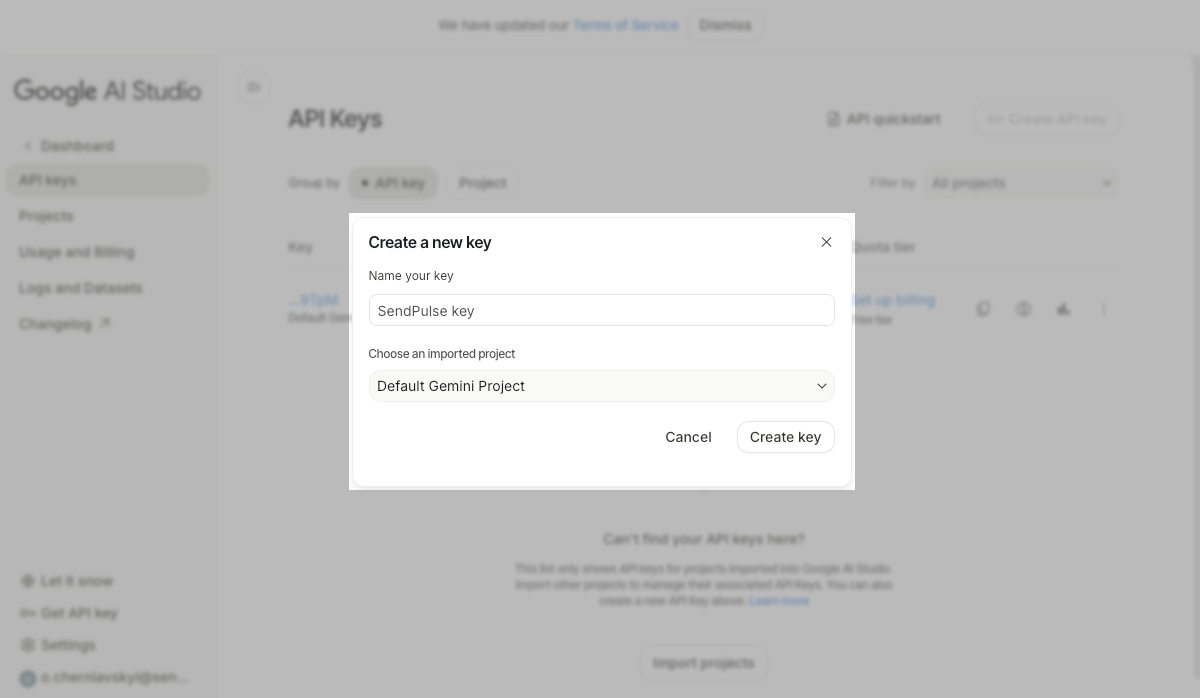
To view token usage history, go to Dashboard > Usage and Billing and open the Usage tab. You can view the full history or filter it by date or team member.
You can create multiple API keys for different projects to manage team access and improve data security. The account owner can generate keys for all projects. You don’t need to create separate projects because all data points are stored in the Default project by default.
Insert the key into SendPulse
Go to Account settings > API. In Integrations, select Gemini and click Add token. In the pop-up window, enter your API key and click Save.
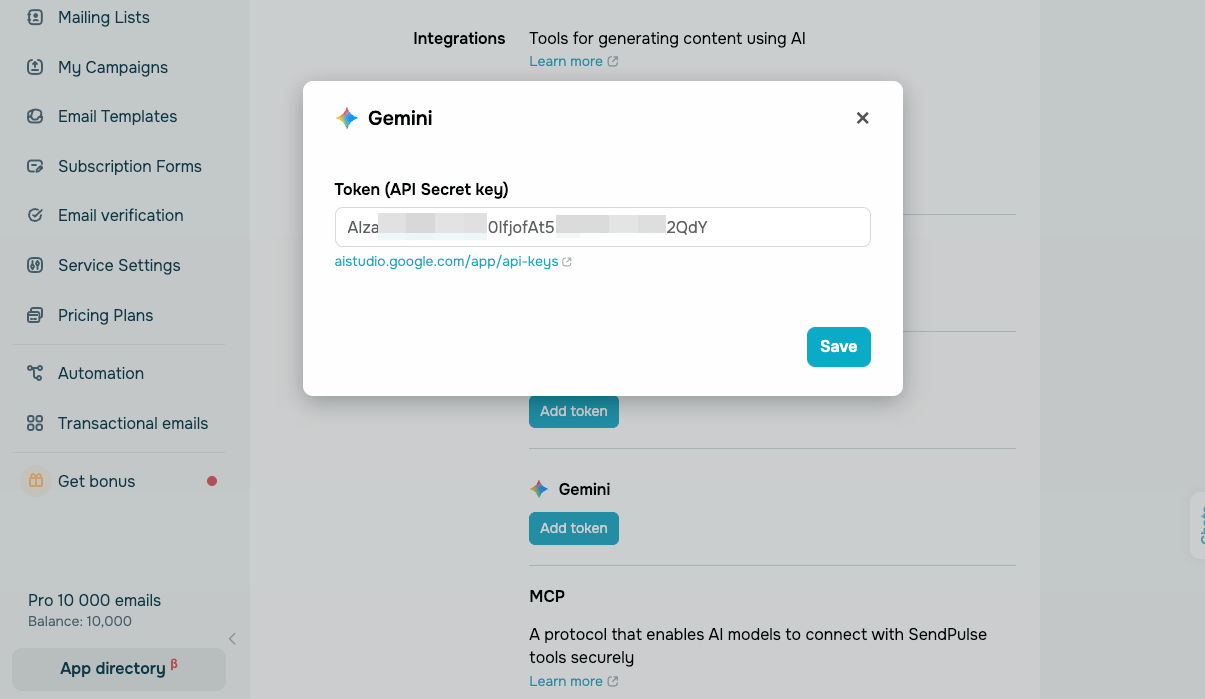
After connecting your account, you can use models in SendPulse tools.
 Last Updated: 07.01.2026





or