View courses and key course data
Your course page brings together everything you need to track and manage your program — from lessons and student progress to reviews, assignments, and instructor activity. All the key data is organized in tabs, so you can quickly find the information you need and take action.
In this article, we’ll show you how to view your course list, open a course, and work with each section.
View courses list
Go to the Courses section > the Academies tab.
To filter courses by academy, select an academy from the dropdown list.
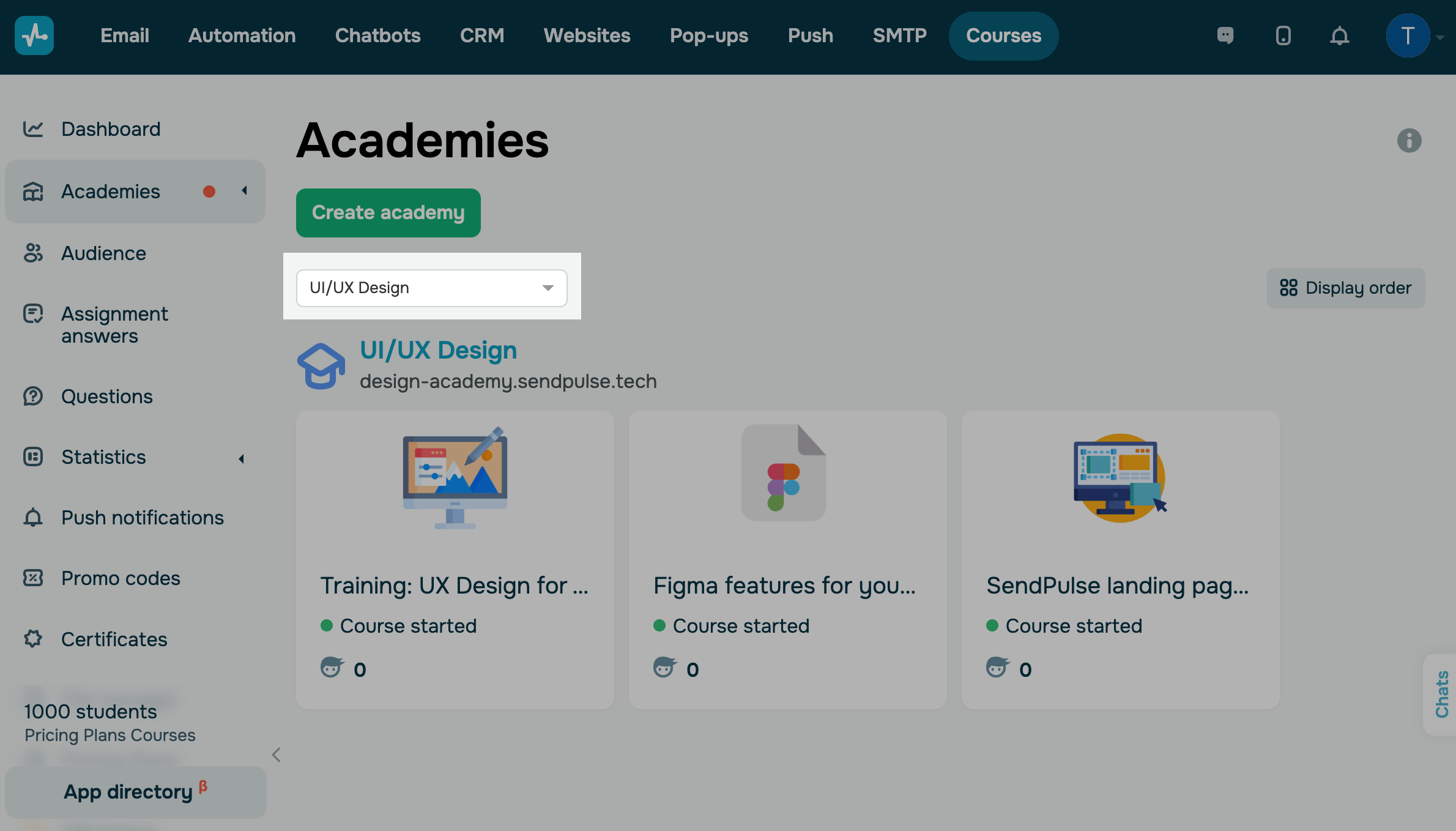
To view and edit information about each course individually, click the required course.
View your key course data
You can view your key course data in the Lessons, Students, Assignment answers, Reviews, and History tabs.
You can restrict students’ access to questions and course content on specific pricing plans.
Lessons
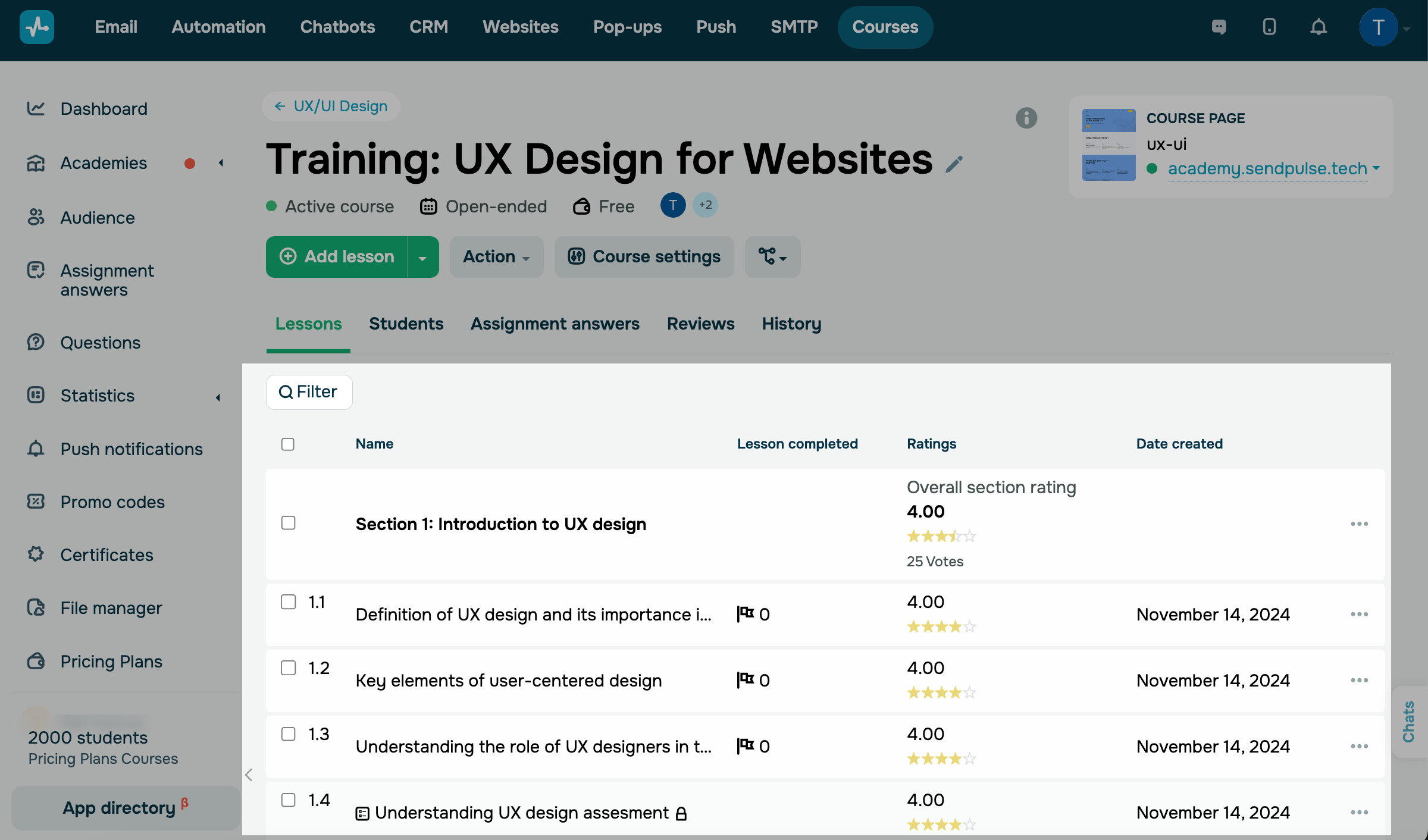
Go to the Lessons tab to see your entire course program: section titles, lessons, number of students who have completed them, lesson ratings, and date created.
To filter lessons by creation date, content type (test, lesson, section), rating, and availability, click Filter and select a criterion.
To go to the course builder, click the three dots icon next to any lesson, and select Edit. You can also update lesson availability, copy your lesson and course link, or delete your lesson.
Read also: How to create a lesson, How to manage course content, and Rating sections, lessons, and tests.
Students
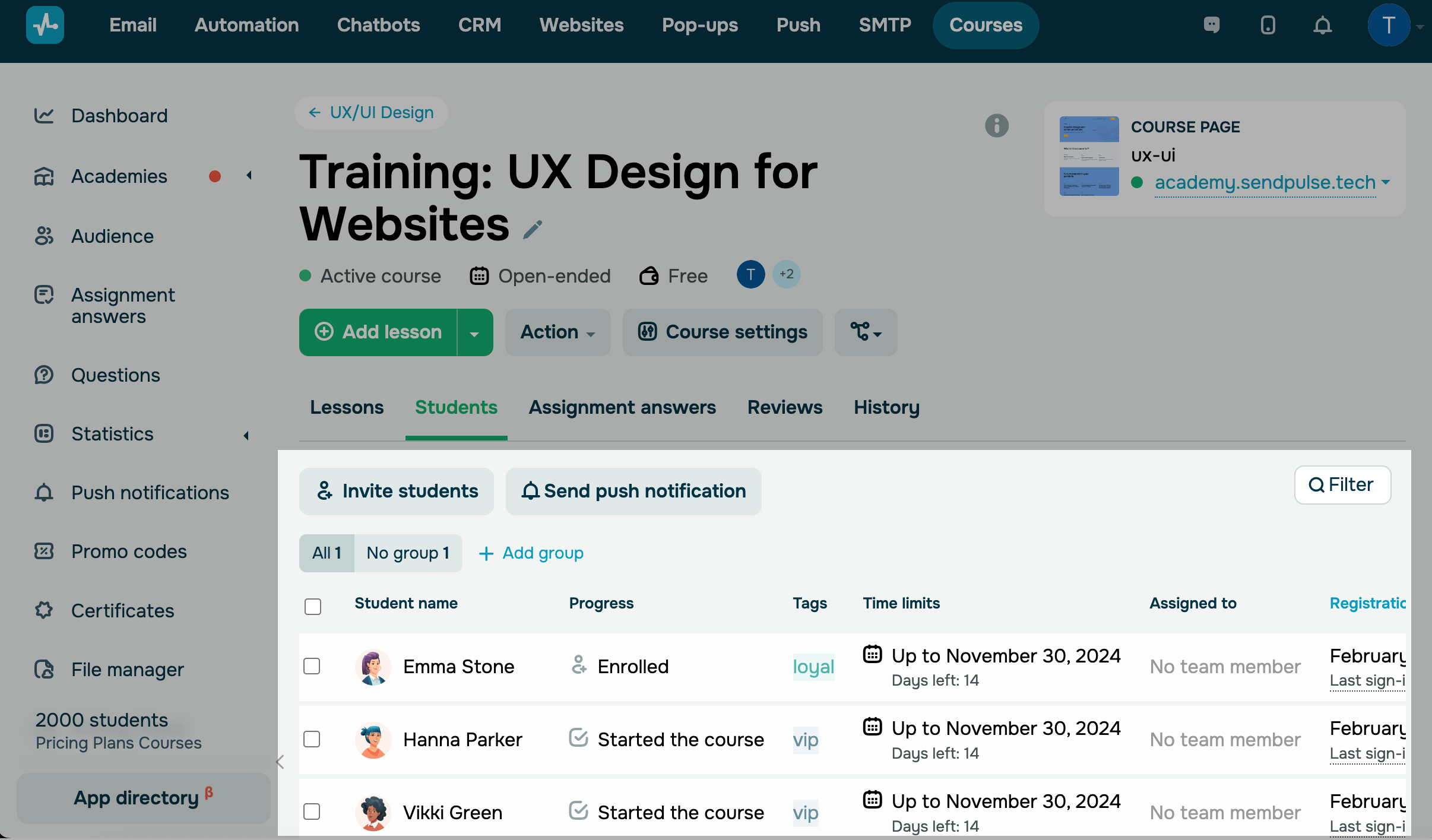
Go to the Students tab. In this section, there is a list of students enrolled in your course and their data (name, progress status, tags, scored test points, and last activity time and date). Use a filter to sort a specific group of students.
You can also enroll students in your course, send web push notifications, and create a student group.
Use a filter to sort a specific student group.
Read also: How to view student data.
Assignment answers
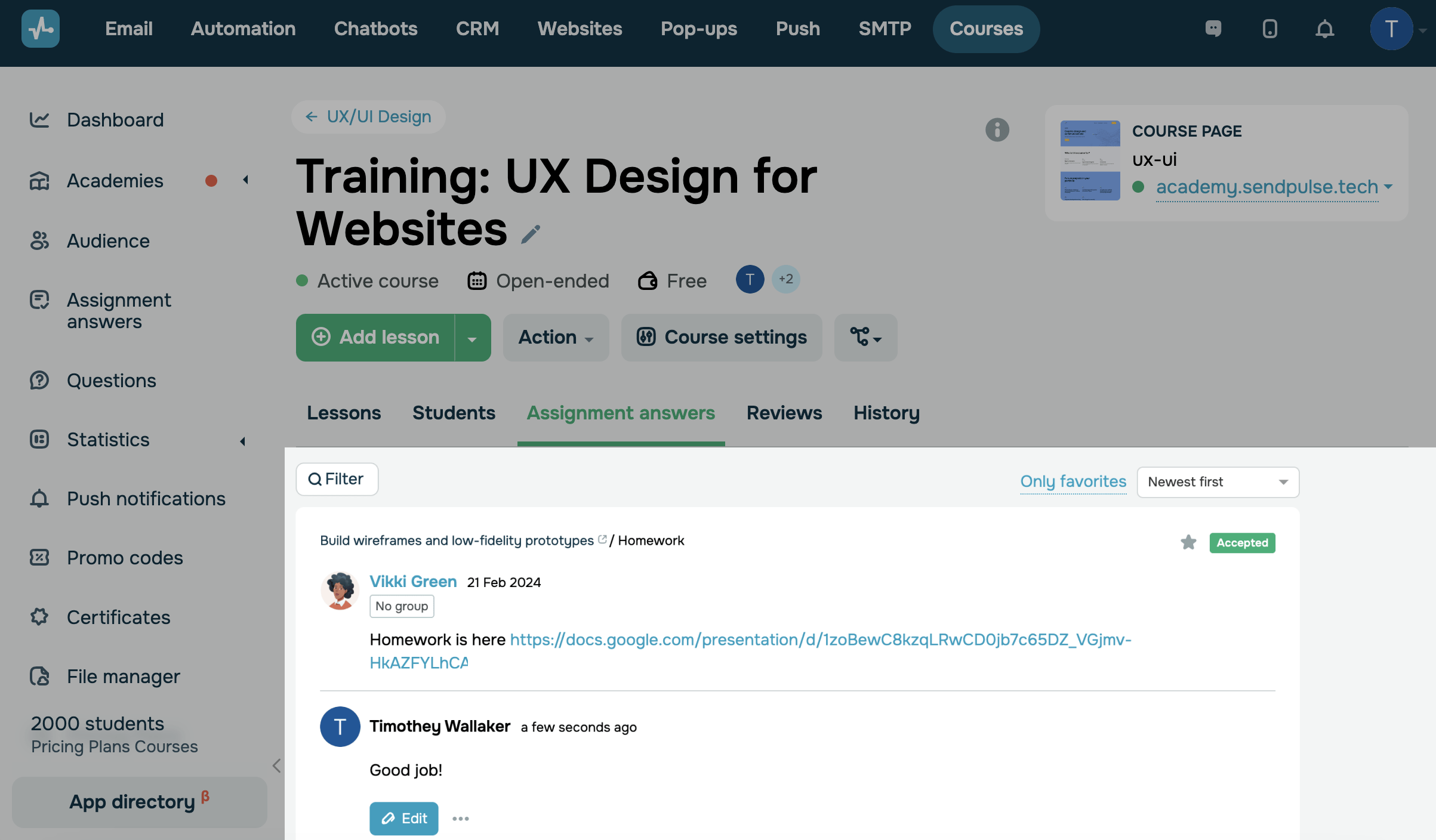
Go to the Assignment answers tab. Here, you will see the list of homework assignments that your students submitted and the instructors’ answers. Click Edit to edit an answer.
You can also delete an instructor's answer or add a homework assignment to your favorites. To do this, click the three dots icon, and select an action.
You can filter all answers by status (accepted or rejected) and lesson or select your favorites.
Read also: How to work with student assignments.
Reviews
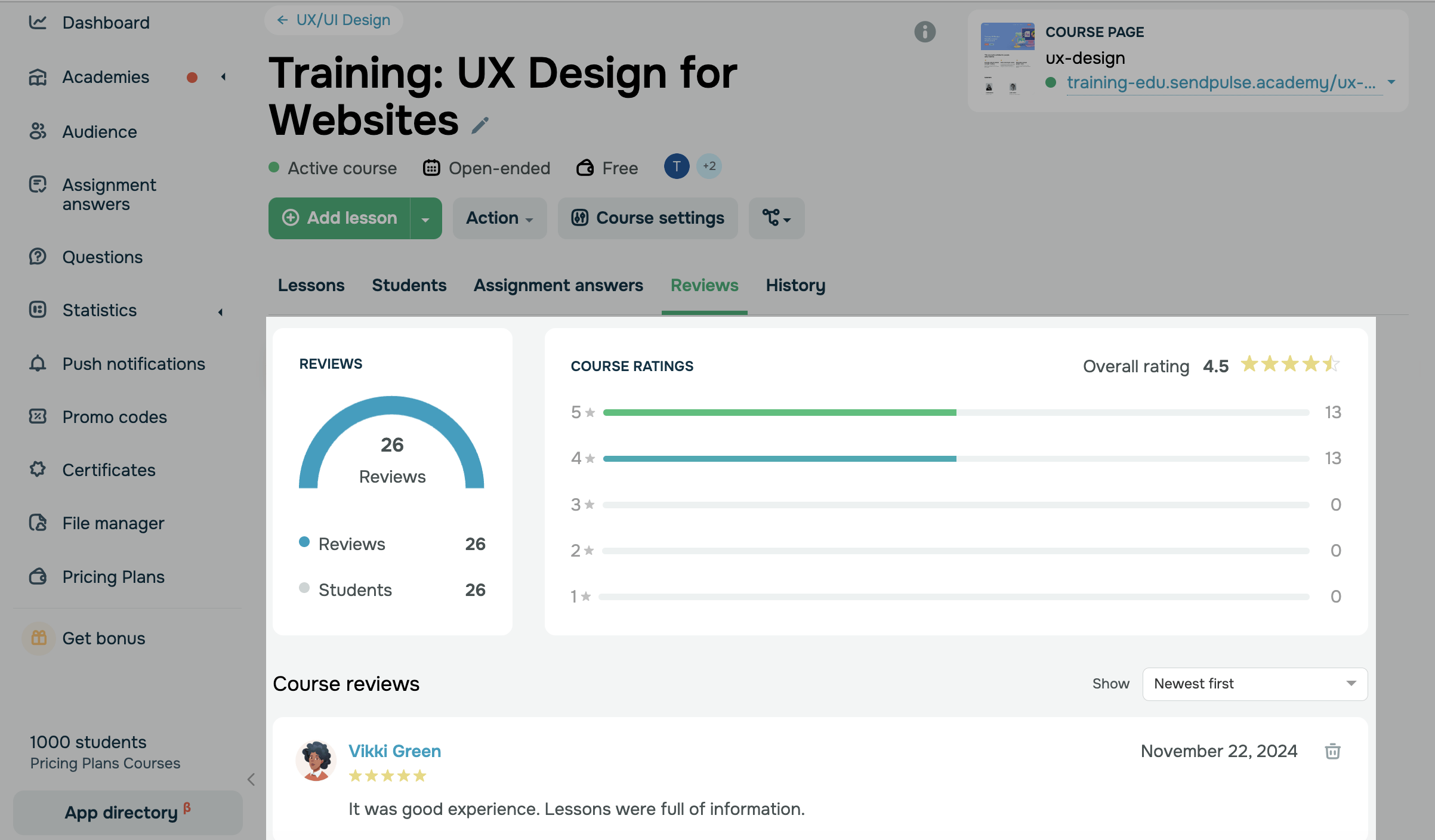
Go to the Reviews tab to see how students rate your course after completing it. There will be statistics on all reviews and a list of students who left reviews.
To let students share their reviews, enable this option in your course settings.
Read more: Overall review statistics.
History
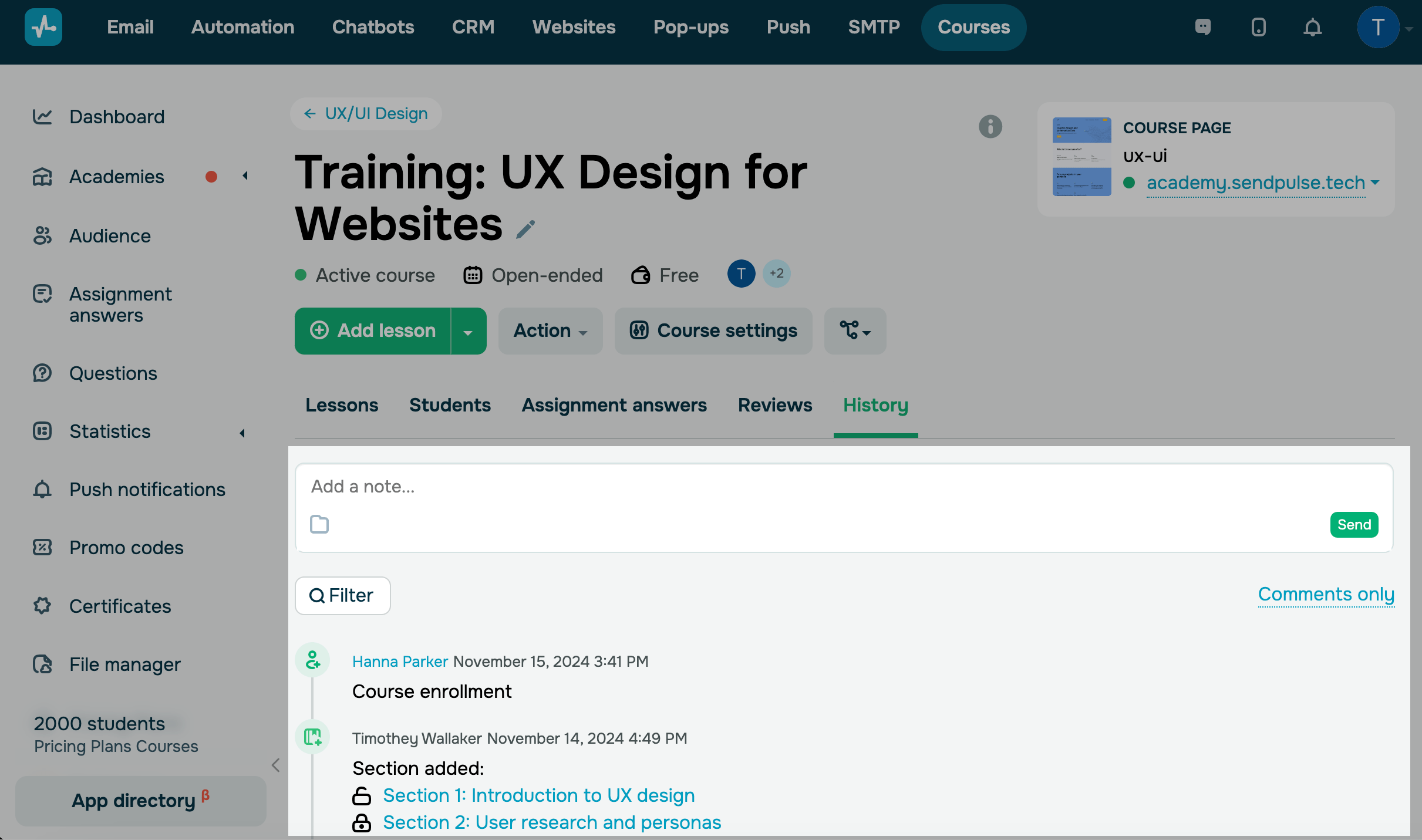
Go to the History tab. Here, you can track your team's course actions, including event date, instructor who made the changes, event type, and relevant data.
Instructors, the course owner, and users who have access to your courses can leave comments that help solve issues within their team.
Read more: How to work with course history and comments.
 Last Updated: 19.05.2025





or