Unblock in a group or channel in the Action element
The Unblock in a group or channel action unblocks a subscriber in the selected Telegram group or channel when they reach this step in the flow. Use it to restore access automatically when subscribers renew a subscription, confirm a payment, or complete a target action.
You can unblock a member only in groups and channels where your chatbot is an admin.
Let's walk you through how to set up the Unblock in a group or channel action.
Add the Action element
Drag the Action element to the workspace. In the settings that appear, select Unblock in a group or channel.
Select a group or channel from the list.
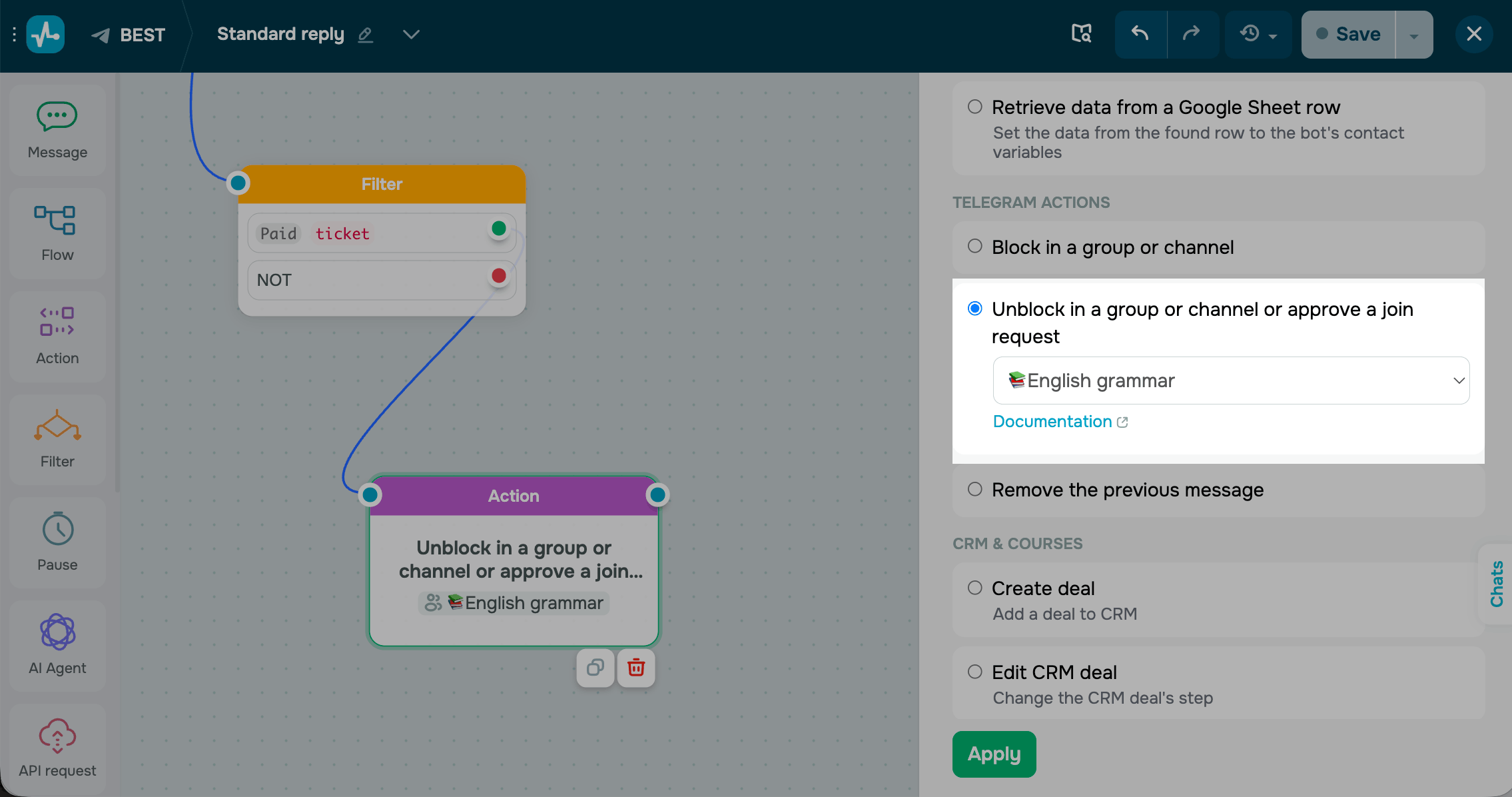
Save the element
Click Apply. The element is now ready and will unblock the subscriber in the selected group or channel every time they reach this step.
We recommend adding the Message element with a share or invite link after the Unblock in a group or channel action. This helps your subscriber rejoin the group or channel after being unblocked.
Unblocking behavior depends on the group or channel type. To learn more about unblocking in private and public groups and channels, see Block or unblock a Telegram group or channel member.
 Last Updated: 01.05.2026




or