Set test options
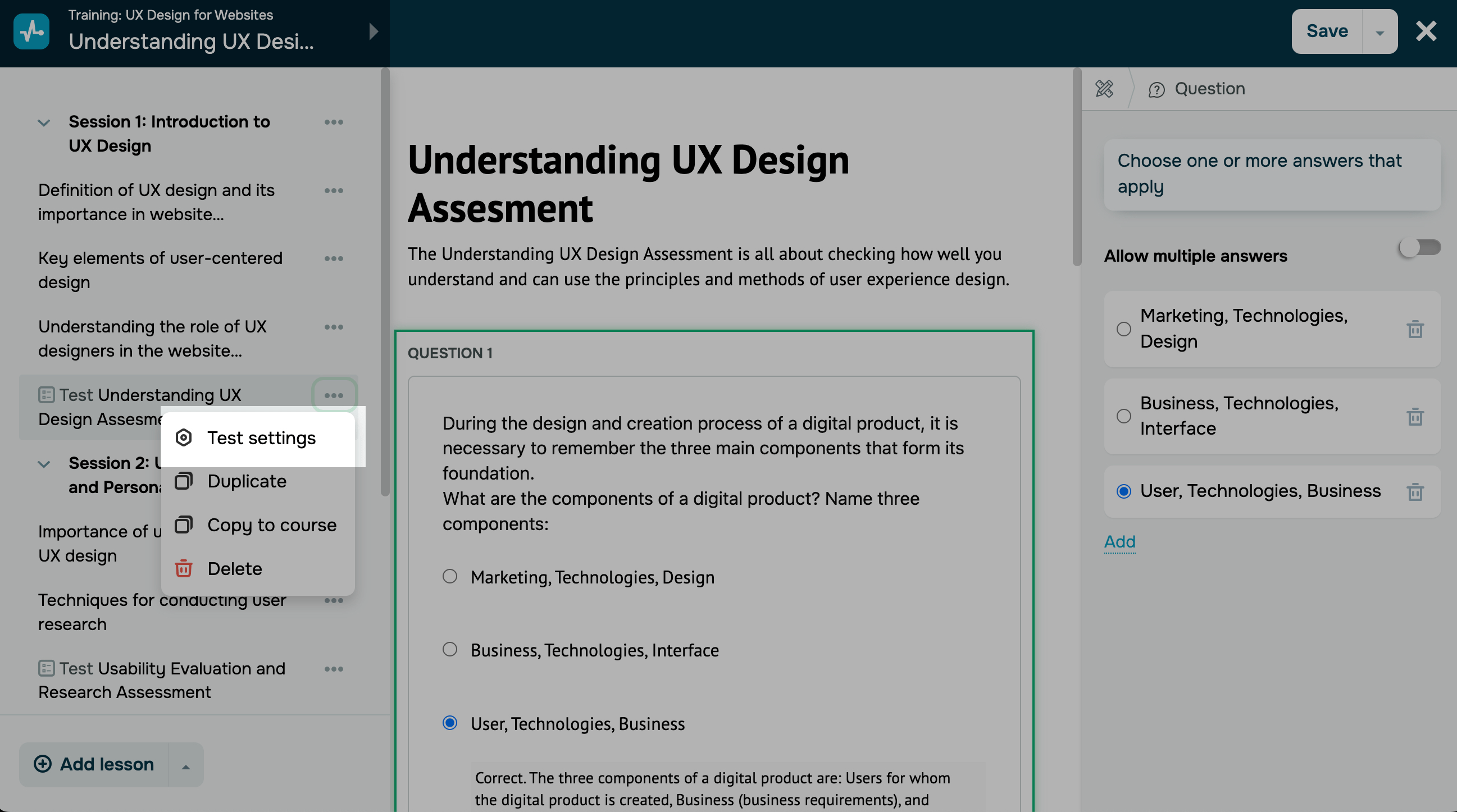
Go to the course builder, сlick on the top left panel to expand the list of lessons, and select Test settings from the drop-down menu of the desired lesson.
Test access options
Let's talk about how to update access settings and make a test visible to students.
If you add a new lesson to a running course, its access will be automatically set to Closed. To make your lesson available, go to its settings.
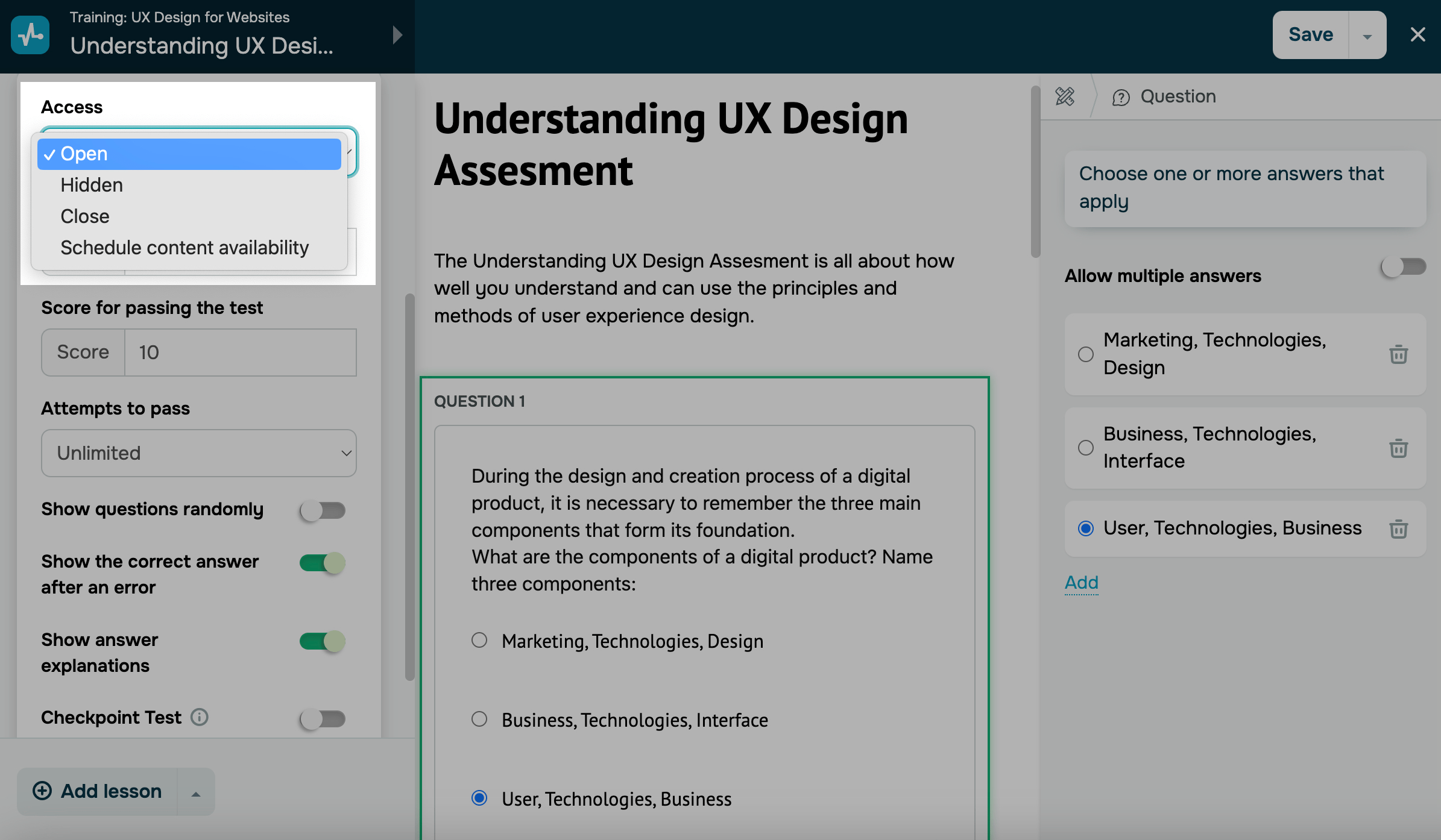
In the Access field, select a test availability option:
| Open | If your course is non-sequential, students will be able to take the test right away. If it is sequential, they will need to reach the required course section to take the test. |
| Hidden | Students cannot take the test. However, instructors can view and edit it in the course builder and instructor accounts. The test will not impact students' course completion and scoring. |
| Close | Students cannot take the test. It will appear with the Close status in your course program, unlike tests with the Hidden status. |
| Schedule an opening | Students can take the test on a scheduled date and time. |
You can select from the following scheduling options:
| On a date | The test will be available on a selected date and time.
Select a date, time, and timezone. If you select a past date, your lesson or test will be marked as |
| In | The test will be available after the previous test launch.
Enter the number of days for which the system should wait after the previous test launch to make your next test available. This option is available only if you have scheduled your previous test. |
Test results affect students’ certification according to your selected course criteria (Complete all lessons and pass the tests and Pass the tests).
If you select one of these criteria in the settings, make sure that all your tests are available — otherwise, students won’t see them and won’t be able to complete your course.
Scheduled test opening will appear in the Calendar tab of instructor and student accounts with paid pricing plans.
Scores and passing criteria
Let's talk about how to set up passing criteria for students.
You can select the following options:
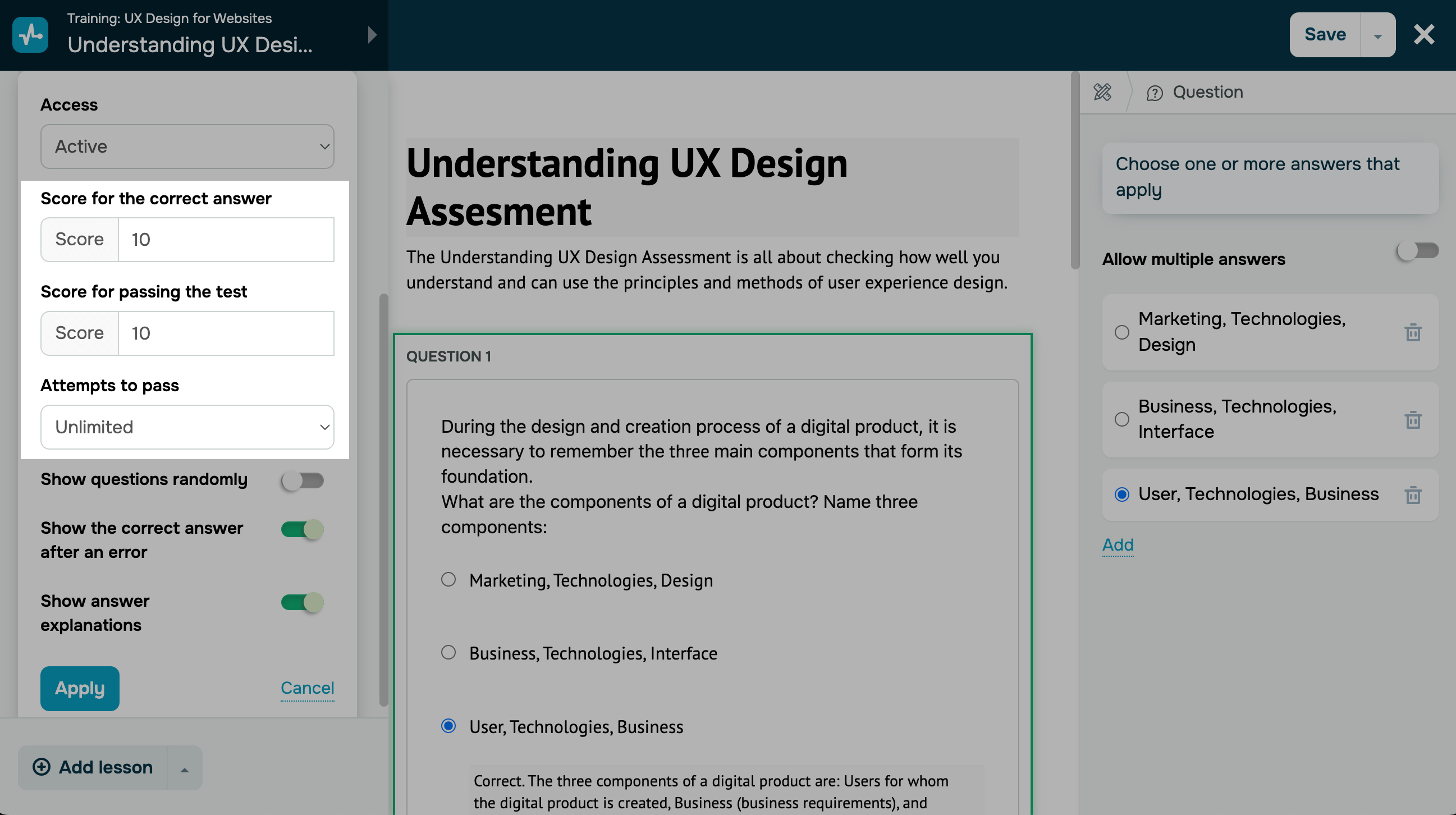
| Score for the correct answer |
Specify the number of points attributed to students for selecting correct answers to test questions. If you set several correct answer options, and a user does not select all of them, no points will be attributed to them. |
| Score for passing the test | Specify how many points a student must score to pass the test. Your indicated value should not exceed the maximum number of points for all test questions in total.
Students will need to complete every test with the minimum passing score to receive a course certificate if you select the Complete all lessons and pass the tests or Pass the tests completion criteria in your course settings. |
| Attempts to pass | Select the number of attempts students can have to improve their test scores. You can set the number of attempts from 1 to Unlimited.
If you set it to |
Questions and hints
Let's talk about how to present answers to students.
You can select the following options:
| Display a certain number |
Used to control how many questions students see during a test. The maximum test score is calculated based on the number of questions shown, not the total number of questions in the test. Turn on the toggle and, in the field below, enter the number of questions that will be visible to students. If you also turn on the Show questions randomly toggle, each student will get their own random selection of questions. |
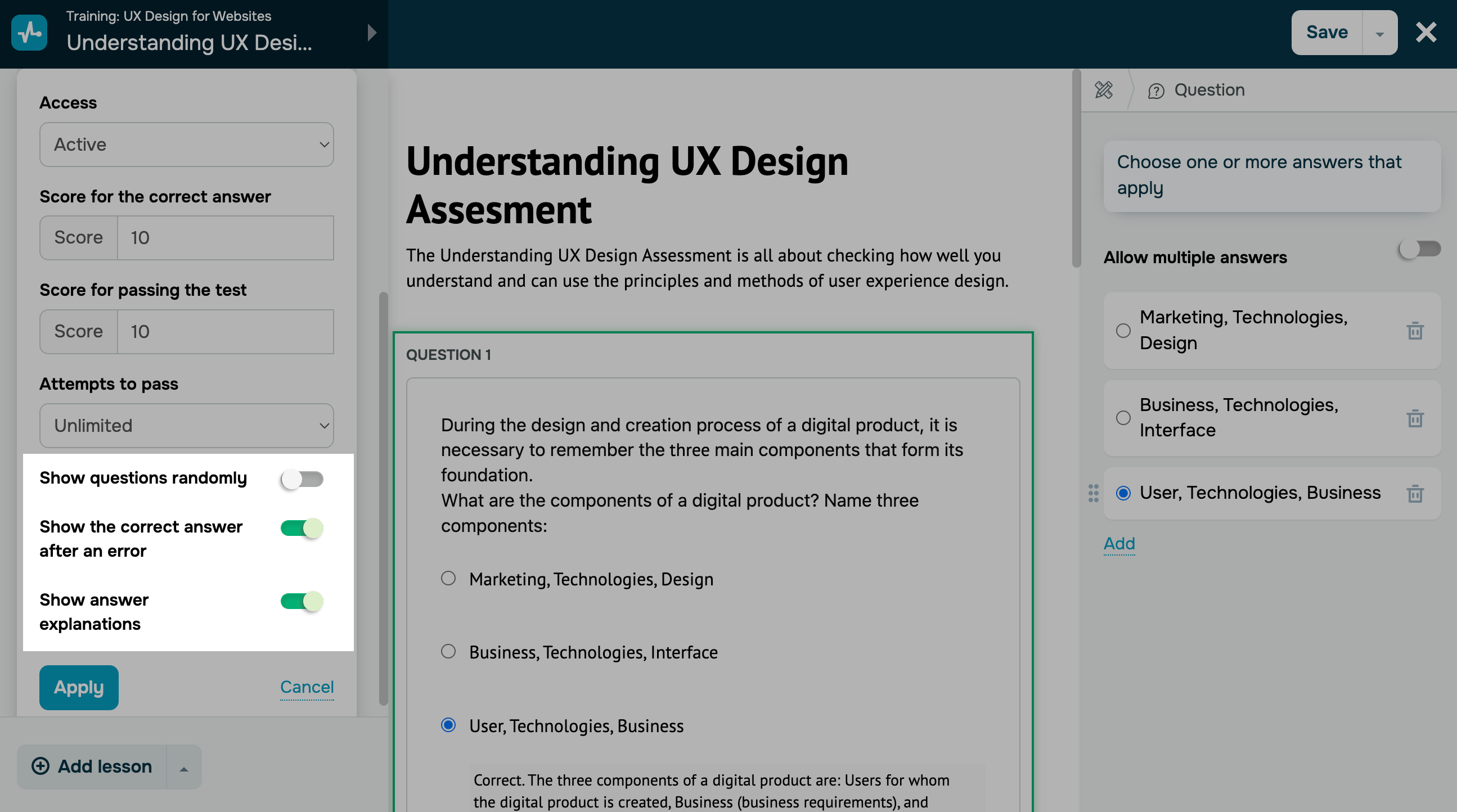
| Show questions randomly | Used to set the order in which students will see your test questions. If you want it to be random, enable the Show questions randomly option. |
| Show the correct answer after an error | Used to display the correct answer if a user has selected an incorrect one. |
| Show answer explanations | Used to provide explanations during a test. Once students select an incorrect answer, they will see a description of every correct answer, helping them reinforce their knowledge.
If you enable this option, you can also add a correct option hint. |
Checkpoint test
To ensure that students cannot proceed in your course until they pass a test with the required score, you can turn on the Checkpoint Test toggle.
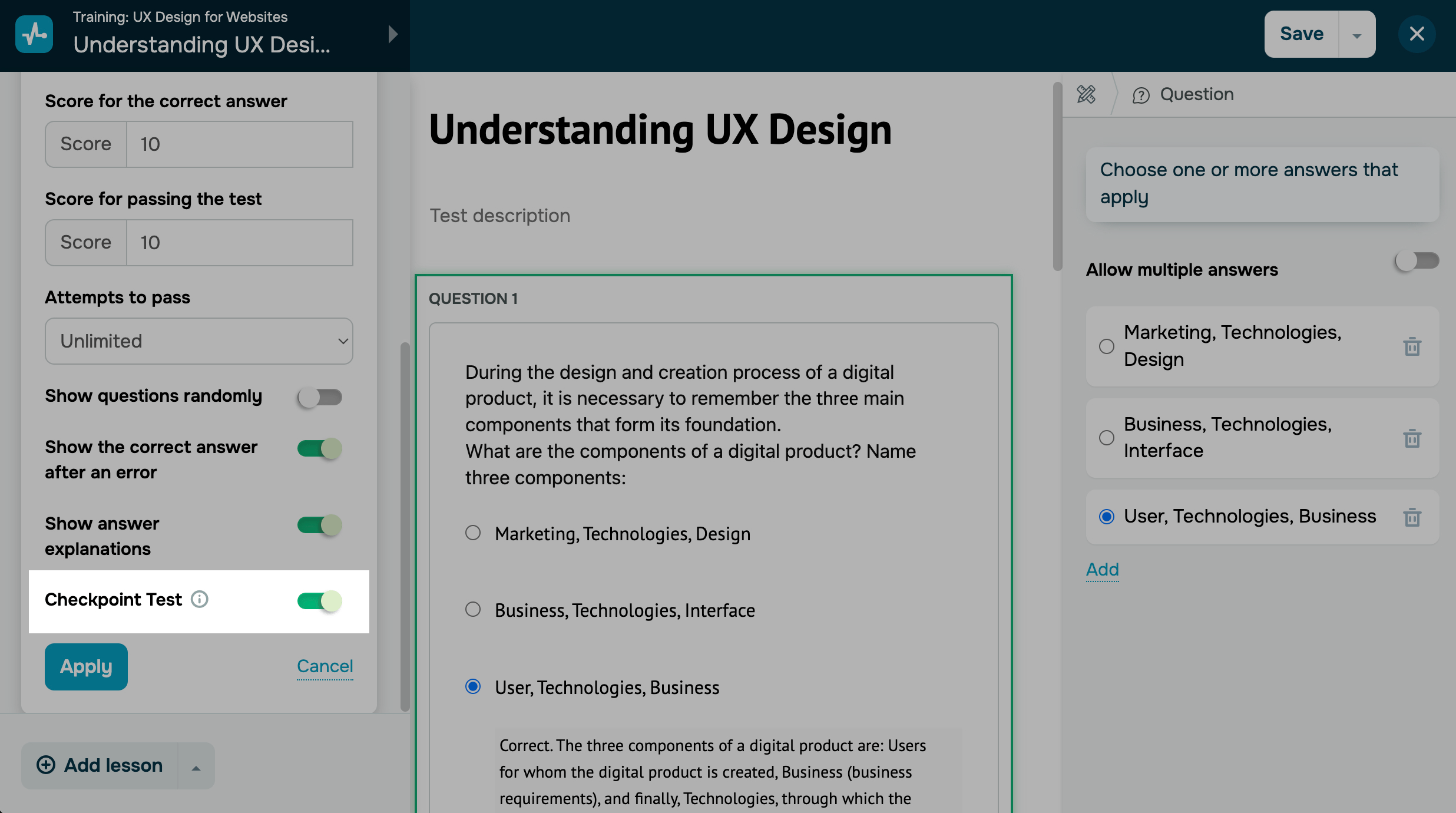
Once you configure all the required settings, click Apply.
 Last Updated: 17.12.2025





or