Integrate with AirCall
Integration with AirCall helps you handle inbound and outbound calls right in the CRM system. Once set up, you can automatically sync contacts between SendPulse and AirCall.
Integration features:
- Automatically sync contacts between SendPulse and AirCall.
- Create SendPulse tasks for missed calls.
- Show call history and recordings in client cards.
- Flexibly route incoming and outgoing calls among team members.
- Track which team member made the call and from which phone number.
In AirCall, you can manage call routing across your team and create CRM tasks to follow up on missed calls. All call history and recordings will be saved to client cards to give you a complete view of every interaction.
In this article, we’ll talk about how to install AirCall, create automated flows, and manage calls.
Create user seats in AirCall Workspace
To use the app, you’ll need to add user seats in AirCall Workspace for your CRM team members. At the time of integration, these users must have the Available status.
Read more in the AirCall documentation.
Add a phone number
Before you start, make sure you have an AirCall account and admin rights.
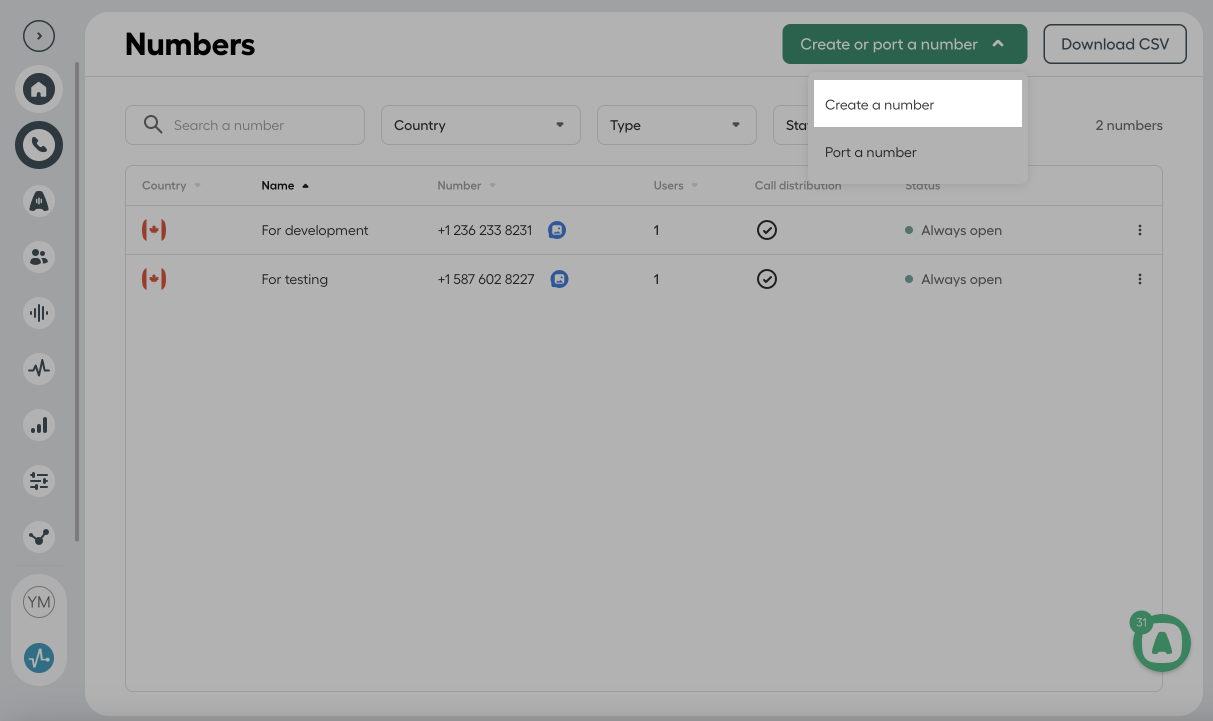
To add and verify a phone number in AirCall, log in to your account. On your AirCall Dashboard, go to the Numbers tab and click Create or port number > Create number.
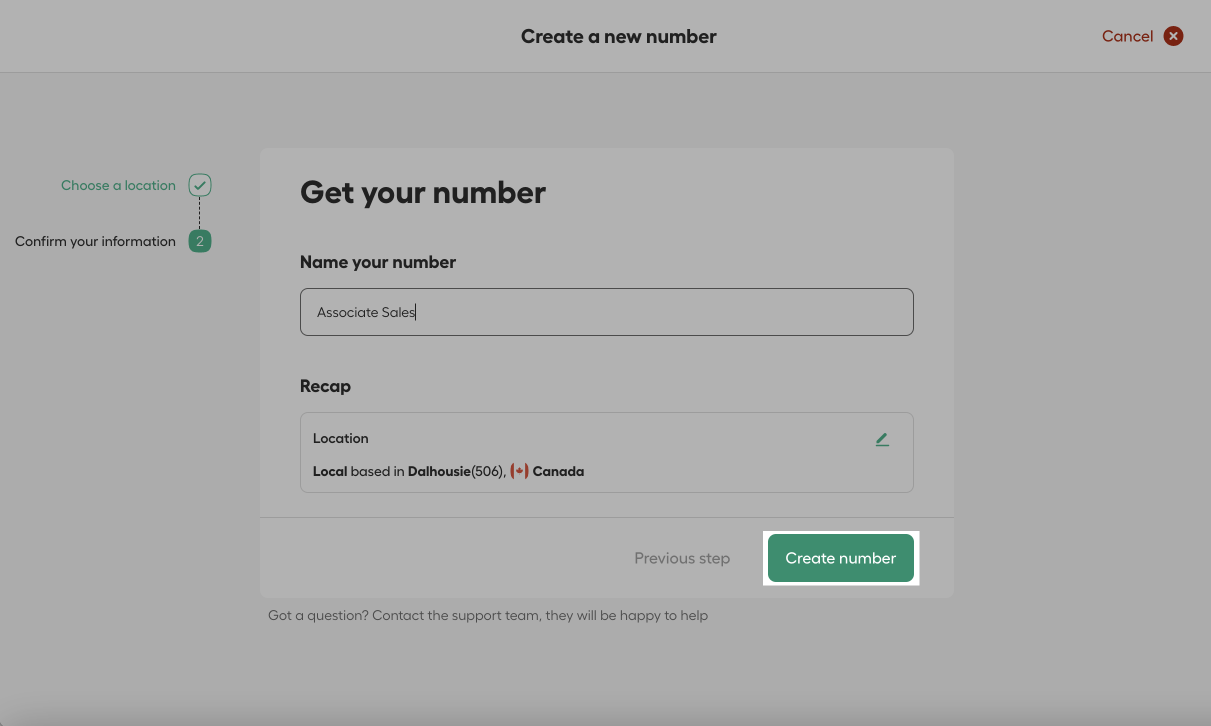
Select a phone number type and location, name it, then click Create number.
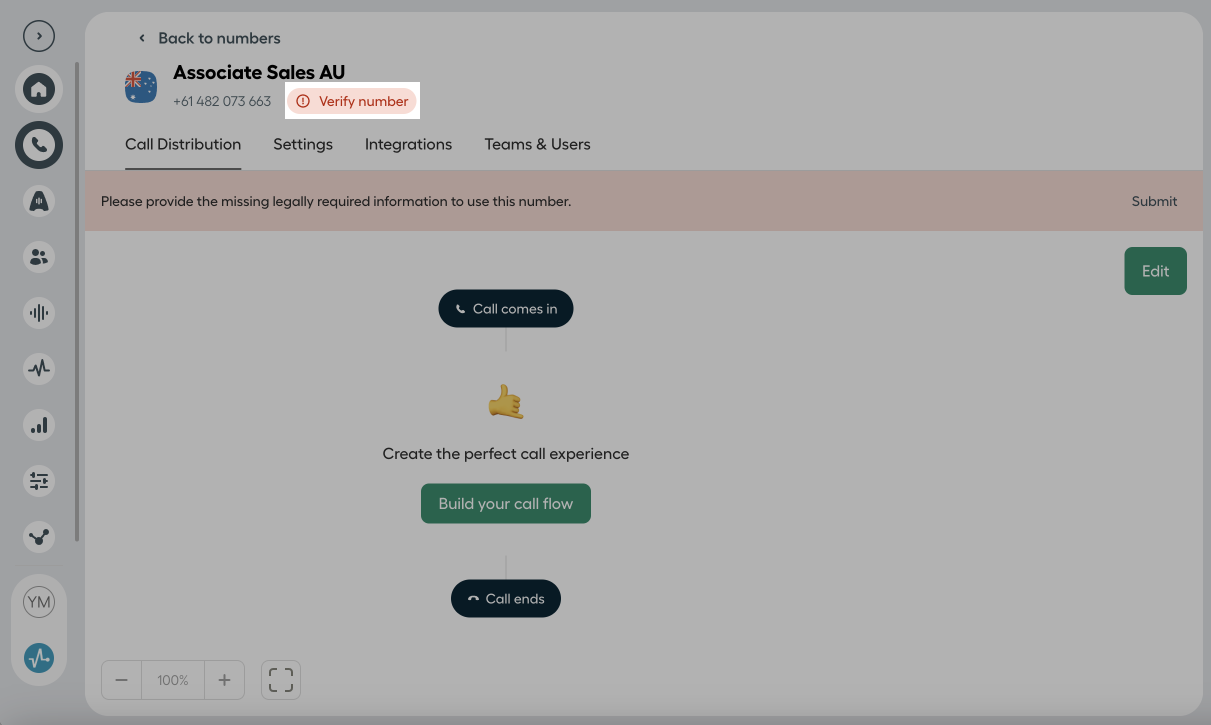
If your phone number needs verification, find it on the Numbers page, click Verify number, upload the required documents, and click Submit. Once it’s approved, your phone number will become active.
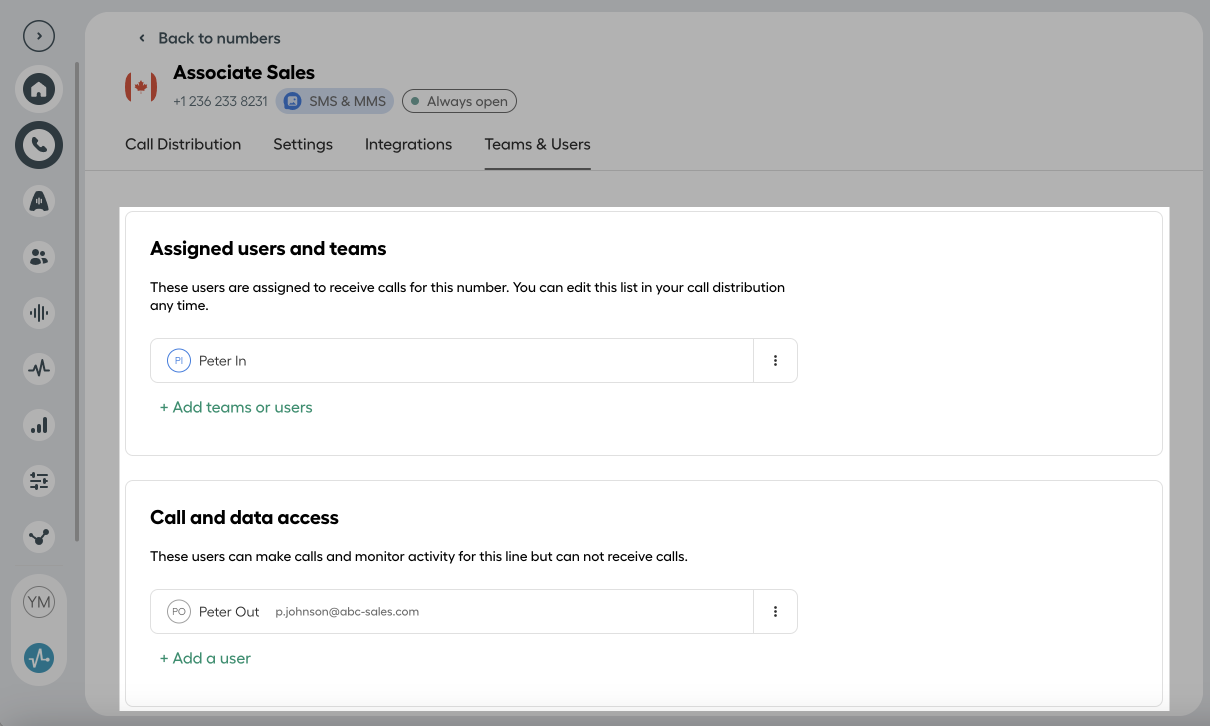
In your phone number settings, assign team members for inbound calls in Assigned users and teams and for outbound calls in Call and data access. These should be different users.
Add users
Create and activate users
To add a user, go to your AirCall Dashboard under Teams & Users and click Create one or multiple users > Create one user. Fill in their first name, last name, and email address, then choose a role.
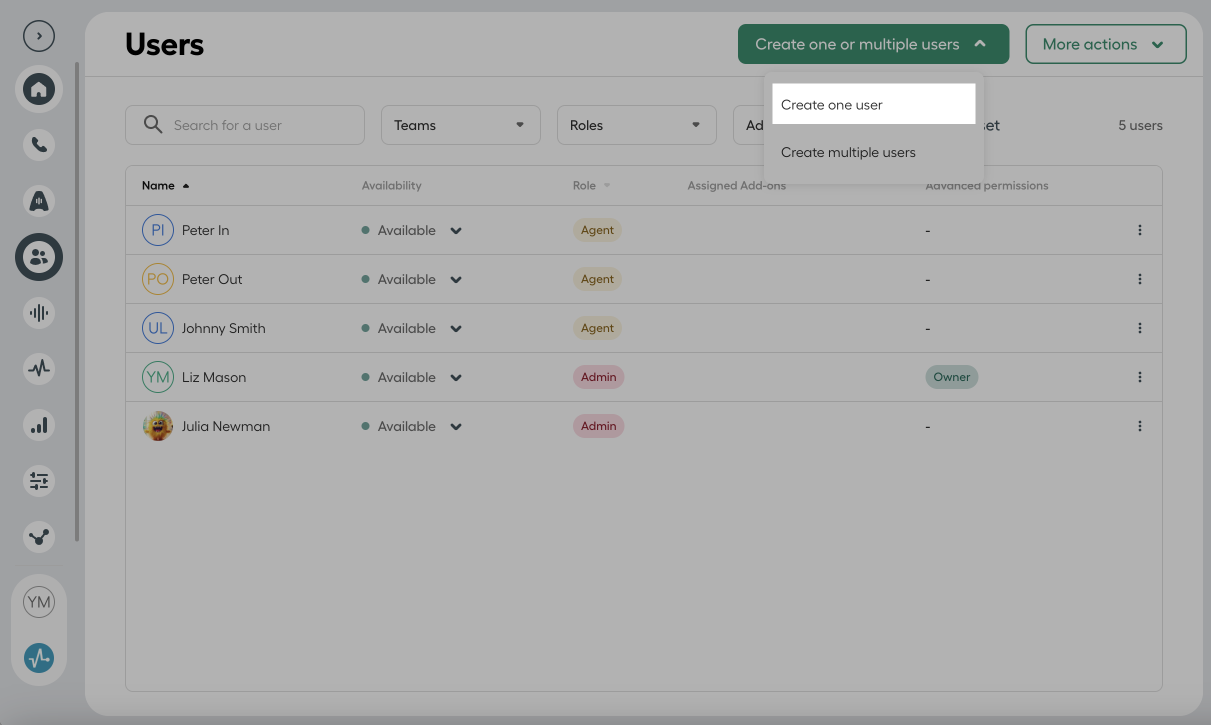
After creating the user, send them an invite. They’ll get an email to confirm their account.
Set user status to Available
To let a user take or make calls, make sure their status in Teams & Users is set to Available. If it isn’t, resend the invite or check their access rights in AirCall.
Install and configure AirCall in SendPulse
Install AirCall in the app directory
Go to SendPulse’s app directory > Apps, find AirCall, open its page, and click Install.
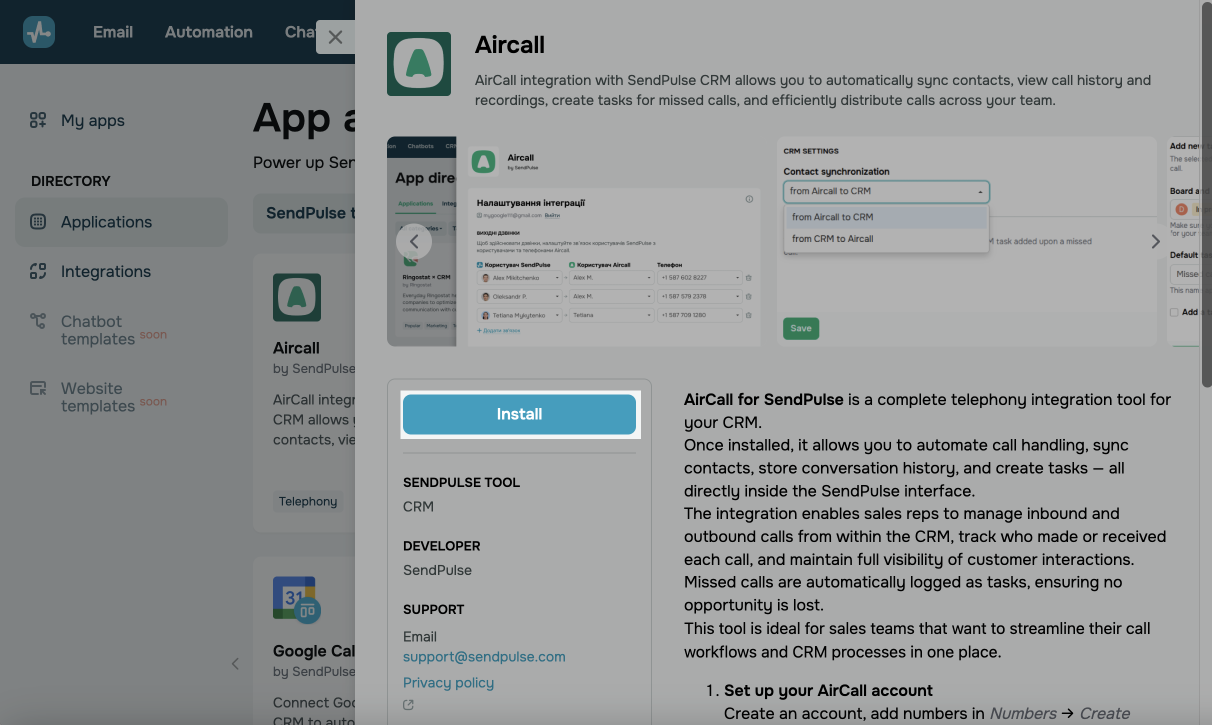
In the modal window, read which SendPulse data this app wants to access, and click Grant consent.
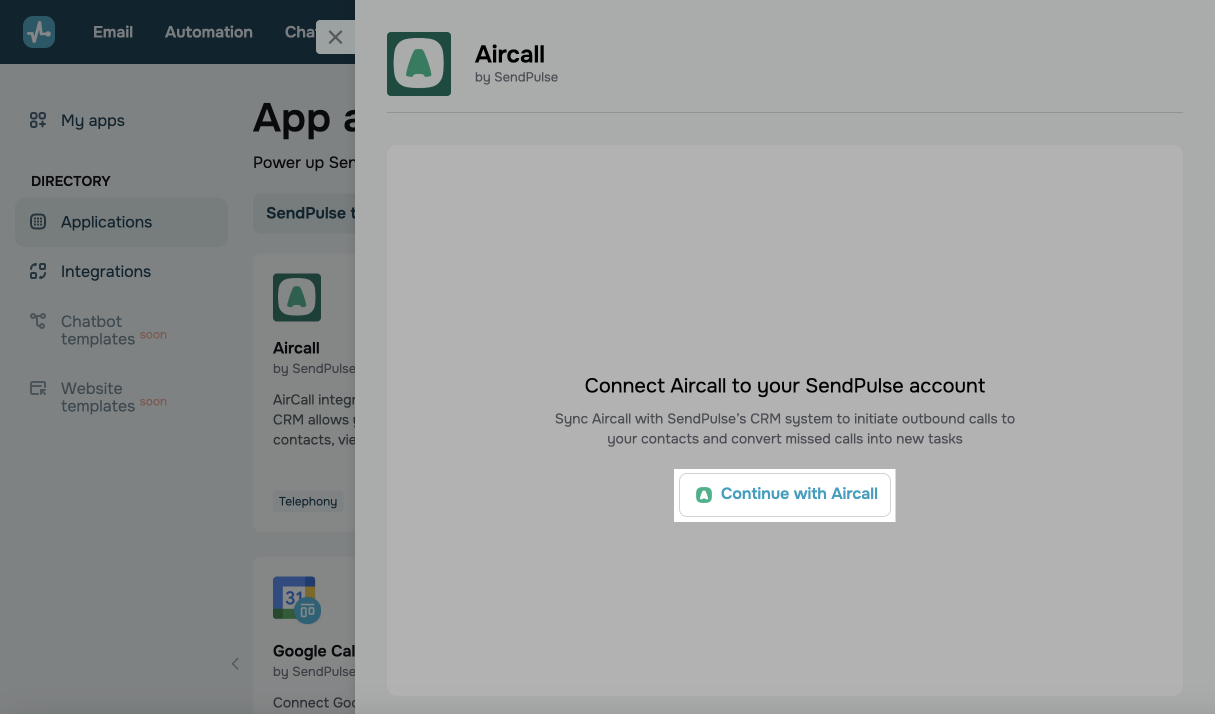
Log in to AirCall
After installing, sign in to your AirCall account using your credentials.
Use AirCall’s web version for outbound calls and its desktop or mobile app for inbound calls.
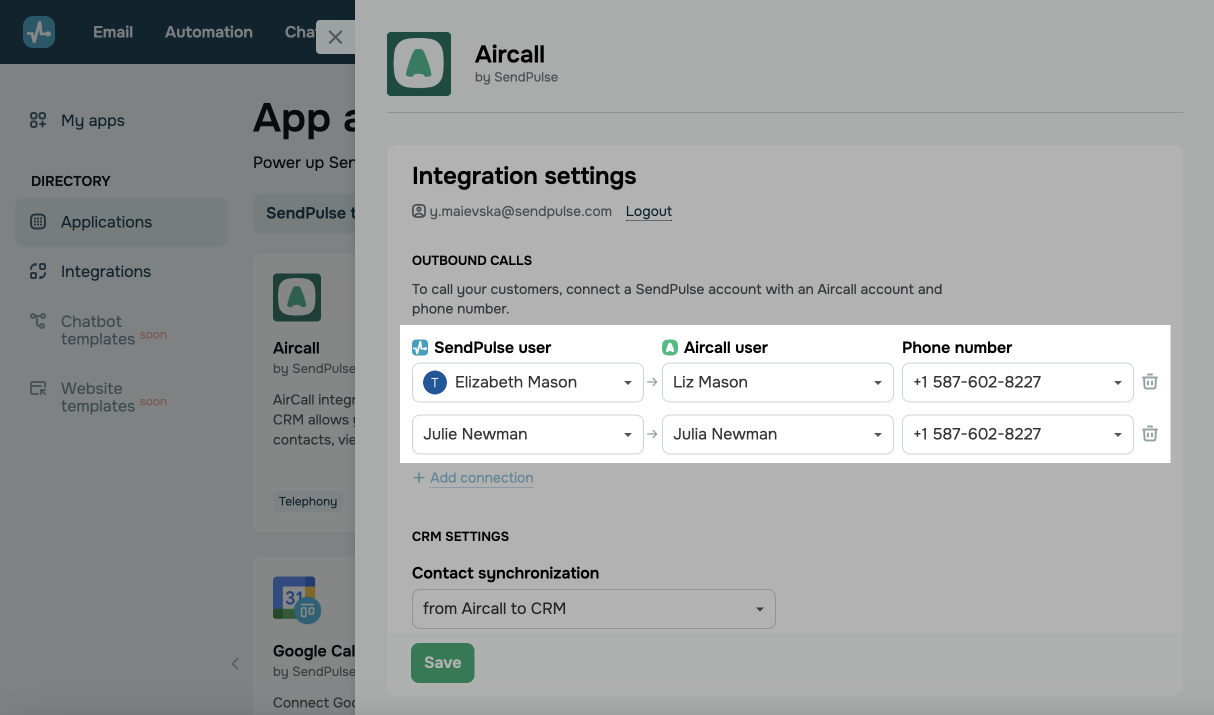
Map your users
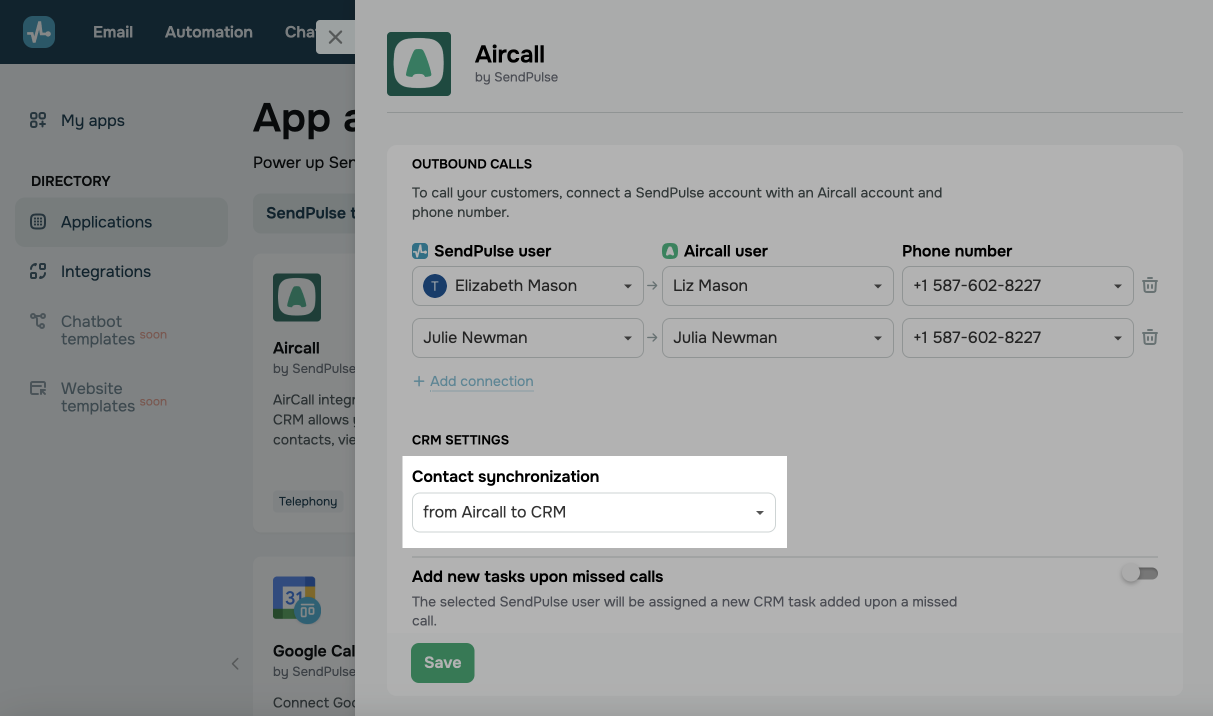
To let your team make or receive calls, pick matching members from the SendPulse user and AirCall user lists. Then, choose AirCall phone numbers that will handle calls.
Sync AirCall and SendPulse
In CRM settings, decide how to sync contacts: from AirCall to CRM or from CRM to AirCall.
Create CRM tasks for missed calls
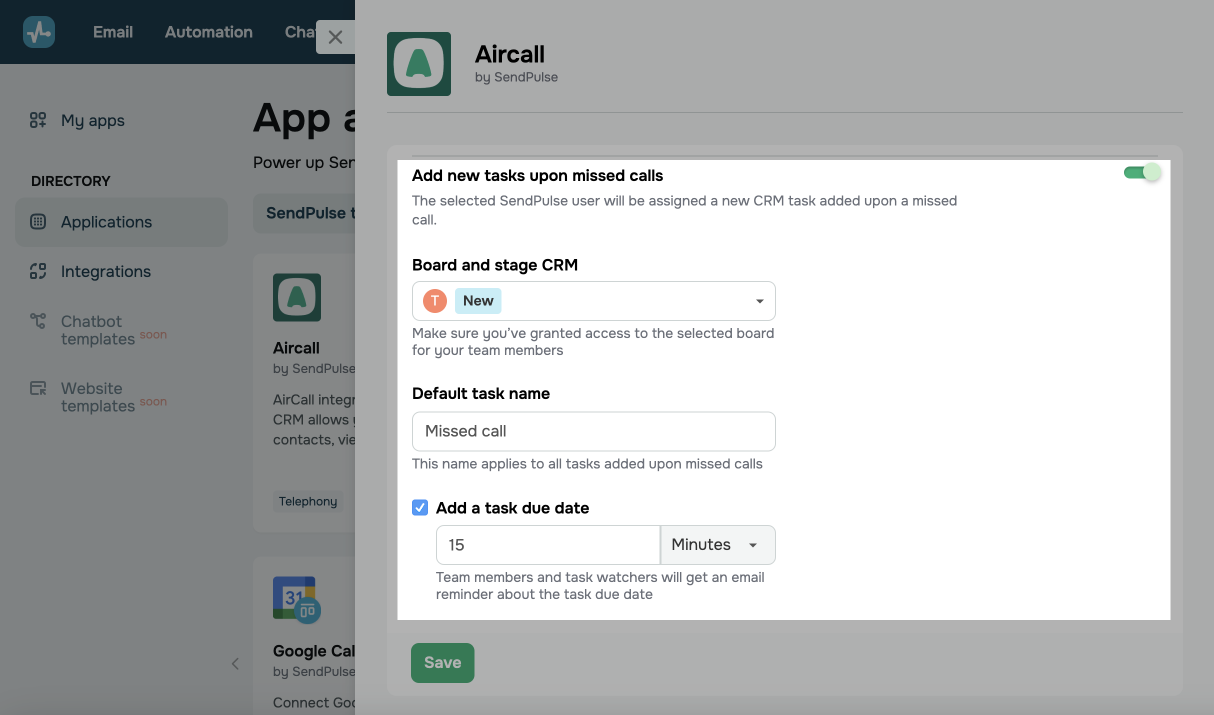
Turn on the Add a task upon missed call toggle, then configure the following:
| CRM board and stage | Choose a task board and stage to add new tasks. |
| Default task name | Enter a name for tasks created after a missed call. |
| Add a task due date | Turn this on and set a number of minutes until tasks are due. |
Use the integration
You can contact clients using the CRM system.
Read more: Use telephony in CRM.
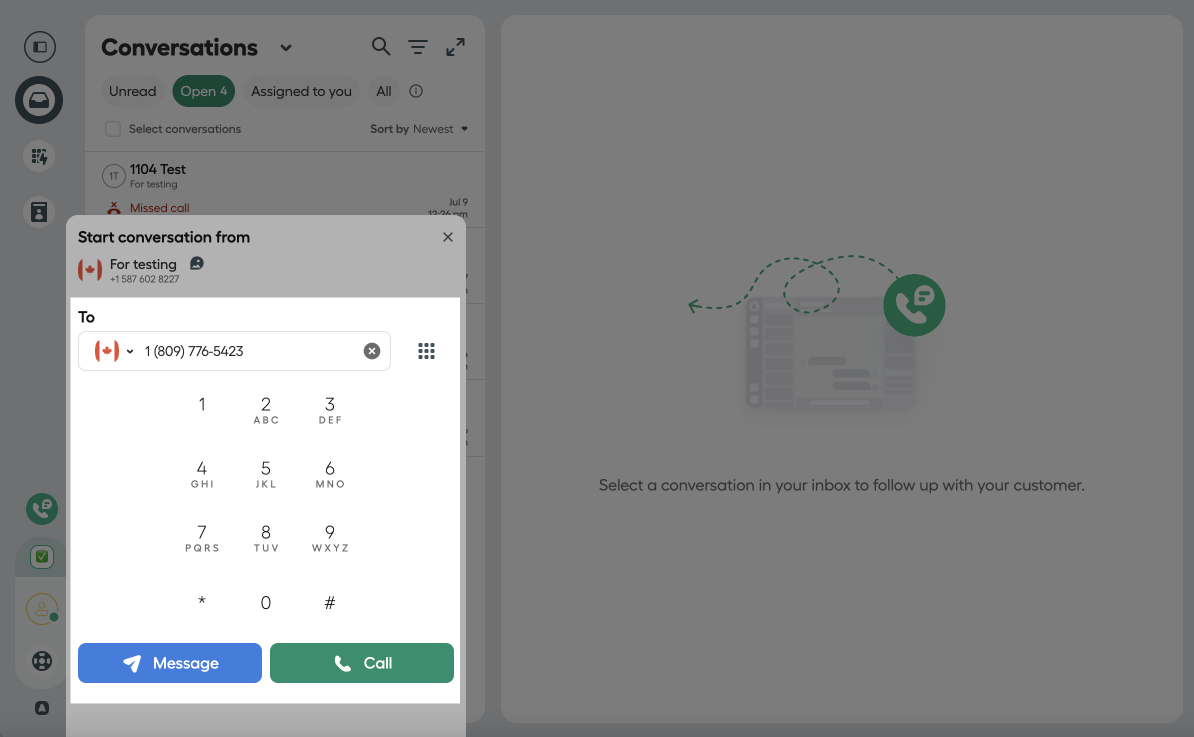
If you need to dial a phone number that is not in your CRM contacts, use AirCall Workspace.
Go to the app, click the keyboard icon in the middle of the lower panel, and enter the phone number.
Manage the integration
To manage your AirCall settings, go to App directory > Installed and open the integration.
You can edit task creation and UTM tag transfer settings. Once you adjust these settings, click Save.
To uninstall AirCall, click Uninstall. All automated flows you’ve created will be removed. Your previously transferred data will remain in your SendPulse account.
 Last Updated: 17.12.2025





or