Pop-ups basics
With the help of our pop-up builder, you can create smart pop-ups that are shown to visitors only as specified by certain scenarios to increase engagement and lead conversion.
To start adding pop-ups, you need to add a website where you will set them up. You can also connect sites created with SendPulse or add a website script to an external site.
Let's talk about how to add pop-ups to your website and view your interaction analytics.
Add a website
Go to the Pop-ups section and click Add website. You can add a pop-up to a site created with SendPulse or a third-party builder.
Adding a pop-up to a SendPulse-based site
Enter your website name and select a site developed with our site builder or landing page builder or when creating online courses.
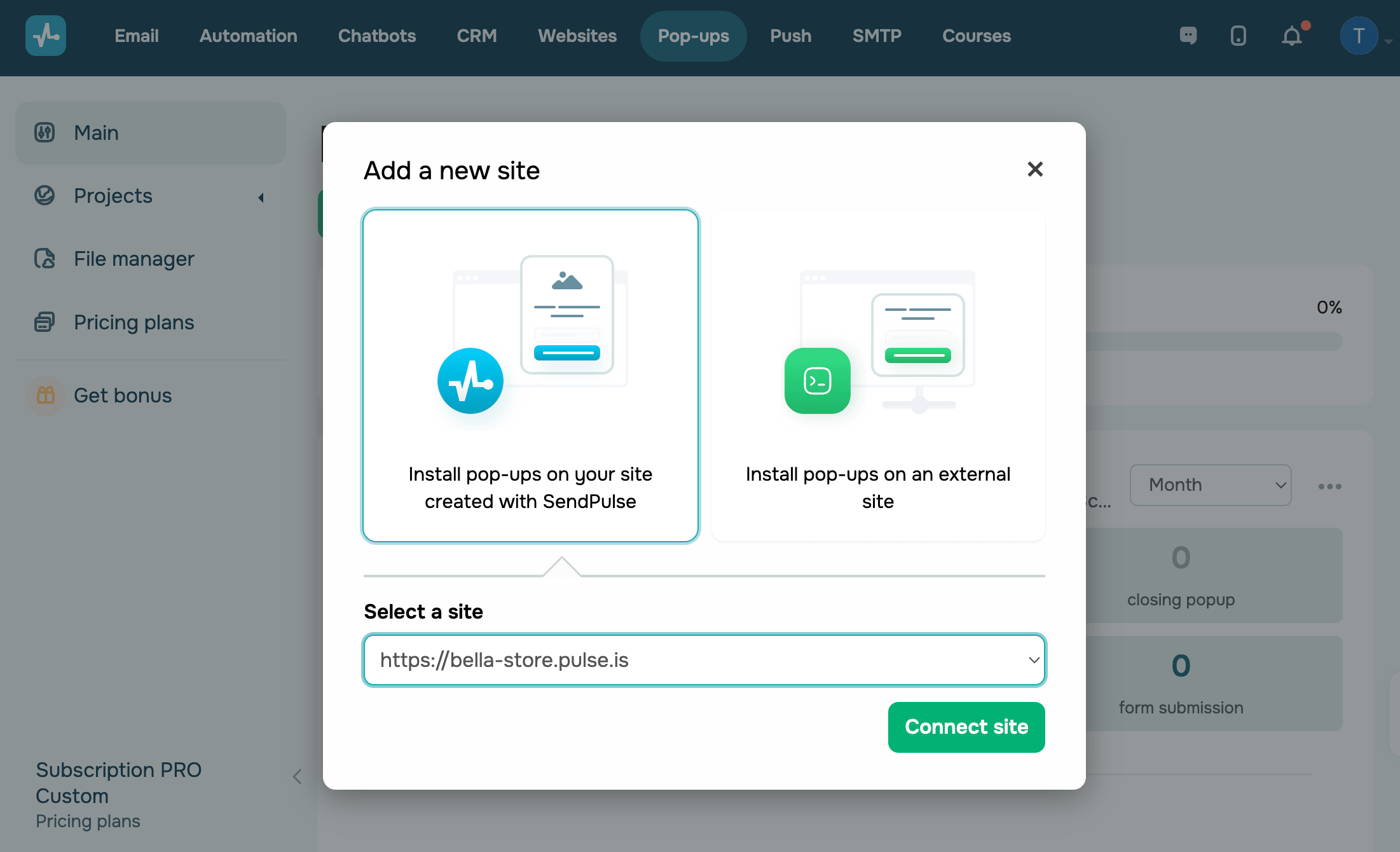
Click Connect site.
Your integration code will be automatically added to your site settings — you do not need to do anything else.
Adding a pop-up to an external site
Enter your website name and a link to a site where you want to add your widget.
We recommend adding a root domain. You can choose where you want to display or hide your pop-up in the display conditions settings.
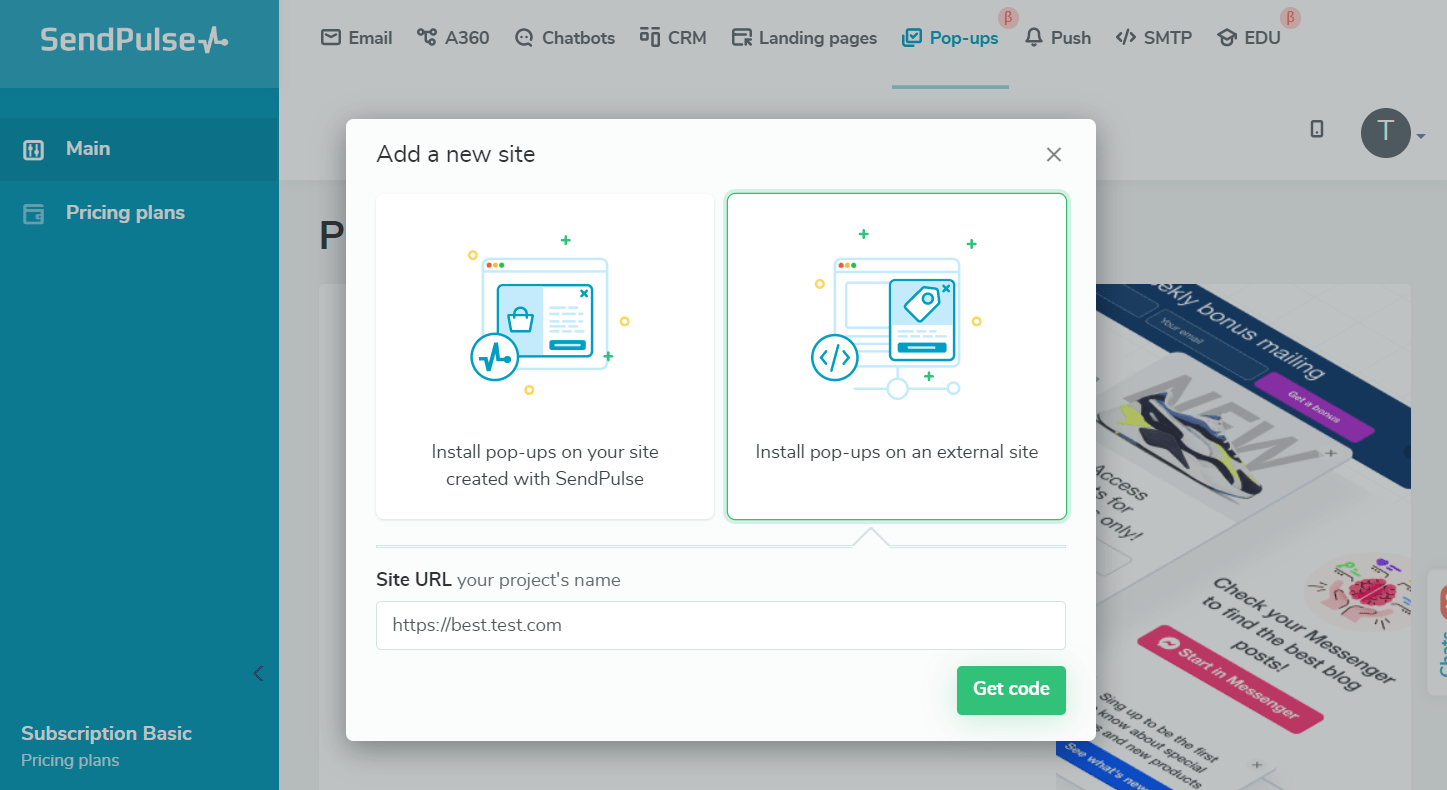
Click Get code.
If you want to add your pop-up immediately, copy your code and add it to your site before the closing < /head> tag. Then click Сheck the installation.
If you want to add the code later, click Skip verification. You can copy and add the code later.
Read also: How to add a pop-up and verify the installation and How to add a pop-up to your website.
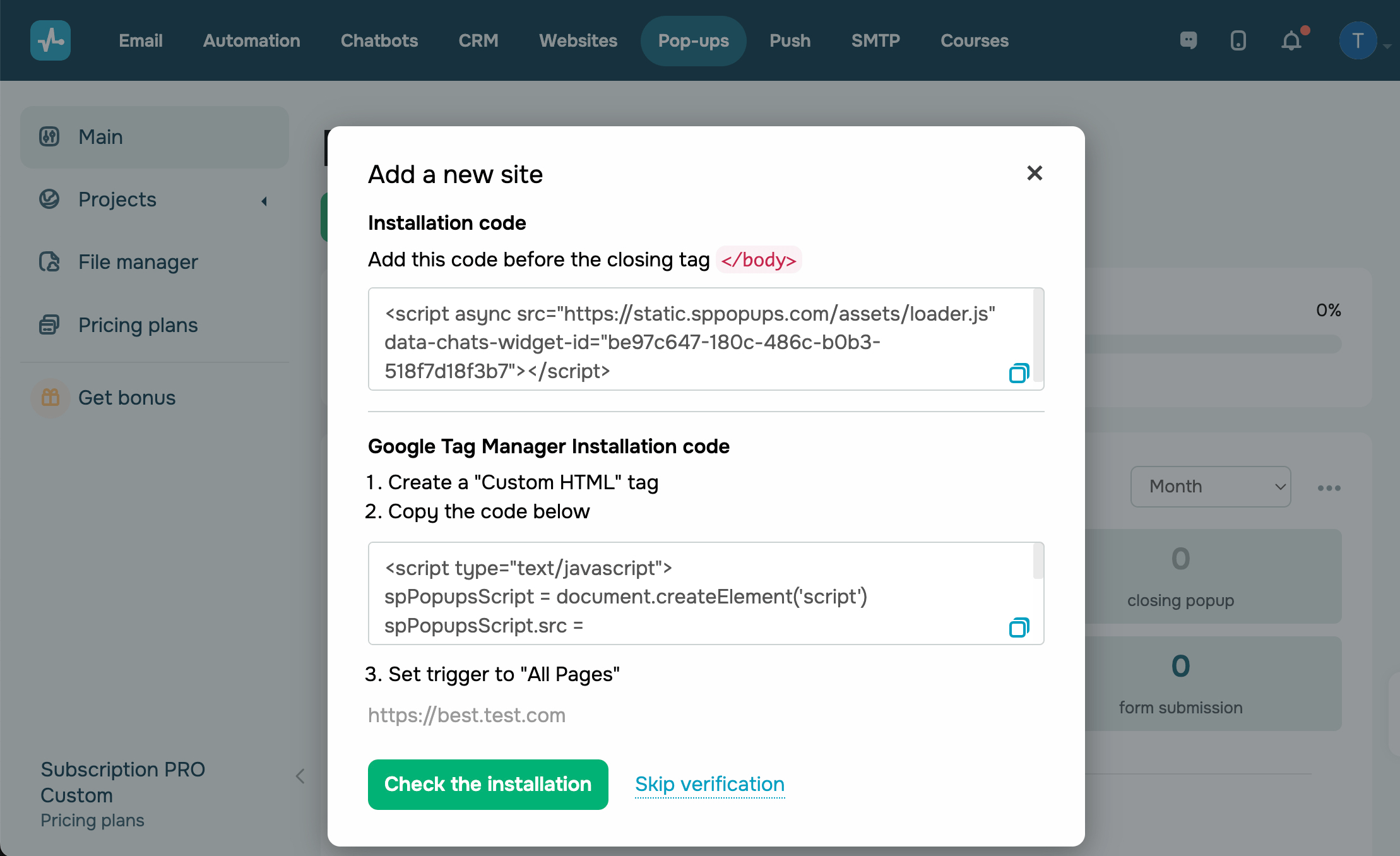
Once you add your website, you can proceed creating pop-ups and widgets.
Create a pop-up
You can use AI to generate a pop-up draft, including its layout, elements, settings, and starter copy, to save time and focus on customization.
Learn more: How to generate a pop-up using AI.
Create pop-ups that are displayed to users based on your selected scenario. Your users’ actions or behavior and data read during a site visit can be your display triggers. You can choose to display information during a certain time, collect visitor data, or redirect them to other pages.
You can display your pop-ups based on one of 30+ conditions or combine them with each other to make the most personalized offer to your target segment.
To create a pop-up that will be displayed based on your scenario, click Add pop-up.
Read also: How to create a smart pop-up and Smart pop-up launch scenario examples.
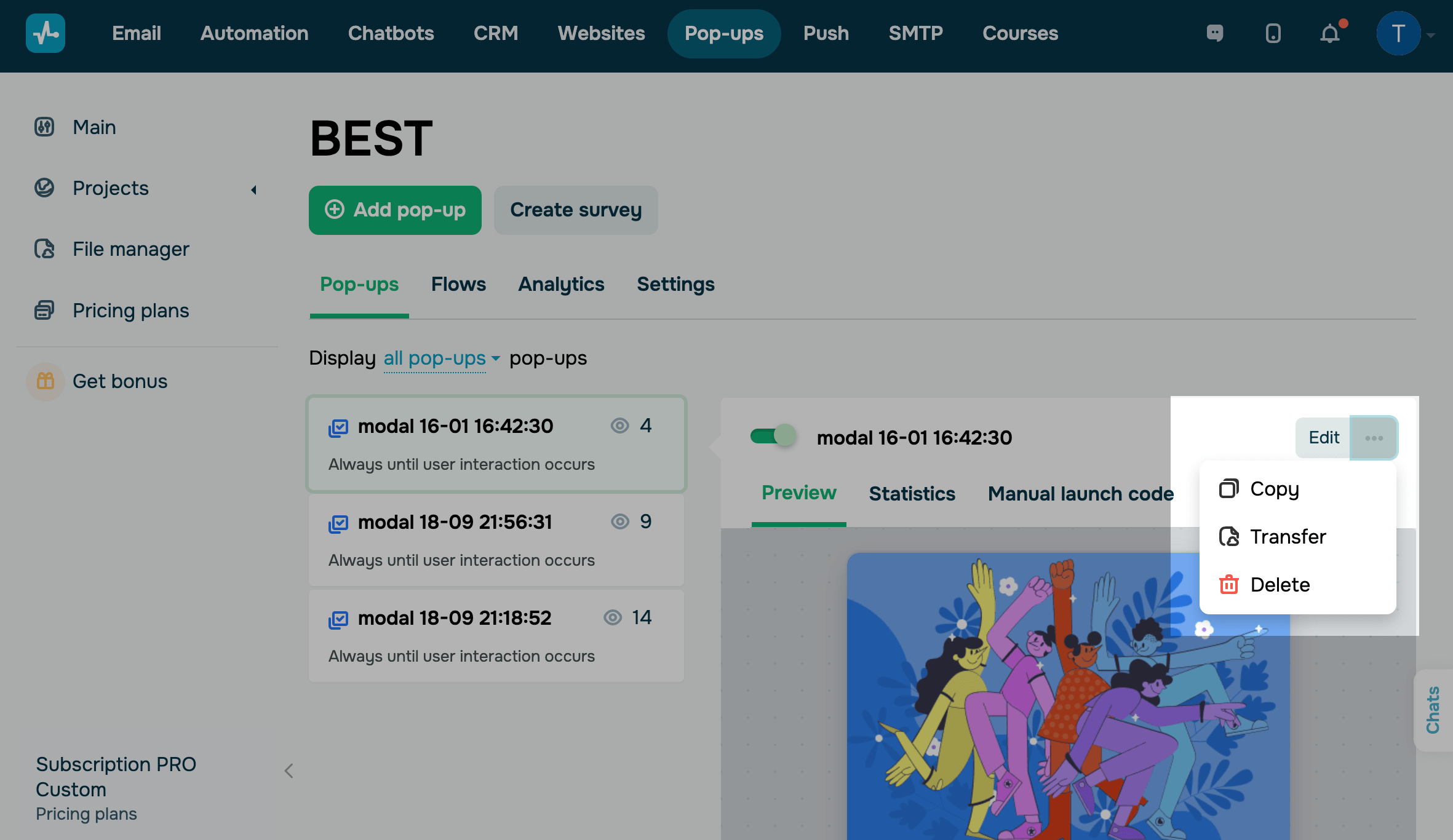
You can view all of your pop-ups in the Display scenarios tab. Select a pop-up to enable or disable it, edit its appearance or scenario, and see previews and statistics.
You can also copy a pop-up to create a similar one with a different offer or display scenario and test different hypotheses.
Set up integrations
Connect webhooks
To send contact activity information about tracked subscriber action events to an external URL, connect webhooks.
Go to the Settings > Integrations tab. In the Webhooks section, click Add webhook URL and select the events you want to track.
Read more: How to set up notifications about new leads using webhooks.
Connect Google Analytics
Connect Google Analytics to send data about your click-through and subscription rates via different communication channels on the site, set goals, and view additional information.
Go to the Settings > Integrations tab. In the Google Analytics section, click Connect and choose the events you want to track.
Read more: How to track your pop-up statistics in Google Analytics.
View pop-ups information
You can track statistics for your website and each pop-up separately to find out how many users saw your pop-up, interacted with it, and subscribed.
Go to the Analytics tab and select the period for which you want to view statistics.
Read more: How to view pop-up statistics.
You can also view the contacts who have subscribed using your widgets at the bottom of the graph.
To view statistics for a separate pop-up, go to the Display scenarios tab. Select a pop-up, go to the Statistics tab, and choose the period for which you want to view statistics.
 Last Updated: 06.05.2025





or