Configure data saving
Data saving allows you to transfer information from a pop-up to other SendPulse services or send the data to a manager. For example, you can save subscriber data to a mailing list for future campaigns, create a deal in the CRM based on a submission, or receive notifications about new subscribers.
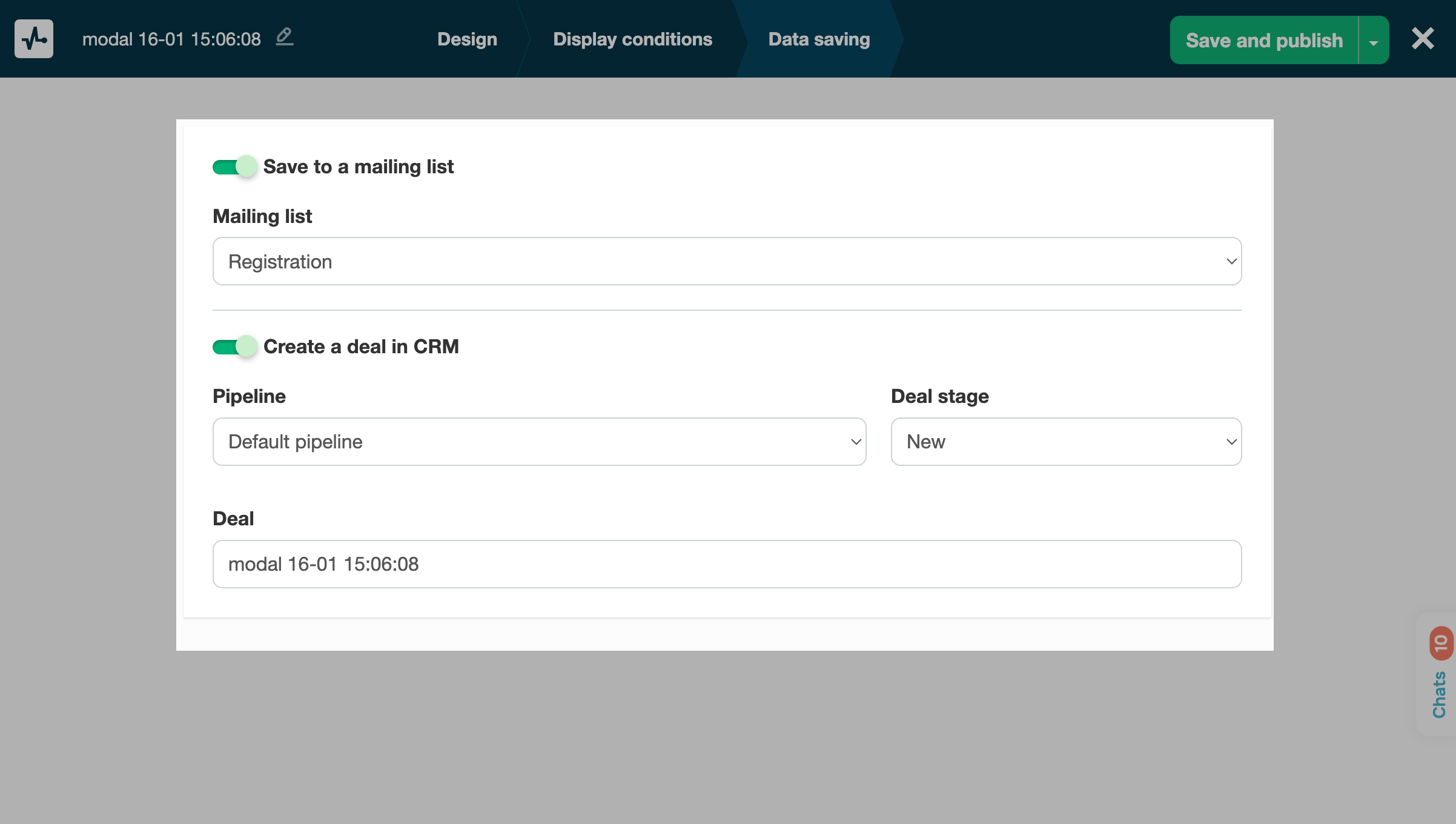
When editing or creating a pop-up, go to the Data saving tab in the builder. Turn on a toggle*, and select an option.
| Save to a mailing list |
Saves data to your selected mailing list in the Email section. A variable name will be retrieved from a placeholder or element, and a value will be retrieved from a filled field or a pop-up element a user selected. Select a mailing list where you want to save contacts. |
| Create a deal in CRM |
Saves data as a deal and contact to your CRM system. You can select a pipeline, enter a deal name, and select a deal stage. When contact data points are saved to your CRM system, new contact fields will be created. |
| Assign tag to contact |
Assigns a tag to contacts added to the CRM system through a pop-up. Select a tag in the CRM system or add a new one through the input field. |
| Send an email notification about new subscribers |
Sends email notifications about each new subscriber. Enter an email address to which you want to send notifications. |
| Send Telegram notifications about new contacts | Sends a Telegram message for each new subscriber. To receive notifications, set them up in the settings and subscribe to @sendpulse_notifications_bot. |
*You can only save values from pop-ups that collect user data. If you do not have the Entry field, Dropdown, Radio buttons, Checkbox, Multiselect, NPS, and Courses elements, then the toggles will be inactive.
 Last Updated: 26.06.2025





or