Add TikTok Pixel to your website
TikTok Pixel is an analytics tool that tracks visitor actions on your website once they view or interact with your TikTok ads. It helps you learn more about your audience and optimize your ad campaigns.
In this article, we will talk about how to create a TikTok Pixel and add it to your website.
Create a TikTok Pixel
Log in to your TikTok Ads Manager account and go to Tools. Select Events Manager and sign in to access the settings.
Click Connect data source > Web.
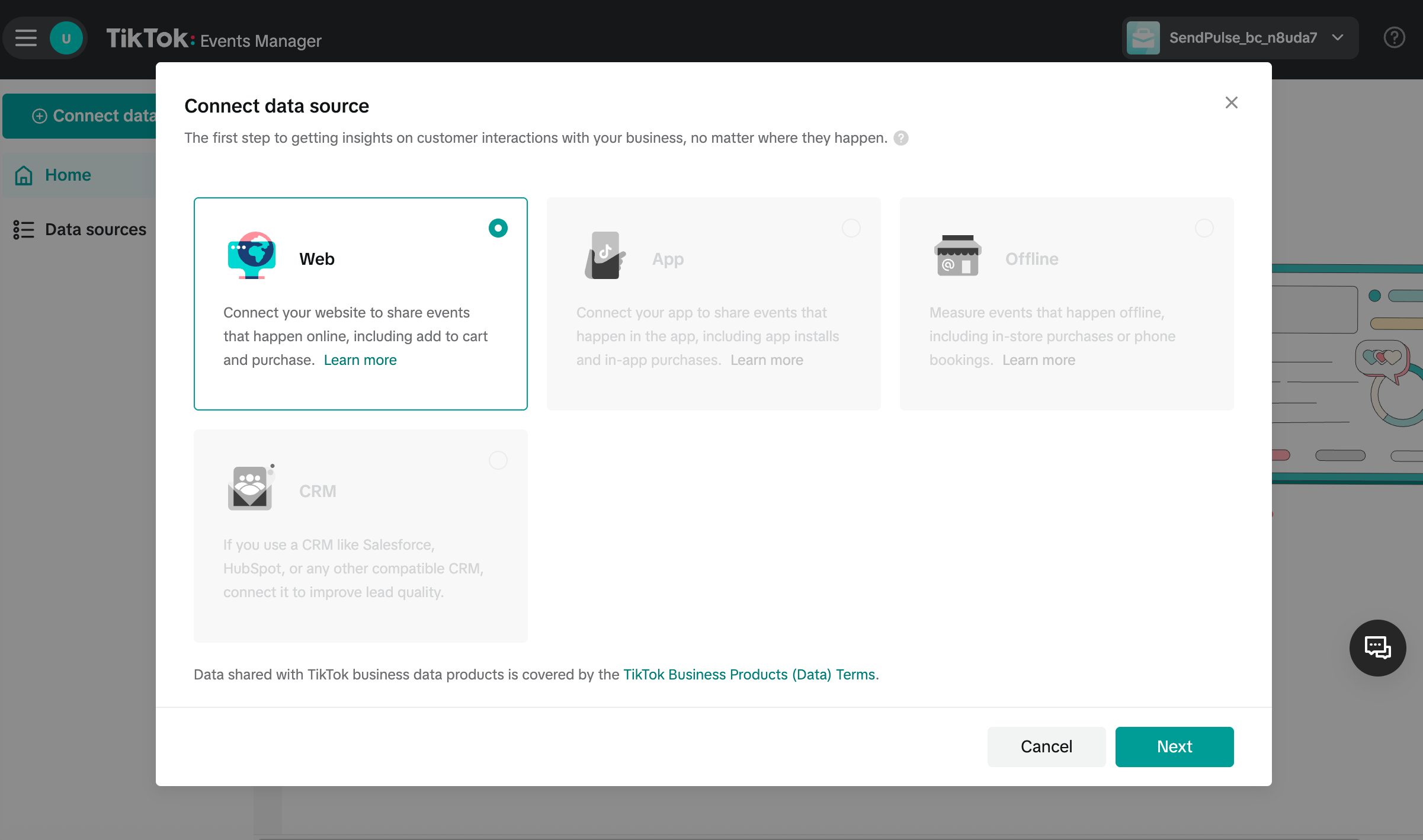
In the field, paste your website link. In the modal window, select Manual setup as your connection method.
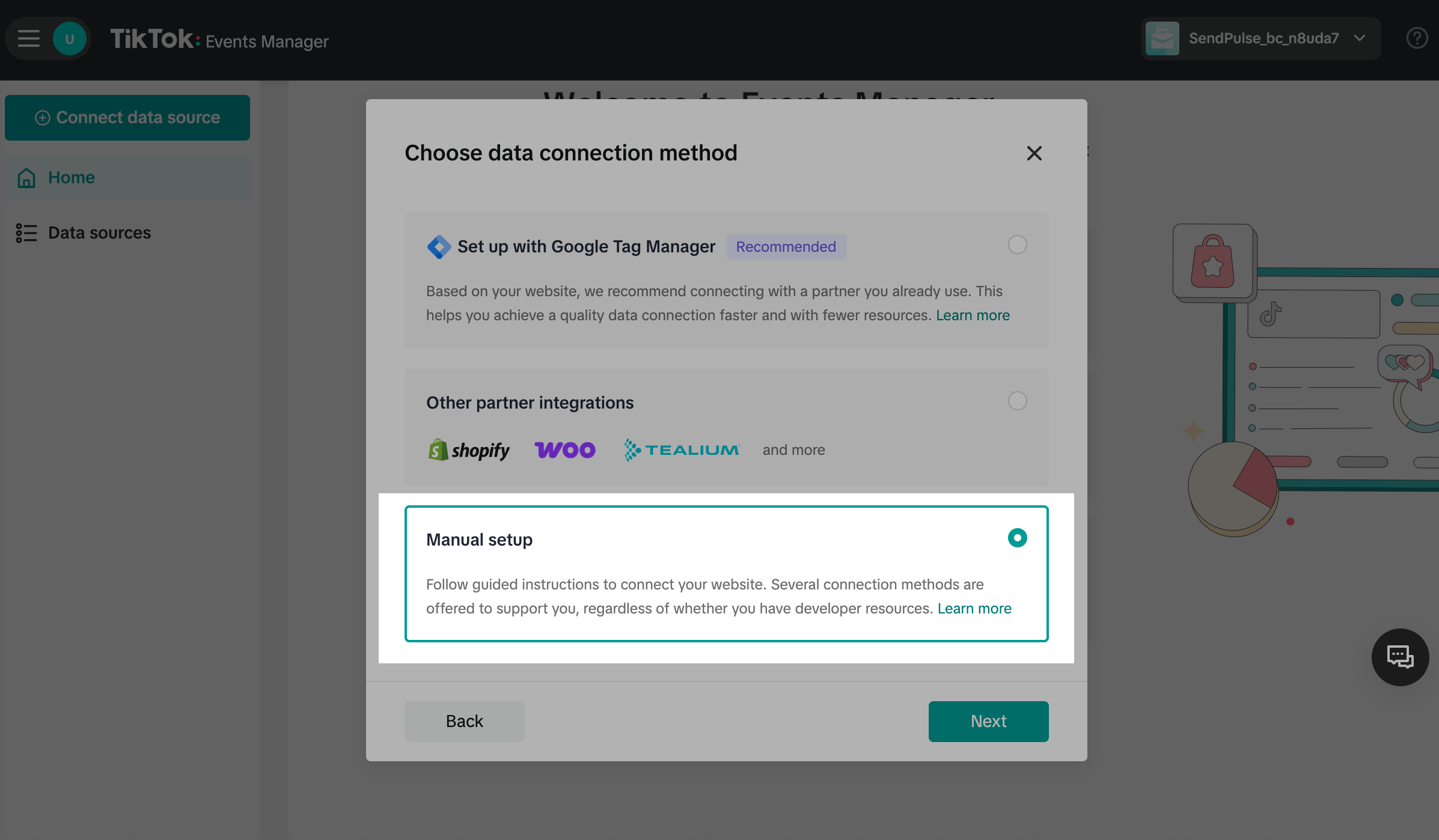
Select TikTok Pixel.
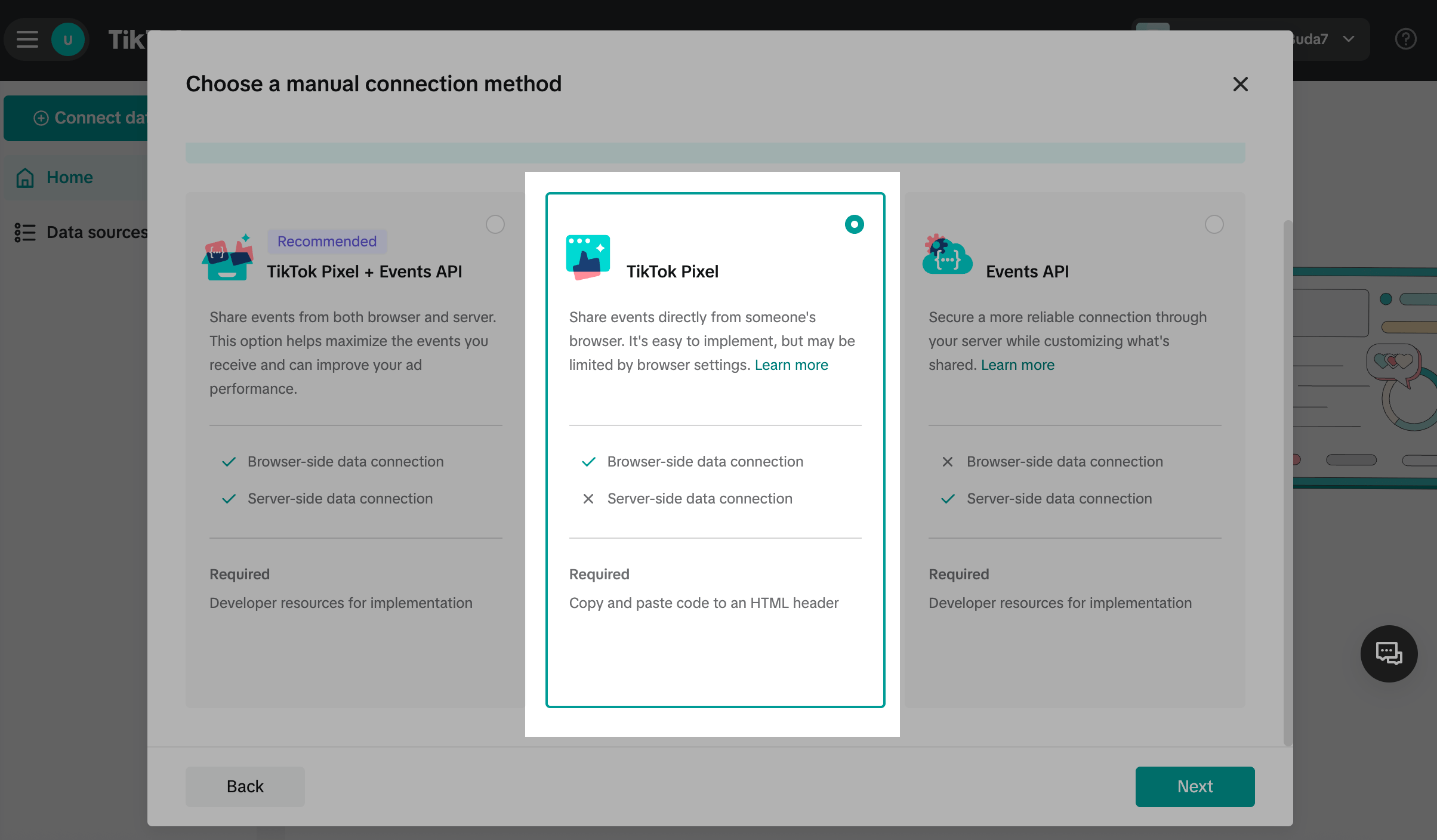
In Pixel name, enter a name of up to 128 characters. Click Create.
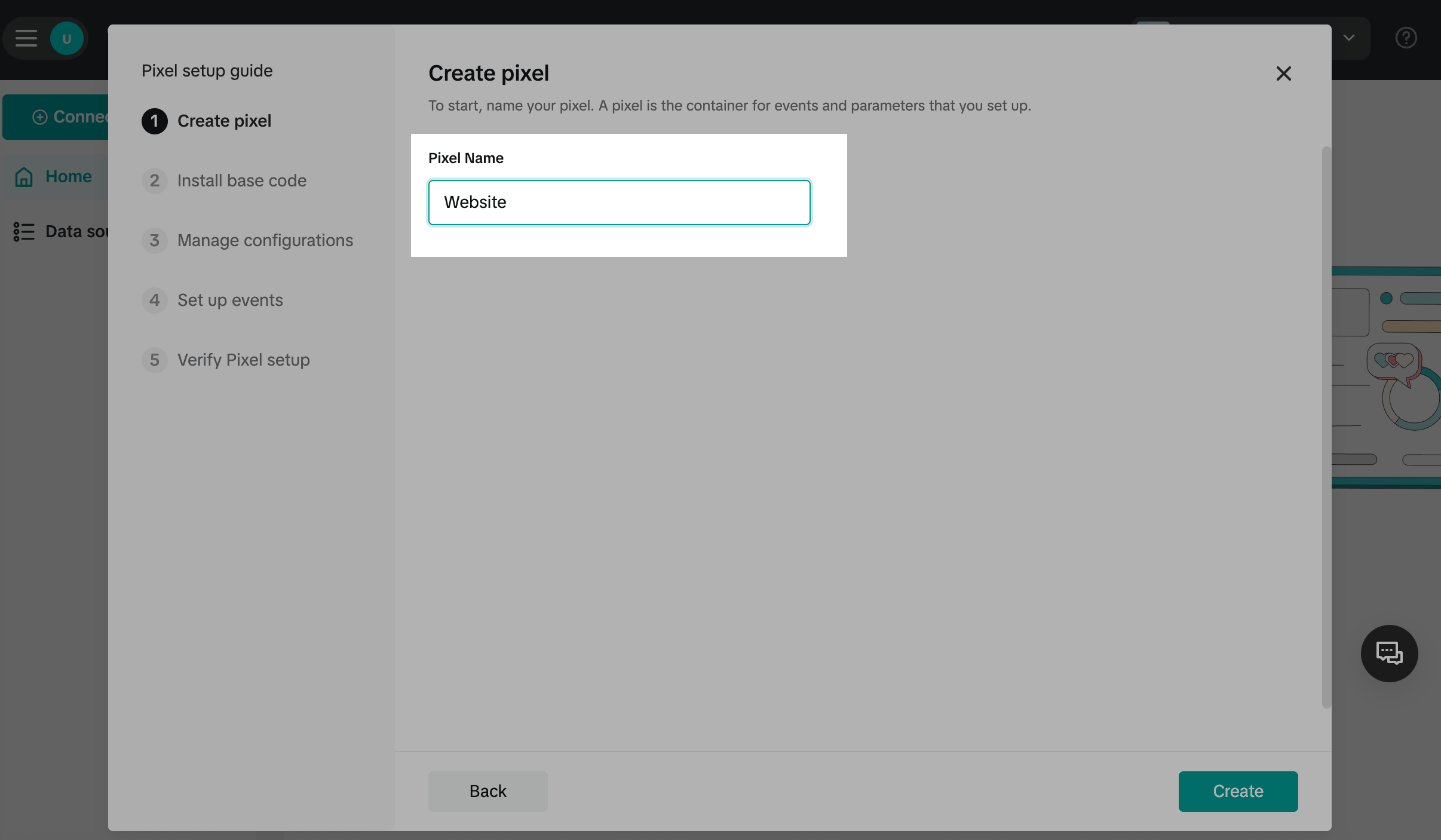
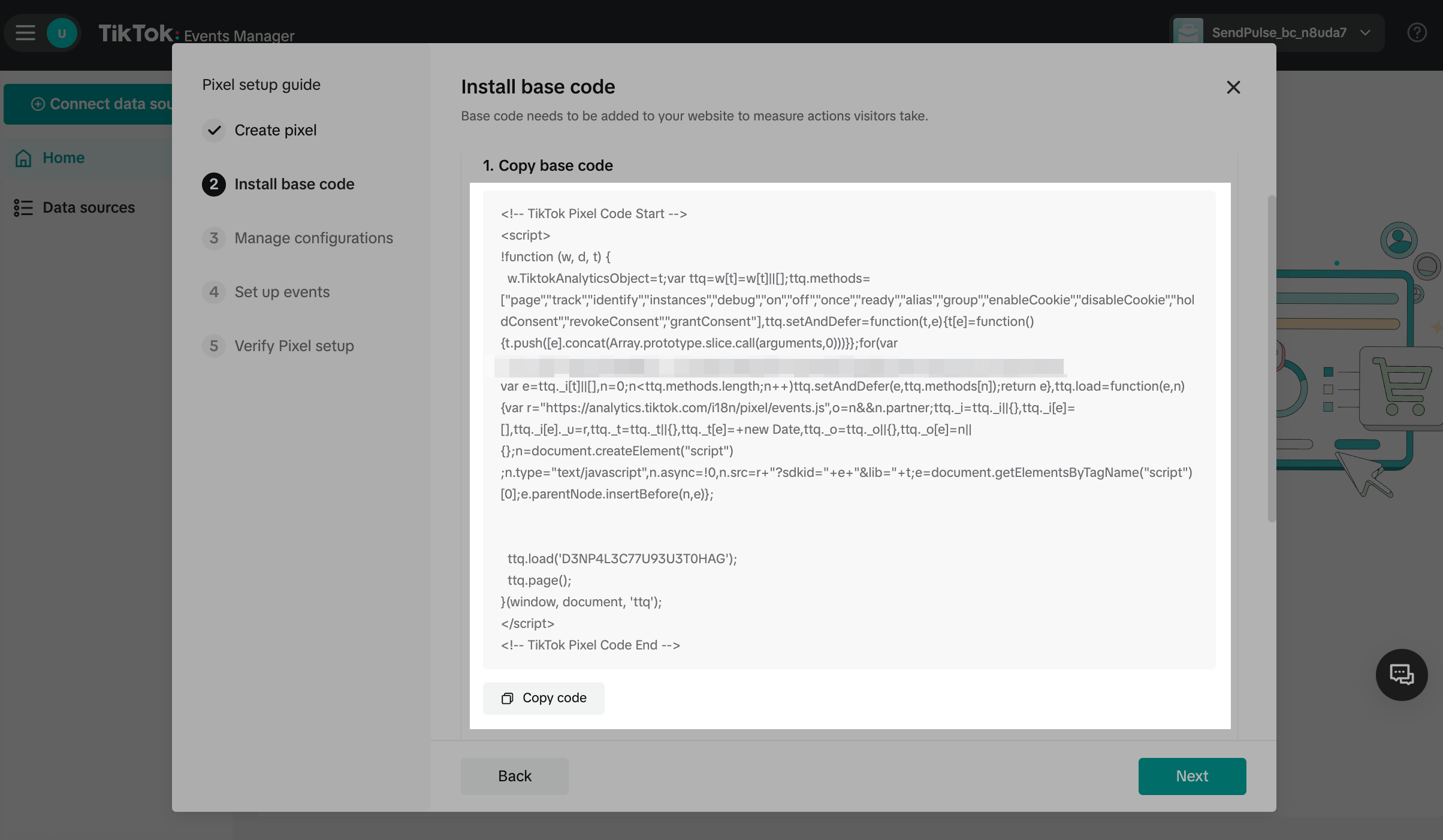
Copy your pixel code
Click Copy code to save the code to your clipboard.
Add the pixel code to your website
In your SendPulse account, go to the Websites section, select your website, and click Site settings.
Go to Custom code and click Add code to site.
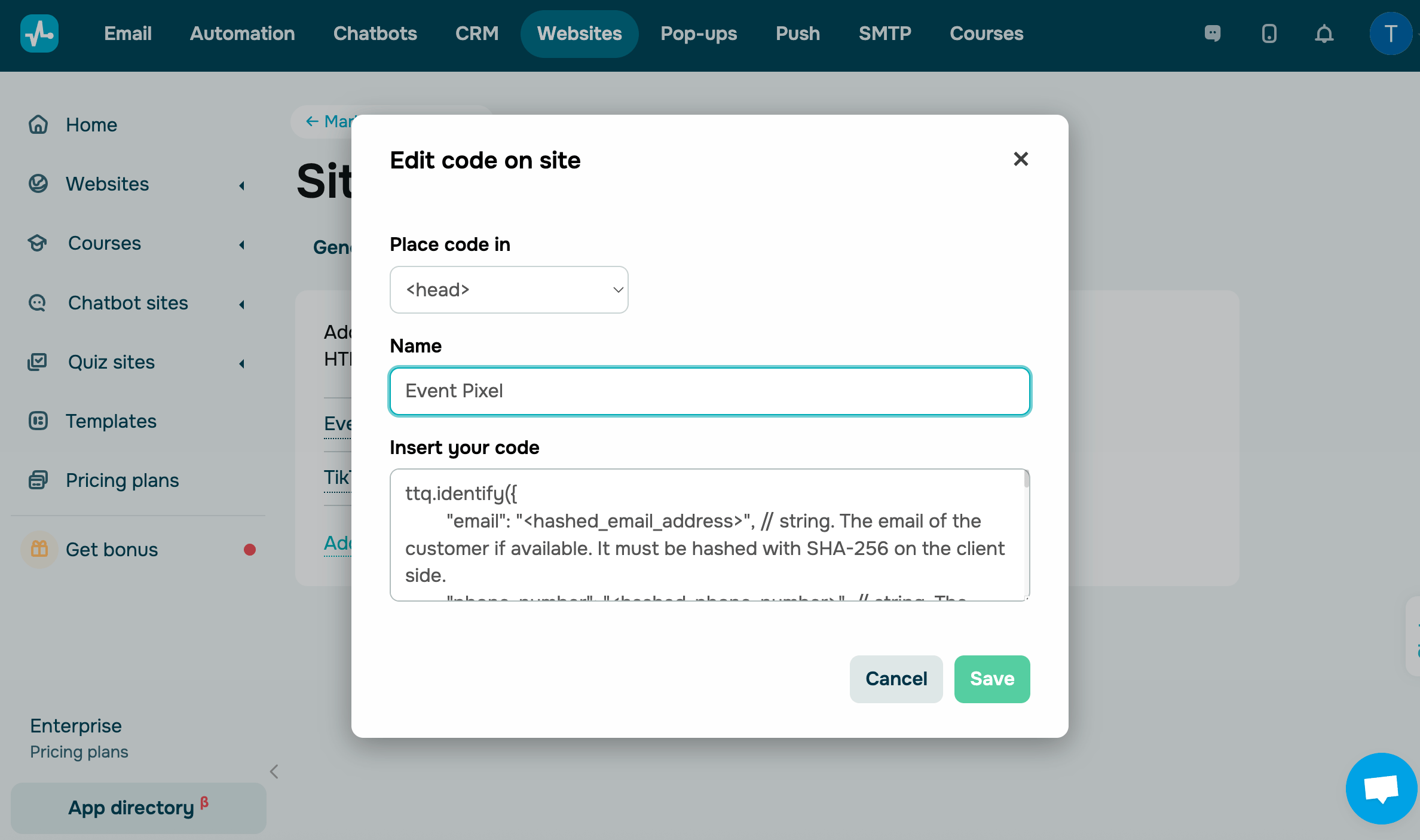
In the Place code in field, select <head>. Enter a code name in the Name field and paste the code in the Insert your code field.
Your code must start and end with the <script> and </script> tags, respectively. Example:
<script>
!function (w, d, t) { ... }();
</script>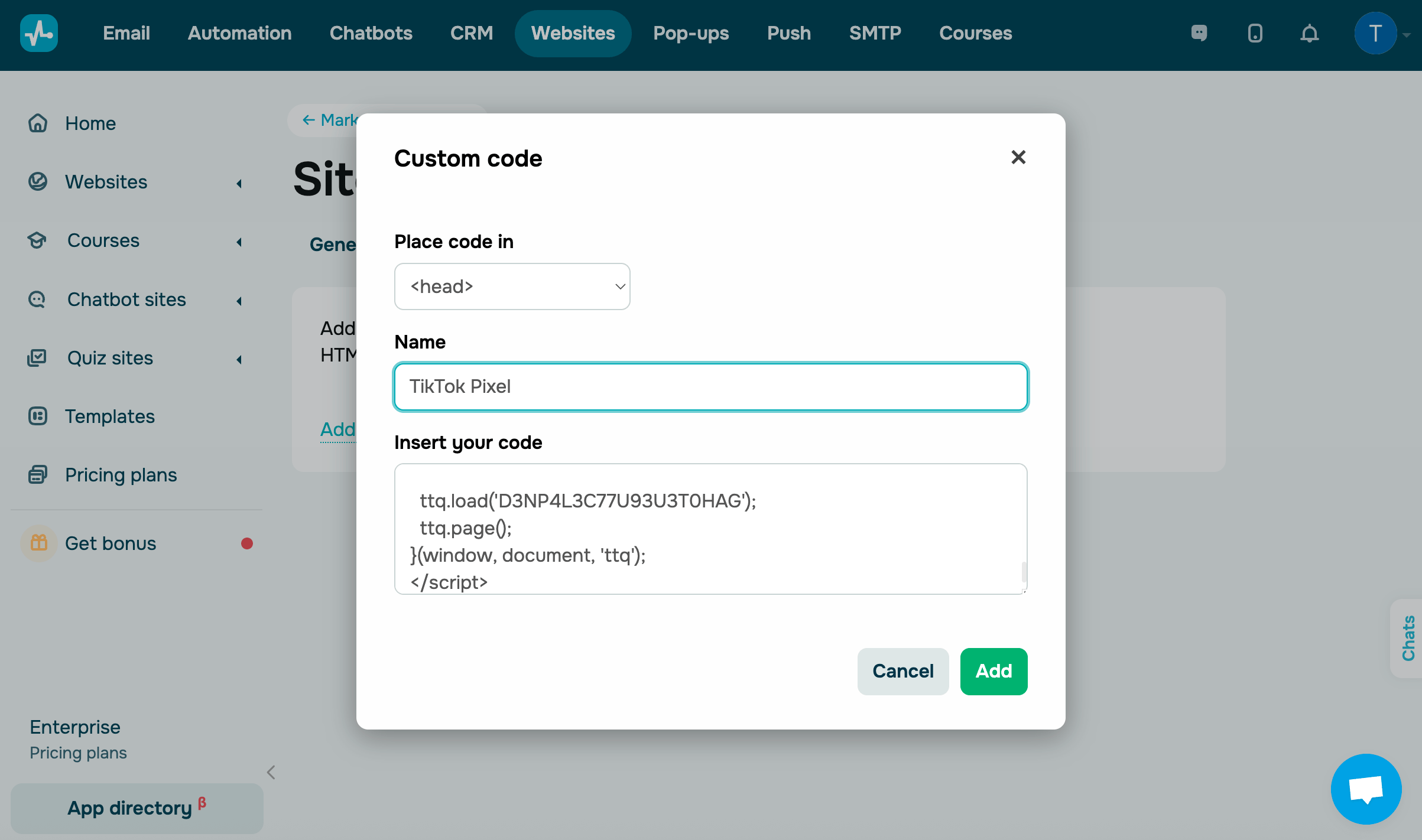
Copy the event code
Return to your TikTok Pixel settings.
In Manage configurations, you can choose recommended options to track events, grow your audience, and improve analytics. Enable relevant configurations and click Next.
Learn more in TikTok’s documentation: About the TikTok Event Builder.
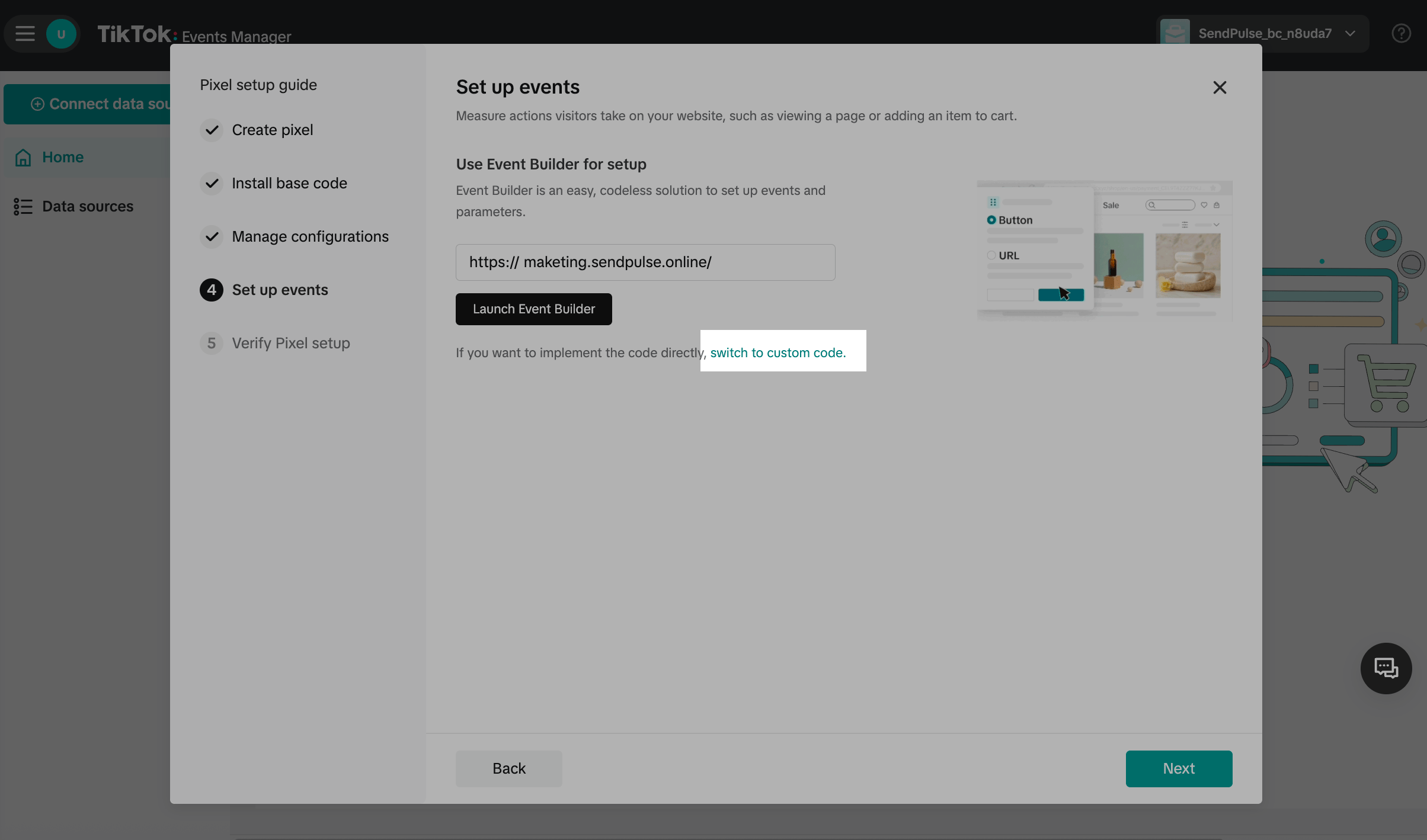
In Set up events, switch to custom code.
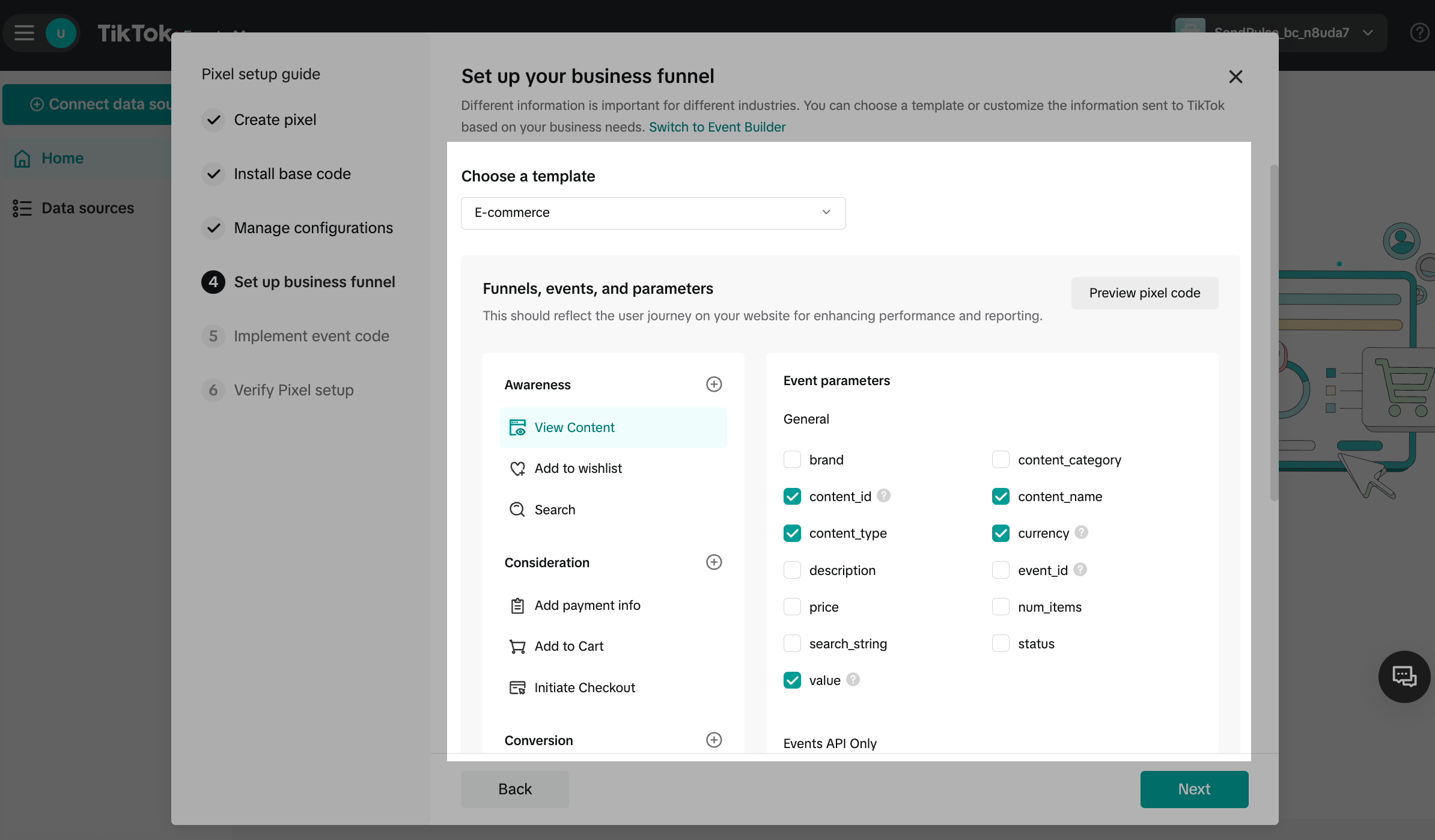
In Set up your business funnel, select an event template that matches your business goals.
Add the event code to your SendPulse-powered website
Go to SendPulse > Website settings > Custom code and click Add code to site.
In the Place code in field, select <head>. Enter a code name in the Name field and paste the code in the Insert your code field.
Your code must start and end with the <script> and </script> tags, respectively.
Check your pixel settings
Once you’ve installed the pixel, make sure it tracks events on your website correctly. TikTok offers several ways to verify that your pixel is working properly:
| TikTok Ads Manager |
Use this method to check events in real time in TikTok Ads Manager. Paste your website link and click Open website. Take the actions you want to track on your website. The events should appear in Test Events with full information. |
| TikTok Pixel Helper Plugin |
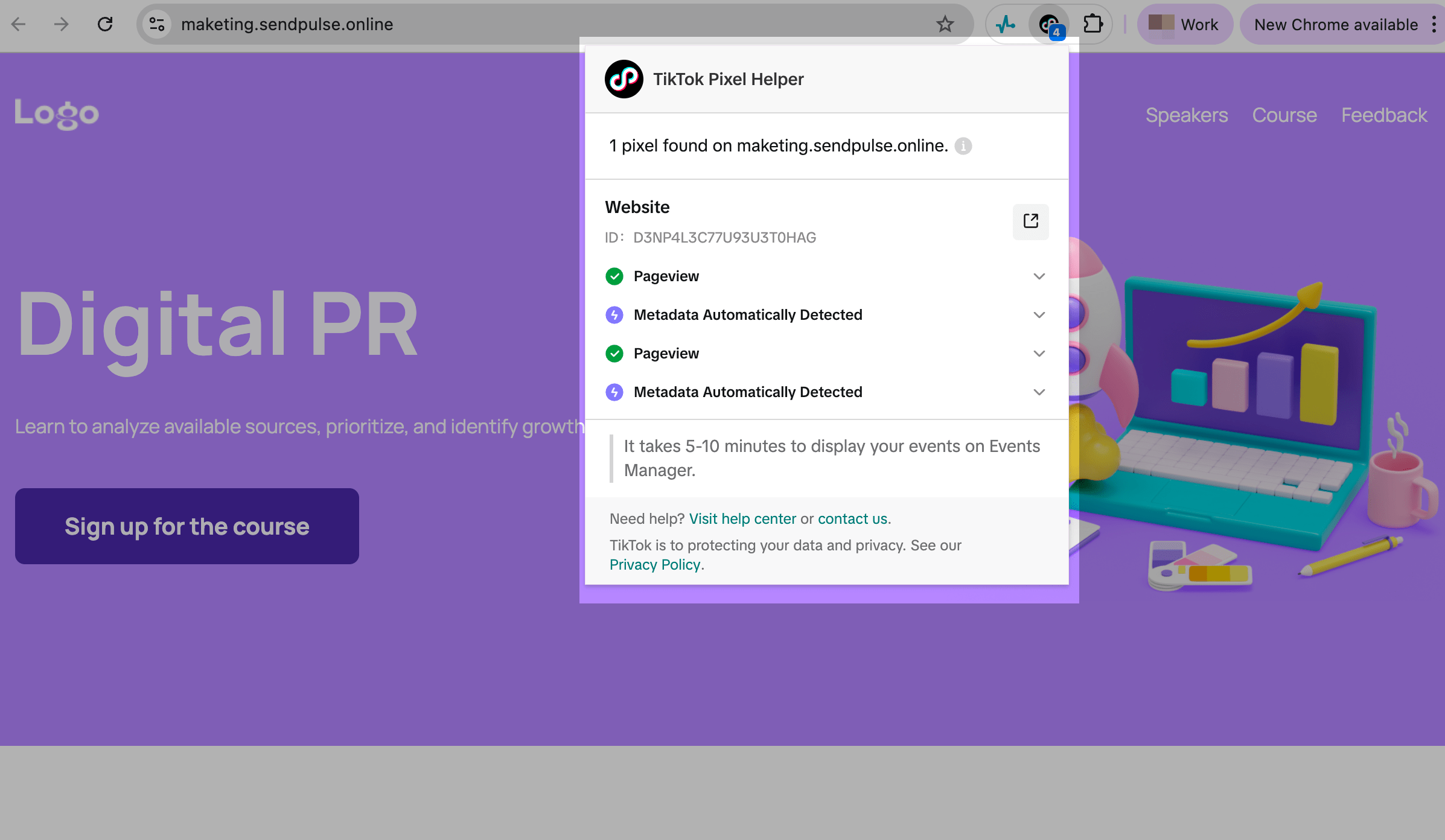
Use the official TikTok Pixel Helper extension for Chrome to check if your pixel is installed properly. Install the TikTok Pixel Helper extension. Open your website page and click the extension icon. If the pixel has been installed successfully, you’ll see its name and ID, as shown in the image below. |
TikTok Pixel does not start collecting data immediately — it may take a few hours after activation.
 Last Updated: 20.10.2025





or