Set lesson access
In a lesson builder click on the top left panel to expand the list of lessons, and select Lesson Settings from the drop-down menu of the desired lesson.
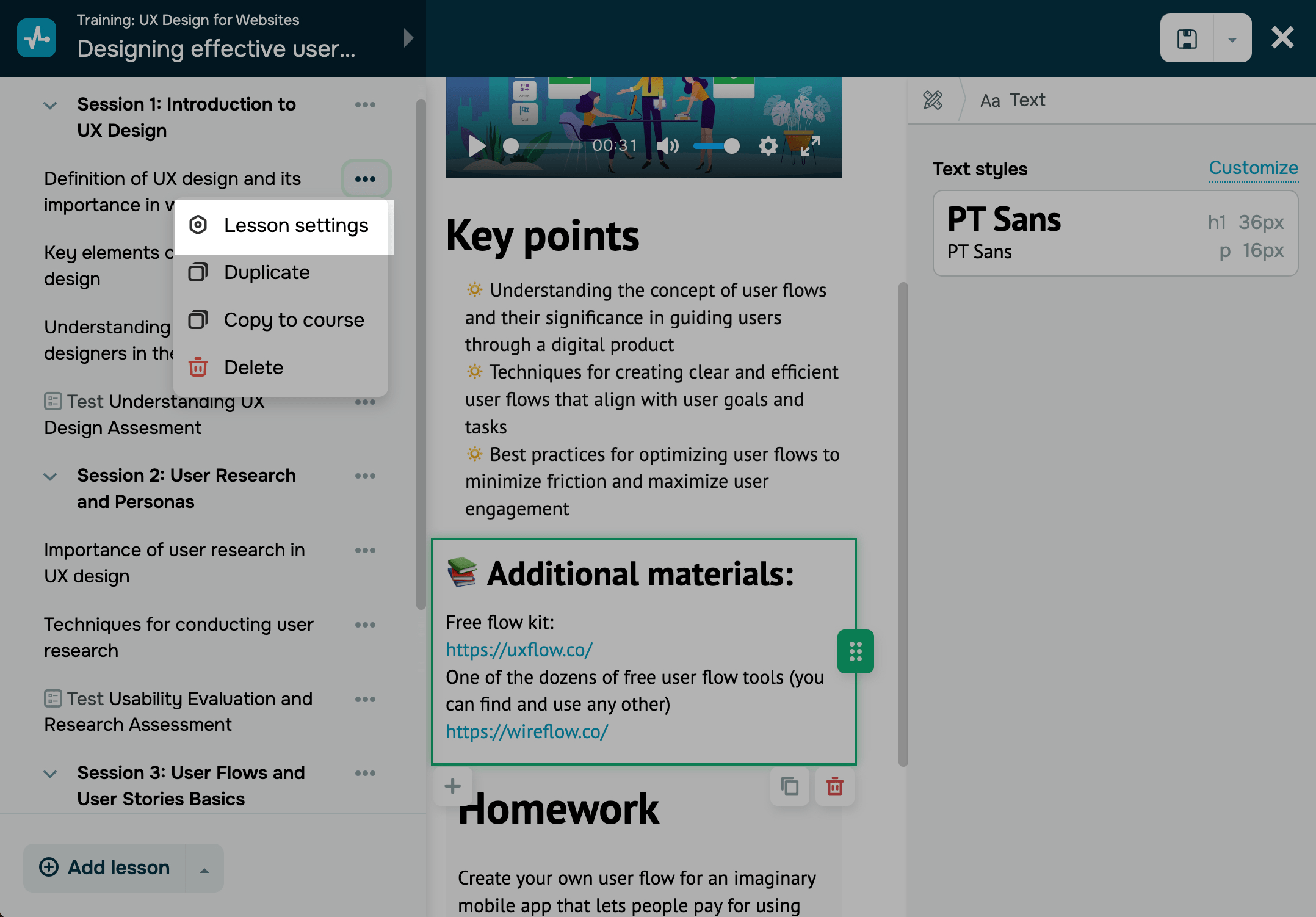
Lesson access option
If you add a new lesson to a running course, its access will be automatically set to Closed. To make your lesson available, go to its settings.
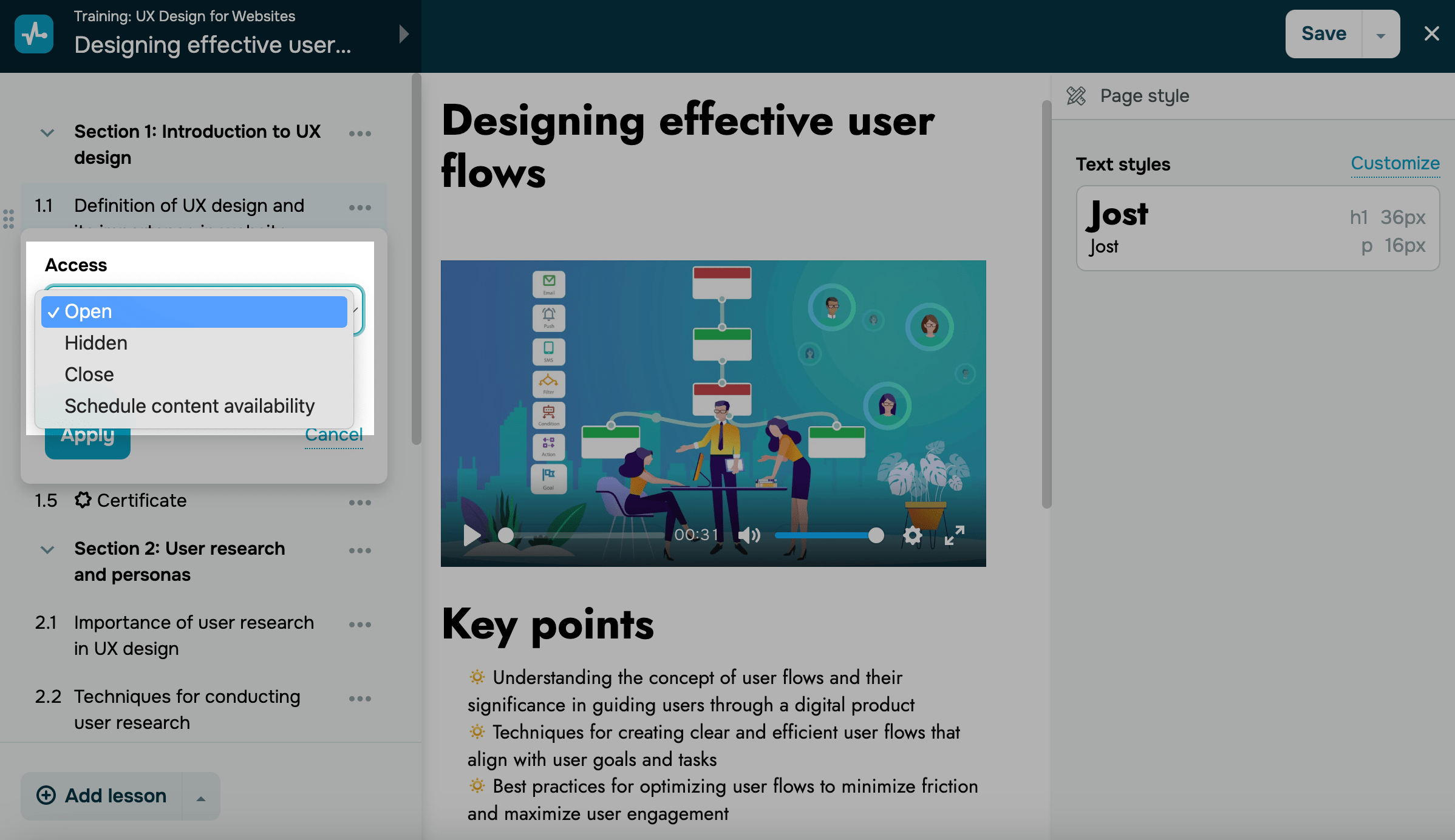
In the Access field, select your lesson’s access type:
| Open | The lesson is available to students. With a non-sequential lesson flow, they will be able to view it immediately, and with a sequential one, they will be able to view it only after completing the previous lesson. |
| Hidden | The lesson will not be available to students, but instructors will be able to view and edit it in the course builder. The lesson will not appear in your course program nor impact students' course completion. |
| Close | The lesson will not be available to students. It will appear with the Close status in your course program, unlike lessons with the Hidden status. |
| Schedule content availability | The lesson will be available on a scheduled date and time. |
You can select from the following scheduling options:
| On a date | The lesson will be available on a selected date and time.
Select a date, time, and timezone. If you select a past date, your lesson or test will be marked as Open. |
| In | The lesson will be available after the previous lesson launch.
Enter the number of days for which the system should wait after the previous lesson launch to make your next lesson available. This option is available only if you have scheduled your previous lesson. You can also set an availability date for all lessons or tests in a section or an entire course. To do this, enable the Set the availability for option and select an availability scenario. |
Scheduled lesson opening will appear in the Calendar tab of instructor and student accounts with paid pricing plans.
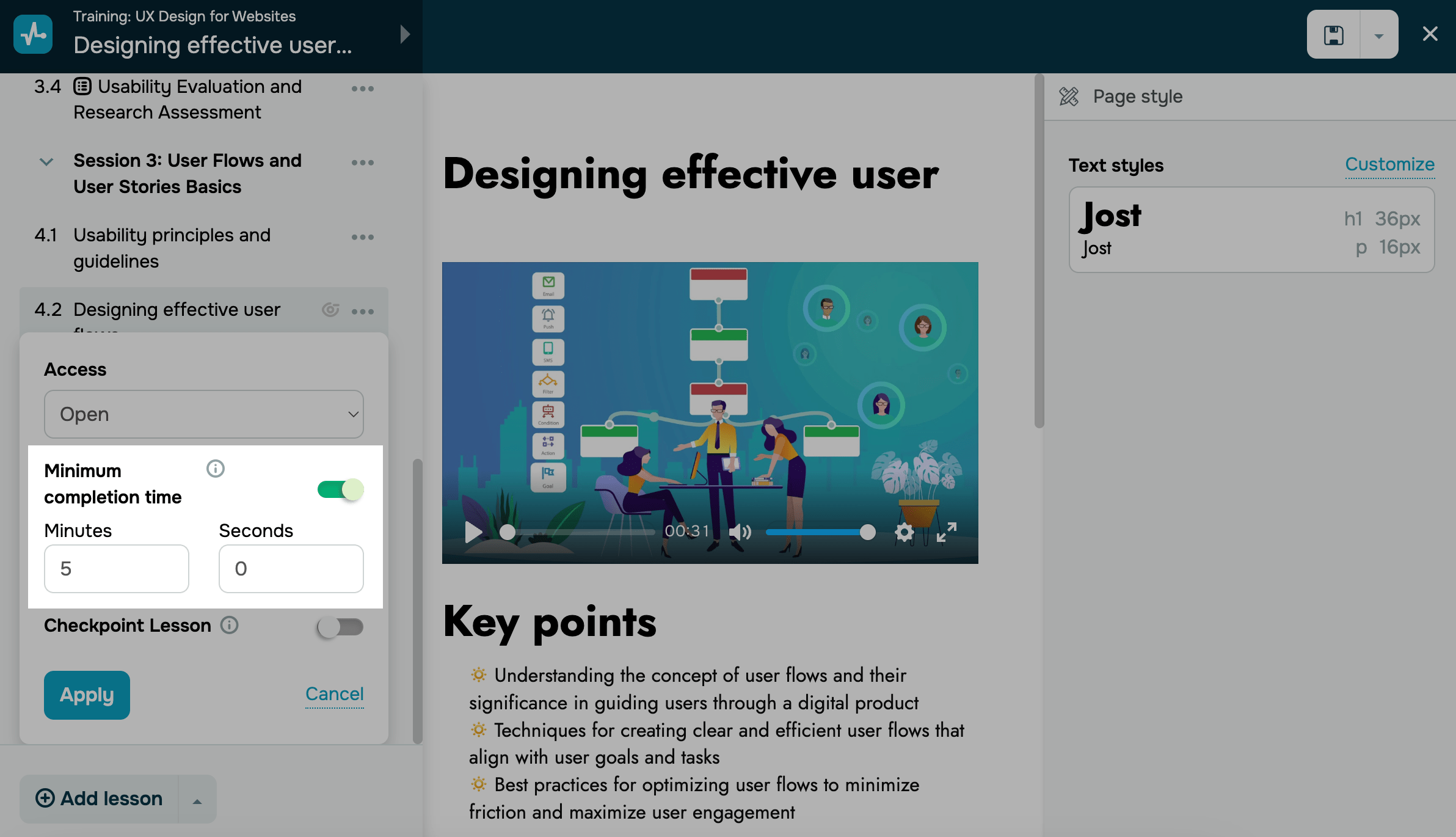
Minimum completion time
To make sure students actually spend time on your lesson instead of skimming, turn on the Minimum completion time toggle.
Type in a number of minutes and seconds in the fields. During this time, students will not be able to mark their lesson as completed or submit their assignments.
In student accounts, a completion time will appear as a countdown. If a student leaves their lesson before the end of this time, the countdown will reset. When a student returns, the countdown will restart.
When uploading a video from YouTube, the student can also save the video to their Watch Later folder, share the video, and view recommendations.
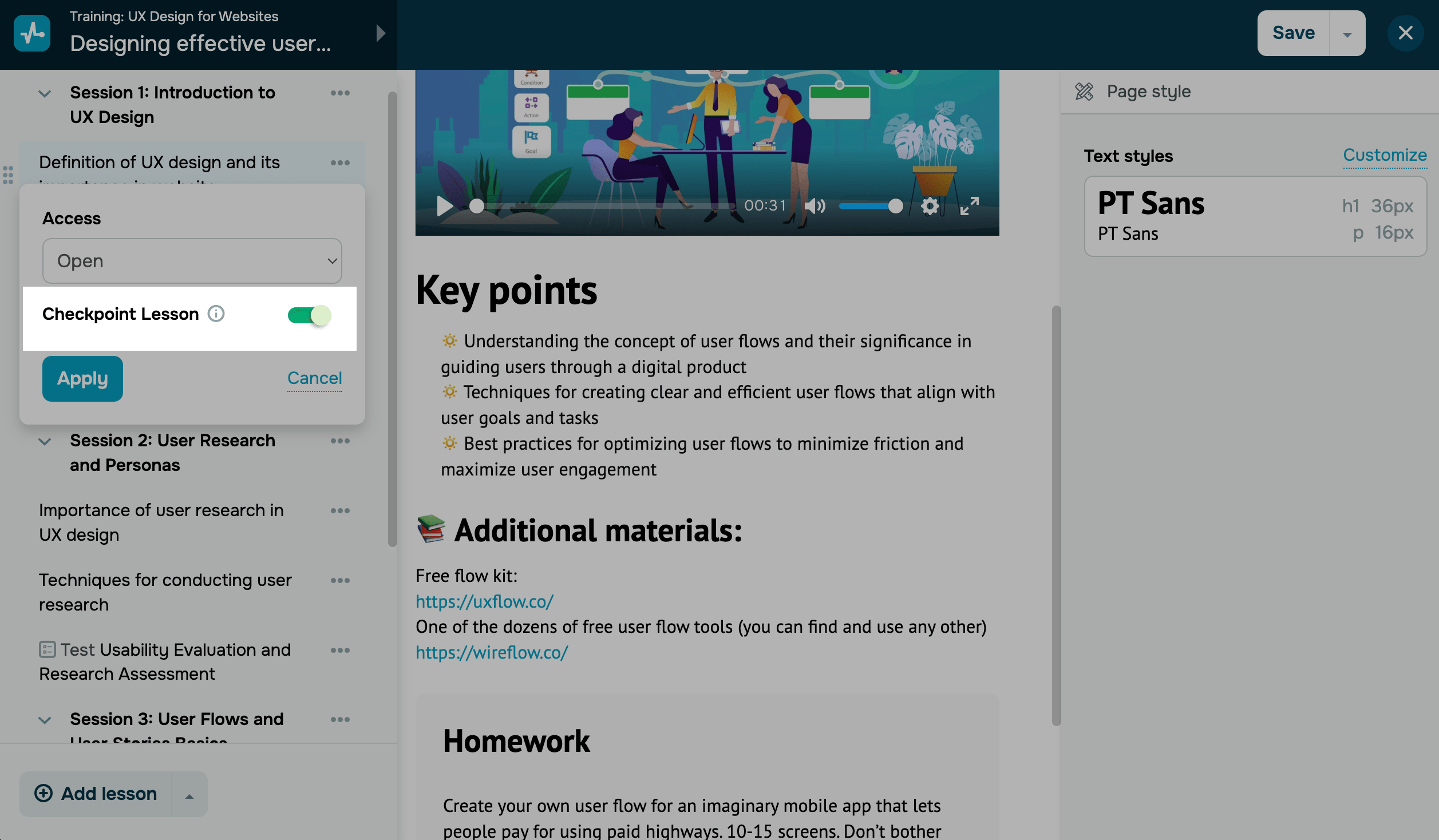
Checkpoint lesson
To ensure that students cannot proceed until they mark a lesson as completed or submit a homework assignment, you can turn on the Checkpoint Lesson toggle.
Once you configure the required settings, click Apply.
 Last Updated: 16.12.2025





or